Expand link chart content
To learn more about an entity, such as a retail store, use either the Expand tool  or the Filtered Expand tool
  to add its relationships and related entities—including employees, warehouses, suppliers, and transportation vehicles—to the link chart from its associated knowledge graph.
When you use either tool to add content to a link chart, the operation runs from the entities currently selected in the link chart. It expands the contents of a link chart by performing queries on the knowledge graph to get the relationships that are immediately connected to the selected entities. The retrieved relationships and their related entities are added to the link chart if they are not already present. The result is that all selected entities are expanded by one degree (or hop) to show their nearest neighbor entities and the relationships connecting them.
Expand an entity using all relationships
When you use the Expand tool to add content to a link chart, the operation runs from all selected entities. All relationships of all types for all selected entities are evaluated. The relationships and the related entities are added to the link chart whether the selected entities occupy the origin or the destination of the relationship.
To expand an entity using all relationships, complete the following steps:
Select the entities and relationships to expand in the link chart.
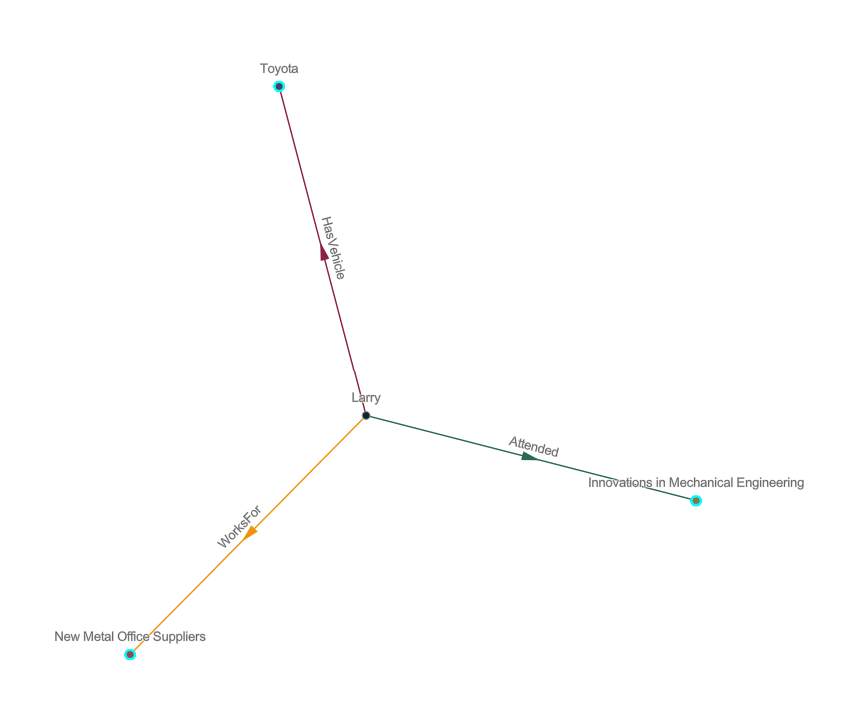
Click Analysis Tools on the context toolbar.
Click Expand
in the drop-down menu.The originally selected graph items are deselected. The relationships and related entities identified by the expand operation are added to the link chart and selected. This allows you to click Expand again to expand one more degree from the newly added entities.
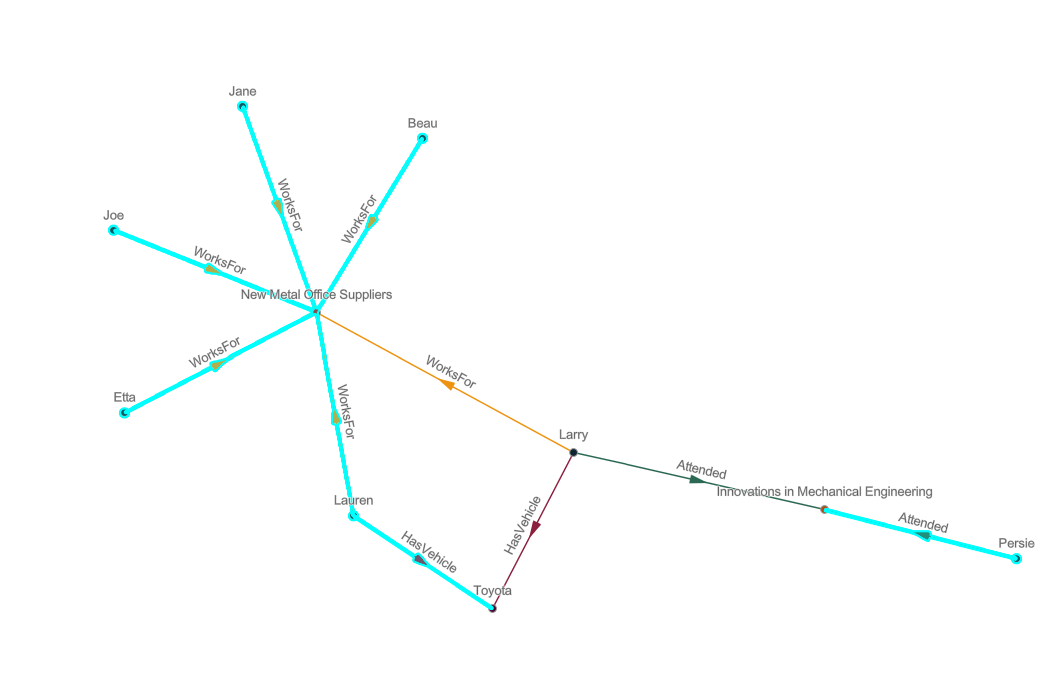
Optionally, clear the selection and zoom in to explore the added relationships.
Expand an entity using specific relationships
The Filtered Expand tool works in the same way as the Expand tool, except it allows you to selectively expand relationship types. When you use this tool, the Filtered Expand window appears, listing all relationship types that can be added for the selected entities. You can choose the specific relationship types you want to add to the link chart. For example, if a store is selected in the link chart, you can examine only the HasSupplier relationships and add supplier entities to the link chart.
To expand an entity using specific relationships, complete the following steps:
Select the entities and relationships you want to expand in the link chart.
Graph items are selected on the link chart.
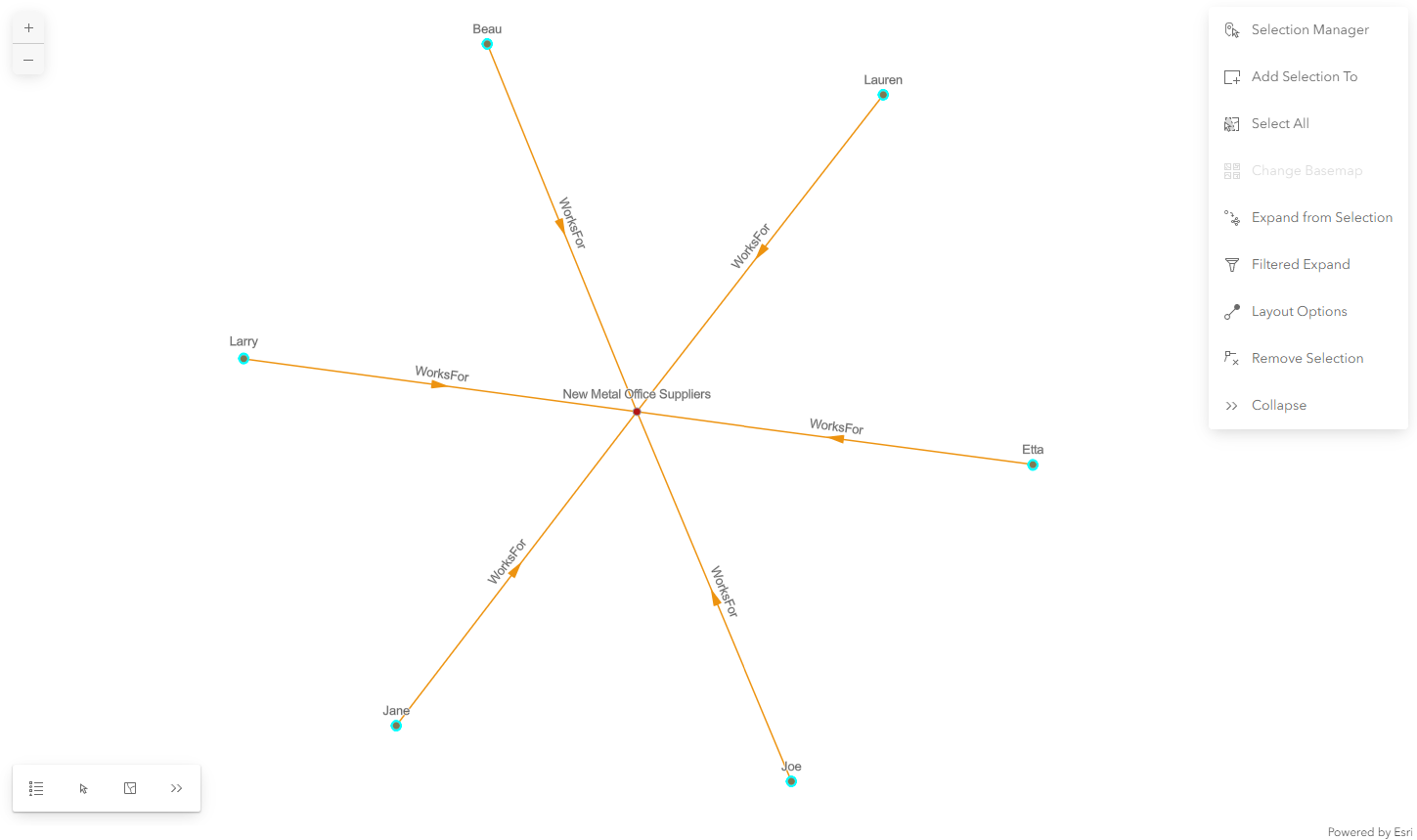
Click Analysis Tools on the context toolbar.
Click Filtered Expand
in the drop-down menu.The Filtered Expand pane appears.
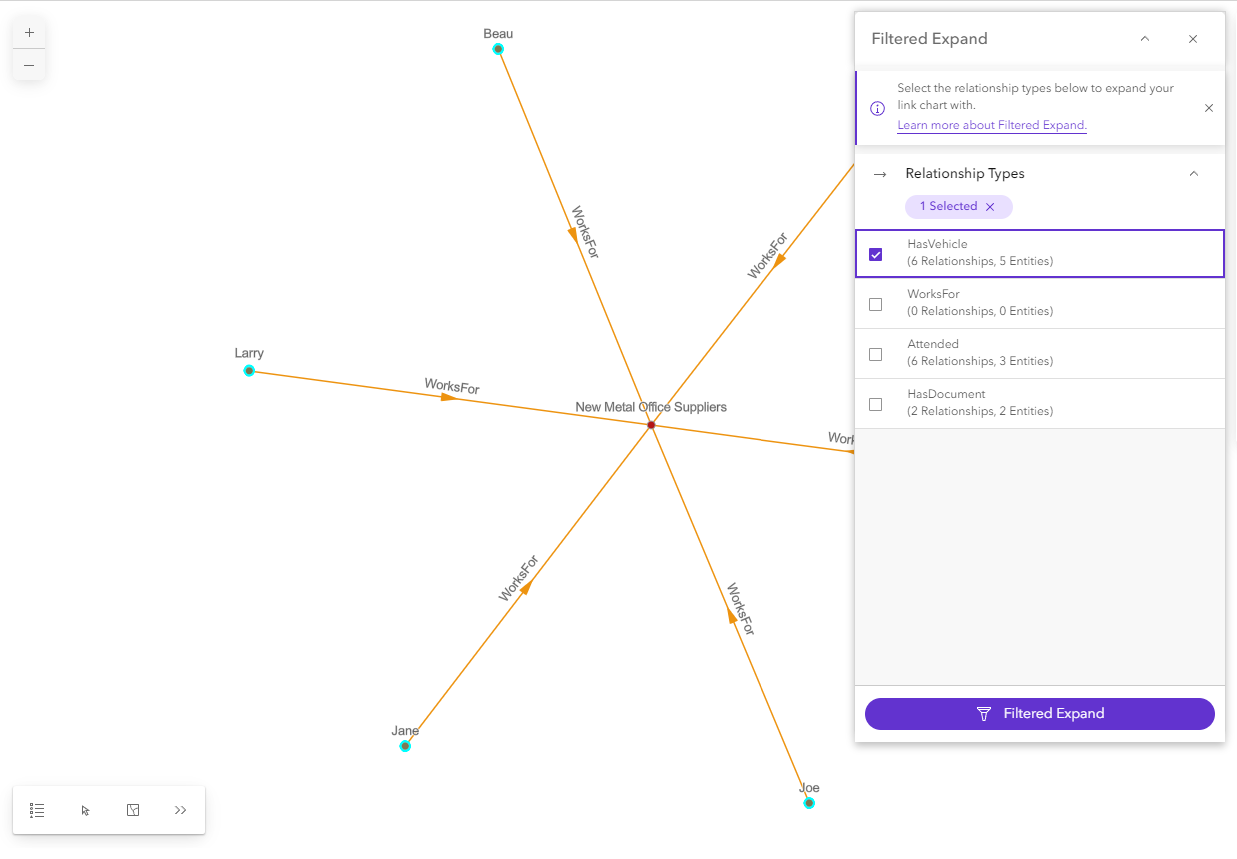
All relationship types that can be added to the link chart for the selected entities are listed. For each relationship type, the pane shows the number of instances of that relationship that exist for the selected entities that can be added to the link chart. It also shows the number of related entities that will be added to the link chart if those relationships are added.
Click the relationship types to use when expanding from the selected entities.
Click the Filtered Expand button
at the bottom of the pane.The originally selected graph items are deselected. The relationships and related entities identified by the filtered expand operation are added to the link chart and selected.
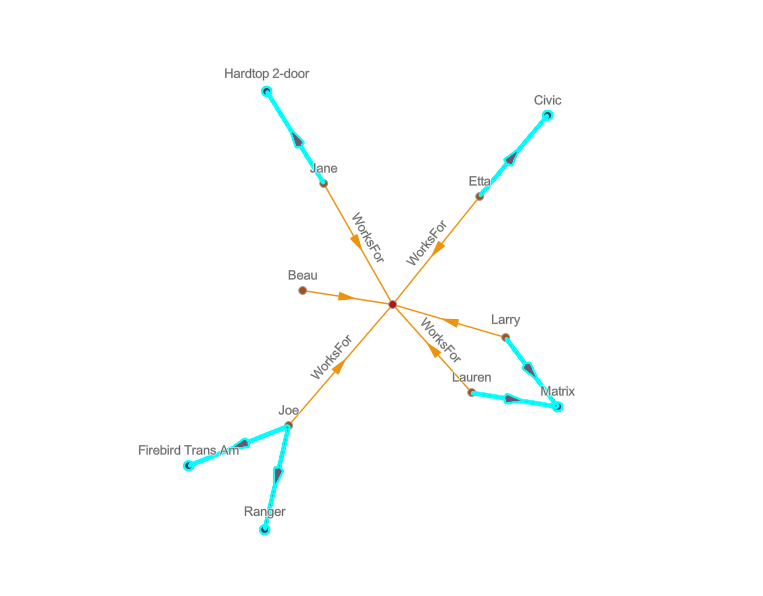
If relationships exist between the added entities, they are not added automatically.
Optionally, use the selection manager, or clear the selection and zoom in, to explore the added relationships.
The Filtered Expand pane remains open. If entities and relationships remain selected in the link chart, the relationship types displayed in the pane are updated to reflect relationship types in which the currently selected entities participate.
Connect
When you add a relationship to a link chart, the relationship is added along with its origin entity and its destination entity. However, when you add entities to a link chart, their relationships and related entities are not added automatically. Two entities may participate in a relationship that exists in the knowledge graph but where the relationship is missing in the link chart. The Connect operations adds these missing relationships. Only single relationships that exist between two entities on the link chart are added.
There are two Connect operations:
Connect From adds all relationships from the selected entities to any other entity on the link chart, regardless if it is selected or not.
Connect Between adds all relationships between the selected entities.
The Connect From operation evaluates all relationships of all types in which the selected entities participate. Each relationship is then evaluated against the link chart to determine whether the entity at the other end of the relationship, either the origin or the destination, is also present in the link chart (including unselected entities). If both entities are present in the link chart and the relationship isn't present, the missing relationship is added to the link chart.
The Connect Between operation also evaluates all relationships of all types in which the selected entities participate. Each relationship is then evaluated against the selected entities in the link chart to determine whether the entity at the other end of the relationship is present and selected in the link chart.
In a link chart, select the entities you want to evaluate to determine whether any relationships are missing.
Use the interactive selection tools in the canvas toolbar to select entities and relationships on the link chart.
Press the Ctrl key while clicking the entities and relationships to add.
Click Select All
 on the canvas toolbar.
Select records in the link chart sublayer record table.
Press the Ctrl key while clicking the entities and relationships to deselect them.
Use the Selection Manager to deselect records.
Click anywhere on the link chart to deselect all entities and relationships.
On the context toolbar, click Analysis Tools.
Under the Connect section, select one of the following options:
Click Connect From to add relationships from the selected entity to any other entity in the link chart.
Click Connect Between to add relationships between the selected entities.
Missing relationships are retrieved from the knowledge graph and added to the link chart. The originally selected graph items are deselected. The added relationships are selected.
Because the added relationships are selected, it can be difficult to see the relationship types.
Optionally, clear the selection and zoom in to explore the added relationships.