Overview of loading data into a knowledge graph
You can create entities and relationships in a knowledge graph from existing tabular data. Values in source fields can be loaded into properties of entities and relationships, and a feature layer's geometry can be loaded into an entity's spatial feature. The data loading process works within the existing knowledge graph data model. You can add, update, and merge entities and relationships, but you cannot modify the data model. Entity types, relationship types, and their properties must already exist in the knowledge graph before data is loaded.
As you define the loading process, you can save your work as a data loading configuration. Data loading configurations can be stored in the current project to be reused in the future.
When you run the load process, records from the source data are converted into entities and relationships in the current project's knowledge graph.
Get started loading data into a knowledge graph.
Use the Load Data wizard
The Load Data wizard provides an interactive experience for defining a data loading configuration. The data loading configuration defines how data from a source table or feature layer is used to create entities, relationships, and their properties in a knowledge graph. Entity and relationship definitions are displayed as connected nodes that reflect the structure of the knowledge graph data model.
Load data wizard diagrams
The load data wizard is divided into three pages: Source Data, Configure, and Review. The following diagrams represent each page of the wizard.
The Source Data page
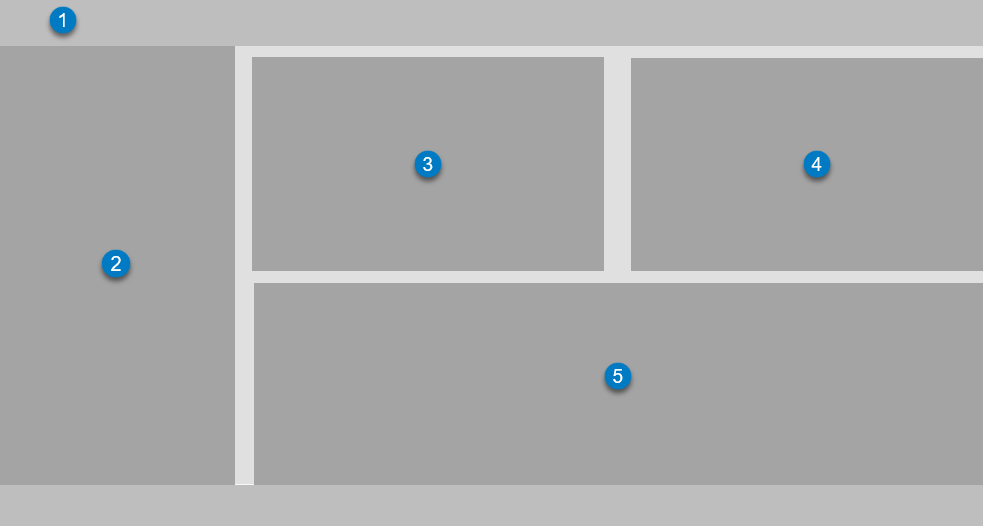
 The title bar of the source data page identifies the knowledge graph used by your Studio project; it is visible throughout the load data wizard.
 Specify the source table or feature layer from your portal to load into the knowledge graph.
 A preview of columns and sample values from the source data are available.
 If you have an existing data loading configuration on your portal, you can apply it as a template.
 Illustrations and descriptions for each load data step are provided.
The Configure page
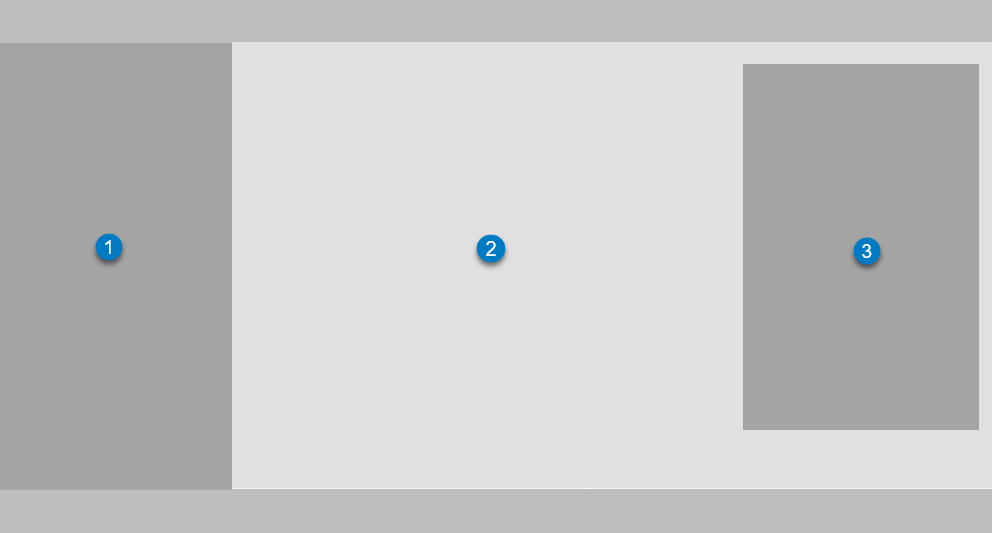
- The Source Columns pane lists the columns and the data types from the source data.
- The interactive canvas contains entity types and relationship types from the data model.
- Define property values using columns from the source data in the Definitions pane.
The Review page
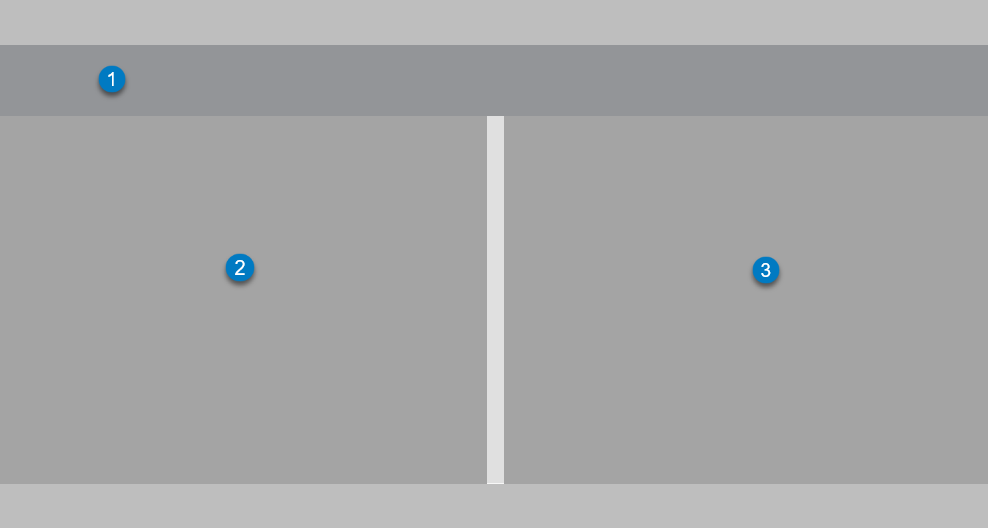
- The data source and target knowledge graph are listed here.
- A collapsible summary of each entity definition in the data loading configuration is provided.
- A collapsible summary of each relationship definition in the data loading configuration is provided.
Example workflow steps
The following is an example of a typical workflow for loading data into your knowledge graph:
Open the load data wizard and select a familiar table or feature layer from your portal to use as your source data.
Select an existing data loading configuration to use as a template. Choose a configuration that was created based on your target knowledge graph's data model.
On the Configure page, define properties for entity and relationship types, including merge properties.
Continue adding definitions as needed, completing each one before moving to the next.
Review all definitions for completeness and accuracy. Pay close attention to any merge properties.
Save the data loading configuration to your project.
Run the load data operation and review results in the knowledge graph.
Loading data into a knowledge graph can vary significantly depending on the data model, source data, existing data loading configurations, and other requirements. However, the steps outlined above apply generally to most load data scenarios.
Learn how to load data into a knowledge graph.
Merge while loading data
Loading data into your knowledge graph can either create new entities and relationships or merge incoming records with existing content. Merging allows you to update entities and relationships that already exist in the knowledge graph instead of creating duplicate records.
For example, you might initially load a set of Employee entities using employee IDs and names. Later, you could load a second dataset containing employee phone numbers, office locations, and department information. By configuring merge rules, the new information is added to the existing Employee entities rather than creating new ones.
A merge rule can consist of a single property or a combination of properties. For example, an Employee entity might be uniquely identified by an Employee ID property, while a Person entity might require a combination of First Name, Last Name, and Date of Birth. When multiple properties are used for merge, all selected values are evaluated together to determine a match.
Ensure the selected merge properties uniquely identify records. Using properties that are not unique can result in unintended matches, incorrect merges, or duplicate entities and relationships. A common workflow is to load an initial dataset to establish the graph's content and then load additional datasets that merge with existing entities and relationships to update the graph with new information over time.
Review the data loading configuration
Applying a data loading configuration as a template may result in incomplete definitions, depending on the configuration and source data selected. You can use the Review page and the diagram on the Configure page to view and resolve any definition errors. As you work, the diagram will update with the status of a definition.
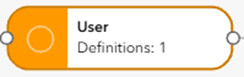
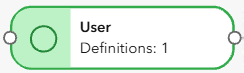
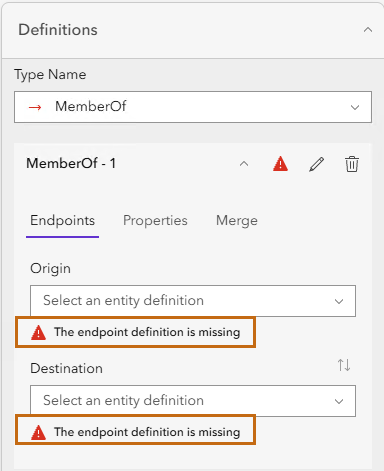
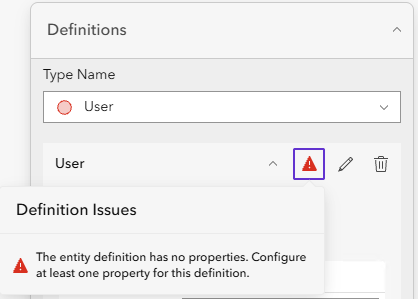
The definitions pane will also provide any errors related to an incomplete definition. An entity type definition requires at least one property from the source data. A relationship type definition requires an origin and destination entity definition.