Load data into the knowledge graph
You can create entities and relationships in a knowledge graph from existing tabular data. The data loading process works within the existing knowledge graph data model. You can add, update, and merge entities and relationships, but you cannot modify the data model. Entity types, relationship types, and their properties must already exist in the knowledge graph before data is loaded.
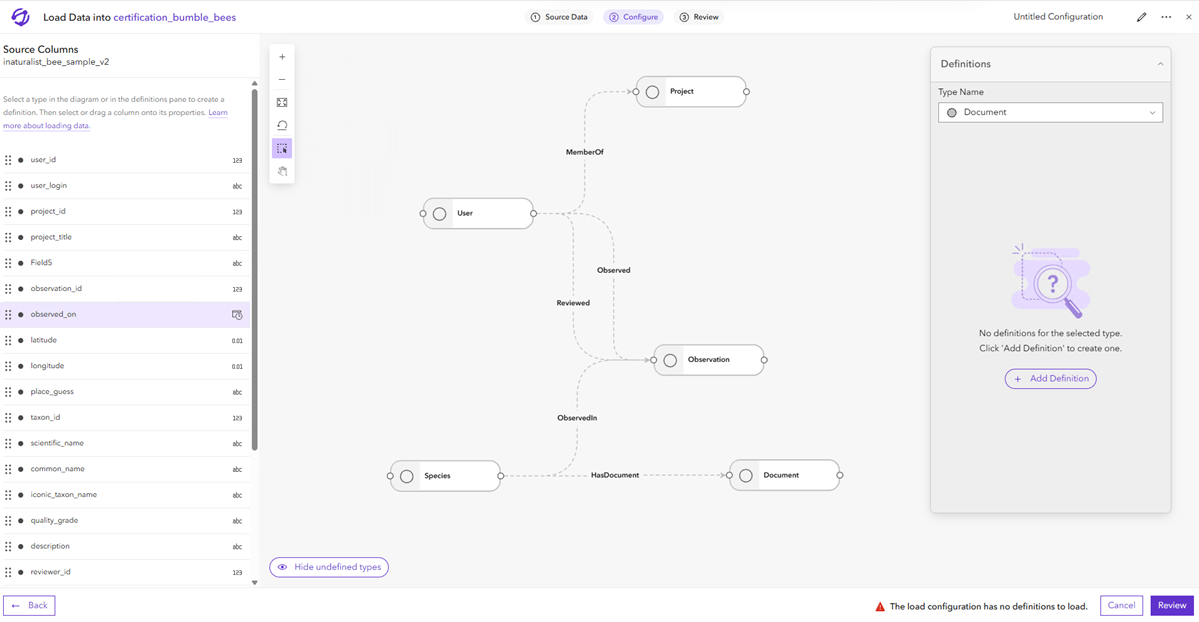
As you define the loading process, you can save your work as a data loading configuration. A data loading configuration specifies how to read and handle the data in your source table. Data loading configurations can be stored in the current project to be reused in the future.
The following is an example of a typical workflow for loading data into your knowledge graph:
Select a familiar table or feature layer from your portal to add as your source data.
Select an existing data loading configuration to use as a template. Choose a configuration that was created based on your target knowledge graph's data model.
On the Configure page, define properties for entity and relationship types, including merge properties.
Continue adding definitions as needed. Complete each one before moving to the next definition.
Review all definitions for completeness and accuracy. Pay close attention to any merge properties.
Save the data loading configuration to your project.
Run the load data operation and review results in the knowledge graph.
Loading data into a knowledge graph can be very different depending on the data model, source data, existing data load configurations, or other requirements. However, the steps outlined above apply generally to most load data scenarios. Detailed workflow steps for using the load data wizard are continued in this topic.
Open the load data wizard
Open the load data wizard and select a data source to load into your project's knowledge graph.
On the main menu, click Load Data

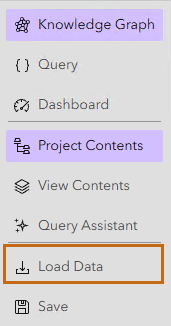
The load data wizard opens to the Source Data page.
Select a data source.
In the Choose data source pane, select a csv from your portal.
In the Choose data source pane, select a feature service from your portal. If your feature service has multiple layers, click the feature layer dropdown menu in the column preview pane, and select a feature layer.
The column preview of the selected file appears. Data loading configurations in your project are listed.
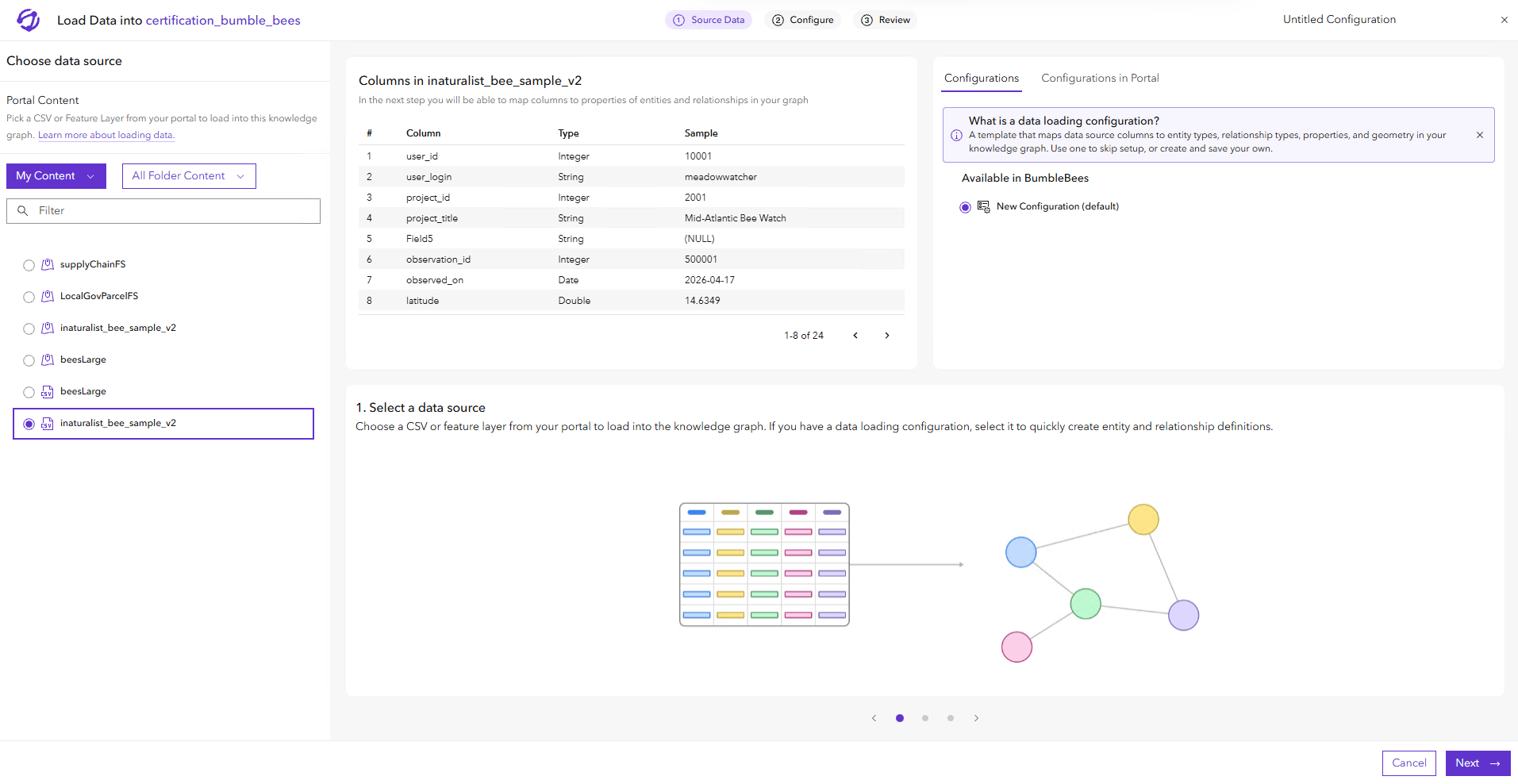
Optionally, select a data loading configuration.
Click Next to advance to the Configure page in the wizard.
Once a data source is selected, you can select a data loading configuration to use as a template for the data loading process, or continue to the next page and add definitions to entity and relationship types.
Select a data loading configuration
You can select an existing data loading configuration from your current project, or projects on the portal, to apply as a template. Using a data loading configuration as a template will apply source columns to entity types, relationship types, properties, and geometry to your current load data process. It is recommended to choose a configuration that was created based on your target knowledge graph's data model and similar data source.
Select a data loading configuration.
From the current project:
- In the load data wizard, on the Source Data page, under the Configurations tab, select a data loading configuration.
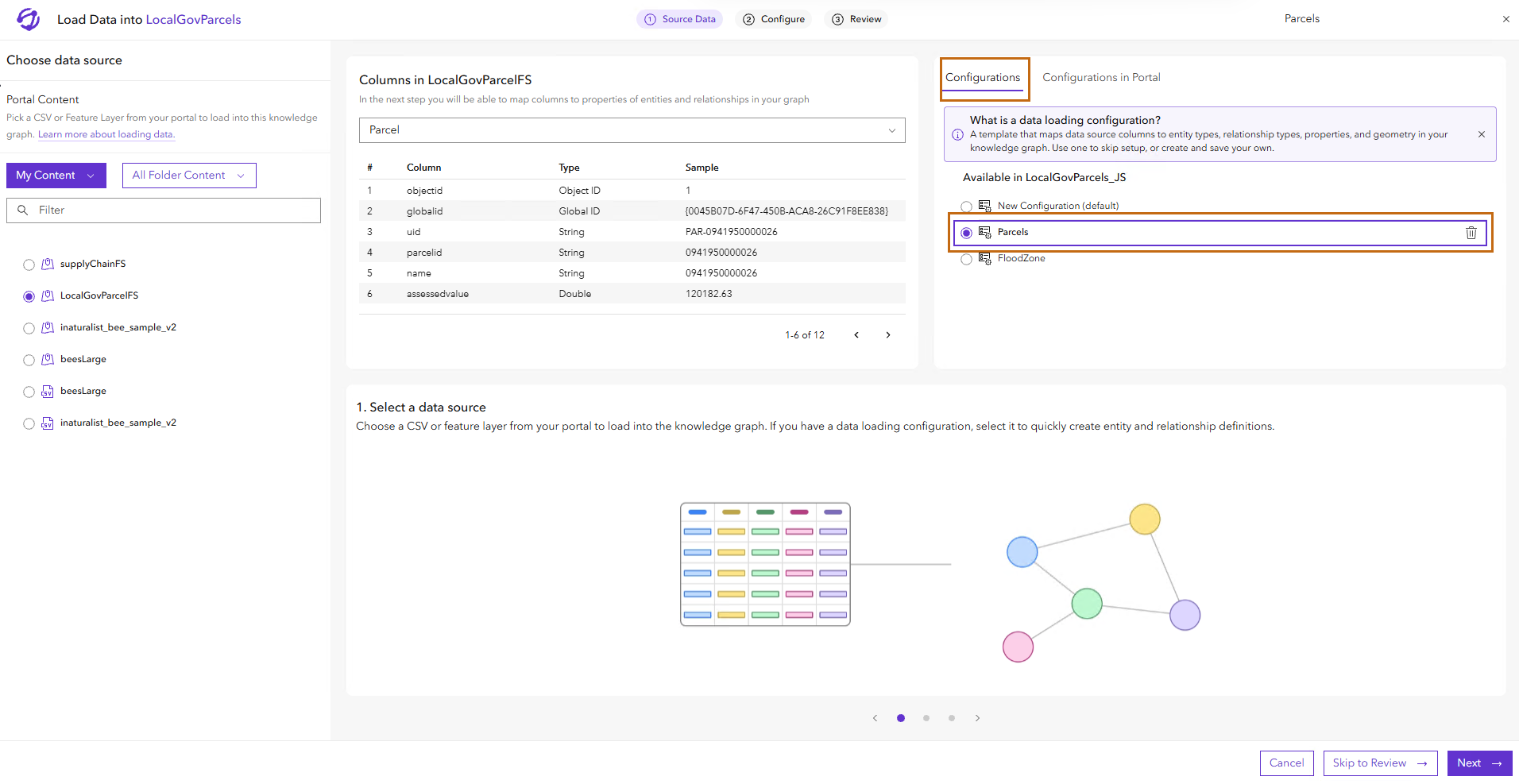
From a project on the portal:
In the load data wizard, on the Source Data page, click Configurations in Portal
Select a project from the list to view its configurations. Optionally, filter the list of projects.
Select a configuration and click Apply as Template.
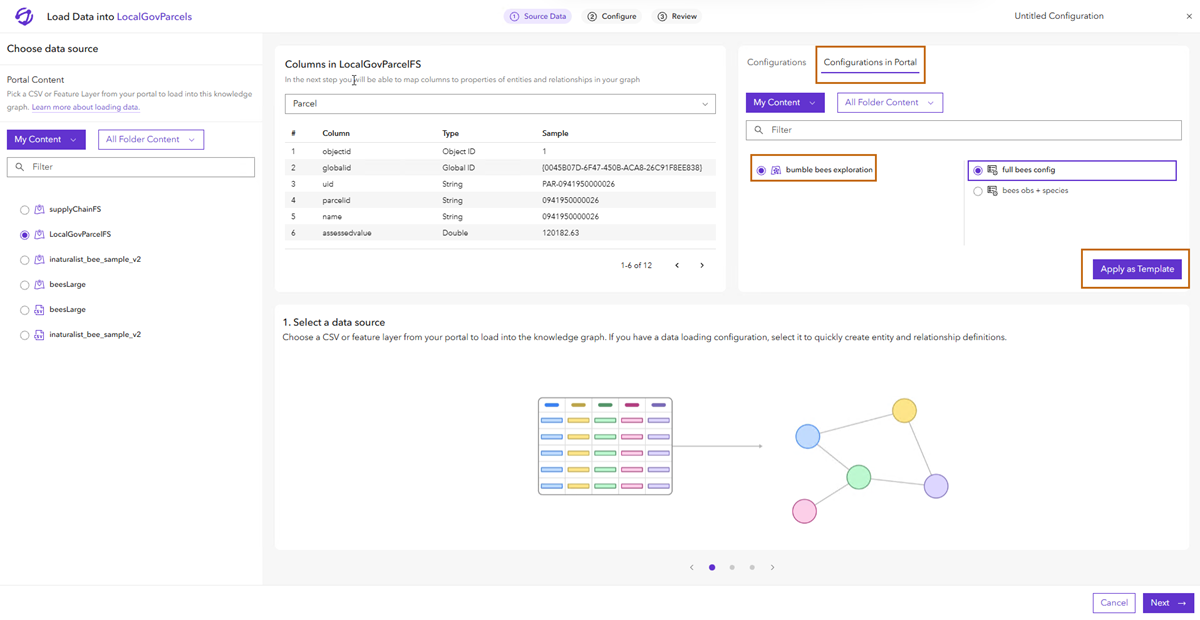
The data loading configuration is applied and the Skip to Review button appears.
Optionally, click Next to advance to the Configure page in the wizard to make edits to the configuration.
Click Skip to Review to review the configuration and load your data.
Configure entity and relationship definitions
In order to load tabular data into your knowledge graph you must define how values from the source data will be converted into entities, relationships, and their properties. After selecting a data source, you add definitions to entity and relationship types on the Configure page of the load data wizard. The Configure page includes an interactive diagram based on the knowledge graph's data model. You can select and move entity types on the diagram and use pan and zoom controls.
To configure a definition, you add columns from the source data that will be converted into properties of entity and relationship types. Definitions for entity types require at least one property from the source data. Definitions for relationship types require an origin and destination entity definition.
Entity and relationship types can have multiple definitions. You can also rename definitions. The number of definitions for each type are displayed on the load data diagram.
Add an entity definition
Add a definition to an entity type and configure its properties. You can merge entities by properties. If you choose to merge entities, the data loading process will compare the input stored in the source column to the corresponding property for each existing entity in the knowledge graph. If an entity of the same type with the same merge properties exists in the knowledge graph, entities in the data loading configuration and entities in the knowledge graph are merged. If the input data doesn't correspond to an existing entity, a new entity is created in the knowledge graph.
Learn more about merge while loading data.
If needed, select a data source and advance to the Configure page of the wizard.
Select an entity type.
On the diagram, click an entity type.
In the Definitions pane, click the Type Name dropdown menu and select an entity type.
On the Definitions pane, click Add Definition
An incomplete definition is added to the Definitions pane. The Properties tab is selected.
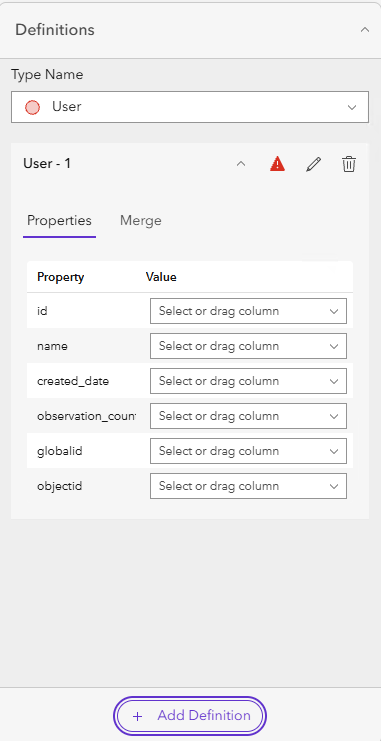
Configure a property for the entity definition.
Click and drag a source column from the Source Columns pane to a property value on the Definitions pane.
On the Definitions pane, click a property value dropdown menu and select a source column from the list.
On the Definitions pane, click a property value dropdown menu and select Custom Value
 . Enter a custom value for the property in the dialog box that appears.
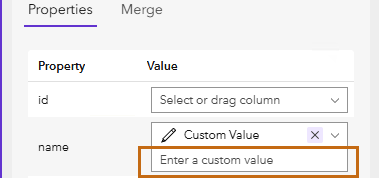
Continue configuring properties as needed.
Optionally, select merge properties for the entity definition.
On the Definitions pane, click the Merge tab.
Click the Use for Merge checkbox to use a property as a merge property. Multiple properties can be selected for merge properties of a definition.
Optionally, rename the definition.
In the Definitions pane, click Rename definition
In the Rename Definition dialog box, type a new name and click Apply.
The new definition name is applied.
Continue adding definitions to the current entity type, or select a new type and add definitions.
Click Review to advance to the Review page in the wizard.
Define spatial features for an entity definition
You can load values from the source table or feature layer that contain spatial data related to entities into the knowledge graph. When the source data is a feature layer, use the geometry field in the attribute table. When the source data is a table, identify one or more fields containing coordinates that define the entity's geometry.
Important:
To use geometry from a feature layer, the geometry type from the feature layer must match the geometry type of the entity type.
Add an entity definition for an entity type that contains a spatial feature.
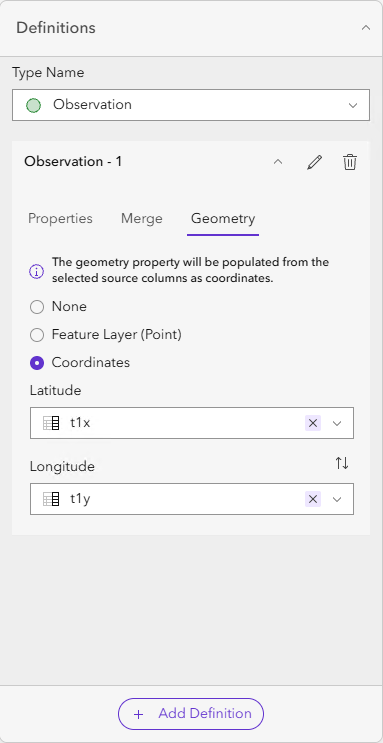
On the Definitions pane, click the Geometry tab.
Select how the geometry property will be populated from the source data.
To use the geometry from a feature layer, select Feature Layer.
To use coordinates, select Coordinates, then in the Latitude and Longitude fields select columns from the source data.
The geometry property is configured for the entity definition
Add a relationship definition
Add a definition to a relationship type and configure its entity endpoints and properties.
Learn more about merge while loading data.
If needed, select a data source and advance to the Configure page of the wizard.
Select a relationship type.
On the diagram, click a relationship type.
In the Definitions pane, click the Type Name dropdown menu and select a relationship type.
On the Definitions pane, click Add Definition.
An incomplete definition is added to the Definitions pane. The Endpoints tab is selected.
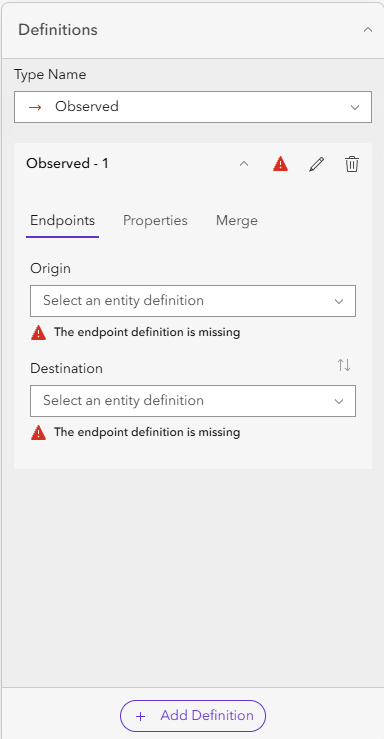
On the Definitions pane, click the Origin dropdown menu and select an origin entity definition.
On the Definitions pane, click the Destination dropdown menu and select a destination entity definition.
Optionally, configure a property for the relationship definition.
Click and drag a source column from the Source Columns pane to a property value on the Definitions pane.
On the Definitions pane, click a property value dropdown menu and select a source column from the list.
On the Definitions pane, click a property value dropdown menu and select Custom Value
. Enter a custom value for the property in the dialog box that appears.
Optionally, select merge properties for the relationship definition.
On the Definitions pane, click the Merge tab.
Click the Use for Merge checkbox to use a property as a merge property. Multiple properties can be selected for merge properties of a definition.
Continue adding definitions to the current relationship type, or select a new type and add definitions.
Click Review to advance to the Review page in the wizard.
Store a data loading configuration
As you work through the load data wizard, you create a data loading configuration. A data loading configuration specifies how to read and handle the data in your source table. A data loading configuration can be updated and stored at any time, but you must save your project in order to access the configuration from the portal for future use.
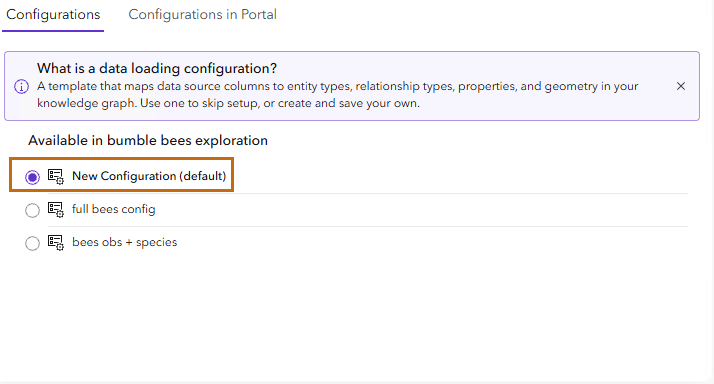
Once you select a data source, a new configuration is created by default. You can rename and store the configuration, or select an existing data loading configuration from the portal. An existing data loading configuration could be based on a different data source or data model. As a result, applying a configuration from the portal may result in invalid entity and relationship definitions. You can update the existing data loading configuration as needed and store it as a new configuration on the portal, or overwrite it.
Store a new data loading configuration
Store a data loading configuration on the portal for future use.
-
A default data loading configuration is selected.
Click Next to advance to the Configure page in the wizard.
In the title bar of the load data wizard, click Edit
 .

In the text box, type a new name for the data loading configuration and click Save.
The name is applied to the data loading configuration.
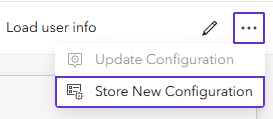
In the title bar of the load data wizard, click Options, and click Store New Configuration.
Complete the data loading process and save your project.
The data loading configuration is stored on the portal.
Edit an existing data loading configuration
Update an existing data loading configuration. You can update the existing configuration in your project, or use it to store a new configuration.
Select a data source and apply a data loading configuration as a template.
Click Next to advance to the Configure page in the wizard.
In the title bar of the load data wizard, click Options, and click Update Configuration.
The updates are applied to the data loading configuration.
Optionally, store as a new data loading configuration.
In the title bar of the load data wizard, click Edit
.In the text box, type a new name for the data loading configuration and click Save.
In the title bar of the load data wizard, click Options, and click Store New Configuration.
Complete the data loading process and save your project.
The data loading configuration is stored on the portal.
Review and load data
The Review page in the wizard displays a summary of entity and relationship definitions in the data loading configuration. The Load button remains unavailable until any errors identified in the wizard are resolved.
The Review page is organized into collapsible sections for each entity and relationship definition. You can review properties, geometry for entities, merge criteria, and endpoints of relationships. You can also remove an entity or relationship definition from the data loading configuration. After you have reviewed the summary of your data loading configuration you can load the data into the knowledge graph.
Advance to the Review page of the load data wizard.
Use the entity and relationship definition summaries to review the data that will be loaded into the knowledge graph.
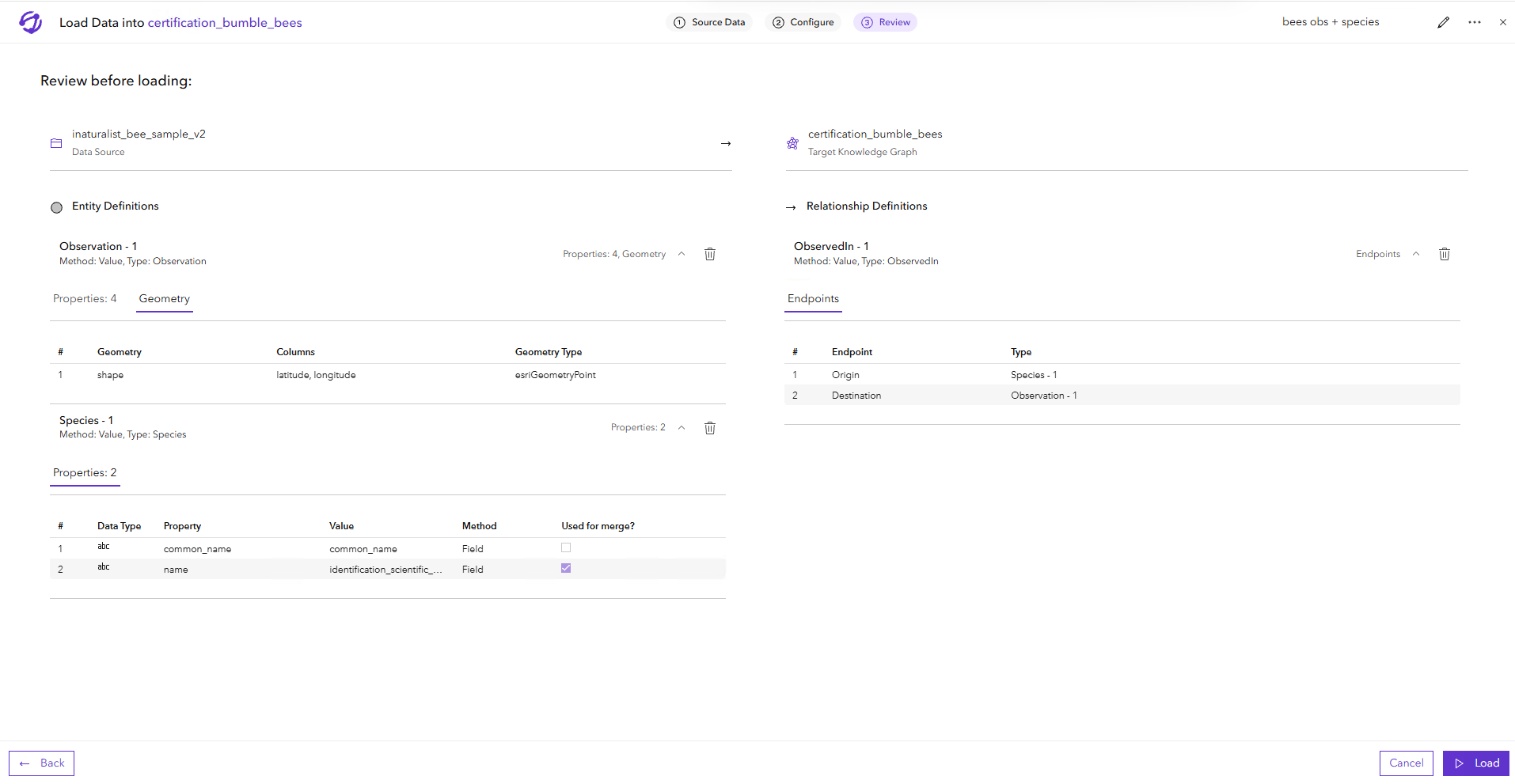
Identify any errors and resolve them on the Configure page.
Optionally, click Delete Definition
 to remove a definition from the data loading configuration.
Click Load at the bottom of the load data wizard.
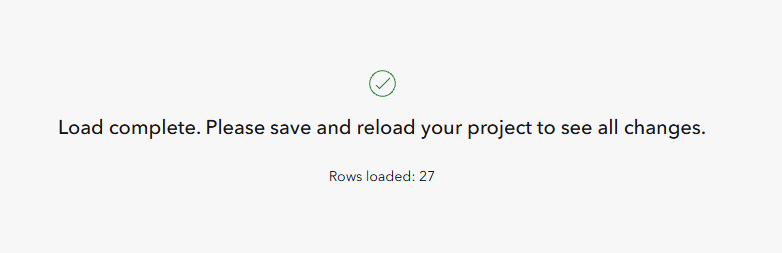
The load data process runs. A summary of rows loaded appears when the data loading process is complete. If any errors are found during the data loading process, warnings appear on the page.
Warning:
Closing the load data wizard before the operation completes can result in partial results loaded into the knowledge graph.
Close the load data wizard.