Query the contents of a knowledge graph
You can query a knowledge graph to find a subset of the entities and relationships it contains and identify how different entities are connected. Provenance records can be used and provenance records can optionally be included in the query results. See the following examples:
From a knowledge graph representing the spread of an infectious disease, work with humans and animals associated through any relationship with a given facility.
From a knowledge graph representing a manufacturing supply chain, work with any content associated with a specific part including suppliers, means of delivery, warehouses, and so on.
From a knowledge graph representing an organization, work with devices of a given type, and list their properties, including the name of the responsible employee.
From a knowledge graph representing tortoises and their habitats, identify habitats where the level of risk was established using information in a specific environmental impact assessment.
You can identify the subset of entities and relationships, or their properties, by querying the knowledge graph. Use openCypher query language to write openCypher queries to discover related entities and their properties and work with this restricted set of information in the knowledge graph, a map, or a link chart.
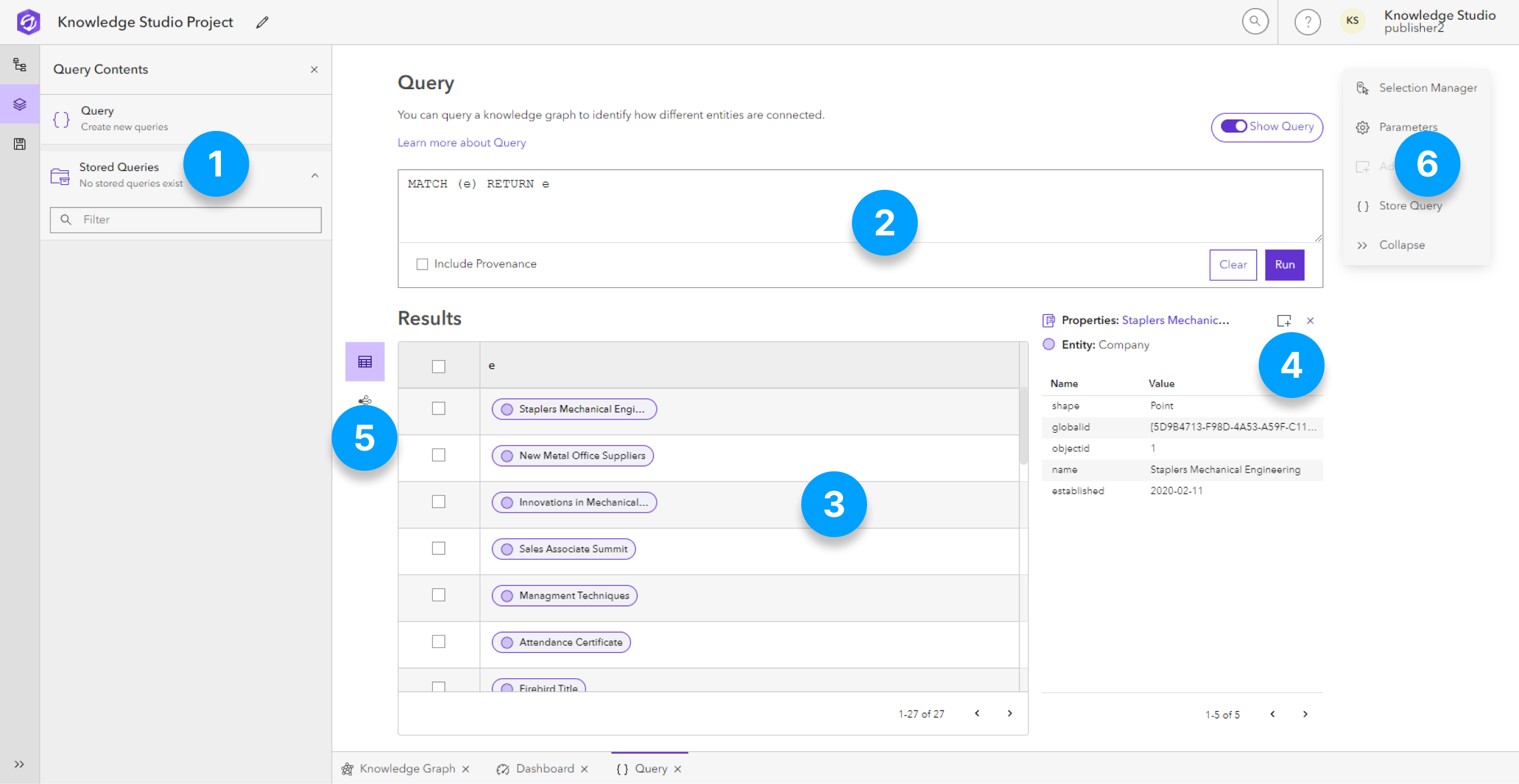
The Query view  is a default view in every Knowledge Studio project that allows you to query the contents of the project's knowledge graph. There are six key areas in the query view, which are shown in the following image and described in the table below. The numbers in the image correspond to the descriptions.
| Element | Description |
|---|---|
 Query contents Query contents |
The Query Contents contains the Query editor where you write new queries and the Stored Queries collection  that are retained in the project when the project is saved. that are retained in the project when the project is saved. |
 Query box Query box |
The query box is a multiline text box that allows you to format and run your openCypher query. |
 Query results Query results |
The query Results are displayed in a table by default. |
 Query selection Query selection |
Selecting a record in the Query Results allows you to explore the properties of returned graph records. |
 Results preview Results preview |
You can preview the results and your selections in a link chart, map, or chart preview and add or remove all results from your selection using the results toolbar. |
 Context toolbar Context toolbar |
The context toolbar provides tools specific to query, such as defining query parameters and storing your query in your project for later use. |
Query the knowledge graph
You can query the knowledge graph's entities and relationships using the Query view . You can optionally include provenance records in the query results
Click Query
in the Project Contents pane to open the query view.The query view opens with the query box open and no results displayed. The query box is a multiline text box that allows you to format your openCypher query.
Type a query in the query box. Press Enter to move the pointer to a new line and continue typing.
For example, a query such as MATCH (e) RETURN e would return all entities in the knowledge graph. This query works on any knowledge graph.
Tip:
If you don't know how many results will be returned from a query, add LIMIT 1000 to the end of your query to avoid unexpectedly returning tens of thousands of records, which may timeout your browser.
Optionally, check Include Provenance to allow provenance records to be used or returned in the query.
Click Run.
The results of the query appear in the Results area. Entities, relationship, and provenance records returned by the query are identified by the appropriate icons.
Write an openCypher query
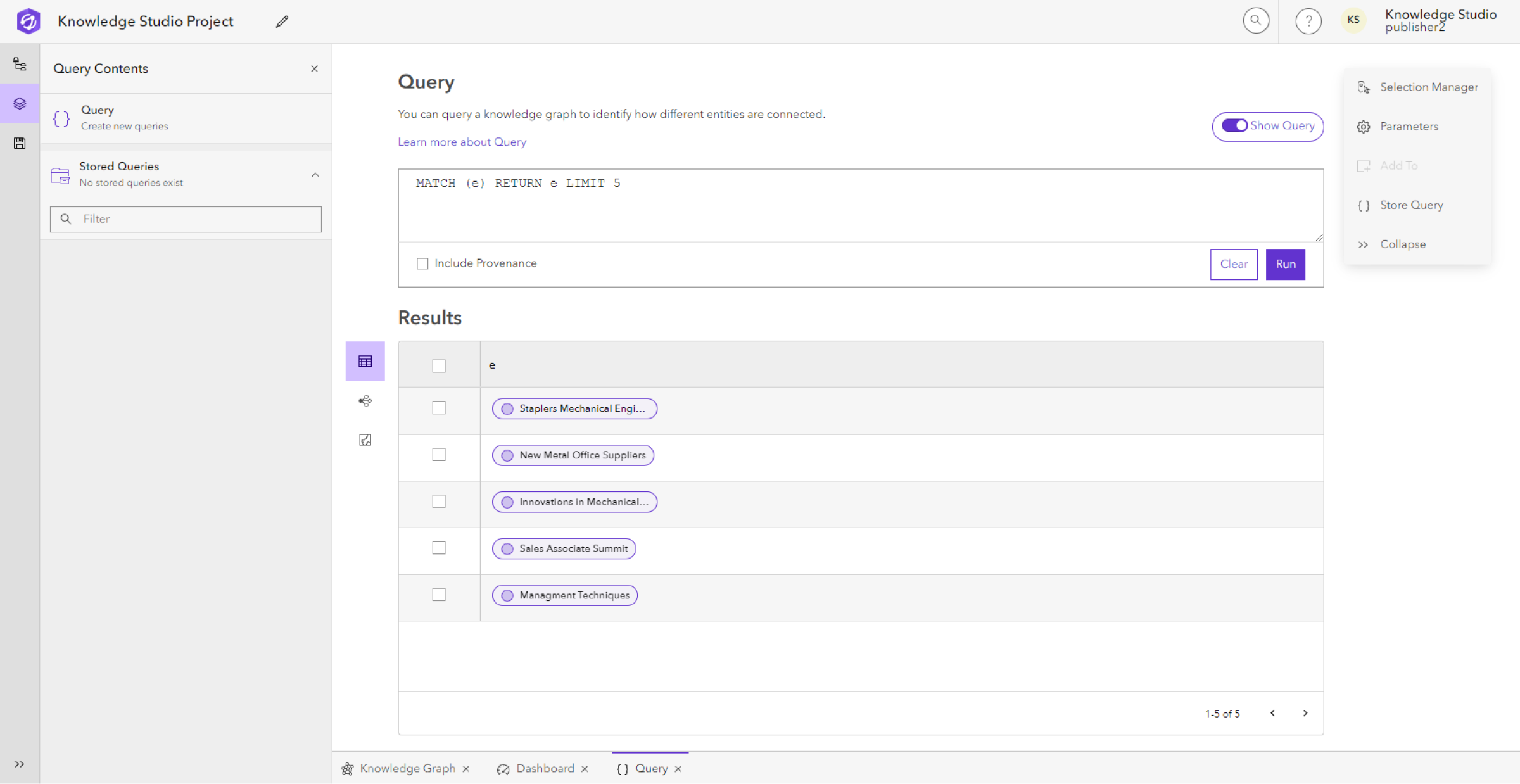
openCypher queries are to graph databases what SQL queries are to relational databases. The basic structure of the query is to find, or match, entities and return those entities, where the entities you want to find are identified in parentheses. For example, the query MATCH (e) RETURN e returns entities of any type. The number of entities returned is only limited by the knowledge graph's configuration. To restrict the number of graph items returned, use a LIMIT expression. For example, the query MATCH (e) RETURN e LIMIT 5 will return five entities of any type.
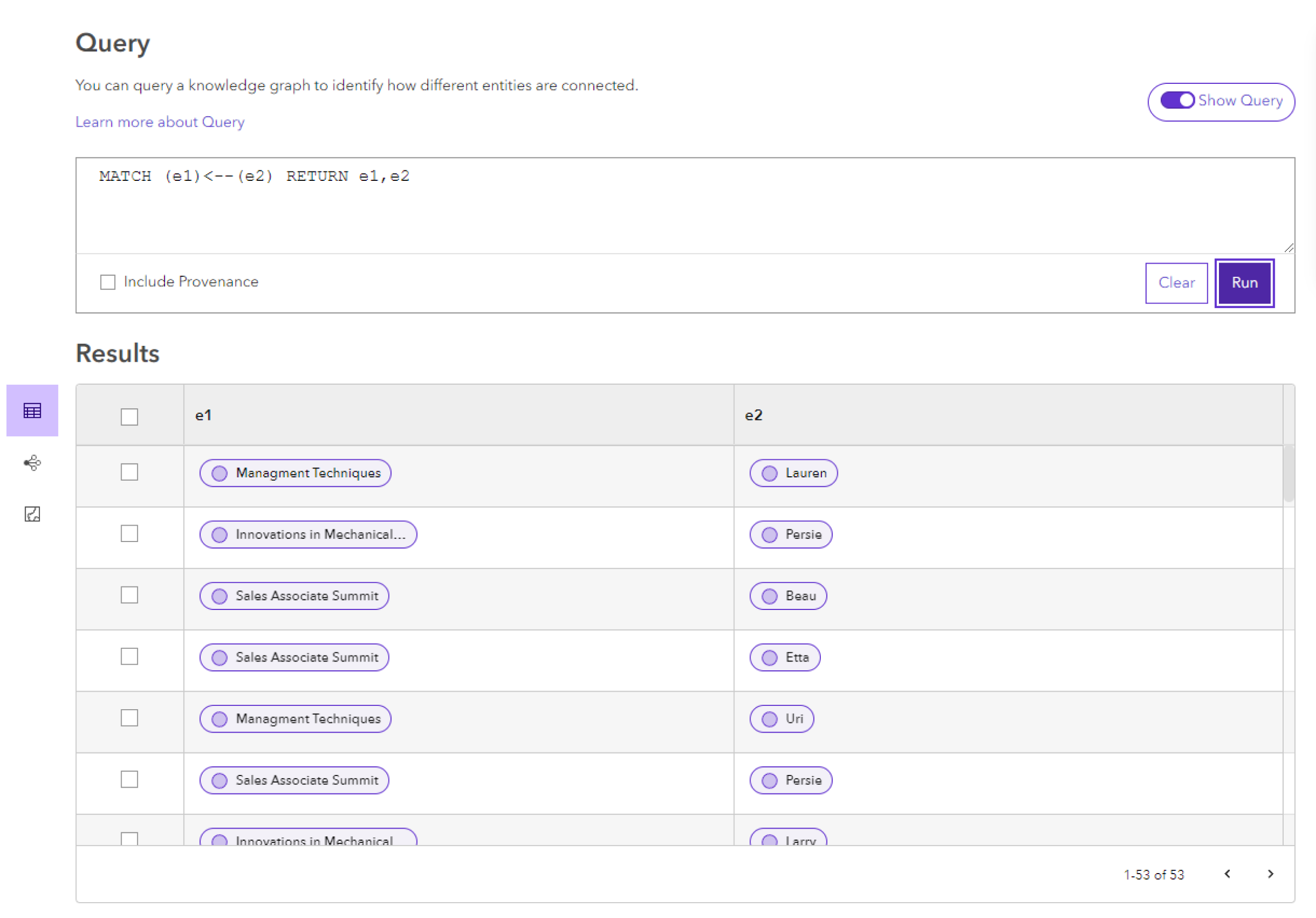
The query can identify entities that are related using symbols that create an arrow. For example, the query MATCH (e1)-->(e2) RETURN e1,e2 will return pairs of entities, e1 and e2, where any type of relationship exists between the two entities and any path from entity e1 to entity e2 connects the entities. If the query was written with the arrow pointing in the other direction, paths would be considered starting from the origin entity e2, to the destination entity e1: MATCH (e1)<--(e2) RETURN e1,e2. The manner in which entities are related to each other is referred to as a pattern.
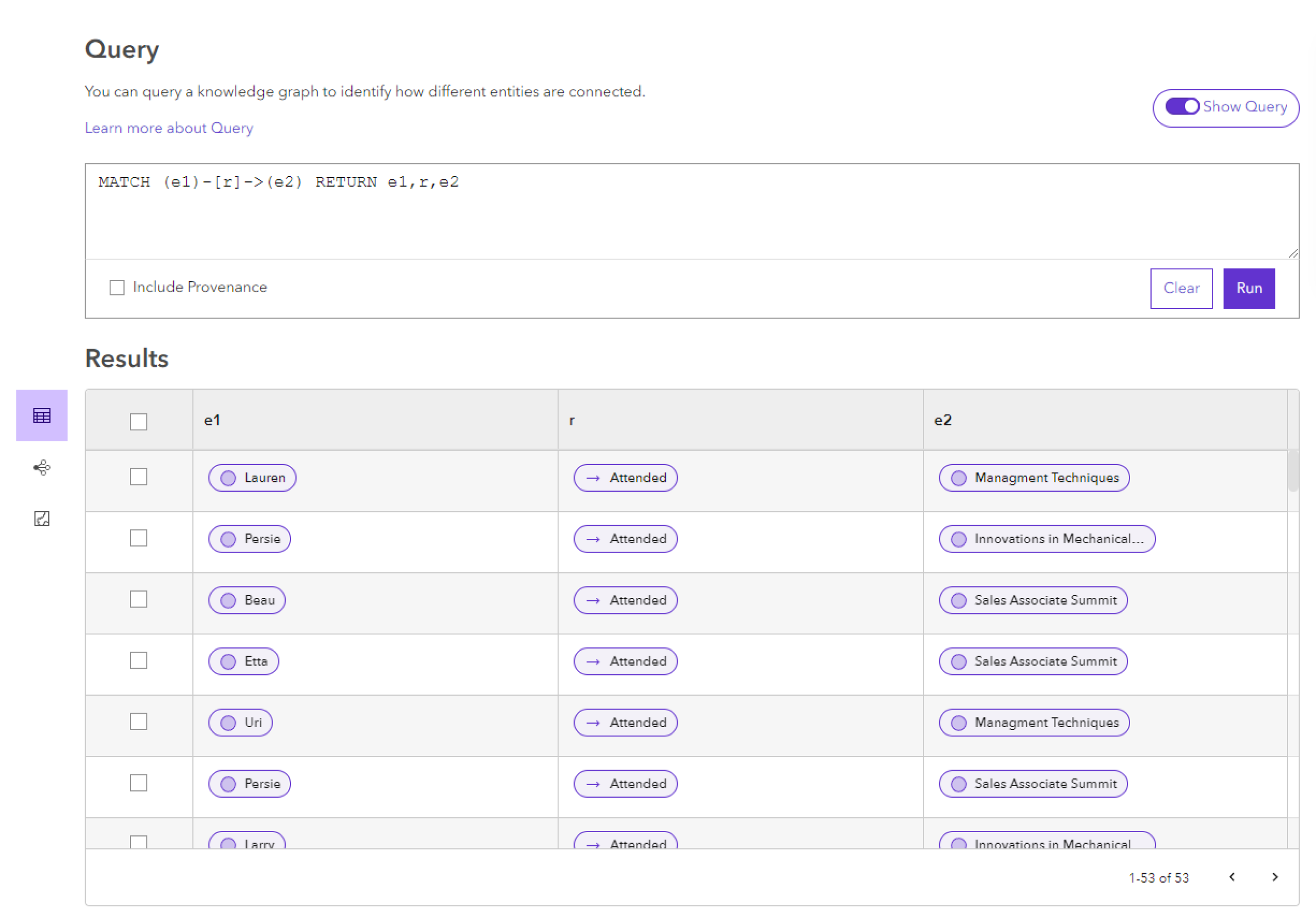
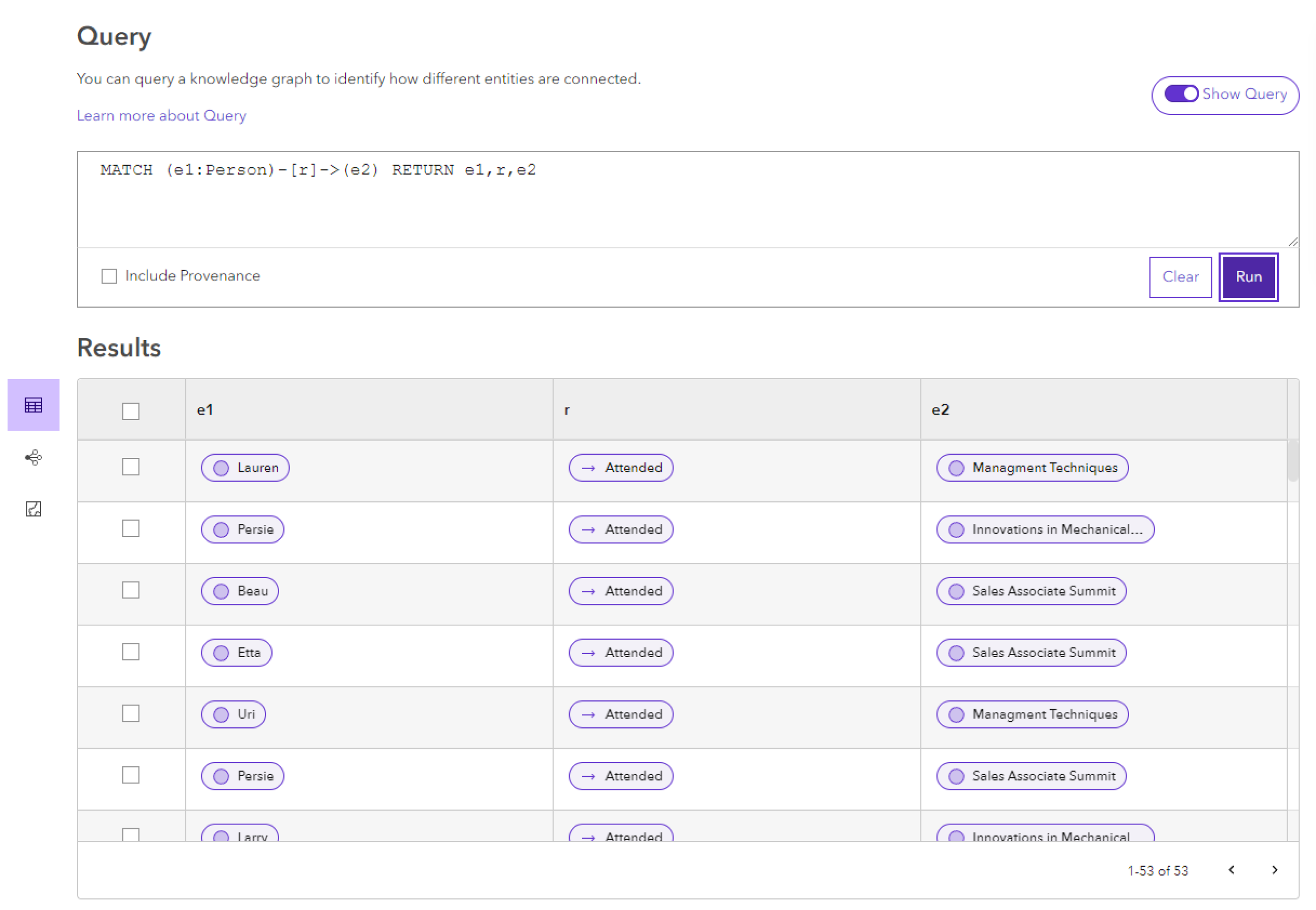
The query can identify specific relationships that should be considered in square brackets. For example, the query MATCH (e1)-[]->(e2) RETURN e1,e2 will return pairs of entities, e1 and e2, where a single relationship of any type connects the two entities. This query shows another way to represent the same queries illustrated above, and illustrates the preferred query syntax. The query can be amended to return the entire tuple describing the relationship by returning the origin entity, e1, the relationship, r, and the destination entity, e2, as follows: MATCH (e1)-[r]->(e2) RETURN e1,r,e2. Similar queries MATCH (e1)-[ ]->( )-[ ]->(e2) RETURN e1,e2 or MATCH (e1)-[*2]->(e2) RETURN e1,e2 will return pairs of entities that are connected by two relationships in the same direction. Queries can also identify patterns where relationships have different directions such as MATCH (e1)-[ ]->(e2)<-[ ]-(e3) RETURN e1,e2,e3.
The example queries above can be used with any knowledge graph.
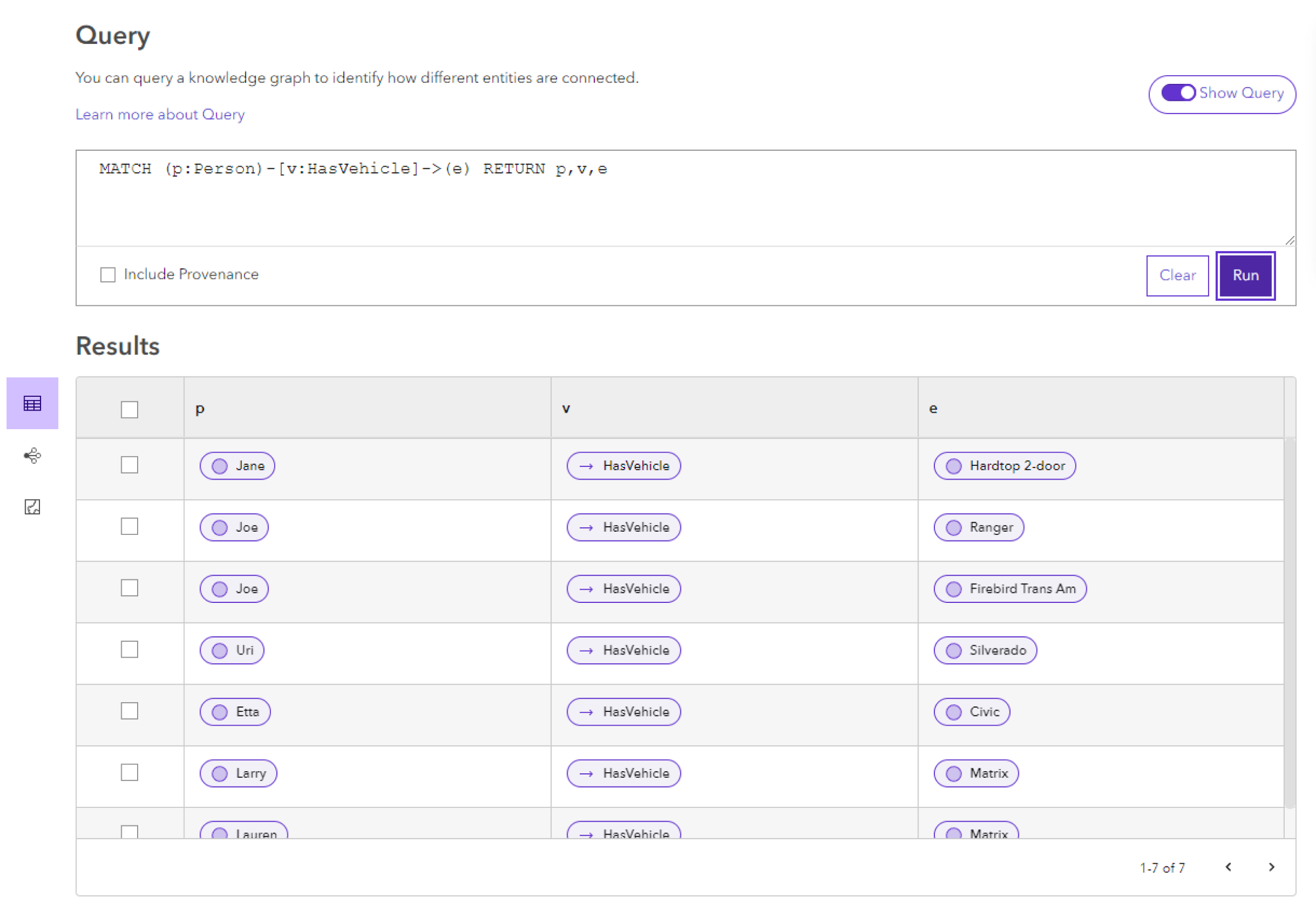
You can constrain the query to consider specific relationship types and specific related entities by adding relationship types and entity types to the other facets of the query. For example, MATCH (p:Person)-[v:HasVehicle]->(e) RETURN p,v,e will return all Person entities, p, in which a HasVehicle relationship, v, connects the Person to another entity of any type, e. The variables p and v are assigned to the Person entities and HasVehicle relationships, respectively, so information about them can be returned by the query. Compared to the previous example, relationships in which a Pet or Document entity are the destination of a relationship aren't included in the results. Depending on the knowledge graph's data model, the destination entity, e, could be a generic Vehicle entity, or it could be one of a series of specific entity types such as Automobile, Motorcycle, Boat, Airplane, Commercial Vehicle, and so on.
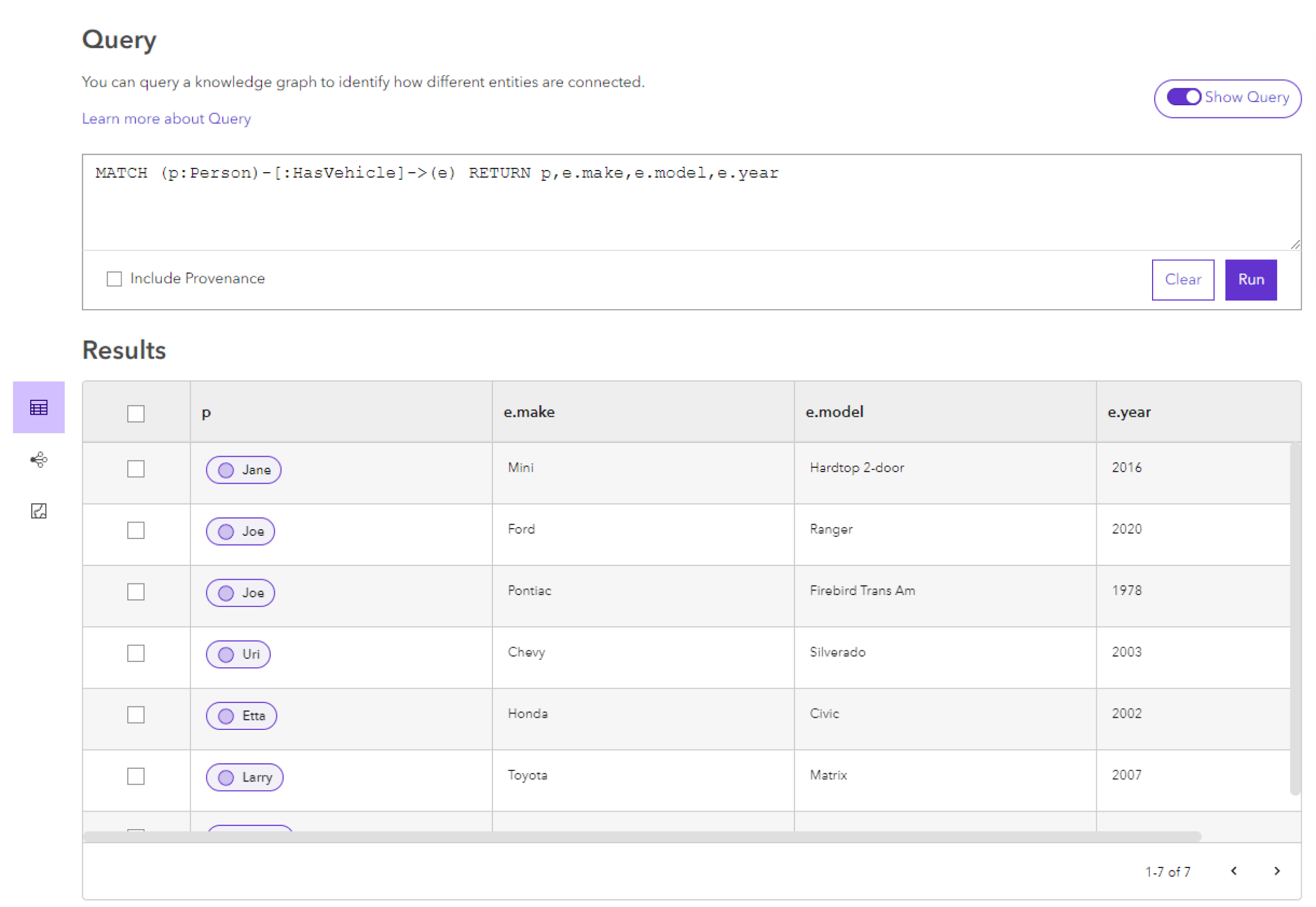
Specific properties of entities and relationships can be included in the query results. For example, MATCH (p:Person)-[:HasVehicle]->(e) RETURN p,e.make,e.model,e.year will run the same query defined previously. However, instead of showing the destination entity itself, the results will show the values stored in several of its properties: the make, model, and year of the vehicle, respectively. In this example, a variable was not assigned for the specific relationship being considered by the query because the relationship's data is not included in the query results or evaluated elsewhere in the query.
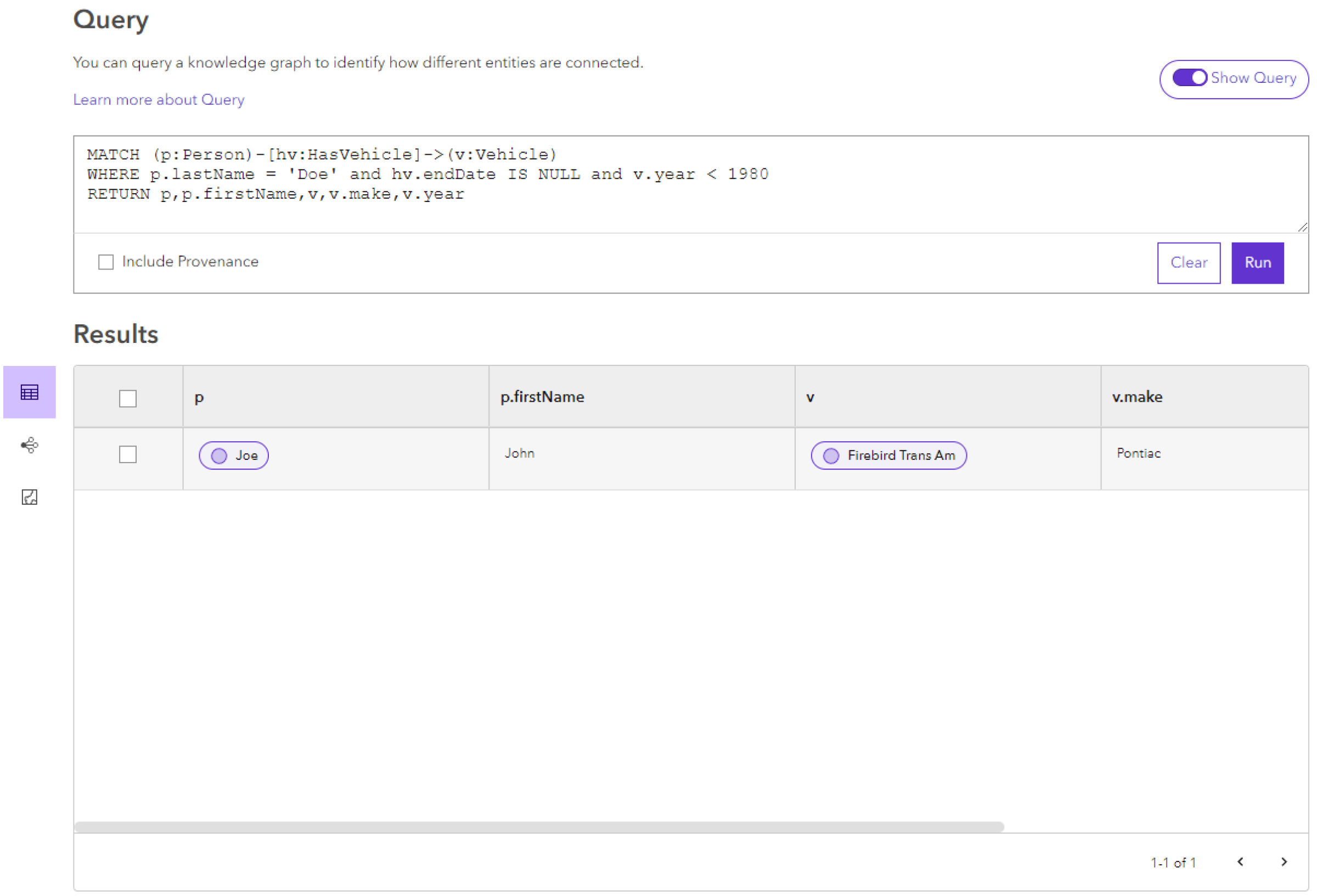
Similarly, you can constrain the entities and relationships that are evaluated by specifying properties that define the entities and relationships of interest. The properties to consider are defined by adding a WHERE clause to the query. As with the examples above, variables must be assigned to reference specific information about entities and relationships in the WHERE clause. For example, in the following query, only Person entities with a specific lastName property value are evaluated; HasVehicle relationships are only considered if they have a NULL value in the endDate property; and related Vehicle entities are only considered if the year property has a value that is earlier than 1980: MATCH (p:Person)-[hv:HasVehicle]->(v:Vehicle) WHERE p.lastName = 'Doe' and hv.endDate IS NULL and v.year < 1980 RETURN p,p.firstName,v,v.make,v.year.
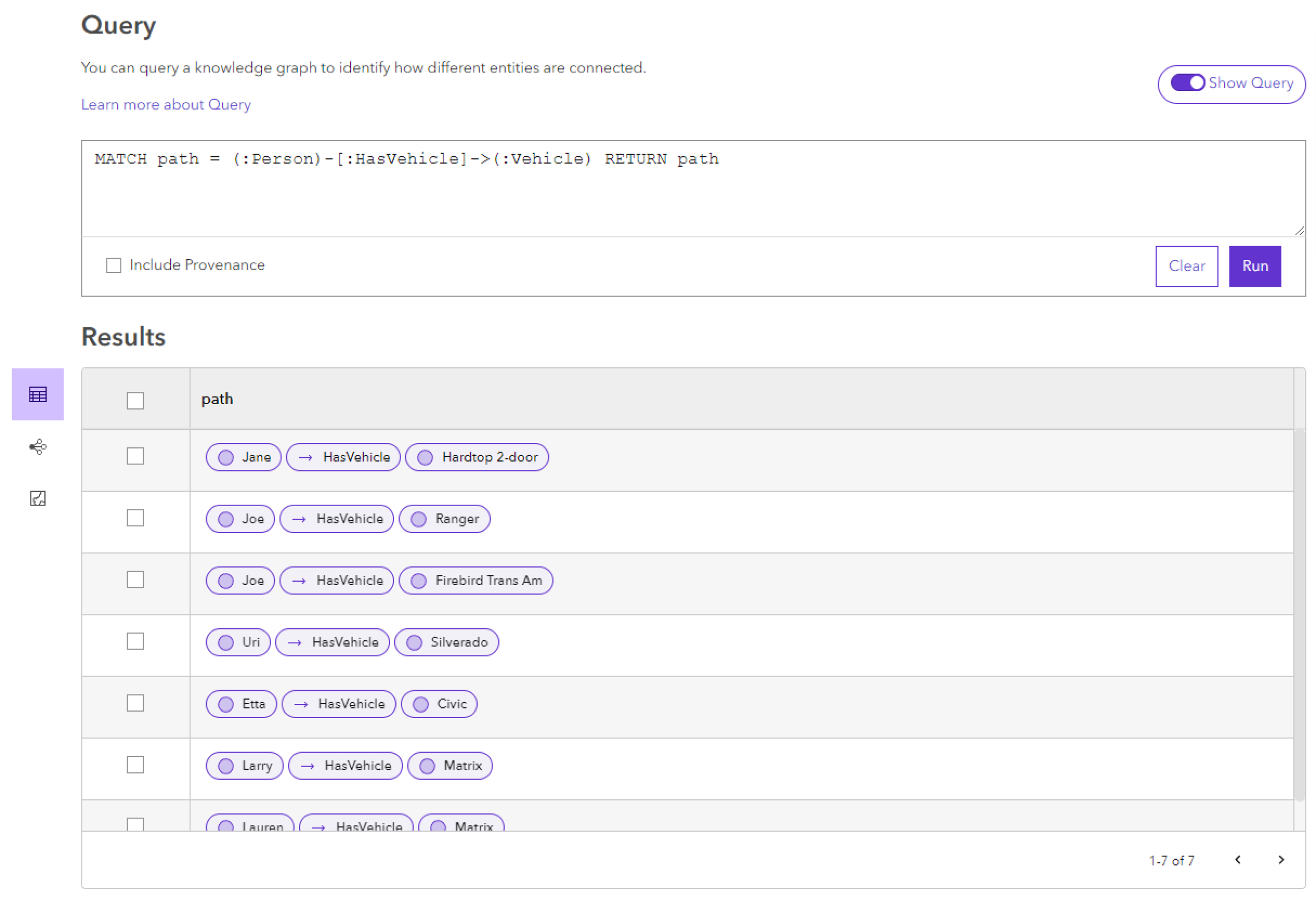
Instead of returning a series of individual entities and relationships, your query can return the complete path represented by a pattern. To do this, assign the pattern defined in the MATCH statement to a variable and return that variable. For example, the query MATCH path = (:Person)-[:HasVehicle]->(:Vehicle) RETURN path will return a list of paths for all entity and relationship combinations that satisfy the specified pattern. Each path will contain all parts of the matched pattern: the Person, HasVehicle relationship, and Vehicle. You do not need to assign variables to the individual parts of this pattern since they are not returned by the query.
Modify and update query results
You can retrieve a focused set of entities and relationships in a knowledge graph by evaluating specific graph item types and specific property values.
Click in the query box.
Update the text of the existing openCypher query.
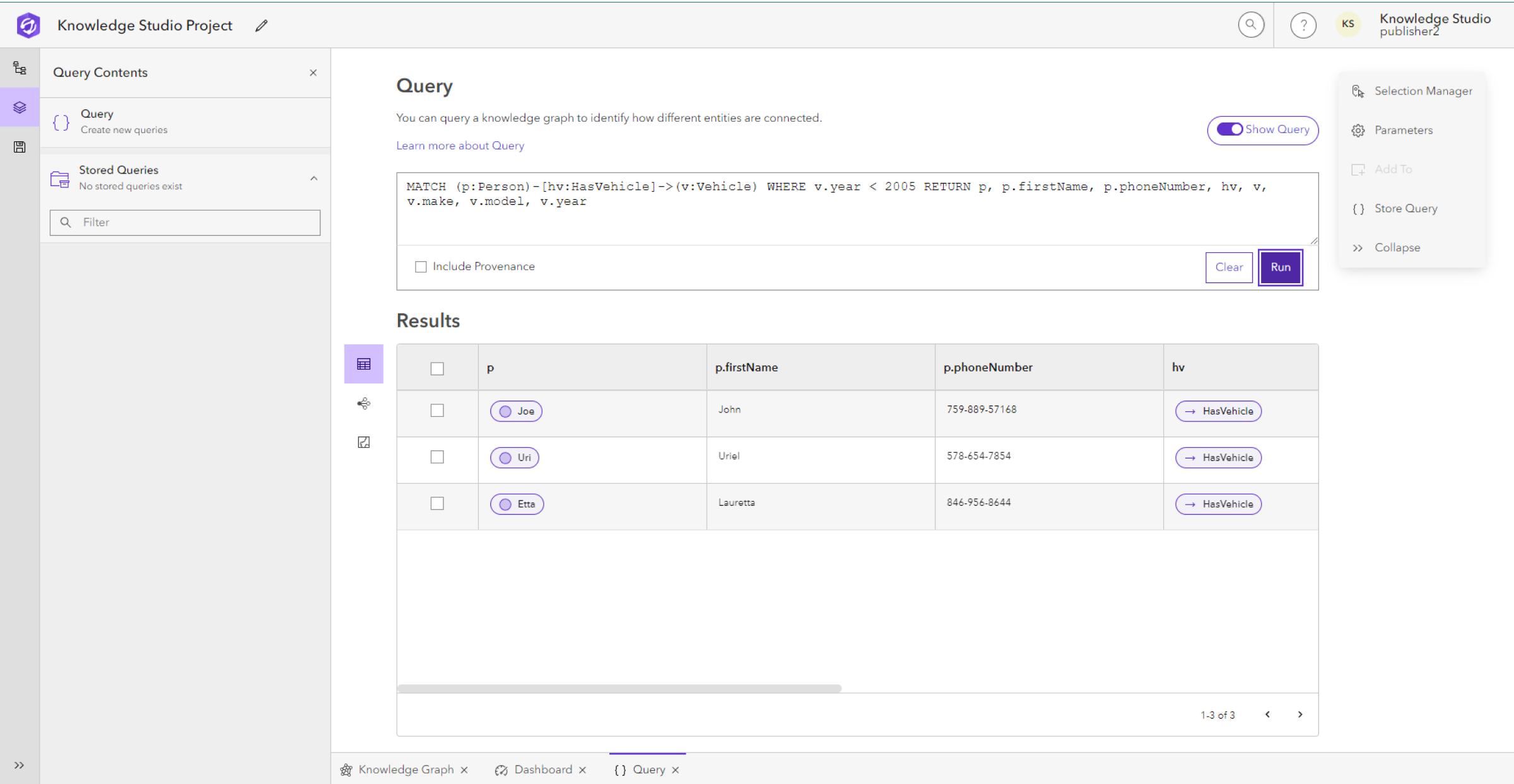
For example, change the query to MATCH (p:Person)-[hv:HasVehicle]->(v:Vehicle) WHERE v.year < 2005 RETURN p, p.firstName, p.phoneNumber, hv, v, v.make, v.model, v.year to return all the Person entities that have the HasVehicle relationship to a Vehicle entity in which the year property of the Vehicle is earlier than 2005. The results will include values from the Person entity's firstName and phoneNumber properties, the HasVehicle relationship, and the Vehicle entity's make, model, and year properties.
Press Enter to move the pointer or some of the query's text to a new line in the multiline text box. Use as many lines as needed for clarity.

Click Run to get new results.
The results of the query appear in the Results section. Entities and relationships returned by the query are identified by the appropriate icons.
Optionally, click Clear to remove the text of the current query from the query box.
Store a query
You can store individual queries that you want to keep as part of your project. When you save your project your stored queries are saved in the project and listed in the Stored Queries section of the Query Contents pane.
Click Store Query
in the query context toolbar.The new stored query modal appears.
Optionally:
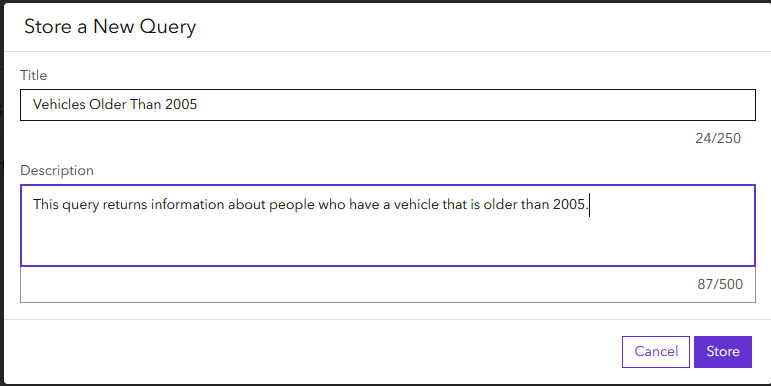
Type a name for the query in the Title input area.
Type a description of the query in the Description text area. A description provides context for the query results without having to read the openCypher query.
Click Store.
The query is stored under the Stored Queries section
of the Query Contents pane.Click the stored query
 to run the query and view the results.
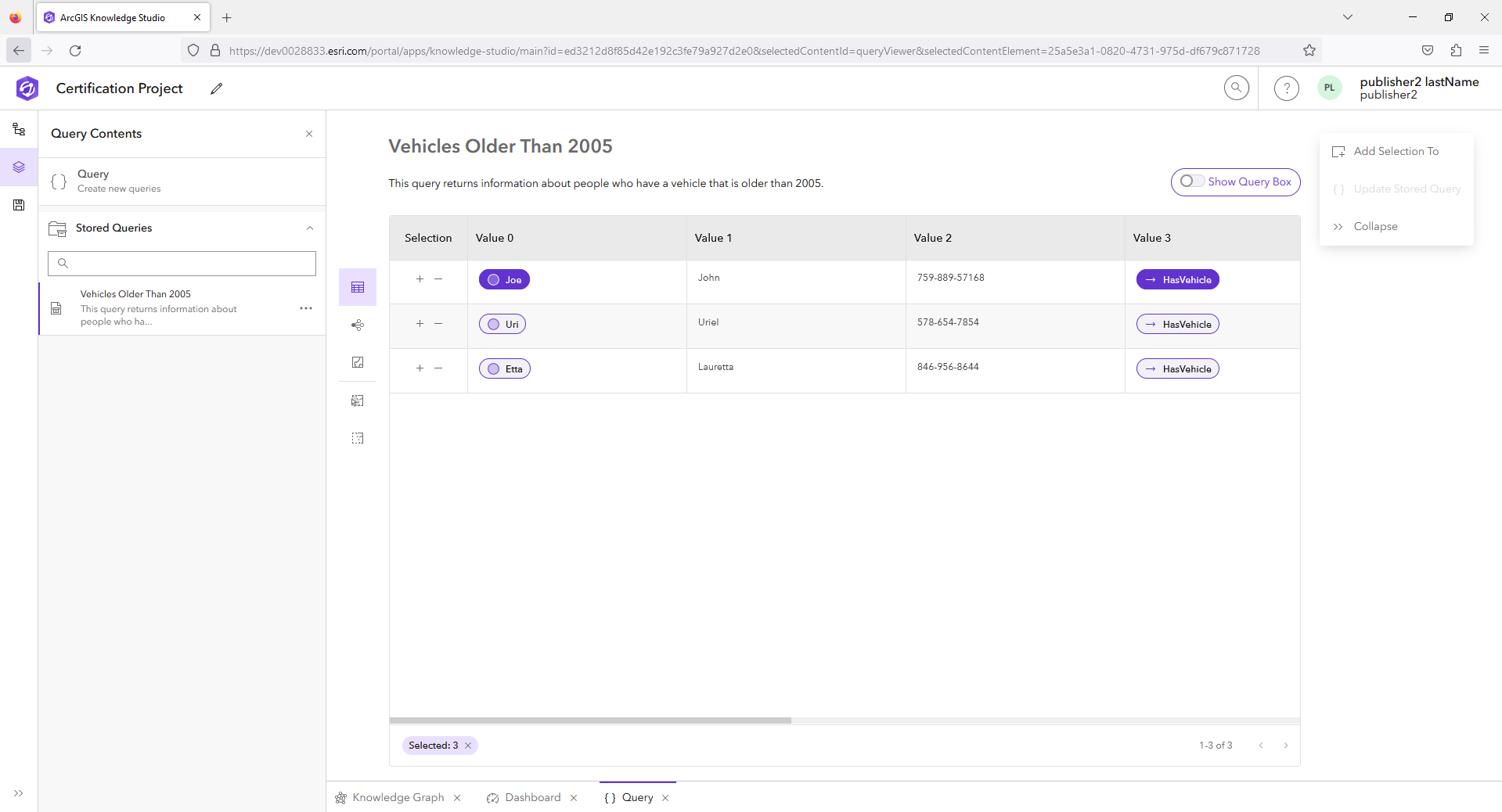
The stored query will run as soon as it is selected. The title and description of the query are provided above the results. The query box is hidden.
Click Show Query to show the openCypher query text in the query box.
Click in the query text box and modify the existing query.
Click Update Stored Query
in the query context toolbar to update the stored query to reflect your changes.Click the Options menu
 for this stored query in Query Contents.
Click Rename
 to update the Title and Description text boxes of your query to reflect your changes.
Click Apply.
Optionally, click Delete
 in the Options menu for this stored query to remove the stored query from the project.