Understand distributed collaborations
To share content with ArcGIS Enterprise organizations, an administrator must create a distributed collaboration and workspace, link a group to the workspace, and invite participants to the collaboration. The organization that creates the collaboration is the host, and other participating organizations are guests. These concepts are described in more detail in the sections below.
Collaboration host and guests
A distributed collaboration is a trusted relationship with mutually agreed upon terms consisting of one host and one or more guests. The collaboration is initiated when an administrator of the host organization sends an invitation to an administrator of one or more participating guest organizations. The administrator of each guest organization then accepts the invitation and sends their acknowledgement to the host's administrator, who accepts the acknowledgement to complete the trusted connection.
Host
A host is defined as the organization where the distributed collaboration is initiated. In a distributed collaboration in which an ArcGIS Online organization is participating, the host is always the ArcGIS Online organization.
An administrator in the host organization must do the following to create a collaboration and share content among guest organizations:
Create a distributed collaboration and collaboration workspace.
Link a group to the workspace.
Invite guests to the distributed collaboration and accept guest responses.
Define the access mode for each guest.
Guests
Guests in a distributed collaboration are defined as ArcGIS Enterprise deployments that are invited by the host. An administrator of each guest organization does the following to join a distributed collaboration and share content among participants:
Accept an invitation to collaborate.
Link a group to the workspace.
Configure sync settings for the workspace.
Workspaces and groups
A workspace is a conceptual space in a distributed collaboration that represents a project, an initiative, or another organizing principle. Workspaces control collaboration settings, such as each guest’s access mode and how feature layers are shared between organizations. Every collaboration must have at least one workspace, but multiple workspaces can be used to organize larger collaborations that span multiple projects and initiatives for the same set of participating organizations.
Note:
In a distributed collaboration that has multiple workspaces, the host can assign a guest different access modes for each workspace.
Content cannot be shared directly to a workspace in a distributed collaboration as it is a conceptual space, instead members share content using groups that have been linked to a workspace. Each participating organization must link one group per workspace in the collaboration. For example, if a collaboration has one workspace and a participating organization has three groups containing collaboration content, the content must be consolidated into a single group, or two additional workspaces must be created. All shared content appears directly in the group that each participating organization linked to the workspace. Depending on how the workspace feature layer sharing settings were configured by the host, feature layers are shared either as references or copies. Feature layers shared as copies are synchronized according to a schedule set by the guests for each workspace.
Tip:
Groups linked to collaboration workspaces are marked with a distributed collaboration badge on the Overview tab of the group page.
The concept of a collaboration workspace and its relationship to participating organizations, groups, and workspace access modes is depicted in the following image:
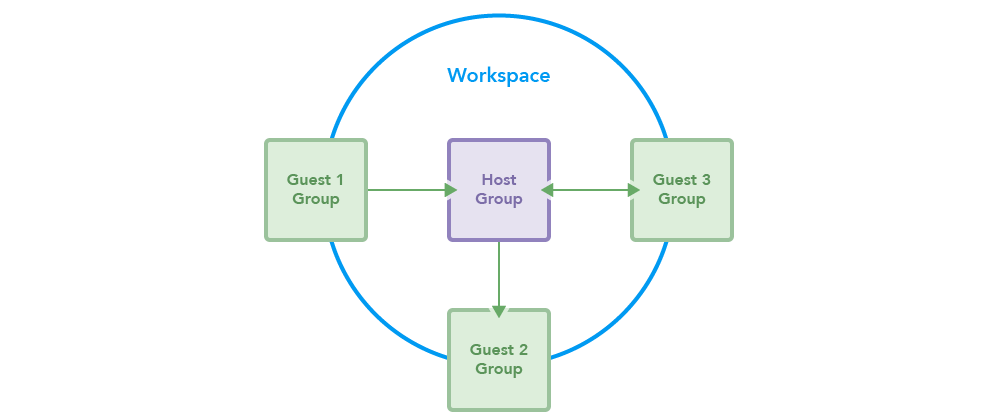
Access modes
Content is shared in a distributed collaboration when participating organizations share their content with a group that has been linked to a workspace. The host is responsible for defining the access mode each guest has to each workspace. The access mode controls how content is shared between groups in the workspace. Access mode options are send only, receive only, and send and receive. Access modes are defined separately for each guest in the distributed collaboration—for example, one guest might have receive access in a workspace while another has send access. In a distributed collaboration that uses multiple workspaces, each guest can have the same access mode or different access modes across the different workspaces as needed.
Note:
Hosts can always send and receive content.
Send only
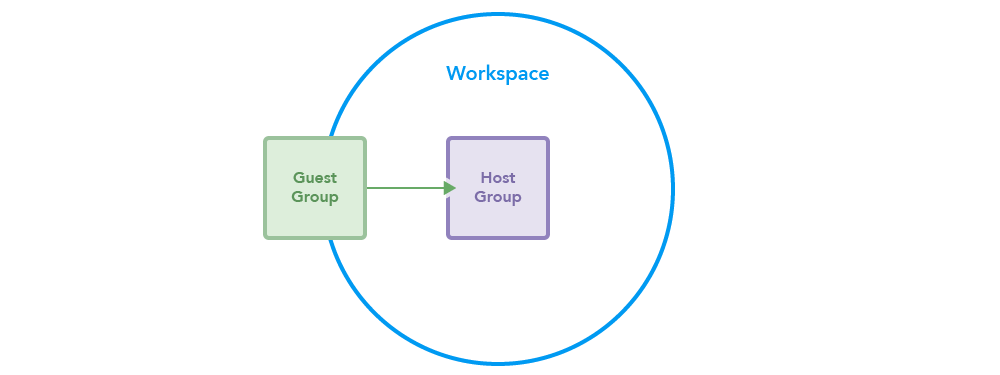
When the host selects send as the access mode for the guest, the guest can send content to the host but does not receive any content from the host.
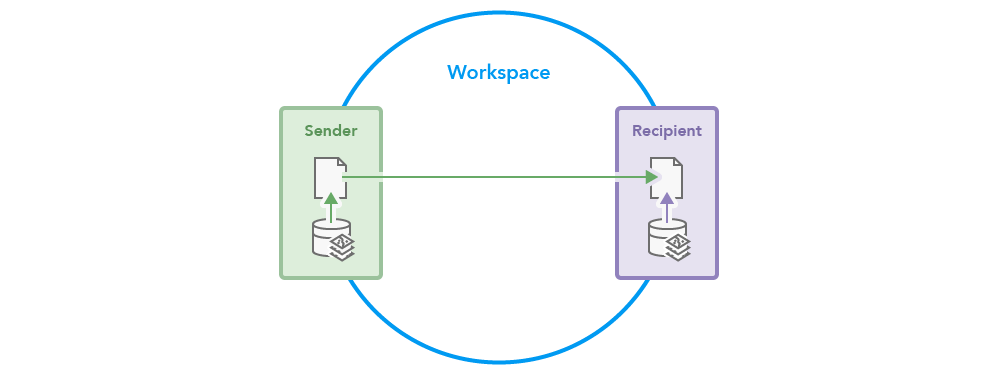
This mode is depicted in the following image:
Receive only
When the host selects receive as the access mode for the guest, the guest can receive content from the host but cannot send any content to the host.
This mode is depicted in the following image:

Send and receive
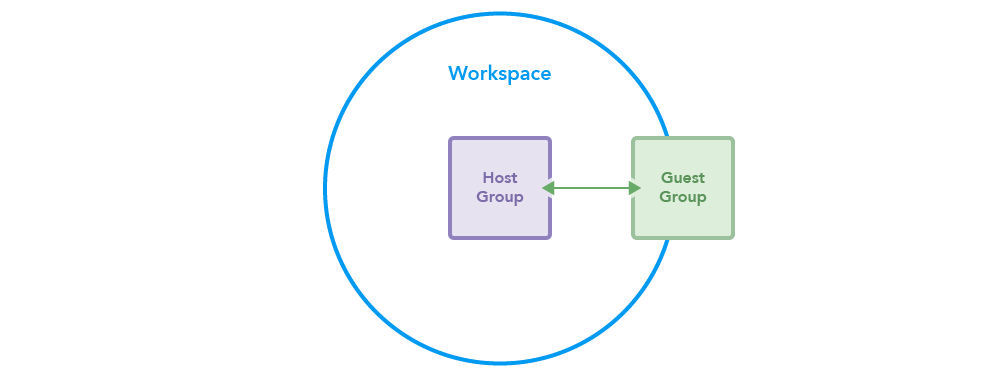
When the host selects send and receive as the access mode for the guest, the guest can send content to and receive content from the host. The send and receive access mode is required to enable two-way editing of feature layers between the host and participating collaboration guests.
This mode is depicted in the following image:
Feature layer sharing
In a distributed collaboration, hosted feature layers, hosted feature layer views, and federated feature layers are shared as either references or copies. Administrators must specify how feature layers will be shared for their organization when configuring the workspace. In a distributed collaboration that uses multiple workspaces, feature layer sharing settings can differ between workspaces as needed.
To learn about how other content types are shared in a distributed collaboration, see Share content with collaboration groups.
References
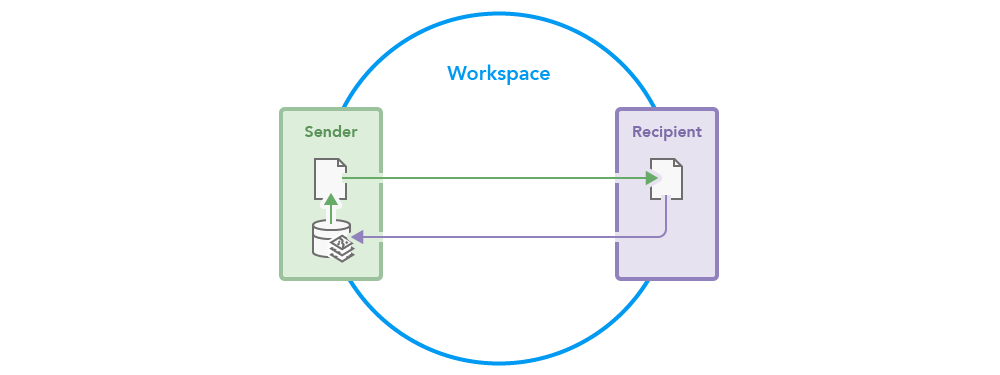
When a feature layer is shared by reference, a layer item is created in the recipient’s organization, but the data is not copied. Instead, the layer item references the source data used by the original feature layer or feature layer view.
For a member in the recipient organization to access a referenced layer, one of the following conditions must be met:
The layer is shared with Everyone.
If the layer is not shared publicly, members in the recipient organization must authenticate with the sending organization using an account that has at least Viewer-level access to the layer.
Edits made by the sending organization are immediately available to participating organizations, providing members with immediate access to shared layers. If the sending organization enables editing, recipient organization members can edit the original layer as long as public data collection is allowed or they authenticate with the sending organization using an account with the required privileges.
Organizations might choose to share feature layers and views by reference when working with time sensitive data to ensure updates are provided in real-time. For example, a hurricane tracking center uses an ArcGIS Enterprise organization to manage authoritative meteorological data. The center identifies a developing hurricane whose path will intersect with a city. The center contacts the city’s mayor to notify them about the weather event and to coordinate an emergency response. Since the city uses an ArcGIS Online organization, the center and city configure a distributed collaboration and choose to share public feature layers and views by reference to avoid synchronization delays. The city uses the real-time data to prepare emergency shelters, issue evacuation orders, direct traffic, and dispatch emergency personal to the most severely affected areas.
Feature layer sharing by reference is depicted in the following image:
Copies
When a feature layer or view is shared as a copy, the source data is copied to the recipient’s organization. A new hosted feature layer is created and owned by the recipient organization, which is reflected in the item's service URL. An organization might choose to share feature layers and views as copies if the receiving organization cannot authenticate with the sending organization, and if layers cannot be shared publicly.
Caution:
To share a feature layer as a copy, the sending organization must enable sync on the layer before sharing. If sync is not enabled or supported, data from the original feature layer is not copied.
Note:
When sharing feature layers as copies in a distributed collaboration, field names greater than 63 characters are truncated and will not be synchronized. For more information, see Schema changes.
When sharing feature layers and views as copies, the workspace must be configured to use either one-way copies or two-way copies depending on editing needs.
One-way copies synchronize edits from the sending to the receiving organization; only the sending organization’s edits are saved and shared. For example, a police department using ArcGIS Enterprise and city officials using ArcGIS Online create a distributed collaboration to share sensitive crime data and safety metrics for a public safety initiative. The police department has a firewall and does not want city workers to edit the data; therefore, the organizations choose one-way copies. The city gains view-level access to the data, while edits from the police department are synchronized to the city at scheduled intervals.
Two-way copies synchronize edits from both the sending and receiving organization with the latest change overriding pre-existing edits. For example, an oil exploration and production company uses ArcGIS Enterprise; however, its field workers use the ArcGIS Field Maps mobile application in ArcGIS Online. To allow both office and field workers to edit data collected in the field while signing in with their own credentials, the company configures a distributed collaboration and shares feature layers and views as two-way copies.
For feature layers and views shared as copies, the types of edits supported include adding new features, editing features, or deleting existing features. Edits are synchronized at a scheduled interval defined by the guest organization. Schema changes are not synchronized.
Note:
To share feature layers as two-way copies, all guest organizations must have send and receive access and use an ArcGIS Enterprise version that is 10.9 or later.
To learn more about sharing feature layers as copies, see Share feature layers with collaboration groups.
Feature layer sharing as copies is depicted in the following image:
Synchronization
In a distributed collaboration, shared content is synchronized between a single guest and the host using groups that are linked to a workspace. Guests configure their own synchronization settings; therefore, synchronization can occur at different times for each guest within the same workspace. For distributed collaborations with multiple workspaces, each workspace synchronizes independently of others. The two types of synchronization that can occur are scheduled and immediate.
Scheduled
During a scheduled workspace synchronization, the host’s and guest’s groups are compared for differences. New or updated content is sent from the guest to the host, and vice versa. Guest groups must have the send or send and receive access mode to send content and the receive or send and receive access mode to receive content during synchronization.
The guest must configure the workspace synchronization schedule. By default, scheduled synchronization is set to 24 hours. The minimum synchronization interval available is 1 hour. If a scheduled synchronization event is in progress when the next scheduled event is set to occur, the next scheduled event is skipped to allow the existing job to complete.
Immediate
When immediate synchronization is initiated in a distributed collaboration involving an ArcGIS Online host and ArcGIS Enterprise guest organization, newly shared content is instantly sent from the guest to the host using groups that are linked to a workspace. Updates made to items already shared—such as changes to item details, saving a web map, and saving or publishing a web app—are also sent as soon as they are saved. Data edits (for example, adding, deleting, or updating features in a layer) cannot be synchronized immediately.
Only guests with a workspace access mode of either send or send and receive can enable immediate synchronization. Changes made by the host are only shared to the guest during scheduled synchronization.
Note:
In a distributed collaboration with only ArcGIS Enterprise organizations participating, immediate synchronization is enabled for the host by default. The host can disable this setting if it cannot reach the guest.
For more information about synchronizing collaborated content, see Configure sync settings in the ArcGIS Enterprise documentation.