Publish or overwrite web tools and geoprocessing services in ArcGIS Pro
To share an analysis result as a web tool or geoprocessing service, ensure that there are sufficient publishing permissions and that the ArcGIS Pro and ArcGIS Enterprise versions are compatible.
The portal login account's role should be either Administrator or a custom role. When the role is custom, the minimum requirement is an existing default Publisher role with the Publish web tools option of the administrative privileges.
To publish to a stand-alone server running ArcGIS Server, you must be an administrator or a publisher with special system properties. You must add an administrator connection to your server. To update system properties to allow publishers publishing geoprocessing services, use the ArcGIS Enterprise Administrator API and add the allowGPAndExtensionPublishingToPublishers property.
Quick tour of authoring and sharing web tools
A web tool or geoprocessing service can be shared as a new web tool or to overwrite an existing one. To share a web tool or geoprocessing service with either option, see Quick tour of authoring and sharing.
Common optional steps to publish or overwrite
Whether you publish or overwrite a web tool or geoprocessing service, there are optional steps that can give you more control over the behavior of the published tool, and ensure the publishing is successful. Although, you can still publish many tools with the default settings, configuring those settings can further customize the published tool, and serve the web tool users with different needs.
Basic and advanced settings
In most cases, you will want to adjust the basic web tool settings in the Sharing pane. These settings control the most important parts of your published tool, like the execution mode, the level of messages displayed while the tool is running, who can access the tool, and how your web tool users will access the published tool. In some cases, the default behavior may not be desirable, like the input mode of a parameter, which requires you to change it to another mode at the time of publishing.
There can also be some administrative needs for a small set of tools you try to publish. With administrative access, you can adjust the Advanced service properties for your geoprocessing service.
Analyze
Analyze your tool before publishing. This process identifies issues that may prevent the tool from publishing. Information regarding the data and tools that compose the service as well as potential solutions are provided. Some analyzer errors can only be resolved by modifying the tools or data that compose the tools. Other messages and warnings provide guidance and best practices. You can publish the tool after addressing critical errors and configure the service settings.
To run analyze, click the Analyze button at the bottom of the Sharing pane.
Even if you do not analyze the tool yourself, both publishing and overwrite will automatically run the analyze, regardless if you have run it before.
Learn more about analyzer messages
Add a tool
When sharing a web tool or geoprocessing service, start with an error free result of a model, script, or Python toolbox tool. You can build a web tool or geoprocessing service using multiple results. Only successful geoprocessing history item, or those with warning messages can be included, the publishing process must be free of any error analyzer messages to successfully publish. Adding multiple tools is a good technique when grouping similar tools or tools that are part of a workflow.
Note:
A new tool cannot be added to an existing web tool or geoprocessing service. You must republish the existing tool and include the new tool in a new, single web tool or geoprocessing service, or overwrite the tool you want to update.
Starting from ArcGIS Pro 3.6, you can select one or more toolboxes, or tasks within a toolbox, in addition to any error free history items. See consolidation options for limitations on sharing from tasks or toolboxes.
Use a federated server in ArcGIS Enterprise
When sharing a web tool to your portal, the hosting server is the default server for the underlying geoprocessing service. Sharing many web tools to a hosting server may affect performance due to a potential lack of system resources, including the memory of the system. If you have multiple servers available and they are federated to your portal, it may be advantageous to separate the geoprocessing services from the default hosting server to their own federated server. Without multiple federated servers, geoprocessing services can be shared to the hosting server as long as good service and resource management by administrators and publishers is followed.
Different deployment environments
In addition to sharing to the ArcGIS Enterprise your ArcGIS Pro session is currently signed in to, or a stand-alone server with a server connection file, you can also share your web tool to other deployments, using a service definition file, adding an item to ArcGIS Online, or sharing it to ArcGIS Enterprise on Kubernetes.
Save as a service definition file
Save the analysis result as a service definition file (.sd), and publish it to ArcGIS Enterprise later. You can also use the service definition file to publish to another ArcGIS Enterprise, or stand-alone server at a different environment, by using the upload-service-definition tool after you created your service definition file.
See Save a service definition for a web tool or geoprocessing service for more information about the steps to create a connected or an offline service definition file.
ArcGIS Online
You cannot share a web tool or geoprocessing service to ArcGIS Online directly, but you can add the service URL of your published web tool or geoprocessing service in ArcGIS Enterprise as a geoprocessing service item in ArcGIS Online.
Learn more about adding items from the web
ArcGIS Enterprise on Kubernetes
Starting with ArcGIS Pro 2.9 and ArcGIS Enterprise 10.9.1, you can publish web tools to ArcGIS Enterprise on Kubernetes.
Advanced sharing scenarios
In most scenarios, like the example in the Quick tour of authoring and sharing, running your tool first, and publishing using a history item provides the most reliable and predictable publishing experience by validating behavior, data access, and parameter configuration.
Beginning with ArcGIS Pro 3.7, depending on your deployment environment, data accessibility, or project complexity, you may choose to configure specific consolidation options along with include data, scripts, and toolboxes option to control how your tool, toolbox, and supporting resources are prepared for ArcGIS Server. Understanding consolidation options helps you streamline publishing, avoid unnecessary data duplication, and ensure your geoprocessing services function correctly in their server environment. You can configure these web tool settings in the General tab of the sharing pane. The following cases demonstrate the scenarios that can get benefits from using these new web tool setting options.
Publishing without running first
Running your tool before publishing helps ensure that it functions as intended. Running the tool allows you to identify errors that may not have been noticed during authoring, detect potential performance issues, and confirm that your data is not modified unexpectedly. Running the tool also enables certain behaviors, such as populating the list of valid layers for an input parameter when using the choice list input mode.
If your tool does not define default values for its input parameters, running the tool before publishing ensures that default values are available to configure or remove during the publishing process.
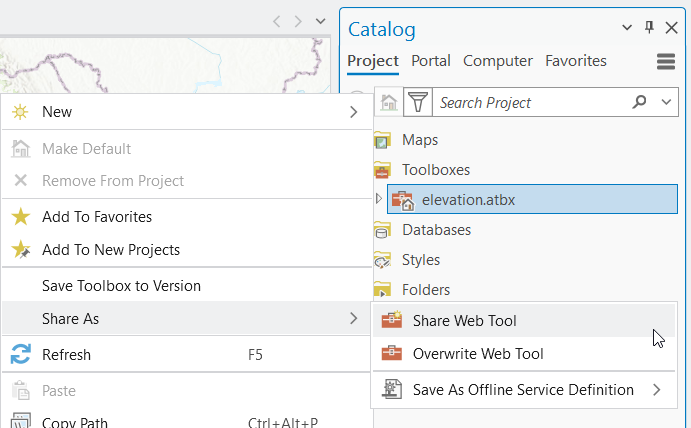
However, if your tool uses hardcoded data paths that are only accessible to ArcGIS Server, running it locally will fail due to data access limitations. In these cases, the consolidation options allow you to publish without running the tool first. You can share directly from a task in a toolbox, an entire toolbox, or a combination of tasks and toolboxes. To support this workflow, share the toolbox or task directly and check the Update path relative to the server option.
You can share an entire toolbox or individual tasks in ArcGIS Pro like the following, or Publish using Python by specifying the toolbox or task.
Pro and server deployed together
If ArcGIS Pro and ArcGIS Server are installed on the same machine, or if your toolbox is stored in a shared location accessible to both, you may want to avoid creating duplicate copies of the toolbox on the server. Although sharing from a history item is still recommended, you can uncheck the Include custom toolboxes option to maintain a single copy. If you make changes to your toolbox—especially changes involving parameters—you must overwrite or republish the service. For minor updates, you can stop the geoprocessing service, update your toolbox, and start your service.
Managing complex project folder structure
Managing large and complex projects with many data sources is common in many organizations, and the web tool you publish may only use a small portion of these resources. If your project includes extensive folder structures or numerous interdependent datasets, unchecking the Entire local Python package option when publishing a script tool or Python toolbox can significantly reduce consolidation time, prevent unnecessary data copying, and avoid consolidation failures.
Publishing from history items with temporary or unavailable data
When publishing from history items, especially those created by running a tool before opening your current ArcGIS Pro session, some datasets used during the previous run may no longer be available. This commonly occurs when using the memory workspace, which is cleared when ArcGIS Pro is closed. In these situations, you can uncheck the Run tool validation before sharing option to avoid validation errors caused by missing temporary data.
Options supporting advanced sharing scenarios
For common sharing scenarios, you do not need to configure these options, and the default options will apply. However, to support advanced sharing scenarios, you need to configure the following options depending on your use case starting at ArcGIS Pro 3.7.
Include data, scripts, and toolboxes
For most sharing workflow, you will need all the data, scripts, and toolbox for your published tool to function. However, with some of the advanced sharing scenarios, you may want to customize what the publishing workflow will copy, and what to omit.
When this option is checked, Include custom toolboxes and Include local Python packages will be locked into checked status.
When this option is unchecked, these two options will be unlocked and you are able to configure them. Once you uncheck this option, it will be impossible to copy any data, or convert any URL data into a copied feature or table to the server. Only registered data source is possible. Also, because there is no data getting copied and needing and validation check, Run tool validation before sharing option will be locked into unchecked status.
This option is checked by default.
Consolidation options
Consolidation for web tool publishing is a mandatory process when you share your analysis. This process gather everything a tool needs to run once published, such as any model, script, or Python toolbox used, any datasets needs to be copied, and the service and sharing configuration. Depending on your data‑sharing settings, some dataset paths are automatically updated to ensure that the server can access the required data when the tool is run. At the end of the consolidation process, everything that is required will be zipped into a service definition file, and get uploaded to a server if it applies. The only way to avoid the consolidation is to use the create service REST API and specify all service configurations yourself, including managing all data sources your service needs.
Beginning with ArcGIS Pro 3.7, additional consolidation options are available when publishing or overwriting a web tool or geoprocessing service, as well as when creating connected or offline service definitions. In typical publishing workflows, you can ignore these settings, as they are not required and the defaults will work correctly. These options are intended for advanced scenarios and specialized deployments where reducing manual server‑side configuration is beneficial.
Include custom toolboxes
Custom toolboxes (both .atbx or .pyt), are considered user-defined toolboxes, in contrast to the system toolboxes installed with ArcGIS Pro. Likewise, on your standalone or federated ArcGIS Server machine, system toolboxes are included as part of the ArcGIS Server installation, such as the Analysis toolbox that contains tools like Pairwise Buffer.
If you intend to manually deploy your own custom toolbox to the server, you can uncheck the consolidation option. When unchecked, toolboxes are not copied to the server during publishing. However, if you do not update the service properties to point to the manually deployed toolbox, or you do not deploy a toolbox at all, your published tool will fail to run because every geoprocessing service requires an associated toolbox to run. To update the toolbox location of your service property, access the Edit the service properties endpoint for the geoprocessing service you need to modify. Typically, it will be https://organization.example.com/serverwebadaptor/admin/services/servicename.GPServer/edit. In the service configuration, update the path of toolbox in the properties section in the service properties JSON.
Unchecking this option also disable the Include local Python packages option and locked into the unchecked status.
The default for this option is checked, which ensures that your custom toolbox is copied to the server during publishing.
Include local Python packages
For Python script tools or Python toolboxes, you may include some Python packages to better organize your code, separate some Python functions into different folders, or you want to better manage or scale your Python code.
If you decide you want to manually deploy your Python packages, you can disable this consolidation option. If you uncheck it, no Python packages will be copied to the server. However, if your published script cannot access your deployed packages, or you don't deploy necessary packages manually, your published tool will fail to run without these packages.
You never need to deploy any Python packages in the standard conda environment that comes with ArcGIS Pro or ArcGIS Server. If you use a third party Python packages in your script, see Deploy custom Python packages to have them deployed in the server's conda environment.
Unchecking this option will disable the entire local Python packages option and leave it unchecked also, because there is no Python packages get copied entirely.
The default for this option is checked, which ensures that your local Python packages is copied to the server during publishing.
This option is not available to configure and will be unchecked if the Include custom toolboxes is unchecked.
Entire local Python package
If your local Python package has a complex folder structure for your local Python package, or there are a lot of files in your local Python packages, consolidation may copy all files, including any data sources, regardless if you intend to use them or not, to the server. If you have a project file or a layer file for example, consolidation will copy all data used to the server.
Disabling this option will allow the consolidation process to copy only those files used by your tools copied to the server.
The default for this option is checked, which will copy the entire package to the server.
This option is not available to configure and will be unchecked when the Include local Python packages option is unchecked.
Update path relative to the server
If your tool requires data to run and you decide to copy the data to the server, or reference the data to the server, the paths to the data can be different between data locations. Checking this option will ensure the published tool can find the copied data on the server.
For example, if your tool uses a feature class on a local data drive as project data, once your web tool is published, the path to your feature class will not be accessible from your server machine in many cases. During the publishing process, the data is copied into a specific location on your server, and your tool will automatically get updated to point that feature class with that specific server location. An example path for your server data is C:\arcgisserver\directories\arcgissystem\arcgisinput\servicename.GPServer\extracted\cd\elevation.gdb.
When using referenced data, having this option checked will ensure the published tool uses the server side path as you specified when you register your data source. For example, if you specify the publisher's path and the server's path are the same when you register your data path, like an UNC path, having this option checked will ensure your paths remains pointing to the UNC path in your published tool.
Unchecking this option will ensure there is no change to the way you reference your data in your tool. However, you need to ensure the data paths used by your published tool is accessible, whether you decide to use copied or referenced data.
Learn more about understanding reference registered data and copying all data.
The default for this option is checked, which will modify the data paths if necessary.
This option is only available to configure if you try to share to a server at ArcGIS Enterprise 12.1 or later.
Run tool validation before sharing
When you share from a history item, the tool is validated again using the inputs from the original run. This is the same validation that occurs when you reopen a history item to rerun the tool. Revalidating ensures the tool is still valid—for example, that any data is still valid and the tool’s source script is still accessible.
Disabling this option will skip these validation checks. You need to ensure any data used by your published tool is accessible.
The default for this option is checked.
If you share from a toolbox or a task directly, because there is no history the validation can run with, this option is not available for configure and is unchecked. This also applies when you uncheck the Include data, scripts, and toolboxes option.