Configurable Network Analyst options
Certain project and application options for Network Analyst can be configured using the Options dialog box. This capability is helpful when settings should be preserved between ArcGIS Pro sessions therefore avoiding the need to reconfigure them every time a network analysis workflow is performed.
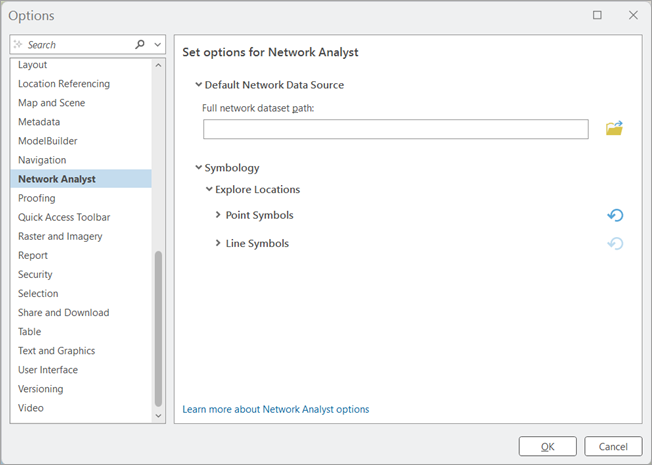
Default network data source
This property can be used to set a default network dataset that will be used as the network datasource when creating any new network analysis layer. The value of this property must be a full path to a network dataset; relative paths are not accepted. Also, a network analysis service URL cannot be set as the default. Once this property is set, it will persist across ArcGIS Pro sessions without needing to add the network dataset to the map.
Symbology
Explore locations
Application options for Explore Locations define the appearance of points and line symbols when identifying network locations on the map.
Learn more about the Explore Locations tool
Customize the settings of point symbology
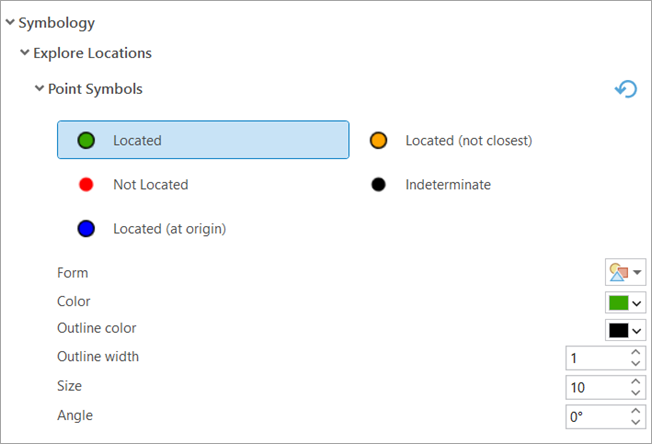
Expand the Point Symbols section to customize the appearance of the point symbology. Select the point symbol for any of the location option and make necessary changes to the below properties:
|
Form |
Click the drop-down arrow and choose a symbol. |
|
Color |
Click the drop-down arrow and choose a color. |
|
Outline Color |
Click the drop-down arrow and choose an outline color. |
|
Outline Width |
Click the text box, and type a width value or click the control arrows. |
|
Size |
Click the text box, and type a point size or click the control arrows. |
|
Angle |
Click the text box, and type an angle value or click the control arrows. |
To reset all point symbology options to their default values, click Reset to default  .
.
Customize the settings of line symbology
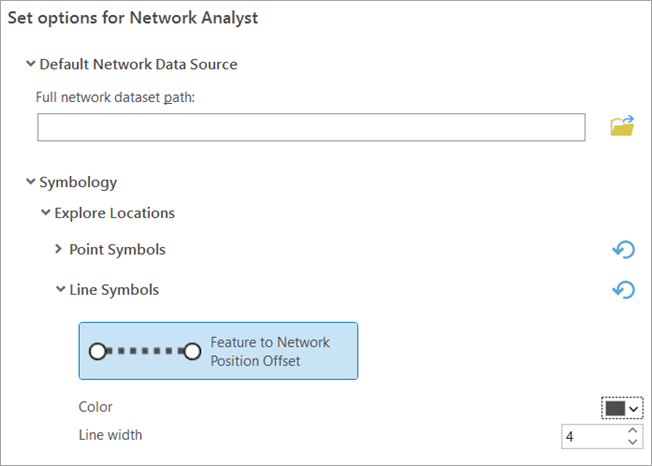
Expand the Line Symbols section to customize the appearance of the line symbology.
|
Color |
Click the drop-down arrow and choose a color. |
|
Line Width |
Click the text box, and type a width value or click the control arrows. |
To reset all line symbology options to their default values, click Reset to default .
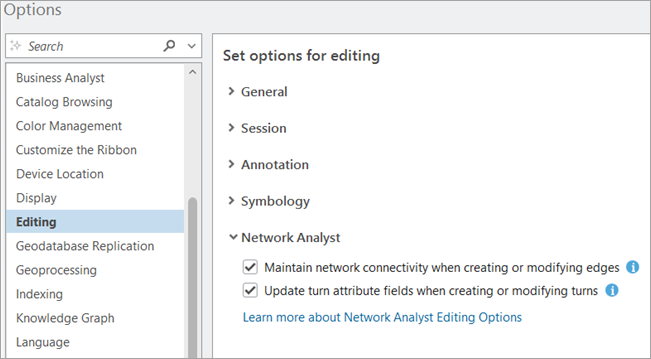
Network dataset editing options
Network dataset editing behavior can be configured using the Editing side tab in the project and application Options dialog box.