Create a network analysis layer
Network Analyst allows you to perform network analysis, such as finding shortest paths, creating drive-time polygons, identifying closest facilities, choosing the optimal location, and finding the best routes for a fleet of vehicles.
Network analysis layers are used for performing a network analysis workflow in ArcGIS Pro. A network analysis layer references a specific network data source, which can either be a local network dataset or a logistic service hosted in ArcGIS Online or Portal for ArcGIS. It also has a set of analysis settings and includes the inputs and outputs of the analysis. Learn more about network analysis layers
This topic describes how to create a new network analysis layer in ArcGIS Pro.
Note:
If you perform an analysis using ArcGIS Online, the solver references a high-quality, worldwide network dataset stored in the ArcGIS Online cloud and uses ArcGIS Online credits. You can also use your own network dataset stored locally on your machine or use ArcGIS Enterprise to publish routing services using your own network dataset and configure the services with your enterprise portal to consume them from ArcGIS Pro.
Complete the following steps to create a network analysis layer:
Click Insert > New Map to insert a new map, if necessary.
On the Analysis tab, and in the Workflows group, click the Network Analysis drop-down menu.
A window appears with information on the network data source and the types of network analysis layers that can be created.
Examine the network data source under the Network Data Source section. The new network analysis layer will use this network dataset or service for its network analysis calculations. To change the network data source for the new network analysis layer you want to create, follow steps 4 through 6; otherwise, skip to step 7.
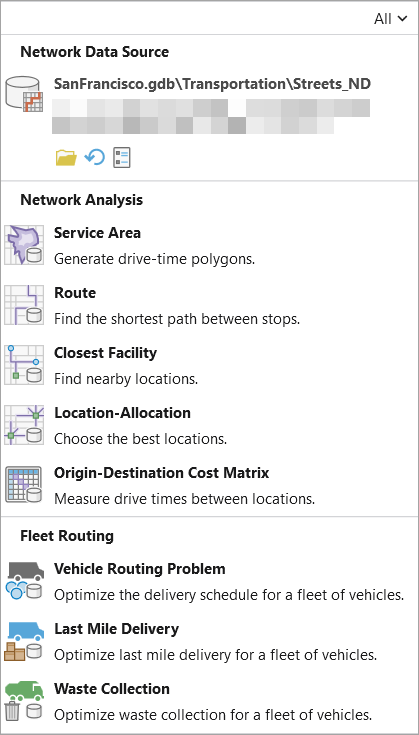
Click the Network Data Source button.
The Select Network Data Source dialog box appears.
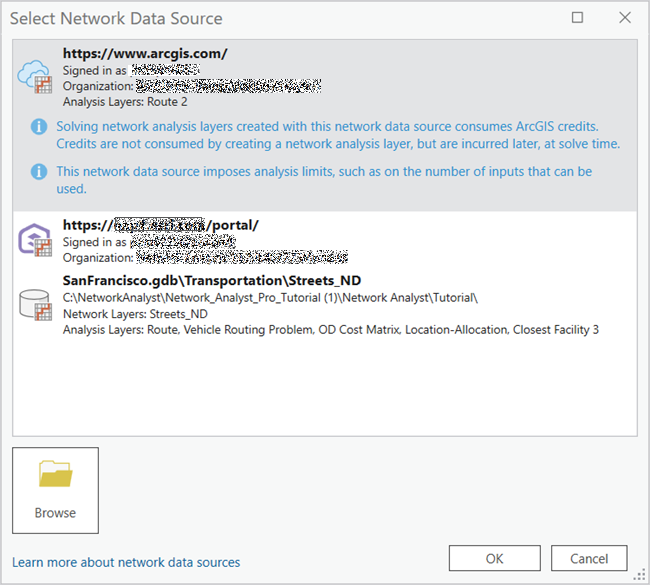
Select from the list of available network datasets or click the Browse button to browse to the location of the network dataset you want to use.
Click OK.
The selected network dataset will be used as your network data source. Also, the next time you open the Select Network Data Source dialog box, the network dataset will appear in the list of available network dataset sources.
Note:
Depending on the network data source you choose to create the network analysis layer, the solvers display an icon that reflects the data source selection.
In the New Network Analysis Type section, choose an analysis layer type.
The newly created network analysis layer is added to the Contents pane.
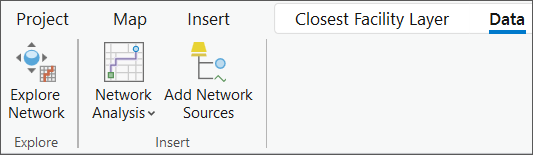
Click the network analysis layer in the Contents pane. You will see that it is accompanied by the Data ribbon. Learn more about the tools on the Data ribbon.
Note:
Network analysis layers can also be created using geoprocessing tools in the Network Analyst Tools toolbox, such as the Make Route Analysis Layer tool.