Divide a line feature by a value
Divide  divides one or more selected line features into multiple line features at one or more specified lengths, equal lengths, or percentages of the total length. This tool is available in the Modify Features pane.
Selecting a line feature displays its total length at the bottom of the pane. As you type distance values, the tool reports the sum of the specified distances and the resulting lengths. “Different Values” appears when multiple features are selected.
When you divide line features, consider the following:
You must explode a multipart feature before dividing it with this tool.
Attribute values from the original feature are copied to the new features. Attributes constrained by attribute domains are determined by the domain split policy defined by the source geodatabase.
Dividing a z-aware feature preserves the angular pitch of its segments and assigns interpolated z-values to new vertices.
Note:
This tool is COGO-aware. The distance values you enter for a selected COGO enabled feature are stored with the resulting divided line features in the Distance or Arclength attribute field.
Specify distances
Distance  divides selected line features into two or more features at a single distance, or at equal or varying distances.
When you divide a COGO-aware line feature that doesn’t have stored distance or arc length values, and ground to grid corrections is turned on, the distances you enter are adjusted using the current distance factor.
Open the map containing the features to be edited or add the layer to the map.
Tip:
Before editing, confirm the layers you are editing are editable, snap settings add efficiency and accuracy to your workflow, and the coordinate system assigned to the active map is suitable for the type of edits you're performing.
For a basic checklist of settings, see Configure settings for editing.
Click the ribbon Edit tab. In the Features group, click Modify
 .
.The Modify Features pane appears.
Click the Divide tool
.To find the tool, expand Divide, or type Divide in the Search text box.
The tool opens and the Select a feature tool
 automatically runs.
Select one or more line features.
The selected features appear in the selection view, and the available tool parameters appear in the pane. If a single line feature is selected, its total length is reported.
To refine the selection, right-click a feature in the selection view and choose Unselect
 or Only Select This
  .
.Check the Show Preview check box to preview the results as you enter values.
Setting Description Checked Preview the results on-screen before modifying the feature. Not checked Don't display a preview. Click the Distance
method.In the Direction section, choose the point on the line features from which to measure and divide the selected features.
Setting Description From start of line 
Divide the selected lines from the start point of the lines. From end of line 
Divide the selected lines from the end point of the lines. Click the Units drop-down arrow in the Values section and choose a unit format.
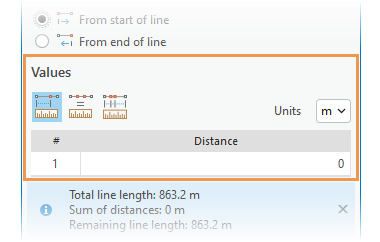
Click one of the following methods and enter the required values for distance and the number of repetitions:
Single Distance

In the Distance field, enter a single distance at which the feature is to be divided.
Note:
If you divide COGO-enabled features, ground to grid corrections are used only if it is turned on and there is no existing COGO value on the selected feature.
If there is an existing COGO value on the selected feature, it is used to proportion the resulting lengths, and to compute the COGO distance attribute on the remainder by subtracting the entered value from the original value.
Equal Distances

In the Distance field, enter the distance at which the divisions are to be created. In the Repetition field, enter the number of divisions to create at this distance.
The remaining distance is added to the last feature in the sequence. To distribute the remaining length equally to each feature, check the Distribute remaining length equally check box.
Note:
If you divide COGO-enabled features and distribute the remaining length equally, ground to grid corrections and existing COGO values are ignored.
If you divide COGO-enabled features and do not distribute the remaining length equally, the existing COGO value on the selected feature is used to proportion the lengths.
Varying Distances

In the Distance field, enter the distance at which the first set of divisions are to be created. In the Repetition field, enter the number of divisions to create at this distance.
To enter another sequence of divisions, click Click to add new row. Each row creates divisions measured from the last division created by the previous row.
To delete one or all rows in the table, right-click a row and choose the appropriate command on the context menu.
The remaining distance is added to the last feature in the sequence. To distribute the remaining length among the features, check the Distribute remaining length proportionally check box.
Each entered length is divided by the sum total of all entered lengths. The resulting ratios are used to determine how the remaining length is distributed to the corresponding geometry lengths.
Note:
If you divide COGO-enabled features and distribute the remaining length proportionally, ground to grid corrections and existing COGO values are ignored.
If you divide COGO-enabled features and do not distribute the remaining length proportionally, the existing COGO value on the selected feature is used to proportion the lengths.
Click Divide.
Specify equal parts
Equal Parts  divides a selected line feature into a specified number of features. The length of each new feature is calculated by the tool.
Open the map containing the features to be edited or add the layer to the map.
Tip:
Before editing, confirm the layers you are editing are editable, snap settings add efficiency and accuracy to your workflow, and the coordinate system assigned to the active map is suitable for the type of edits you're performing.
For a basic checklist of settings, see Configure settings for editing.
Click the ribbon Edit tab. In the Features group, click Modify
.The Modify Features pane appears.
Click the Divide tool
.To find the tool, expand Divide, or type Divide in the Search text box.
The tool opens and the Select a feature tool
automatically runs.Select one or more line features.
The selected features appear in the selection view, and the available tool parameters appear in the pane. If a single line feature is selected, its total length is reported.
To refine the selection, right-click a feature in the selection view and choose Unselect
or Only Select This .Check the Show Preview check box to preview the results as you enter values.
Setting Description Checked Preview the results on-screen before modifying the feature. Not checked Don't display a preview. Click the Equal Parts
method.Click the Number of parts arrow In the Values section, and increment or decrement the number of line features to create.
Alternatively, enter the number.
Click Divide.
Specify a percentage
Percentage  divides a selected line feature into two line features. The length of the first line equals the specified percentage of the total length. The remaining length is applied to the second feature.
Open the map containing the features to be edited or add the layer to the map.
Tip:
Before editing, confirm the layers you are editing are editable, snap settings add efficiency and accuracy to your workflow, and the coordinate system assigned to the active map is suitable for the type of edits you're performing.
For a basic checklist of settings, see Configure settings for editing.
Click the ribbon Edit tab. In the Features group, click Modify
.The Modify Features pane appears.
Click the Divide tool
.To find the tool, expand Divide, or type Divide in the Search text box.
The tool opens and the Select a feature tool
automatically runs.Select one or more line features.
The selected features appear in the selection view, and the available tool parameters appear in the pane. If a single line feature is selected, its total length is reported.
To refine the selection, right-click a feature in the selection view and choose Unselect
or Only Select This .Check the Show Preview check box to preview the results as you enter values.
Setting Description Checked Preview the results on-screen before modifying the feature. Not checked Don't display a preview. Click Percentage
method.In the Direction section, choose the point on the line features from which to measure and divide the selected features.
Setting Description From start of line Divide the selected lines from the start point of the lines. From end of line Divide the selected lines from the end point of the lines. In the Values section, click the Percentage arrow and increment or decrement the percentage of the total length of the line feature you want the new feature to contain. Alternatively, click the field and enter the number.
Click Divide.