Split a feature
The Split tool  allows you to split line and polygon features with the pointer or select existing features and use them to split other features. This tool is available in the Modify Features pane and on the context menu when a feature is selected and you right-click the map.
For steps to split COGO line features, see Split lines into COGO lines.
When you use this tool, consider the following:
Attribute values from the original feature are copied to new features. Attributes constrained by attribute domains are determined by the domain split policy defined by the source geodatabase.
The Allow splitting features without a selection setting is available only when splitting features interactively with the pointer.
Splitting a z-aware feature preserves the angular pitch of its segments and assigns interpolated z-values to new vertices.
Split lines or polygons using the pointer
The Interactive tab allows you to split line or polygon features using the pointer. You can click and snap a split location on a line feature or draw sketch geometry across it. Sketch geometry must intersect polygons in two or more places.
To split line or polygon features using the pointer, complete the following steps:
Open the map containing the features to be edited or add the layer to the map.
Tip:
Before editing, confirm the layers you are editing are editable, snap settings add efficiency and accuracy to your workflow, and the coordinate system assigned to the active map is suitable for the type of edits you're performing.
For a basic checklist of settings, see Configure settings for editing.
Click the ribbon Edit tab. In the Features group, click Modify
 .
.The Modify Features pane appears.
Click the Split tool
.To find the tool, expand Divide, or type Split in the Search text box.
Alternatively, click a Selection tool
 on the ribbon Edit tab, select a feature, right-click the map, and click Split on the context menu.
The tool opens and the Select one or more lines or polygons tool
 automatically runs.
Click the Interactive tab in the Split tool pane.
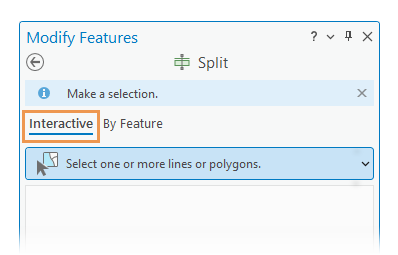
Check or uncheck the Allow splitting features without a selection check box.
Setting Description Checked Split all visible and editable features without creating a selection. Unchecked Split only selected features. If the tool requires a selection, select the features to be split.
The selected features appear in the selection view.
To refine the selection, right-click a feature in the selection view and choose Unselect
 or Only Select This
  .
.Click an edge of a line feature to specify the location of a split or draw sketch geometry across line and polygon features using the segment construction tools on the toolbar.

Feature Actions Line Click and snap an edge or draw sketch geometry across the feature. Clicking the intersection of two or more lines splits all the lines where they intersect. Polygon Draw sketch geometry across a polygon feature that intersects the feature in two or more places. To split the feature, click Finish
 , or press F2.
Split target features using input features
The By Feature tab allows you to select input features and use them to split overlapping target features. To manage the selection set, you can right-click a selected feature in the Input or Target tab and move it to the other tab.
Selected features participating in a split are highlighted with hatched lines. If the selection set exceeds 100 features, hatched lines are automatically turned off and not displayed for performance considerations.
Open the map containing the features to be edited or add the layer to the map.
Tip:
Before editing, confirm the layers you are editing are editable, snap settings add efficiency and accuracy to your workflow, and the coordinate system assigned to the active map is suitable for the type of edits you're performing.
For a basic checklist of settings, see Configure settings for editing.
Click the ribbon Edit tab. In the Features group, click Modify
.The Modify Features pane appears.
Click the Split tool
.To find the tool, expand Divide, or type Split in the Search text box.
Alternatively, click a Selection tool
on the ribbon Edit tab, select a feature, right-click the map, and click Split on the context menu.The tool opens and the Select one or more lines or polygons tool
automatically runs.Click the By Feature tab in the Split tool pane.
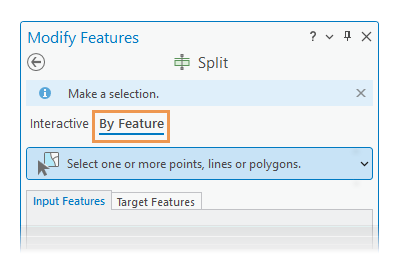
Click the Input Features tab, and select the features that will be used to split the target features.
Alternatively, if target features are already selected, click the Select Input Features tool
to select all editable and visible features that intersect the target features. This tool appears at the bottom of the selection view and is available only if features are currently selected on the Target Features tab.The selected features appear in the Input Features tab selection view and highlight in the map with dashed boundaries and hatched lines.
To change a selected feature to a target feature, right-click it and click Move to Target.
To refine the selection, right-click a feature in the selection view and choose Unselect
or Only Select This .Click the Target Features tab, and select the features that are to be split by the input features.
Alternatively, if input features are already selected, click the Select Target Features tool
to select all editable and visible features that intersect the input features. This tool appears at the bottom of the selection view and is available only if features are currently selected on the Input Features tab.The selected features appear in the Target Features tab selection view and highlight in the map with dashed boundaries and hatched lines.
To change a selected feature to an input feature, right-click it and click Move to Input.
To refine the selection, right-click a feature in the selection view and choose Unselect
or Only Select This .Click Split.