Create system favorites
As an administrator, you can select and distribute a collection of favorite items to users in a workgroup, a department, or throughout your organization. For users, these system favorites exist in addition to their personal favorites collections. Both collections are available in the Catalog pane, catalog views, and browse dialog boxes.
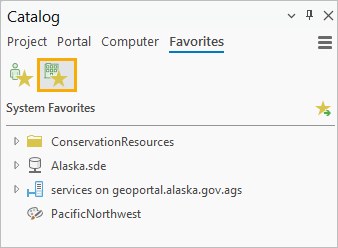
System favorites ensure that users who work frequently with a common set of items have easy access to those items. In contrast to a personal favorites file, users cannot add or remove items from the system favorites collection.
A system favorites file is a JSON file formatted in the same way as a personal favorites file. It is deployed through an application setting in the Pro.settingsConfig file.
Prepare a system favorites file
Preparing a system favorites file involves the following tasks:
Export an existing personal favorites file to a network location.
Specify this location as a custom favorites file location.
Modify the file contents to include the items you want to be system favorites.
Export the favorites file
The steps to export a favorites file are the same steps a user can follow to share a personal favorites file.
In an open ArcGIS Pro project, in the Catalog pane, click the Favorites tab and confirm that My Favorites
 is selected.
Click Export favorites to file
 .
.Alternatively, in the Contents pane of a catalog view, expand Favorites
 , right-click My Favorites , and click Export Favorites .
On the Export Favorites browse dialog box, browse to a network folder.
The exported file must be stored in a shared network location so that the path is accessible to users. You can export the file to an existing folder or create a folder and name it
System Favoritesor something similar.In the Name text box at the bottom of the browse dialog box, type a name for the file.
You can name the file
SystemFavoritesor something else. The.jsonfile extension is appended automatically.Click Save.
The exported file is created in the specified location.
Customize the favorites file location
You'll designate the exported file as your current favorites file so that you can modify its contents in ArcGIS Pro.
In your open project, on the ribbon, click the Project tab.
On the settings page, in the list of side tabs, click Options.
On the Options dialog box, under Application, click Catalog Browsing.
On the Catalog Browsing page, expand Favorites.
Under My Favorites, click Store favorites file in a custom location.
In the text box under the option, enter the path to the exported favorites file.
Alternatively, click Browse
 and browse to the file. If you don't see the file, click Refresh
  on the Select Favorites File dialog box. Click OK.
Click OK on the Options dialog box.
Modify the file
You'll modify the current contents of the favorites file as needed to create a list of system favorites. Modifying this file does not change the contents of the default favorites file in your roaming profile.
System favorites must be located on network drives that are accessible to your users. When you add items, their paths should be specified as UNC paths if users can map network drives with different drive letters.
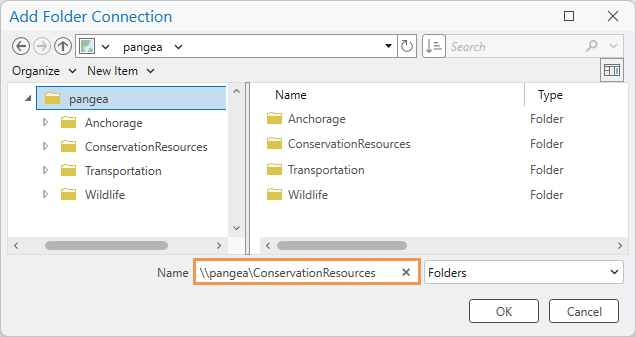
In your open project, make the Catalog pane active if necessary. On the Favorites tab, click My Favorites
.Alternatively, in the Contents pane of a catalog view, under Favorites
, expand My Favorites .Remove items that you do not want to be system favorites from the list.
To remove a single item, right-click it and click Remove From Favorites
 .
.To remove nonconsecutive items, press the Ctrl key and click the items.
To remove consecutive items (including all items), press the Shift key and click the first and last items in the series.
Add items that you want to be system favorites to the list.
To do so, follow the same steps you use to add existing items as personal favorites.
Note:
Some items, such as servers and enterprise geodatabases, prompt you to copy the connection file to the favorites cache folder. Click No on this prompt. Users will access these items from their source locations on the network.
If you want to create new items as system favorites, you must set a custom location for the favorites cache folder. It is recommended that you use the network folder that contains the system favorites file.
Optionally, drag the items to new positions in the favorites collection.
The file is ready to be distributed as a system favorites file to users. In the Catalog Browsing options, you can reset the favorites file to its default location for your personal use.
Distribute system favorites
System favorites are distributed to users through a Pro.settingsConfig file. This file allows you to set and lock values for many ArcGIS Pro application settings. If this file does not exist, you must create it. If it does exist, you will update it to use the SystemFavoritesFilePath application setting.
If necessary, create a
Pro.settingsConfigfile and configure user machines to use it.Open the file in your preferred text editor.
Under Catalog settings, add a
SystemFavoritesFilePathsetting.If you created the
Pro.settingsConfigfile from a template, this setting may already be present. If so, you may need to uncomment it.Set the
islockedvalue totrueand enter a UNC path to the system favorites file you created.The entry looks like this but with your own path and file name:
<SystemFavoritesFilePath isLocked="true">\\pangea\System Favorites\SystemFavorites.json</SystemFavoritesFilePath>The system favorites are now available to users on the Favorites tab of the Catalog pane, and under Favorites > System Favorites in catalog views and browse dialog boxes.
Update system favorites
To make changes to the system favorites file, customize the favorites file location as you did before. When the system favorites file is specified as the current favorites file location, you can add or remove items or change the item order. When you're finished, set the favorites file back to the default location.
The system favorites file should be write protected so that users cannot modify it.
If users have write access to system favorite items—as opposed to the system favorites file—they are able to move, rename, or delete these items and change item properties. Users with write access can also change the items contained by a system favorite—for example, they can add or delete items inside a system favorite folder. These changes affect everyone who uses the favorite item.
When a user moves, renames, or deletes a system favorite item, this does not change the original path to the item in the system favorites file. The result is that the modified item is inaccessible from the favorites list for all users. It displays with a red exclamation point that indicates a broken path.
While it may be desirable for users to have write access to items contained by a system favorite, the system favorite items themselves should not be modified. This avoids the risk of one user breaking access to an item for everyone.