Use project favorites
Project favorites are a collection of frequently used folders, databases, toolboxes, and other items that you can add to a project directly from the Catalog pane or a catalog view without browsing to the item's location on disk.
There are two types of project favorites:
My Favorites—A personal collection of favorites that you choose and curate.
System Favorites—A shared collection of favorites that is chosen and curated by your software administrator.
You work with both types of favorites in similar ways, but your options with system favorites are more limited.
The following types of items are supported as project favorites:
Folders

Databases
 (including file, mobile, and enterprise geodatabases)
Additional database file types including SQLite databases, OGC GeoPackages, document database connection files, and Office Data Connection files.
Toolboxes
 (including ArcGIS, Python, and legacy toolboxes)
Servers

Custom styles

Cloud stores

BIM Cloud connections

Statistical Data Collections

Additional ArcGIS Business Analyst file types including variable lists, Huff models, segmentation target groups, and segmentation profiles.
Note:
Portal items are not supported as project favorites. You can create a collection of favorite portal items in the web interface to your portal application. In ArcGIS Pro, these items are available in the My Favorites collection  on the Portal tab of the Catalog pane. They are also available from the corresponding locations in catalog views and browse dialog boxes.
Access My Favorites
In the Catalog pane, your personal favorites are listed on the Favorites tab under a graphical My Favorites tab  .
.
If your administrator has created system favorites, the System Favorites graphical tab  is also present.
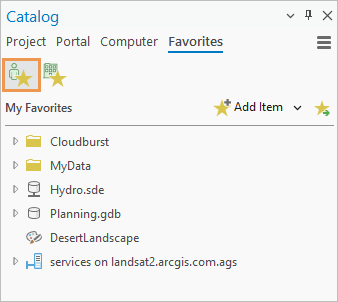
In catalog views and browse dialog boxes, personal favorites appear under the Favorites > My Favorites heading.
Favorites file and favorites cache folder
In ArcGIS Pro, when you add an item to your My Favorites collection, the item's path is stored in a JSON file located by default in your user profile at %USERPROFILE%\AppData\Roaming\Esri\ArcGISPro\Favorites\Favorites.json. This file is called your favorites file. When you subsequently add a favorite to a project, the item's location is read from this file.
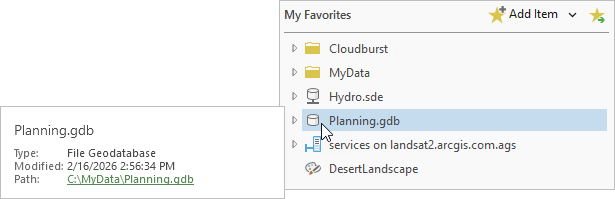
Only the path to a favorite item is stored in the favorites file. The item itself remains in its location on disk (with the optional exception of some connection files). On the Favorites tab of the Catalog pane, you can hover over a favorite to see its location in the item pop-up.
Your roaming profile—the default location of the favorites file—is designed to be available on any network computer to which you sign in with the same credentials. However, in some organizations network administrators do not allow roaming profiles to roam. For this reason you have the option to export favorites to another location.
In addition to designating existing items as personal favorites, you can also create new items as favorites. These items are created in the Favorites folder of your roaming profile, known as the favorites cache folder. The favorites cache folder thus stores both the favorites file and any new items—such as geodatabases or toolboxes—that you create as favorites.
Add an existing item to My Favorites
Follow these steps to make an existing project item a personal favorite.
On the ribbon, click the Insert tab. In the My Favorites group, click Add Item
 .
.Alternatively, in the Catalog pane, click the Favorites tab and click Add Item
.In the Add Item drop-down list, point to an item type and click to add it.
For example, to add a database, point to Database and click Add Database.
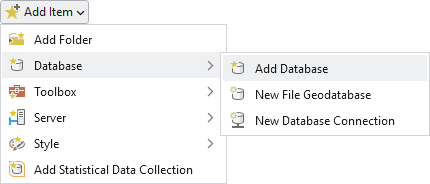
On the browse dialog box that appears, browse to the item and select it. Click OK.
Alternatively, in the Name text box, enter the path to the item and click OK.
On the Favorites tab of the Catalog pane, the item appears under My Favorites
. It also appears under My Favorites in catalog views and browse dialog boxes.Tip:
You can also add an item as a favorite using the methods below. Some supported item types are not available from the Add Item drop-down list and can only be added with these methods.
Browse to the item in the Catalog pane or a catalog view. Right-click the item and click Add To My Favorites
.Browse to the item in Microsoft File Explorer and select it. Drag the item to your My Favorites collection
in the Catalog pane or a catalog view.
Add an enterprise geodatabase or server connection to My Favorites
When you add certain item types as favorites—notably servers and enterprise geodatabases—you are prompted to choose whether to copy the item's connection file to the favorites cache folder.
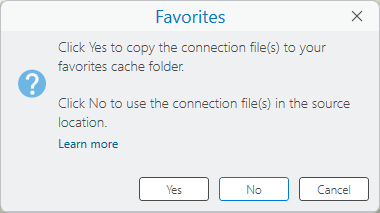
If you click Yes, the connection file is copied to the favorites cache folder at %USERPROFILE%\AppData\Roaming\Esri\ArcGISPro\Favorites, and the favorites file stores the path to this copy. If you click No, the file is not copied and the favorites file stores the path to the connection file in its current location.
The option to copy connection files to the favorites cache folder is available because connection files take up very little disk space. The potential benefit is guaranteed availability. If the connection file exists in your favorites cache folder, the favorite can be accessed even if the source location of the connection file is not accessible for some reason.
Note:
You can change the connection properties of a favorite server or database by right-clicking the item in your My Favorites collection and choosing Properties (for servers) or Connection Properties (for enterprise geodatabases) on the context menu. If the item is in use in the current project, the change is reflected there immediately.
Format paths to network items
If you add an item stored on a mapped network drive to My Favorites, its path includes a drive letter; for example, X:\Data\Boundaries.gdb. Even assuming that your roaming profile is not restricted, the favorite is not accessible to other computers that use a different letter to map the network drive. Favorites that are not accessible display a red exclamation point  to indicate that the path to the item is broken.
To avoid this situation, you can add network items to your projects using UNC paths; for example, \\pangea\Data\Boundaries.gdb. When you make the item a favorite, the favorites file stores the UNC path. This makes the favorite accessible from other computers on the network.
Tip:
Optionally, you can use this formatting with local items. For example, you can add your C:\My Data folder to a project using the path \\<computer name>\c$\MyData. When you make the folder a favorite, that path is stored in the favorites file, and the item is accessible to other computers on which you have administrative privileges.
Create an item as a favorite
Items created in the favorites cache folder are automatically added to My Favorites. A few item types, including cloud stores, BIM Cloud connections, and Statistical Data Collections, cannot be created this way.
Follow these steps to create an item in the favorites cache folder.
On the ribbon, click the Insert tab. In the My Favorites group, click Add Item
.Alternatively, in the Catalog pane, click the Favorites tab and click Add Item
.In the Add Item drop-down list, click to select an item type and click to create a new item.
For example, to create a toolbox, click Toolbox and click New Toolbox.
If the item is a file-based item, a browse dialog box opens to the location of the favorites cache folder. If the item is an enterprise geodatabase or server connection, a connection properties dialog box appears.
Create the item as required:
For file-based items, on the browse dialog box, type a name in the Name text box and click Save.
For servers and enterprise geodatabases, on the connection properties dialog box, fill in the connection properties and click OK.
An item or connection file is created in the favorites cache folder and added automatically to My Favorites.
Add a favorite to the current project
You can add a favorite to the current project from the Catalog pane, a catalog view, or a browse dialog box.
Follow these steps to add a favorite to the current project.
In the Catalog pane, click the Favorites tab. Click My Favorites
if necessary.Alternatively, in the Contents pane of a catalog view, under Favorites
 , expand My Favorites .
Right-click an item in the favorites list and click Add To Project
 .
.The item is added to the appropriate container on the Project tab of the Catalog pane. For example, a folder appears as a folder connection
 and a toolbox appears as a toolbox connection
  .
.Tip:
You can work with the contents of a favorite without adding the favorite to the project. For example, you can browse into a favorite folder to add a raster dataset or geodatabase feature class to a map.
Add a favorite to all new projects
You can add a personal favorite to all new projects automatically, including projects created from a custom project template. The favorite is not added to the current project or saved projects.
Follow these steps to add a favorite to all new projects.
In the Catalog pane, click the Favorites tab. If necessary, click My Favorites
.Alternatively, in the Contents pane of a catalog view, under Favorites
, expand My Favorites .Right-click an item in the favorites list and click Add To New Projects
 .
.The item displays a pin
 .
.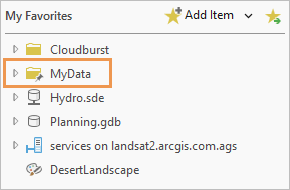
The MyData folder will be added as a folder connection to new projects. If you no longer want a favorite to be added to all new projects, right-click the item in the My Favorites list and uncheck the Add To New Projects check box.
Tip:
In the Catalog pane, on the Project tab, you can right-click an item that is not yet a favorite and click Add To New Projects
. This adds the item to My Favorites and designates it to be added to new projects.
Manage favorites
Most of the context menu commands that are available for project items are also available when you access these items from your My Favorites collection.
File management actions that you perform on a favorite are performed on the project item. For example, if you rename or delete a favorite, the project item is renamed or deleted. Likewise, if you rename or delete a project item, the item is renamed or deleted from your My Favorites collection—assuming that you perform the action in ArcGIS Pro.
See the following topics for more information:
Remove favorites
Rename favorites
Repair favorites
Refresh favorites
Copy favorites
Delete favorites
Note:
Removing an item from a project does not remove it from My Favorites. Nor does removing an item from My Favorites remove the item from the current project.
Reorder favorites
In My Favorites, items appear from top to bottom in the order in which you added them. Follow these steps to change the order by dragging items in the Catalog pane or a catalog view.
Browse to My Favorites
in the Catalog pane or a catalog view.Click an item to select it.
Drag the item to the position where you want it to appear.
As you drag the item, a horizontal black line marks its current position in the list.
Tip:
To select multiple items, hold the Ctrl or Shift key and click.
Export favorites
You can export your My Favorites collection to a new JSON file. Exporting favorites serves various purposes:
It is a convenient way to share a collection of favorite items with colleagues.
It is an essential step in customizing your favorites location.
For administrators, it is an essential step in creating system favorites.
You can export favorites from the Catalog pane, the Contents pane of a catalog view, or the Catalog tab on the ribbon when a catalog view is active.
Follow these steps to export favorites.
In the Catalog pane, click the Favorites tab and confirm that My Favorites
is selected.Click Export favorites to file
 .
.Alternatively, in the Contents pane of a catalog view, expand Favorites
, right-click My Favorites , and click Export Favorites .On the Export Favorites browse dialog box, browse to a local or network folder.
In the Name text box at the bottom of the browse dialog box, type a name for the file.
You can give the file any name you want, but it's helpful to identify the file as a favorites file. The
.jsonfile extension is added automatically.Click Save.
The exported file is created in the specified location.
Note:
Exporting the file does not change the current location from which your favorites are referenced (the
Favorites.jsonfile in your roaming profile). To change the location from which favorites are referenced, you must customize the favorites file location.
Customize the location of the favorites file
You can customize the name and location of the favorites file, the favorites cache folder, or both. The main reason to do this is to access your favorites from multiple computers if your roaming profile is restricted. For example, you can put the favorites file on a network share that is accessible to all the computers you use.
It is a good practice to keep the favorites file and the favorites cache folder together, but it is not required.
It is possible to create multiple favorites files and switch between them. This allows you to use different collections of favorites for different purposes or job requirements. To do so, repeat the steps below for each new favorites file and specify the file you want to use at any given time in the catalog browsing options.
The first step in customizing the favorites file location is to export your existing favorites. This is necessary because to customize the location, a properly formatted JSON file must already be present in the desired location.
Follow these steps to customize the location of the favorites file and favorites cache folder.
Export your favorites file to the network or local folder you want to use as the custom favorites location.
Use a network folder if your purpose is to make the favorites accessible to other computers. Typically, the folder you choose is also used as the favorites cache folder.
The folder name and file name can be the same as the defaults in your roaming profile (
FavoritesandFavorites.json) or they can be different.In your open ArcGIS Pro project, on the ribbon, click the Project tab.
On the settings page, in the list of side tabs, click Options.
On the Options dialog box, under Application, click Catalog Browsing.
On the Catalog Browsing page, expand Favorites.
Under My Favorites, click the Store favorites file in a custom location option.
In the input box under the option, enter the path to the file you exported in Step 1.
Alternatively, click Browse
 and browse to the file. If you don't see the file, click Refresh
  at the top of the Select Favorites File dialog box.
Any further changes you make to your My Favorites collection are saved to the favorites file in this location.
Tip:
If you browse to a file on a mapped network drive, the path is added using a drive letter; for example,
X:\Favorites\Favorites.json. Edit the path to a UNC format, such as\\pangea\Favorites\Favorites.json, to ensure that the file is accessible to other computers.Click the Use a custom location for the favorites cache folder option.
In the input box under the option, enter the path to the folder that contains the exported favorites file.
Alternatively, click Browse
and browse to the folder or browse to a different folder.Any new items you create as favorites are stored in this folder. However, any items that you previously created as favorites, as well as any connection files that you copied, remain in the original favorites cache folder in your roaming profile. The new favorites file continues to reference them in that location.
Click OK.
Note:
The original favorites cache folder and favorites file in your roaming profile are not deleted. To use them again, in the Catalog Browsing options, reset the Favorites options to the defaults.
Access system favorites
In the Catalog pane, system favorites are listed on the Favorites tab under a graphical System Favorites tab . These are favorites that your administrator chooses and manages.
If the System Favorites tab is not present, it means your administrator has not created system favorites.
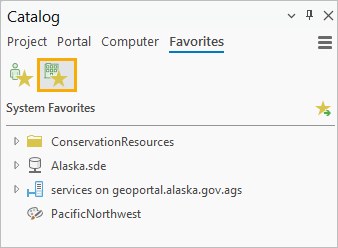
You work with system favorites in the same way as personal favorites. However, system favorites have the following limitations:
You cannot add or remove system favorites.
You cannot create new items as system favorites.
You cannot add a system favorite to all new projects.
You cannot reorder system favorites.
These capabilities are controlled by your administrator.
Add a system favorite to the current project
Adding a favorite to a project from System Favorites is the same as adding a favorite from My Favorites. You can add a system favorite to the current project from the Catalog pane, a catalog view, or a browse dialog box.
As with personal favorites, you can work with the contents of a system favorite without adding the favorite to the project. For example, you can browse into a system favorite folder to add a shapefile to a map.
Follow these steps to add a system favorite to the current project.
In the Catalog pane, click the Favorites tab. Click System Favorites
if necessary.Alternatively, in the Contents pane of a catalog view, under Favorites
, expand System Favorites .Right-click an item in the favorites list and click Add To Project
.The item is added to the appropriate container on the Project tab of the Catalog pane.
Manage system favorites
The system favorites file is managed by your administrator and cannot be modified by you. The name and location of this file may be unknown to you.
The following commands that are available for working with personal favorites are not available for system favorites:
Add Item
Remove From Favorites

Add To New Projects
If you have write access to the items designated as system favorites, you can modify their contents. For example, you can browse into a folder that is a system favorite and rename or delete files in the folder. Likewise, you can browse into a file geodatabase that is a system favorite and create or delete feature classes.
Caution:
If you have write access to system favorite items, you can modify the items themselves as well as their contents. For example, you can rename or delete an item that is a system favorite. Doing so renames or deletes the item in its location on disk—without, however, modifying its entry in the system favorites file. This breaks the path to the system favorite for anyone who tries to access it.