Repair project items
When you open a project, ArcGIS Pro validates your item connections. If a connection is invalid, it appears with a red exclamation point  .
.
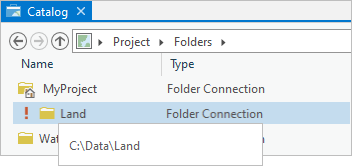
An item connection is invalid when the item is not found at the expected location. This can happen if the item is moved, renamed, or deleted; or if its path changes. For example, if you make a folder connection to C:\Data\Land, and later rename the Data folder to MyData in File Explorer, the folder connection becomes invalid.
An item connection may become invalid during your ArcGIS Pro session. This happens, for example, if a folder or database that is an item connection is moved or deleted in File Explorer while your project is open. In these cases, the connection is marked as invalid when you refresh the connection or try to access the item.
Note:
Connections do not become invalid if you move, rename, or delete items using ArcGIS Pro commands in your current ArcGIS Pro session. They become invalid only if changes are made by other applications or by concurrent instances of ArcGIS Pro.
Connections to network drives, servers, enterprise geodatabases, and other remote items can become invalid for other reasons, such as the availability of the host computer. These invalid connections are described further in the Repair invalid server and database connections section below.
Only connections to items stored outside an ArcGIS Pro project file (.aprx) can become invalid. These include toolboxes, notebooks, databases, servers, and folders. Items that are favorites can also become invalid. Items stored inside the ArcGIS Pro project file, such as maps, layouts, and reports, cannot become invalid. However, items whose data sources reference invalid connections can be invalid. For example, a map layer becomes invalid (broken) if its data source is a feature class in an invalid geodatabase connection. See Update data sources for more information on repairing map layers and tables.
Required connections in an ArcGIS Pro project—specifically, the home folder, default geodatabase, and default toolbox connections—are not allowed to become invalid. As a rule, these items should not be deleted, moved, or renamed. However, if this happens, ArcGIS Pro repairs the connection when you open the project. By default, this is done automatically through the creation of a new default item. Alternatively, you can manage the repair process yourself after changing the appropriate settings in the general options for repairing project items.
Repair an invalid connection in the Catalog pane or catalog view
In the following steps, an invalid database connection is repaired from the Catalog pane. You can follow the same steps to repair an invalid connection in a catalog view. You can also repair an invalid connection from a browse dialog box, but using the Catalog pane or catalog view is recommended.
In this example, the database connection to the Boundaries file geodatabase is invalid because the geodatabase was moved from the C:\Data folder to the C:\FinalData folder in File Explorer.
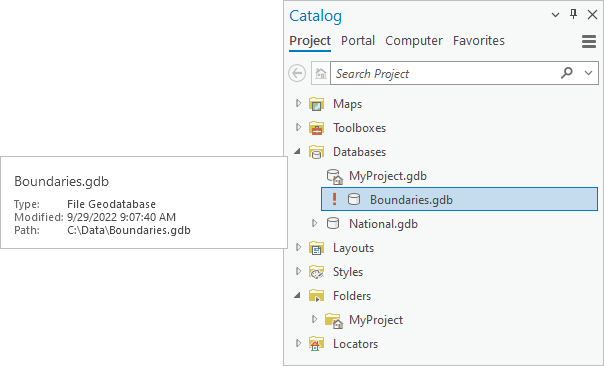
Click Repair project item
next to the geodatabase.Tip:
Hover over an item to see its expected path. In this example, ArcGIS Pro looks for the geodatabase in the
C:\Datafolder but doesn’t find it there. The path does not appear as a link because the connection is invalid.On the Repair Geodatabase browse dialog box, browse to the new location of the geodatabase.
If you don’t know the item's new location, you can search for it in Microsoft File Explorer. You cannot search invalid connections or their contents in ArcGIS Pro.
Click the geodatabase to select it.
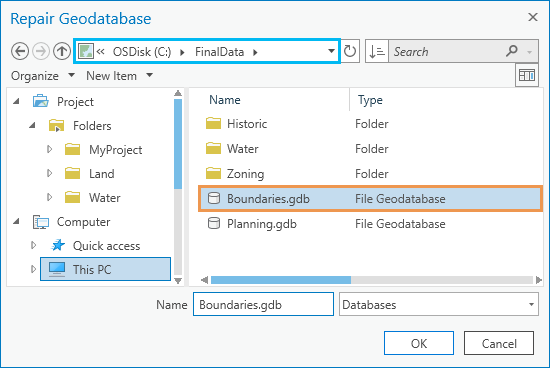
The updated path to the geodatabase is shown in the location bar. Click OK.
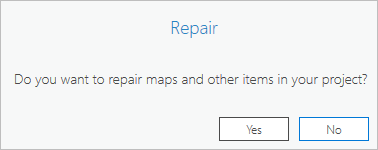
A prompt to repair maps and other items appears. If items in your project, such as map layers, reference feature classes in the invalid geodatabase, these map layers are also invalid. (They appear with red exclamation points if you open the map that contains them.) The Repair prompt gives you the option to repair these related items.
On the Repair prompt, click Yes or No according to your preference.
Click Yes if you want ArcGIS Pro to inspect and repair map layers and other project items that reference data sources contained in the item connection.
Click No if you want to repair invalid project items later (or if no data sources in the item connection are referenced).
In the Catalog pane, the database connection is now valid and the red exclamation point is removed. If you hover over the item, its updated path displays as a link.
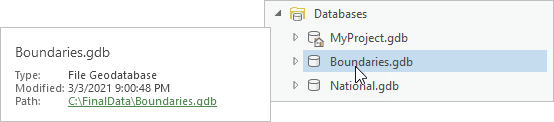
Sometimes a connection cannot be repaired. For example, the item may have been deleted. You can remove a connection from your project if it can’t be repaired.
Note:
If you use File Explorer, or another application outside of ArcGIS Pro, to return an item to its expected location or rename it to its expected name, the connection validity is restored. You can remove the red exclamation point by refreshing the connection.
Repair invalid server and database connections
Connections to servers, enterprise geodatabases, and cloud items may appear valid when you open a project but display as invalid when you try to access the connection. This happens when the connection file is found in its expected location (for example, in your project home folder) but the remote computer or its resources are unavailable. For example, a server may be offline, access credentials may have changed, or some other problem external to ArcGIS Pro may have occurred. When you try to access the connection, an error message identifying the problem appears.
If the problem is related to access credentials, you may be able to resolve it in ArcGIS Pro by right-clicking the connection, clicking Properties  (for a server) or Connection Properties (for an enterprise database), and changing the settings. If necessary, contact your server or database administrator for help.
When the problem is corrected, refresh the item connection in the Catalog pane or catalog view to remove the red exclamation point and access the item.
Repair project items that become invalid during a session
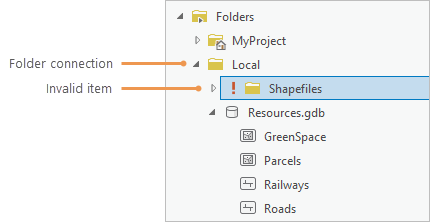
Items that are contained by a valid item may become invalid during an ArcGIS Pro session. For example, if a subfolder of a valid folder connection is moved to a new location with File Explorer, the subfolder becomes invalid.
The invalid item displays a red exclamation point when you try to access it.
Note:
The contents of invalid project items do not display in the Catalog pane, catalog views, or browse dialog boxes.
If an item under a folder connection becomes invalid, refresh the folder connection. This has one of the following effects:
If the item was renamed or moved to another location within the folder, the item is displayed with its new name or in its new location. The item is now valid.
If the item was deleted or moved to a location outside the folder, the folder no longer displays the item. In this situation, the item cannot be repaired.
Repair favorites
A project favorite is invalid if the item it references becomes invalid. This can happen in any of the ways described above.
You can repair a favorite item in your My Favorites collection in the same way that you repair a project item in the Catalog pane or a catalog view: click the red exclamation point that appears next to the favorite and browse to the item’s location on the repair dialog box.
Repairing a favorite also repairs the favorite item if it is added to your project. Likewise, repairing a favorite item in your project repairs the favorite.
Note:
A system favorite may become invalid if a user with write access to the favorite item moves, renames, or deletes it. In this situation, the item appears in the System Favorites collection with a red exclamation point; however, it can only be repaired by your system administrator.