Refresh a location's content
When you connect to an item and browse its contents in a catalog view or Catalog pane, the item’s list of contents is initially up to date. Similarly, each time you start ArcGIS Pro, the first time you access an item, its list of contents is initially up to date. However, as you work, the contents of an item connection may change.
If you change the contents of an item connection using ArcGIS Pro tools in your active session, the contents list updates immediately. For example, if you copy a shapefile from Folder1 to Folder2 using the ArcGIS Pro Copy and Paste commands, the shapefile appears in Folder2.
Contents do not update immediately if the changes are made in applications other than ArcGIS Pro, such as File Explorer or ArcMap. They also do not update immediately in your current project if the changes are made in a separate instance of ArcGIS Pro. In these situations, you must refresh an item connection to update its contents.
When you refresh an item, added files appear, deleted files are removed, and renamed files display their new names.
You can refresh an item connection or specific content within an item connection. Only items that contain other items can be refreshed.
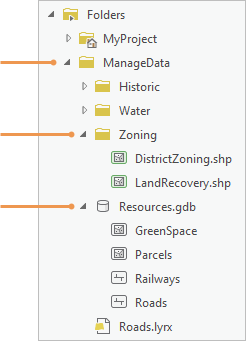
Note:
You cannot refresh all item connections in a project with one command.
Refresh content
You can refresh item connections and their content in a catalog view, the Catalog pane, or a browse dialog box.
Refresh content in a catalog view
Follow these steps to refresh content in the catalog view:
Make a catalog view active.
In the catalog view, browse to the item connection or the specific item you want to refresh.
Your current location is shown in the location bar. The list of content to be refreshed is displayed in the catalog view.
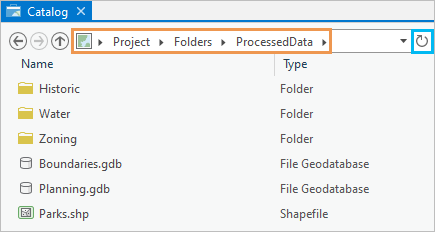
In this example, the contents of a folder connection named ProcessedData will be refreshed. Refresh the content with any of the following commands:
On the ribbon, on the Catalog tab, in the Organize group, click Refresh
 .
.At the top of the catalog view, next to the location bar, click Refresh
 .
.Right-click empty space in the catalog view and click Refresh
on the context menu that appears.Press the F5 key.
All content at the location is refreshed, regardless of whether or not specific items are selected.
Note:
To refresh one or more items in a content list—rather than all items in the list—right-click the item (or items) to select it and click Refresh
on the context menu that appears.
Refresh content in the Catalog pane
In the Catalog pane, the Refresh command works on a selected item or items. Follow these steps to refresh content:
Make the Catalog pane active.
Browse to the item connection or to the specific item you want to refresh. Select the item. Optionally, select multiple items.
Refresh the selected item with any of the following commands:
Right-click the item and click Refresh
on the context menu.Click Menu
 at the top of the pane and click Refresh .
Press the F5 key.
Refresh content in a browse dialog box
When you browse to items on your computer or a network drive—for example, to add data to a map or to make a folder connection—you can refresh the item contents to make sure they are up to date. Follow these steps to refresh content:
Open a browse dialog box with the Browse button
 or another command.
Browse to a location.
Your current location is shown in the location bar. The list of content to be refreshed is displayed in the dialog box.
Refresh the selected item with any of the following commands:
Click Refresh
next to the location bar.Right-click empty space in the browse dialog box and click Refresh
on the context menu that appears.Press the F5 key.
In a browse dialog box, all content at the location is refreshed, regardless of whether or not specific items are selected.
Invalid connections
After you refresh content, an item connection or an item may appear with a red exclamation point  . This means that the item is invalid: it may no longer exist at the expected location, it may have been renamed, or it may connect to an inaccessible network drive, database, or server.
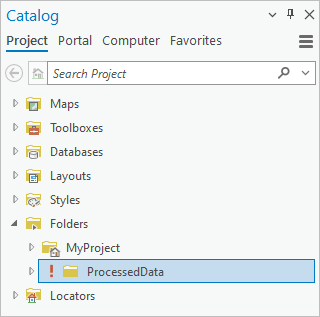
To repair an invalid connection, click the exclamation point and browse to the item. You can repair moved or renamed items; you cannot repair deleted items.
Refresh project item containers and connections
In the catalog view, Catalog pane, and browse dialog boxes, item connections are grouped thematically in containers. For example, toolbox connections appear under the Toolboxes container  , and database connections appear under the Databases container
  . Depending on the type of connection, the refresh behavior may vary.
Refresh maps, layouts, reports, and tasks
Maps, layouts, reports, and tasks are only added to a project or removed from a project with ArcGIS Pro commands in your current ArcGIS Pro session. Therefore, the items in their respective containers are always up to date. These containers and their contents do not need to be refreshed.
Refresh toolboxes
Refreshing the Toolboxes container updates the list of toolbox connections in the project. Refreshing a specific toolbox connection updates the list of toolsets, scripts, and models the toolbox contains.
Note:
To automatically refresh datasets or workspaces that are updated by a tool in a model, set the tool's output variable as a model parameter and run the model as a geoprocessing tool. Map layers that reference the data are also refreshed. See Model parameters.
Refresh databases and servers
Refreshing the Databases container updates the list of database connections in the project. Refreshing the Servers container  updates the list of server connections. Refreshing a specific database or server connection updates the contents of that database or server.
An invalid database or server connection is marked with a red exclamation point , like other invalid connections. There are many reasons why database or server connections may become invalid. The steps to repair an invalid database or server connection may require the help of a system administrator.
Note:
The Cloud storage container  and BIM cloud container
  are like the Servers container.
Refresh styles
Styles are only added to a project or removed from a project with ArcGIS Pro commands in your current session. Therefore, the Styles container  is always up to date.
Normally, you manage the contents of a style in the current ArcGIS Pro session. However, if a style file is located on a network drive, its contents could be changed by another user. In that situation, you may need to refresh the style.
In the catalog view, you can refresh a style with the Refresh button on the ribbon or by pressing the F5 key. In the Catalog pane, you can use the Menu button or the F5 key. There are no context menu commands to refresh styles.
Refresh folders
Refreshing the Folders container  updates the list of folder connections in the project. Refreshing a specific folder connection updates contents of that folder. Folders are generic containers that may contain other folders, toolboxes, geodatabases, and other items. You can browse into a folder connection and update specific items without refreshing the entire connection.
Refresh portal content
When you are signed in to ArcGIS Pro, your project is connected to your active portal. Portal content containers, such as My Content  or My Organization
  , are up to date the first time you access them in an ArcGIS Pro session. However, their contents may change as you work. For example, a colleague may share a new web map to your organization.
When you refresh a portal container, all items in the container are refreshed, regardless of whether or not specific items are selected.
Note:
Portal items may be updated with newer versions. If your project uses a portal item for which a newer version is available, you’ll receive a notification in the project. Update notifications are not related to refreshing content.
Refresh portal content in a catalog view
Follow these steps to refresh a list of portal items in the catalog view:
Make a catalog view active.
In the Contents pane, click a portal content collection, such as ArcGIS Online
 , to select it.
Note:
The ArcGIS Online container only displays a list of items after a search. Other portal containers display items immediately. You can refresh results from searches in a portal container in the same way as other lists of content.
Refresh the content with any of the following commands:
On the ribbon, on the Catalog tab, in the Organize group, click Refresh
.At the top of the catalog view, next to the location bar, click Refresh
.Press the F5 key.
Refresh portal content in the Catalog pane
Follow these steps to refresh a list of portal items in the Catalog pane:
Make the Catalog pane active.
At the top of the pane, click the Portal tab.
Under the Portal tab, click a content collection, such as My Organization
.Refresh the content with either of the following commands:
Click Menu
at the top of the pane and click Refresh .Press the F5 key.
Refresh favorites
It may be necessary to refresh a project favorite if it contains other items. This can happen when the contents of a favorite item on a network share are modified by another ArcGIS Pro user during your current session. It can also happen if you use operating system commands to modify the contents of a favorite item on a local disk during your current session.
Examples of modifying the content of a favorite item include adding a file to a favorite folder, deleting a feature class from a favorite file geodatabase, or renaming a geoprocessing model in a favorite toolbox.
Both personal favorites and system favorites can be refreshed. It is usually only necessary to refresh an item when it does not display expected content.
Follow these steps to refresh a favorite item on the Project tab of the Catalog pane. You can also refresh favorites in a catalog view.
Make the Catalog pane active.
At the top of the pane, click the Favorites tab.
Click My Favorites
 or System Favorites
  .
.Click an item to select it.
Refresh the selected item with either of the following commands:
Click Menu
at the top of the pane and click Refresh .Press the F5 key.
Tip:
In a catalog view, use the F5 key, the Refresh button next to the location bar, or the Refresh button on the Catalog tab of the ribbon.