Catalog pane, catalog views, and browse dialog boxes
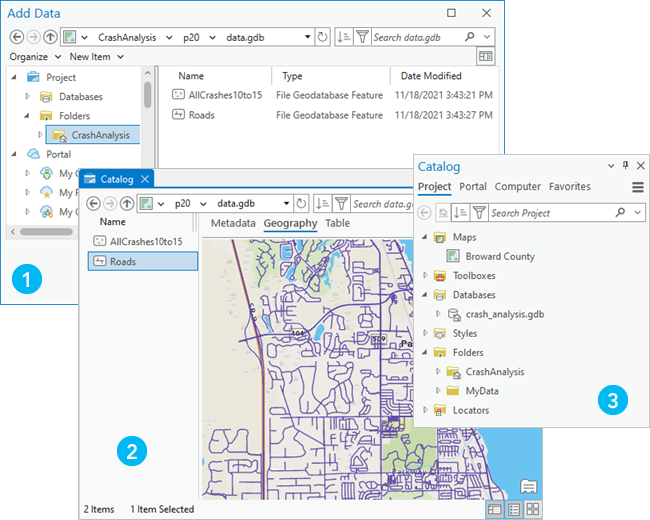
The Catalog pane, catalog views, and browse dialog boxes provide complementary ways to work with items in an ArcGIS Pro project. These items can be stored in the project file (.aprx), in system folders on your computer, on network drives, in ArcGIS Online or ArcGIS Enterprise portals, on stand-alone servers, or on cloud storage devices.
The Catalog pane is a tree view of items you have added to your project, items in your active portal, items on your computer, and items you have designated as project favorites. Catalog views provide access to the same items but offer information and options not available in the Catalog pane. Browse dialog boxes appear when you need to browse to a location to complete a task, such as adding data to a map or opening a project.
Whether to access items from the Catalog pane or a catalog view is often a matter of personal preference. You can also use the pane and views together. For example, you can manage style items in a catalog view, view feature class metadata in a second catalog view, and add a web layer to a map from the Catalog pane.
Note:
The visibility of hidden files and folders and protected operating system files in ArcGIS Pro matches your File Explorer settings. For this reason, some files on network drives may be visible to you and not to others or vice versa.
Item categories
Items you can use in ArcGIS Pro are organized into nonexclusive categories. These categories are represented as tabs in the Catalog pane, and as expandable headings in the Contents pane of catalog views and on browse dialog boxes. The categories are as follows:
Project
Portal
Computer
Favorites
The Project category  lists the item connections in your project and the content available from those connections. Item connections include the default geodatabase, default toolbox, and home folder, as well as other connections you add to the project. Item connections provide access to content in databases, servers, and cloud data warehouses. They also act as shortcuts to folders and other items on your computer.
The Portal category  lists the items and groups in your active portal.
The Computer category  lists items on your computer in a manner similar to File Explorer. You can browse to these items and use the ArcGIS Pro commands on their context menus. Limited context menus are available for items under Windows Home, local drives and network shares under This PC, and desktop folders. When you expand these items and browse to their contents, richer context menus are available.
The Favorites category  lists items designated as project favorites. These can be items that you add to your personal favorites collection (My Favorites) or items that an administrator adds (System Favorites). Favorites can be readily added to any project from the Catalog pane, a catalog view, or a browse dialog box.
Supported actions
The following table compares actions supported by the Catalog pane, catalog views, and browse dialog boxes. Supported actions have a green marker  , partially supported actions have a yellow marker
  , and unsupported actions have no marker. An action is partially supported if some of the functionality described is available or if the functionality is available under specific conditions.
| Action | Catalog pane | Catalog view | Browse dialog box |
|---|---|---|---|
| Browse, search for, and access GIS content on your computer, network drives, and portals. | |
|
|
| Sort search results for project items stored on your computer or network drives. | |
|
|
| Sort and filter search results for portal items. | |
|
|
| Sort and filter search results for project items. | |
|
|
| Browse and search for portal groups. | |
|
|
| Connect to items such as folders, databases, and servers to add them to a project. | |
|
|
| Designate or create items as project favorites and add favorites to a project. You can't manage project favorites from browse dialog boxes; however, you can access them. |
|
|
|
| Create items, add items to a project, and import items. Browse dialog boxes support creating a limited number of item types. |
|
|
|
| View folder shortcuts and access their contents. | |
|
|
| Access metadata for viewing and editing. | |
|
|
| Manage items with operations such as rename, alias, copy, move, and delete. | |
|
|
| Preview data and create thumbnail images of data. | |
||
| View geometry type, modification date, and file size for file geodatabase items. | |
|
|
| View date created, average rating, number of views, and details score for portal items. | |
|
|
| Display project items in columns or as tiles. | |
||
| Import, view, and manage styles. | |
|
|
| Browse the catalog with the location bar. | |
|
|
| Open the File Explorer location of an item. | |
|
Key: Supported; Partially supported