ArcGIS Pro 3.7 API Reference Guide
ArcGIS.Desktop.Mapping Namespace / SymbolFactory Class / ConstructPictureFill Method
Path to a png, jpg, bmp file.
The size.
Example

In This Topic
    ConstructPictureFill Method (SymbolFactory)
    In This Topic
    Constructs a picture fill with the specified parameters.
    Syntax
    Public Function ConstructPictureFill( _
       ByVal fileName As String, _
       ByVal size As Double _
    ) As CIMFill
    public CIMFill ConstructPictureFill( 
       string fileName,
       double size
    )

    Parameters

    fileName
    Path to a png, jpg, bmp file.
    size
    The size.

    Return Value

    Remarks
    Null is returned if the file is not a jpg, png or bmp file. Or if there is an error reading the file.
    Example
    Picture fill
    /// <summary>
    /// Constructs a picture fill with the specified parameters.
    /// ![ConstructPictureFill](https://ArcGIS.github.io/arcgis-pro-sdk/images/Symbology/ConstructPictureFill.png)
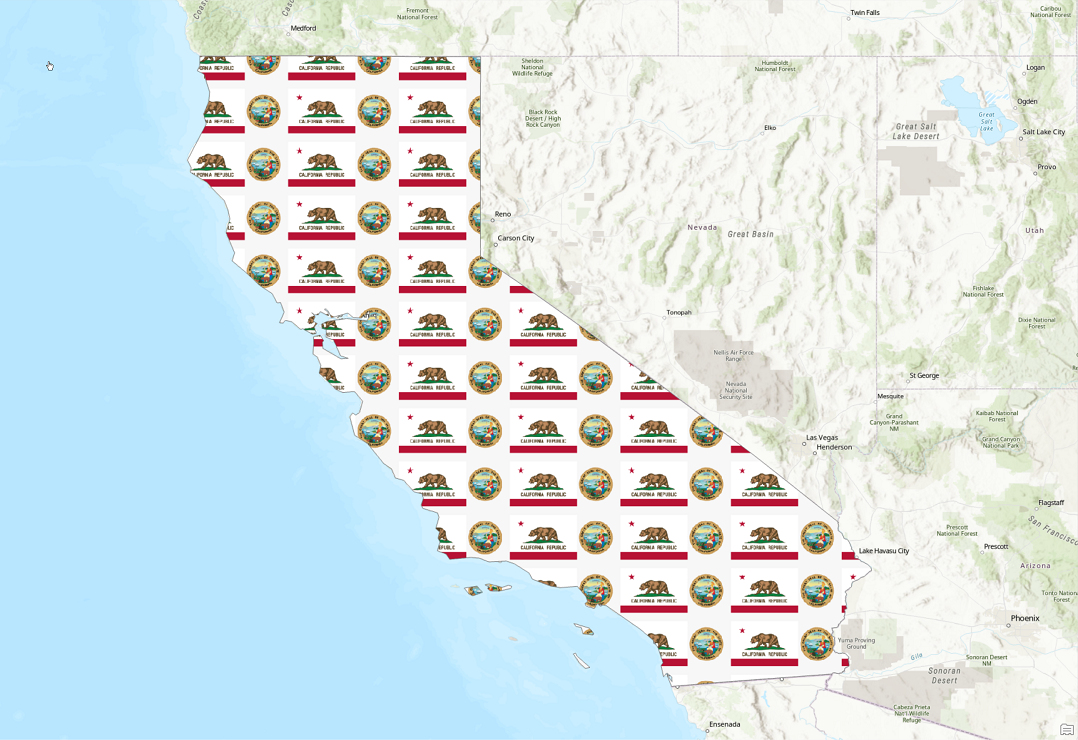
    /// </summary>
    {
      //Note: Run withing QueuedTask
      CIMStroke outline = SymbolFactory.Instance.ConstructStroke(CIMColor.CreateRGBColor(110, 110, 110), 2.0, SimpleLineStyle.Solid);
      //picture
      var imgPath = Path.Combine(Path.GetDirectoryName(Assembly.GetExecutingAssembly().Location), @"Images\CaliforniaEmblem.png");
      var pictureFill = SymbolFactory.Instance.ConstructPictureFill(imgPath, 64);
    
      List<CIMSymbolLayer> symbolLayers = new()
      {
        outline,
        pictureFill
      };
      CIMPolygonSymbol pictureFillPolygonSymbol = new CIMPolygonSymbol() { SymbolLayers = symbolLayers.ToArray() };
      //To apply the symbol to a polygon feature layer
      //var renderer = theLayer.GetRenderer() as CIMSimpleRenderer;
      //renderer.Symbol = pictureFillPolygonSymbol.MakeSymbolReference();
      //theLayer.SetRenderer(renderer);
    }
    Requirements

    Target Platforms: Windows 11 Home, Pro, Enterprise (64 bit)

    ArcGIS Pro version: 3.1 or higher.
    See Also