Parameters
- R
- The red component of the color to be created
- G
- The green component of the color to be created
- B
- The blue component of the color to be created
- A
- The alpha component of the color to be created
/// <summary> /// Create a mesh symbol that can be applied to a multi-patch feature layer. /// A mesh symbol is a CIMMeshSymbol object. Define an array of CIMSymbolLayers which contains a CIMMaterialSymbol layer with the specified properties such as Color, etc. /// Assign this array of CIMSymbolLayers to the CIMMeshSymbol. /// 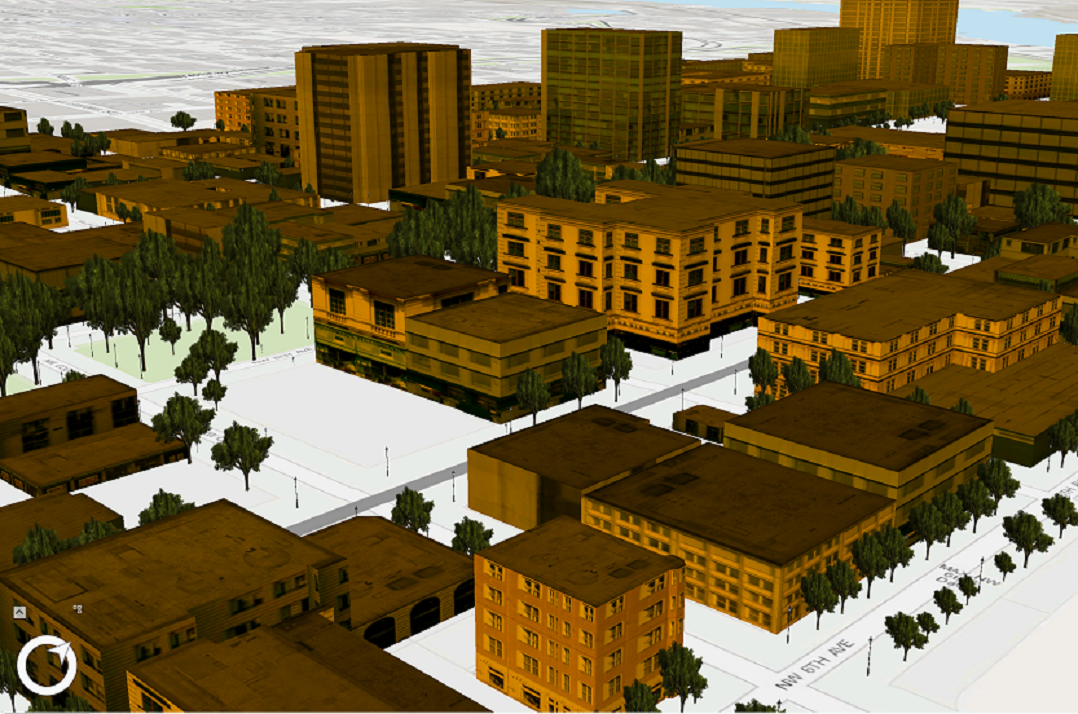 /// </summary> { //Note: Run withing QueuedTask CIMSymbolLayer[] materialSymbolLayer = { new CIMMaterialSymbolLayer() { Color = ColorFactory.Instance.CreateRGBColor(230,152,0), MaterialMode = MaterialMode.Multiply } }; var meshMaterialFillSymbol = new CIMMeshSymbol() { SymbolLayers = materialSymbolLayer }; }
/// <summary> /// Create a polygon symbol with a dash dot fill. <br/> /// 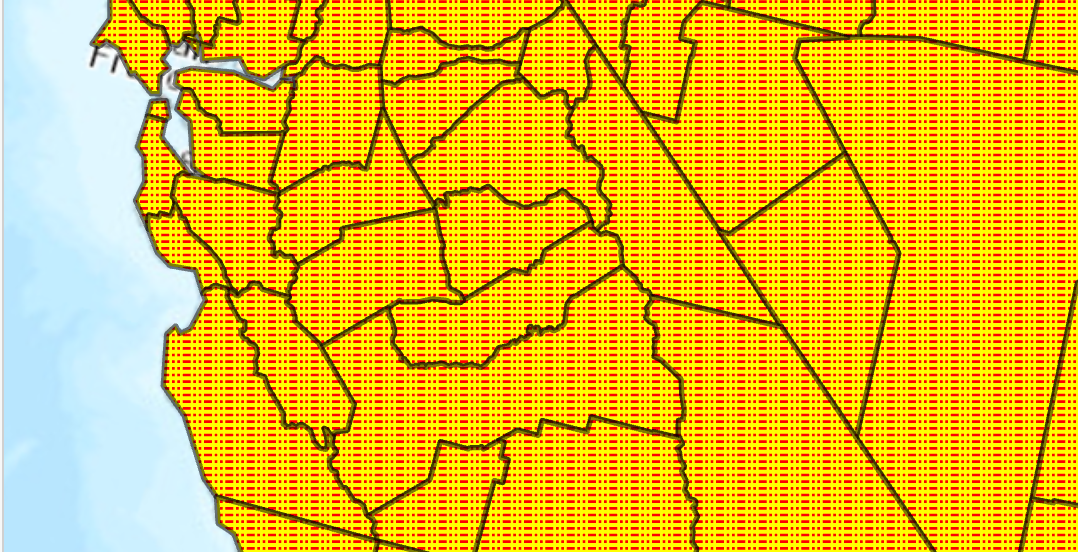 /// </summary> { //Note: Run withing QueuedTask var trans = 50.0;//semi transparent CIMStroke outline = SymbolFactory.Instance.ConstructStroke(CIMColor.CreateRGBColor(0, 0, 0, trans), 2.0, SimpleLineStyle.Solid); //Stroke for the fill var dashDot = SymbolFactory.Instance.ConstructStroke(ColorFactory.Instance.RedRGB, 1.0, SimpleLineStyle.DashDotDot); //Mimic cross hatch CIMFill[] solidColorHatch = { new CIMHatchFill() { Enable = true, Rotation = 0.0, Separation = 2.5, LineSymbol = new CIMLineSymbol(){SymbolLayers = new CIMSymbolLayer[1] {dashDot } } }, new CIMSolidFill() { Enable = true, Color = ColorFactory.Instance.CreateRGBColor(255, 255, 0) }, }; List<CIMSymbolLayer> symbolLayers = [outline, .. solidColorHatch]; //This is the polygon symbol with a dash dot fill CIMPolygonSymbol dashDotFillPolygon = new CIMPolygonSymbol() { SymbolLayers = symbolLayers.ToArray() }; //To apply the symbol to a polygon feature layer //var renderer = theLayer.GetRenderer() as CIMSimpleRenderer; //renderer.Symbol = dashDotFillPolygon.MakeSymbolReference(); //theLayer.SetRenderer(renderer); }
Target Platforms: Windows 11 Home, Pro, Enterprise (64 bit)