Dissolve Boundaries (GeoAnalytics Desktop Tools)
Summary
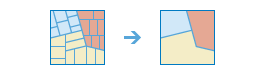
Finds polygons that intersect or have the same field values and merges them to form a single polygon.
Which boundaries are merged can be controlled by specifying one or more fields. For example, if you have a layer of counties and each county has a State_Name field, you can dissolve boundaries using the State_Name field. Adjacent counties will be merged if they have the same value for State_Name. The result is a layer of state boundaries.
Illustration
Usage
The Input Layer features must have polygon geometry. The dissolved output features will always be polygons.
There are two types of polygons that can have their boundaries dissolved: polygons that intersect and polygons that have the same field value.
Polygon features that have intersecting boundaries will be dissolved by default. Optionally, you can use the Dissolve Field(s) parameter to dissolve intersecting polygons that have one or more of the same field values.
For example, if you have a layer of study areas with a
Soil_Typefield, you can dissolve boundaries based on the attributes of theSoil_Typefield. Study areas will be merged if they have the same value forSoil_Type. The result is a layer of study areas by soil type. If two or more fields are specified, the input features must have the same value for each for the boundary to be dissolved.The attributes of the features that become aggregated by dissolve can be summarized or described using a variety of statistics in the Summary Fields parameter. The statistic used to summarize attributes is added to the output feature class as a single field with the naming standard of statistic type + underscore + input field name. For example, if the SUM statistic is used on a field named
POP, the output will have a field namedSUM_POP.Output from the Dissolve Boundaries tool can include multipart or single part features. A multipart feature is defined as one feature that is broken up into noncontiguous parts. For example, the state of Hawaii can be considered a multipart feature because its separate geometric parts are classified as a single state. The Create multipart features parameter offers two options for creating multipart or single part output:
True (checked)—Multipart features will be created in the output if applicable.
False (unchecked)—Only single part features will be created in the output. This is the default.
The following table outlines how the Create multipart features parameter operates with the dissolve options:
Dissolve method
Multipart is false (default)
Multipart is true
Dissolve Field(s) is not specified (default).
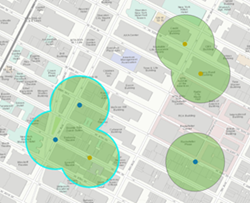
Three features are created when all values are dissolved and multipart is false. Only overlapping features are dissolved.
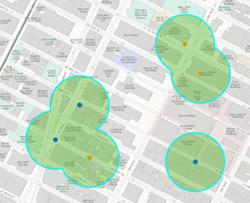
One feature is created when all values are dissolved and multipart is true. When you select this option, the result will always be one feature.
Dissolve Field(s) is specified.
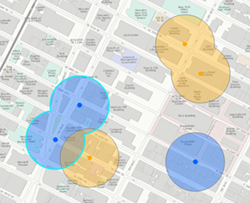
Four features are created when the dissolve is applied based on the field (here, the field is the color of input points). Only overlapping features with the same value of the specified fields are dissolved.
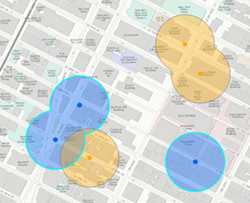
Two features are created when the dissolve is applied based on the field (here, the field is the color of input points) and multiparts are allowed. Values with the same field value will always be a single feature.
This geoprocessing tool is powered by Spark. Analysis is completed on your desktop machine using multiple cores in parallel. See Considerations for GeoAnalytics Desktop tools to learn more about running analysis.
When running GeoAnalytics Desktop tools, the analysis is completed on your desktop machine. For optimal performance, data should be available on your desktop. If you are using a hosted feature layer, it is recommended that you use ArcGIS GeoAnalytics Server. If your data isn't local, it will take longer to run a tool. To use your ArcGIS GeoAnalytics Server to perform analysis, see GeoAnalytics Tools.
Parameters
| Label | Explanation | Data type |
|---|---|---|
|
Input Features |
The layer containing the polygon features that will be dissolved. |
Feature Layer |
|
Output Feature Class |
A new feature class with dissolved boundaries. |
Feature Class |
|
Create Multipart Features (Optional) |
Specifies whether multipart features will be created in the output feature class.
|
Boolean |
|
Dissolve by Field Value(s) (Optional) |
Specifies whether features with the same field values will be dissolved.
|
Boolean |
|
Dissolve Field(s) |
The field or fields that will be used to dissolve like features. Features with the same value for each field will be dissolved. |
Field |
|
Summary Fields |
The statistics that will be calculated on specified fields. Value table columns:
|
Value Table |
Environments
Output Coordinate System, Extent, Current Workspace
Licensing information
- Basic: No
- Standard: No
- Advanced: Yes