Cos (Image Analyst Tools)
Summary
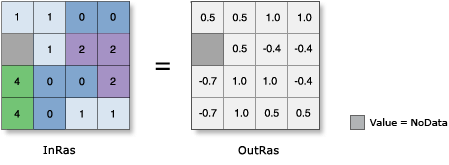
Calculates the cosine of cells in a raster.
Illustration
Usage
In mathematics, all trigonometric functions have a defined range of valid input values called the domain. The output values from each function also have a defined range. For this tool, the following are true:
The Domain is: -∞ < [in_value] < ∞
The Range is: -1 ≤ [out_value] ≤ 1
Note that -∞ and ∞ represent the smallest negative and largest positive values supported by the particular raster format, respectively.
The input values for this tool are interpreted to be in radians. If the input you want to use is in degrees, the values must first be divided by the radians-to-degrees conversion factor of 180/pi, or approximately 57.296.
For further assistance, a procedure to follow and examples of converting input values in degrees to radians are available.
The output values from this tool are interpreted as unitless.
Output values are always floating point, regardless of the input data type.
Due to the range of values, applying a linear stretch renderer can be useful to better see the results.
If the input is a multiband raster, the output will be a multiband raster. The tool will perform the operation on each band in the input.
If the input is multidimensional raster data, all slices from all variables will be processed. The output will be a multidimensional raster in CRF format.
Parameters
| Label | Explanation | Data type |
|---|---|---|
|
Input raster or constant value |
The input for which to calculate the cosine values. To use a number as an input for this parameter, the cell size and extent must first be set in the environment. |
Raster Layer; Constant |
Return value
| Label | Explanation | Data type |
|---|---|---|
|
Output raster |
The output raster. The values are the cosine of the input values. |
Raster |
Environments
Auto Commit, Cell Size, Cell Size Projection Method, Current Workspace, Extent, Geographic Transformations, Mask, Output CONFIG Keyword, Output Coordinate System, Scratch Workspace, Snap Raster, Tile Size
Licensing information
- Basic: Requires Image Analyst or Spatial Analyst
- Standard: Requires Image Analyst or Spatial Analyst
- Advanced: Requires Image Analyst or Spatial Analyst