Quick tour of ArcGIS Documentation Center
ArcGIS Documentation Center allows you to download documentation sets onto a local or shared network drive so you can locally view the help for Esri products.
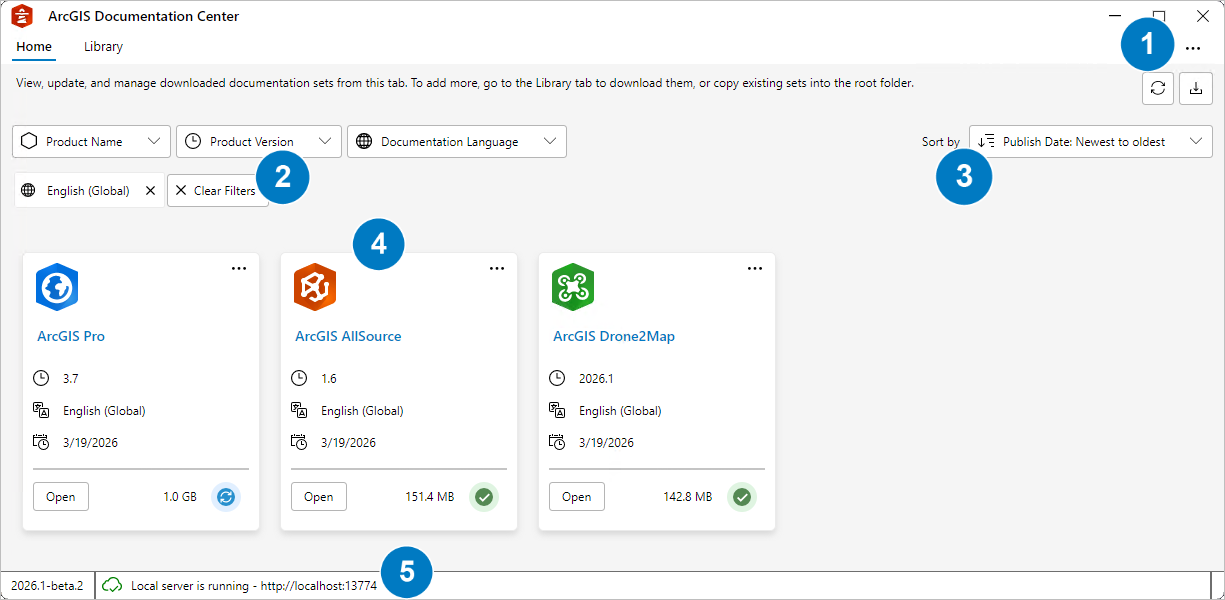
ArcGIS Documentation Center window
ArcGIS Documentation Center provides several ways for you to view information about the documentation sets that are available. This includes methods for sorting and filtering the documentation sets that are displayed on the Home and Library tabs. You can also change the settings for the application, see viewing history, and other information using the Menu button  .
.
| Element | Description |
|---|---|
| 1 | You can view history and information about the application and change the settings for the application, such as changing the language of the user interface and the root folder where documentation sets are downloaded and accessed. |
| 2 | The filters allow you to find documentation sets based on product name, product version, and language. |
| 3 | Documentation sets can be sorted by the date on which they were published and updated or by product name. |
| 4 | A card appears for each documentation set. |
| 5 | The status bar displays the installed version number of ArcGIS Documentation Center and the current status of the local server. |
Tabs on ArcGIS Documentation Center
ArcGIS Documentation Center contains two tabs: the Library tab for viewing all available documentation sets for download and the Home tab for viewing the documentation sets that have been downloaded.
The Home tab
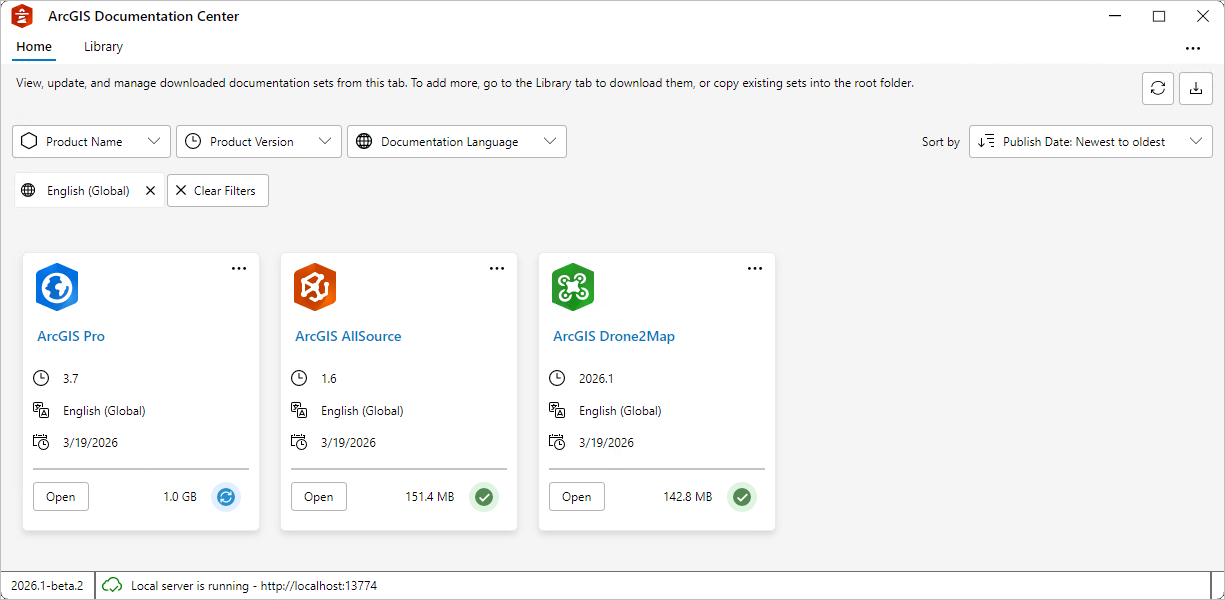
The Home tab contains information about the documentation sets that have been downloaded and that can be viewed in ArcGIS Documentation Center. This includes the language for which a documentation set has been downloaded, whether it is the most current documentation for a product version, and the published date.
When ArcGIS Documentation Center is started for the first time after installing, you may see an empty Home tab, without documentation sets listed. If your organization centrally manages documentation sets, you may already see some listed, as shown below.
The Library tab
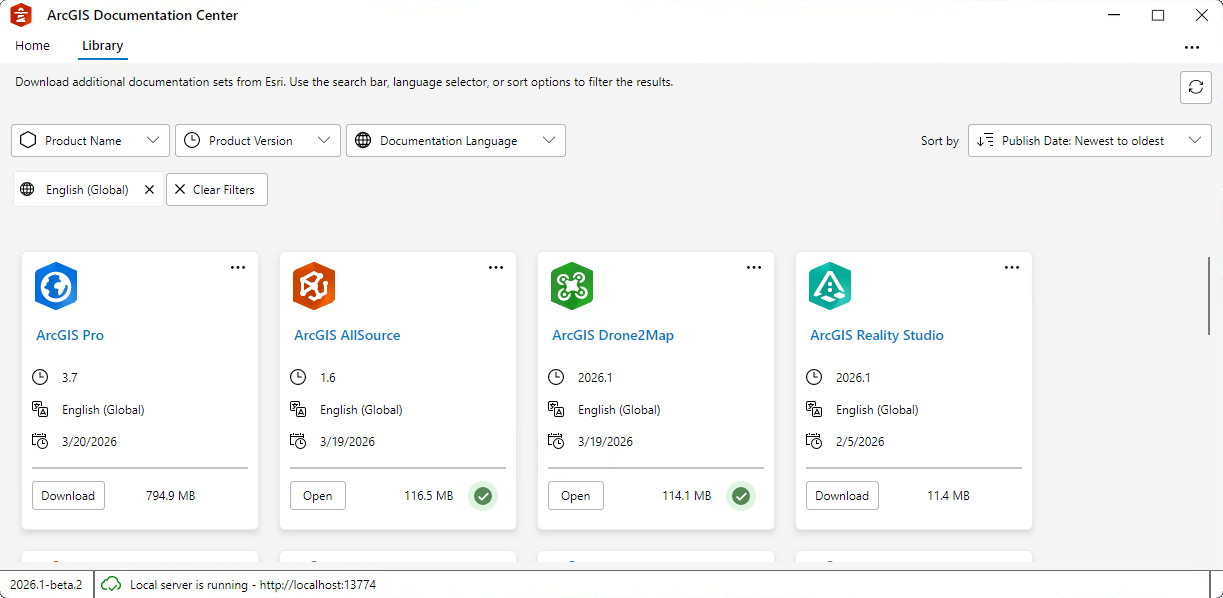
The Library tab displays all the documentation sets that are available for all product versions and languages. It shows both what is available for download and what has already been downloaded, as well as the status of the downloaded documentation.
By default, the documentation sets on the Library tab are filtered to only show those that are available in the display language that you selected for ArcGIS Documentation Center. You can optionally remove the language filter to view all documentation sets available. You can also sort the documentation sets by publish date or product name.
The Menu button
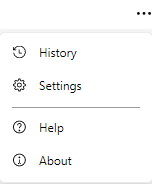
Use the Menu button to access your help topic viewing history, local server port numbers, the root folder for downloaded documentation sets, and the display language for ArcGIS Documentation Center.
Note:
Changing the Display Language setting changes the language for ArcGIS Documentation Center, not the documentation sets.
Documentation set cards
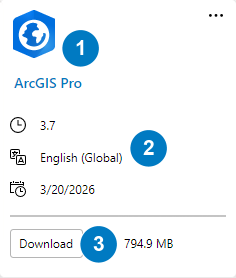
A card appears on the Home and Library tabs for each documentation set that is downloaded or available. On the card, you can see the icon for the product, as well as information specific to the documentation set.
| Element | Description |
|---|---|
| 1 | The product icon and name appear at the top of the card. |
| 2 | The product version number, documentation set language, and the date on which it was published. For example, this card indicates the documentation is for ArcGIS Pro 3.7, is in English, and was published on March 20, 2026. |
| 3 | A button indicates whether the documentation set can be downloaded or opened. You can also view the size of the documentation set download. On this card, you can download the ArcGIS Pro 3.7 documentation set and can see that it will use 794.9 MB of storage. |
Esri may deploy updates to documentation sets. You can see whether you have the most current version of a downloaded documentation set by looking at the following icons that appear on the cards.
The Latest icon
 indicates you have the most current version of the documentation set.
The Update available button
 indicates an updated version of the documentation set is available. You can click the button to download the update.
A warning icon
 indicates the app cannot determine whether an update is available. This often indicates your computer is disconnected from the internet.
A restricted network icon
 indicates you have access to the network but the settings in the
 appSettings.jsonfile are preventing the app from checking for updates.