Sign in to Manager
When you connect, use a URL that uses HTTPS and includes the fully qualified domain name of the server:
If you connect directly to ArcGIS Server, the URL format is
https://gisserver.example.com:6443/arcgis/manager. If the site includes multiple machines, this will be the URL of the machine you specified for the Administration URL when federating your site.If you connect through ArcGIS Web Adaptor, the URL format is
https://webadaptorhost.example.com/webadaptorname/manager.
Alternatively, you can open Manager from the operating system shortcut that is installed with ArcGIS Server.
Note:
User names and passwords are case sensitive. You must provide the proper case to sign in to Manager.
Stand-alone ArcGIS Server sites
The first time you sign in to ArcGIS Server Manager for a site that is not federated with ArcGIS Enterprise, you must use the primary site administrator name and password that you provided during the site creation process. The first time you sign in, the Username box displays the primary site administrator name to remind you of this.
Subsequent attempts to sign in to Manager require either the primary site administrator name and password, or the name and password of a user to whom you have granted administrator or publisher privileges using the ArcGIS Server security mechanisms. If you provide a user with publisher privileges, some actions in Manager are restricted as described in Publisher role support in Manager.
Federated ArcGIS Server sites
For ArcGIS Server sites that are federated with ArcGIS Enterprise, sign in to Manager using an ArcGIS Enterprise organization account with the Administrator or Publisher role, or that has been granted access using fine-grained access control
Modify desktop shortcut for Server Manager
ArcGIS Server supplies a desktop shortcut for ArcGIS Server Manager. The default shortcut URL is formatted http://localhost:6080/arcgis/manager, which is a valid path as long as the server has not been federated to ArcGIS Enterprise. For federated servers, the default shortcut URL results in an error message of Invalid redirect_uri. Follow these steps to update the shortcut path for a federated server:
Locate the shortcut file in the
<ArcGIS Server installation directory>/Support/Shortcutsfolder.Open the ArcGIS Server Manager shortcut file in a text editor.
The file should read as follows, though your specified internet browser may differ:
[Desktop Entry]
Comment=ArcGIS Server Manager
Encoding=UTF-8
Exec=firefox localhost:6080/arcgis/manager
Icon=web-browser
Name=ArcGIS Server Manager
Terminal=false
Type=Application
Keywords=arcgis;esri;
Modify the URL in the
Execline to specify the fully qualified domain name in of one of the machines in the server site using the formathttps://gisserver.example.com:6443/arcgis/manager.Save your changes and exit the program.
The shortcut item will now open ArcGIS Server Manager with the updated URL.
In the Windows Start menu on the federated server, right-click the ArcGIS Server Manager shortcut, click More, and click Open file location.
In the File Explorer window, right-click the ArcGIS Server Manager shortcut item and select Open file location.
This opens the shortcut link in the folder
C:\Program Files\Common Files\ArcGIS\Support\Shortcuts.Cut the Manager shortcut item and paste it to your desktop.
The Manager shortcut item is now deleted from its original location.
Right-click the pasted item, open Properties, and modify the URL property so that the URL uses HTTPS and the 6443 port to connect.
For example, the URL should look similar to the following:
https://gisserver.example.com:6443/arcgis/manager, wheregisserver.example.comis the fully qualified domain name of one of the machines in the ArcGIS Server site.Click OK to apply the change and close the properties window.
Cut the modified shortcut item and paste it back to the
C:\Program Files\Common Files\ArcGIS\Support\Shortcutsfolder.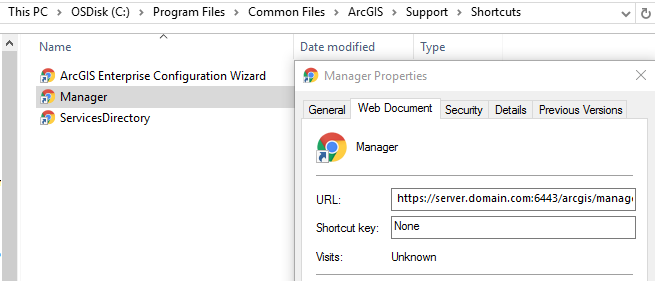
The shortcut item will now open ArcGIS Server Manager from the Windows Start menu.
Securing your log-in credentials
When you log in to ArcGIS Server Manager, your credentials are encrypted before being sent to the server. By default, ArcGIS Server communicates over HTTPS only.
If you attempt to access Manager using HTTP, you will be redirected to use HTTPS unless your site is set to use HTTP Only for its communication. To learn more, see Secure ArcGIS Server communication.