Introduction to ArcGIS Maps for Microsoft Fabric
ArcGIS Maps for Microsoft Fabric allows you to visualize spatial data by creating interactive, multi-scale maps within the Microsoft Fabric environment. With ArcGIS Maps for Fabric, you can:
Harness insights from a variety of data unified in the Microsoft Fabric environment.
Analyze trends with contextual layers such as demographics and imagery.
Support organizational decision-making through interactive mapping.
Facilitate real-time stakeholder collaboration.
Integrate spatial intelligence into existing business workflows.
Using ArcGIS Maps for Fabric, you can create and share interactive maps within your organization. It features responsive mapping and real-time updates to the map as you work. ArcGIS Maps for Fabric has an intuitive design that allows you to customize and configure a map within the Fabric environment. The following sections provide an overview of tools available to you within ArcGIS Maps for Fabric.
ArcGIS Maps for Fabric design
In ArcGIS Maps for Fabric, maps are saved as ArcGIS web maps. An ArcGIS web map stores an interactive display of geographic information that you can use to tell stories and answer questions. ArcGIS web maps contain a basemap, a set of layers (many of which include interactive pop-ups with information about the data), an extent, a legend, and navigation tools to pan and zoom.
Use ArcGIS Maps for Fabric to view, explore, and create maps in Microsoft Fabric. Navigate the map to view various areas. Click features or imagery on the map to view pop-ups with information about the data. Rotate the map for a new perspective. Experiment with zoom levels to see which features and layers are visible at different scales.
ArcGIS Maps for Fabric includes two vertical toolbars—the Contents toolbar and the Settings toolbar. Use the Contents toolbar to manage and view the map contents and work with the map. Use the Settings toolbar to access options for configuring and interacting with map layers and other map components.
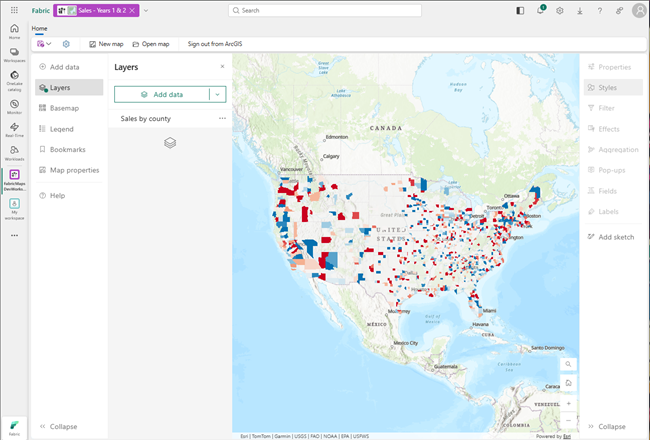
Use the Expand and Collapse buttons at the bottom of the Settings and Contents toolbars ( and
and  ) to expand or collapse them. You can also search for locations on the map by clicking the Search button
  .
.
Contents toolbar
Manage and view key components of the map using the Contents toolbar buttons. For example, you can change the basemap and add layers. Click the Layers button  to see what layers are in the map.
Layers in the map are drawn in the same order in which they appear in the Layers pane. You can organize layers to draw in any order and click Hide layer  or Show layer
  to hide or show, respectively, individual layers. You can also click Options
  to expand the list of options for the layer and view the layer's properties.
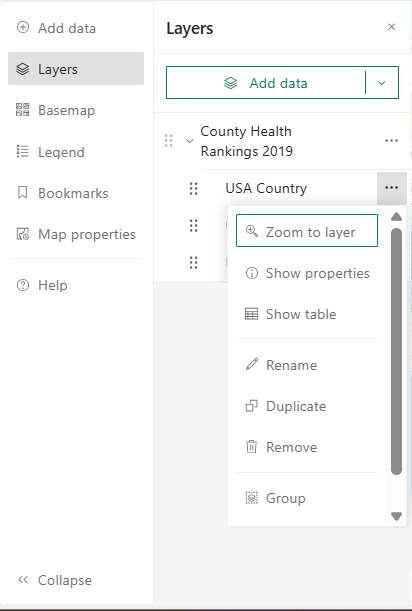
If the map contains a group layer, you can display one specific layer from that group without individually showing or hiding the other layers. To do this, turn on or turn off the Exclusive visibility toggle button.
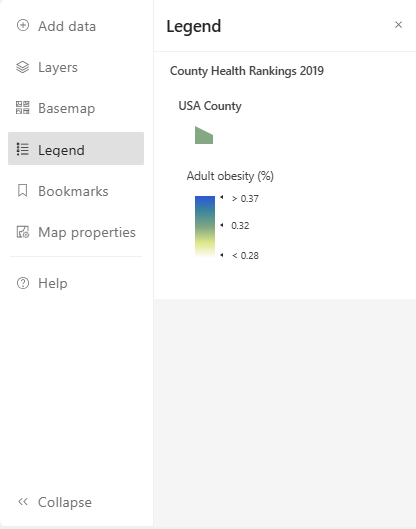
Some layers have symbology that appears in a legend. View the Legend pane to see how the data layer is represented on the map.
Ribbon menu
You can use the ribbon menu to perform actions such as opening and saving maps, and to Sign out of your ArcGIS organizational account.
Note:
To access ArcGIS Maps for Fabric, you must have a supported ArcGIS organizational account. By signing in with your ArcGIS organizational account, you can access your ArcGIS Online content as well as your organization's content, basemaps, and ArcGIS Living Atlas layers. You cannot access ArcGIS Maps for Fabric with an ArcGIS Public account.
Settings toolbar
The Settings toolbar includes options for working with individual layers in the map, as well as options for working with the map itself. Select a layer in the map to access the layer options on the toolbar. When you click one of the options, the active pane will appear next to the Settings toolbar. You can use the selector at the top of the active pane to quickly switch layers.
Layer options are at the top of the Settings toolbar. The layer options displayed depend on the type of layer selected and, in some cases, the data contained in the layer. For example, the Clustering button is only displayed when a feature layer containing point features is selected.
Use the Settings toolbar to configure pop-ups, filters, clustering, labels, and more. Your changes are instantly visible on the map, allowing you to experiment and explore various options. Click the Styles button  to explore smart mapping styles such as dot density, and many other styles. You can try different symbols and color ramps for features and imagery in the map.