Manage ArcGIS Pro licenses in ArcGIS Online
As an ArcGIS Online organization administrator, you can manage user types and add-on licenses to ensure that members can access ArcGIS Pro as needed. The ArcGIS Pro licenses in an ArcGIS Online organization are Named User licenses.
View license and user type availability
You can view license and user type details in your ArcGIS Online organization to see the user types that are assigned to members and the available number of each type. You can also see how many ArcGIS Pro add-on licenses are assigned.
Assign an ArcGIS Pro license or add-on license
Members are given a user type, role, and privileges when you add them to the organization. The Creator, Professional, and Professional Plus user types include ArcGIS Pro licenses at different levels of functionality.
Add-on licenses can be assigned for extension products such as Spatial Analyst, 3D Analyst, and Network Analyst that integrate seamlessly with ArcGIS Pro and add specialized functionality.
Legacy:
Some organizations may have core ArcGIS Pro licenses available as add-on licenses. These licenses are entitlements from ArcGIS Desktop maintenance contracts.
To assign an ArcGIS Pro Named User license to a member, set the member's user type to Creator, Professional, or Professional Plus. You can change a member's user type if their current user type doesn't support an ArcGIS Pro license. You can also remove a member's license by changing their user type.
To assign an extension product license to a member, follow the workflow to assign an add-on ArcGIS Pro license. Extension licenses can be assigned to any user type that supports an ArcGIS Pro license. You can also unassign an extension license from one member and assign it to another member.
Manage ArcGIS Pro settings
The following video shows you how to set the offline license period as an administrator and how to adjust it as a user.
- This video was created with ArcGIS Pro 3.4.
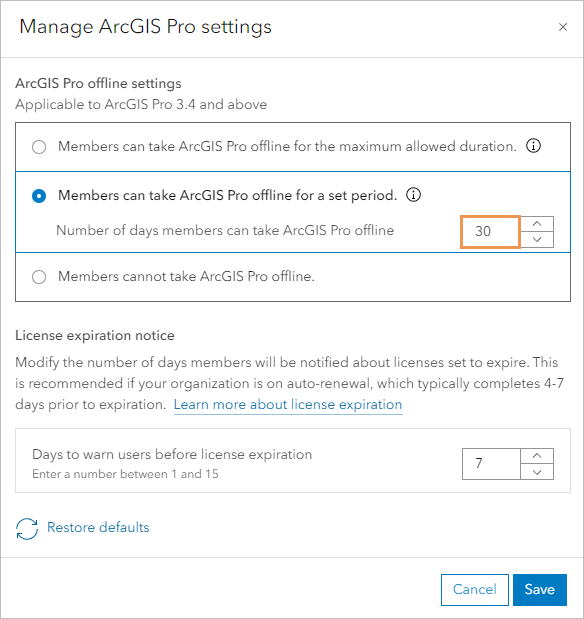
At times, users may need to take ArcGIS Pro Named User licenses offline to work in a disconnected environment. By default, this capability is enabled. As the organization administrator, you can manage ArcGIS Pro settings in your ArcGIS Online organization to decide whether licenses can be taken offline and for how long. These settings are made for the organization as a whole, not for individual members.
In addition, you can set the number of days for which license expiration warnings are given.
End a session
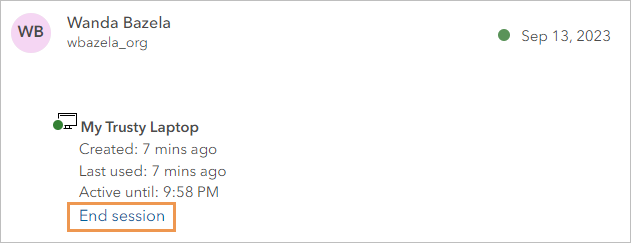
In your ArcGIS Online organization, you can end a member’s active ArcGIS Pro session. For example, you may need to release an add-on license for another member to use.
When the session ends, the user receives a notification that ArcGIS Pro is no longer connected to a licensing portal. The application closes automatically in 60 minutes.
Enable Esri access
Esri access allows organization members to use their ArcGIS Online credentials in sections of Esri websites that require signing in. These include parts of the Esri Support, Esri Academy, and Esri Community sites. Esri access is also required for members to sign in to My Esri.
In your ArcGIS Online organization, you can enable Esri access or disable it for members.