Convert a personal geodatabase
The Convert Personal Geodatabase tool allows you to migrate a legacy personal geodatabase (.mdb) or a Microsoft Access database (.mdb, .accdb) to one of the following modern formats:
File geodatabase (
.gdb)Mobile geodatabase (
.geodatabase)XML workspace document (
.xml)
Most data types and datasets used in ArcMap are compatible with ArcGIS Pro, but some require upgrading or conversion. Personal geodatabases (.mdb) are not supported in ArcGIS Pro and must be converted to another geodatabase format before use.
Once the input personal geodatabase is converted to the specified target format using this tool, the geodatabase data can be used immediately in ArcGIS Pro.
Conversion support and limitations
The tool uses the 64-bit Microsoft Access driver to read the input database and export its contents to an XML workspace document. If a file or mobile geodatabase is selected as the output format, that XML is then imported to create the new geodatabase.
This two-step process is important because it explains why some dataset types and geodatabase behaviors that are converted depend on the selected output format.
See Supported and unsupported dataset types to learn more.
For example, when converting a personal geodatabase to an XML workspace document, binary content (such as raster fields and attachments) is written to a companion media folder; when importing that XML to a file geodatabase, supported content is restored. Mobile geodatabases do not support raster fields, so those are omitted with warnings.
Additionally, keep the following in mind:
Only geodatabases version 10.x and later are supported. Personal geodatabases with an earlier schema (8.x or 9.x) are not supported.
Unsupported datasets in XML will not be converted and will be noted in a warning message.
Only tables registered with the geodatabase will be included in the conversion. Unregistered tables (standard database tables not managed by ArcGIS) will not be converted.
Supported and unsupported dataset types
The following table lists the dataset types and geodatabase behaviors supported by this tool.
Note:
Some ArcGIS Pro geodatabase dataset types and behaviors have been omitted from this table because they were never supported in the personal geodatabase format.
| Dataset type and behavior | Mobile geodatabase (MGDB) | File geodatabase (FGDB) | XML workspace document (XML) |
|---|---|---|---|
| Annotation |  |
|
|
| Attachments | |
|
* |
| Domains | |
|
|
| Feature class | |
|
|
| Geometric networks | |
|
|
| Relationship classes (1‑M, M‑1, M:N) | ** |
** |
** |
| Subtypes | |
|
|
| Tables (registered only) | |
|
|
| Topology | |
|
|
| ArcGIS toolbox |  |
|
|
| Network datasets |  |
|
|
| Raster datasets | |
|
|
| Raster fields | |
|
* |
| Raster catalogs | |
|
|
| Mosaic datasets | |
|
|
| Schematic datasets | |
|
|
| Locators | |
|
|
| Pre‑10.x PGDB schema (8.x or 9.x) | |
|
|
Table legend
- —Supported
- *—Supported, though when exporting to XML, binary content (for example, raster fields and attachments) is written to a companion media folder.
- **—Supported, though M:N relationship classes with NULL keys are skipped and will return an error message.
- —Not supported. A warning is returned, but the tool proceeds with the operation.
- —Not supported. An error is returned, and the tool stops.
Check for and install drivers
The Convert Personal Geodatabase tool in ArcGIS Pro requires the 64‑bit Microsoft Access database engine to read personal geodatabases. Therefore, a compatible Microsoft Access driver must be installed on the computer running ArcGIS Pro.
Some client machines and certain Microsoft 365 installations already include the required Microsoft Access driver, allowing the tool to run without additional setup.
To check if you need to install a driver, complete the following steps:
In ArcGIS Pro, run the Convert Personal Geodatabase tool.
If it runs successfully, no further action is needed.
If the Convert Personal Geodatabase tool reports a missing driver, do the following:
Close ArcGIS Pro.
Install one of the following drivers on the computer running ArcGIS Pro:
Restart your computer.
Open ArcGIS Pro.
Try running the Convert Personal Geodatabase tool again.
If it runs successfully, no further action is needed.
If the tool continues to report a missing driver or an error is reported, see Microsoft drivers to learn which driver to install for your machine configuration and, if needed, how to perform a silent mode driver installation.
Convert a personal geodatabase
To convert an existing personal geodatabase file (.mdb) or Access database file (.accdb) to a mobile geodatabase, file geodatabase, or XML workspace document using the Convert Personal Geodatabase tool, complete the following steps:
On the Analysis tab, in the Geoprocessing group, click Tools
 to open the Geoprocessing pane.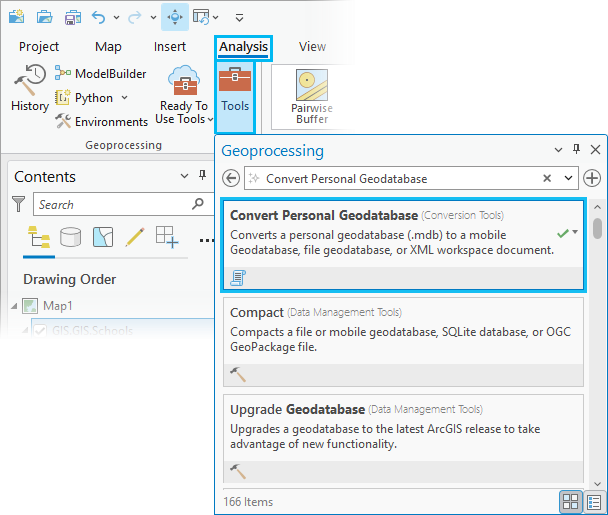
In the Geoprocessing pane, search for and select Convert Personal Geodatabase.
Note:
Alternatively, you can find the Convert Personal Geodatabase tool in the Conversion toolbox, in the To Geodatabase toolset.
The tool dialog box opens with the default settings visible.
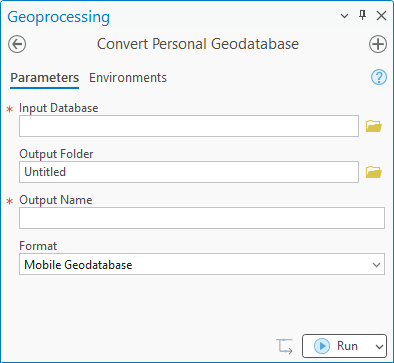
For the Input Database parameter, click the Browse button
 and select the personal geodatabase (
.mdb) or Microsoft Access database (.accdb) to convert.Note:
Personal geodatabases are not supported in ArcGIS Pro, so
.mdbfiles and their contents do not appear in the Catalog pane. As a result, the only way to select an.mdbfile in ArcGIS Pro is when using the Browse button to select the Input Database parameter from this Convert Personal Geodatabase geoprocessing tool.For the Output Folder parameter, click the Browse button
and select an existing output folder where the new mobile geodatabase, file geodatabase, or XML workspace document will be created.This parameter defaults to the ArcGIS Pro home folder location.
For the Output Name parameter, type a name for the output geodatabase or XML document to be created.
By default, this parameter will match the name of the Input Database value.
For the Format parameter, choose one of the following output format types that the personal geodatabase file (
.mdb) or the Microsoft Access database file (.accdb) will be converted to:Mobile Geodatabase—The tool will create a mobile geodatabase (
.geodatabase) file from the input database. This is the default.File Geodatabase—The tool will create a file geodatabase file (
.gdb) from the input database.XML Workspace Document—The tool will create an XML workspace document (
.xml) from the input database.Tip:
You can later use the Import XML Workspace Document tool to import this resulting
.xmlfile into another geodatabase or enterprise geodatabase.
Click the Run button
 at the bottom of the Geoprocessing pane to start the conversion process.
Tip:
You can click the Run drop-down menu to access additional options. Learn more about scheduling geoprocessing tools, copying the Python command, and using run modes and threads.
The tool converts your selected personal geodatabase file (
.mdb) or Access database file (.accdb) to the output format type you specified.
After the conversion completes, open the new geodatabase or XML workspace document in the Catalog pane to access your data.
Tip:
While the Convert Personal Geodatabase tool converts one .mdb or .access file at a time, it can be set up to convert multiple files using Python or ModelBuilder.
Learn more about how to configure a tool to run in batch mode.
Troubleshooting
The Convert Personal Geodatabase tool notifies you if the selected output type, such as a mobile geodatabase, does not support certain dataset types. Instead of stopping, the tool issues a warning, skips unsupported items, and lists them in the output messages so you can see what was omitted.
To ensure a smooth conversion, review the tool messages. After the tool runs, a progress bar with an icon and message in the Geoprocessing pane will display the tool’s status as follows:
|
Icon |
Status |
|---|---|
|
|
The tool completed successfully. |
|
|
The tool completed with warnings. Click View Details or hover over the status icon |
|
|
The tool failed. Click View Details or hover over the status icon |
The status icon provides a quick overview. For more details, expand the messages panel to review any warnings or errors.
While warnings can sometimes be overlooked, they often contain important details about datasets that were skipped or modified. Errors, on the other hand, will prevent the geoprocessing tool from completing.
It is recommended that you regularly review tool messages and select the appropriate output format. Following these steps helps ensure that migrating legacy data to modern geodatabases is straightforward and repeatable.