Full-text indexes in the geodatabase
A full-text index is a specialized index that stores information about individual words (tokens) and their locations within text fields. Once created, it enables fast searching of large amounts of text for specific words, phrases, or expressions.
Full-text indexes are designed to enhance text search capabilities in databases. Unlike attribute indexes that focus on specific columns and spatial indexes that handle geographic data, full-text indexes optimize searches within text fields by indexing every word. This allows for efficient searching, complex queries like phrase searches, and faster retrieval of relevant text data.
For a side-by-side comparison of attribute, full-text, and spatial indexes, see Indexes in the geodatabase.
Purpose and benefits of full-text indexes
The main purpose of full-text indexes is to improve the speed and accuracy with which text data can be found. Benefits include:
Efficient text searching—Full-text indexes may allow for faster searches within text fields compared to regular attribute indexes. This is because they are optimized for text search operations, reducing the need to scan an entire table.
Complex query capabilities—Full-text indexes support complex queries such as phrase and proximity searches, and rank results by relevance.
Improved performance—Indexing text data with full-text indexes can greatly enhance search performance, especially with large datasets where text searches are resource-intensive.
Multiple field support—In SQL Server, a full-text index can cover several fields from a table, allowing for comprehensive searches across columns.
Consider using full-text indexes when you need to perform complex text searches within a text field. More specifically, full-text indexes are particularly useful for the following:
Single word search—Searches for individual words within a text field, such as hurricane or Florida.
Phrase search—Search for a phrase by surrounding words in double quotation marks, for example, "evacuation routes".
Examples
To help explain the benefits of using full-text indexes, consider the following analogy example:
- A table of contents in a book shows where each chapter is located. If you want to find chapter 7, you can check the table of contents, go to that page, and find what you need. If you're trying to remember an important quote that includes the word "mankind," but you don't know which chapter it's in, the table of contents won't help. You would need to flip through all the pages to find the quote unless the book has a full-text index. A full-text index lists each word in the book along with the page numbers. This allows you to quickly search for words such as mankind and find phrases, such as "one giant leap for mankind".
The following scenario is an example that illustrates the usefulness of full-text indexes.
A gas utility company tracks inspection reports and safety documents for its pipeline network. Applying a full-text index to the text fields of a geodatabase containing inspection reports, safety descriptions, and maintenance logs allows full-text searches to support queries on phrases for terms such as gas leak or pipeline corrosion, improving the speed and accuracy of safety checks and maintenance planning.

How full-text indexing works
Full-text indexes are a powerful tool to help search through large amounts of text-based data quickly. Once a full-text index has been created on a field, text searches can be used for fast, efficient searching of large volumes of text content for specific words, phrases, or expressions.
Text searches are available in various parts of ArcGIS, including the following:
ArcGIS Portal Directory REST API—For querying data through web services.
ArcObjects—For programmatic access and manipulation of GIS data.
Locate pane—In ArcGIS Pro, use the Locate pane to apply the full-text search mode, Full Text Starts With or Full Text Equals, to the field that you want to search against.

Caution:
ArcGIS Pro provides the ability to create a very basic full-text index. Managing and options to customize a full-text index must be completed manually at the DBMS level using DBMS tools.
The following scenario simulates, at a high and simplified level, how a full-text index is created, stored, and used to search and retrieve text data quickly and accurately.
The GIS.Storm_Damage_Assessment table contains several attribute fields that detail the type, severity, and description of damages reported by building owners after recent storms. Additional fields, not visible in this table, include the address and contact information for the owners.
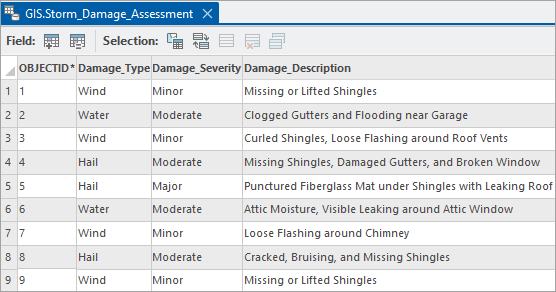
As the insurance agent for these building owners, setting up a full-text index on the Damage _Description field will allow you to quickly search for keys terms such as Gutters, Shingles, Window, Roof, or Leaks, so that you can recommend the most appropriate contractor for the building owner to contact based on the specific damage and repair work needed.
Create the full-text index using the Add Full-Text Index tool. In this example, the name of the table,
GIS.Storm_Damage_Assessment, and the field containing the text data to index,Damage_Description, have been specified.
Populating the index involves breaking down the text in the designated field into individual key terms (tokens), organizing, tracking, and then mapping the exact location of each word back to the text field for quick access.
Case study:
The following illustration simulates at a high and simplified level, how a full-text index is broken down into individual key terms and how their locations are mapped back to the text field.
In this example, from the
GIS.Storm_Damage_Assessmenttable, the first attribute value in row 1 under theDamage_Descriptionfield reads, Missing or Lifted Shingles. As a simulation of how this full-text index would be populated, this text would be broken down into the following key terms, organized alphabetically, and the exact location where each term appears in the designatedDamage_Descriptiontext field is recorded.Missing—Appears 4 times, in rows 1, 4, 8, and 9
Lifted—Appears twice, in rows 1 and 9
Shingles—Appears 6 times, in rows 1, 3, 4, 5, 8, and 9
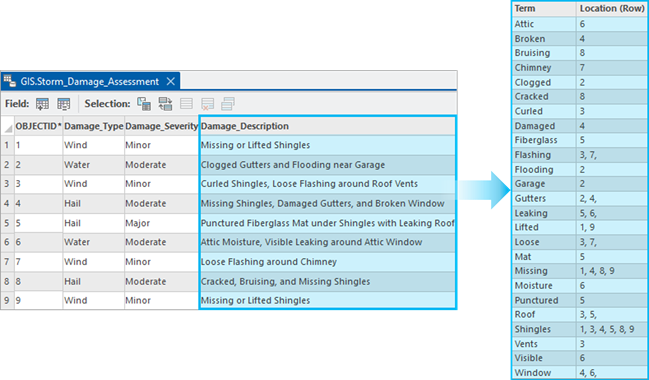
The index acts as a glossary for all the key terms in the indexed field, organizing and tracking the exact location where each word appears back to the original index. This process would continue until all the text in the designated text field has been broken down into key terms, organized, and the location recorded where each term appears.
Once the creation of the full-text index on the
Damage_Descriptionfield has completed, you can use the Locate pane to apply the full-text search mode Full Text Equals, to theDamage_Descriptionfield.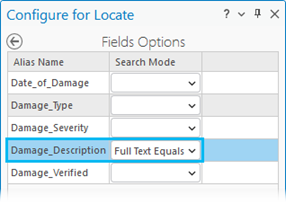
For this example, from the Locate pane, you can search for the word Shingles
Without a full-text index applied, the search would result in a more time-consuming full-table scan. However, since a full-text index was created on the
Damage_Descriptionfield, from the Locate pane, you can query this field for a single word, Shingles. The Locate pane uses a full-text search to quickly identify the term Shingles and locates all the rows where that key term appears in the indexed field, similar to the following.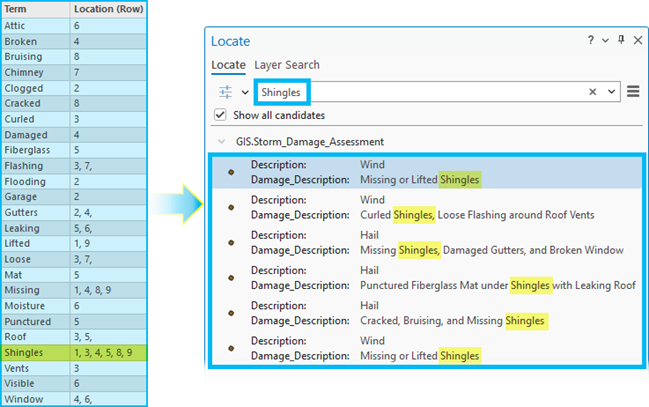
The results from your search will allow you to quickly identify any damage reports that involved roof shingles so the building owner can contact the most appropriate contractor based on the specific damage reported.
Full-text index management in ArcGIS
The way ArcGIS Pro creates full-text indexes depends on the type of geodatabase and, for enterprise geodatabases, varies depending on the database management system used. The next two sections explain these functionality differences.
Note:
Consider the following if using full-text indexes:
Full-text indexes are not supported in file geodatabases or in an enterprise geodatabase in Db2.
Single versus multiple indexes—Some RDBMSs may only support a single full-text index per table, while others may allow multiple.
Maintenance—Full-text indexes need to be maintained by the underlying data source. They are updated to reflect changes in the data, which can impact search performance.
Full-text indexes in mobile geodatabases
Full-text indexes are supported on mobile geodatabases. Mobile geodatabases are stored in an SQLite database and this database contains the FTS5 extension natively. SQLite FTS5 (Full-Text Search) extension is used for full-text indexing in mobile geodatabases and creates virtual tables and additional side table to manage the full-text indexes. This means that mobile geodatabases also have the FTS5 extension natively.
Full-text indexes in enterprise geodatabases
ArcGIS Pro supports full-text indexes on a table or feature class in a geodatabase in each of the following supported database management system platforms, each with specific configurations:
Oracle
Supports full-text indexes on non-unicode text fields.
Requires converting unicode fields to non-unicode for indexing.
Tip:
Use the Migrate Text Field tool to migrate existing eligible unicode text field types to non-unicode. The input dataset must be from an enterprise geodatabase in Oracle and eligible unicode text field types that can be migrated to a non-unicode text field type include the following:
NVARCHAR2 will be converted to VARCHAR2.
NCHAR will be converted to VARCHAR2.
NCLOB will be converted to CLOB.
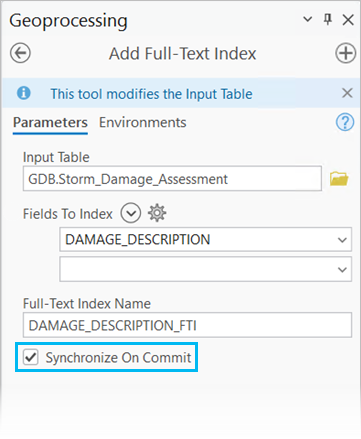
Synchronize On Commit is an optional parameter that is only available when using the Add Full-Text Index tool on a table or feature class in an enterprise geodatabase in Oracle. Synchronize On Commit can be used to specify whether a full-text index will be updated automatically when edits are saved or an ArcGIS sync operation is performed.
PostgreSQL
- Supports creating one full-text index per field.
SQL Server
The full-text search capability is an optional component of the SQL Server Database Engine and must first be enabled before proceeding with the following requirements. If the full-text capability has not already been enabled on your SQL Server instance, you will need to run the SQL Server setup process again.
A SQL Server full-text catalog is a virtual container for one or more full-text indexes. Use SQL Server to create at least one full-text catalog in each SQL Server database where full-text indexes will be created.
You can have multiple full-text catalogs in each database but a full-text index must belong to one and only one full-text catalog. You can specify a default full-text catalog, which will be used if one isn't provided.
Each user who will create full-text indexes must have the REFERENCES permission granted on the full-text catalog that the index will belong to.
SQL Server supports creating a single full-text index per table, which can include multiple fields.
SAP HANA
- Similar to PostgreSQL, supports one full-text index per field.
Add a full-text index
To use the Add Full-Text Index tool to add a full-text index to specified text fields to support searching by an individual column or by multiple columns in a mobile or enterprise geodatabase, follow these steps:
Note:
The Add Full-Text Index tool is not supported in file geodatabases or in an enterprise geodatabase in Db2.
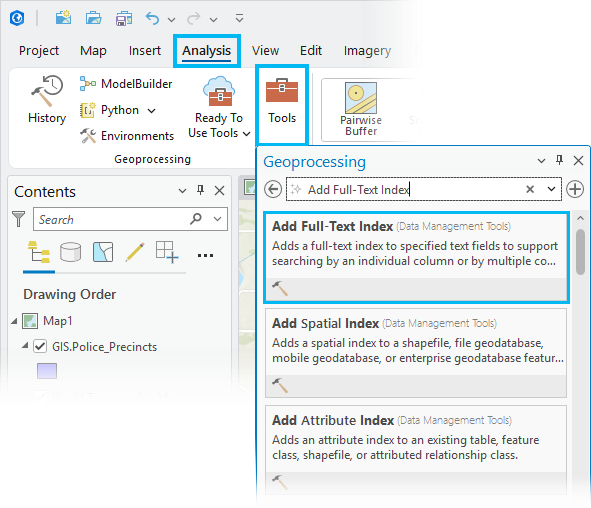
Open the Add Full-Text Index geoprocessing tool by navigating to the Analysis tab and clicking Tools in the Geoprocessing group. Alternatively, you can search for the tool in the Data Management Tools toolset in the Indexes toolbox.
The Add Full-Text Index geoprocessing tool dialog box appears with default settings.
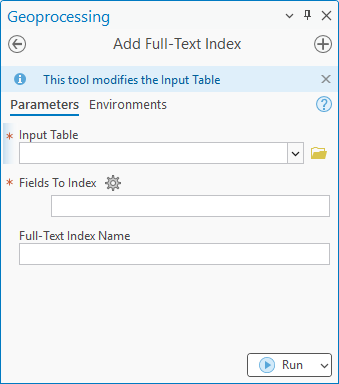
For Input Table, from the drop-down menu, select a single dataset or use the browse button
 to choose a feature class or table to add a full-text index to.
Note:
Learn more about full-text index management in ArcGIS.
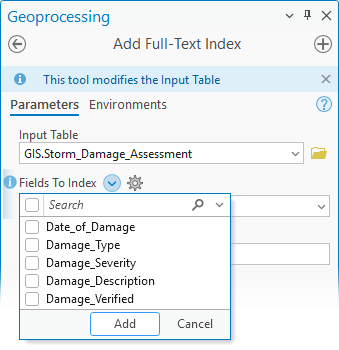
For Fields To Index, select either a single field or multiple fields that will have a full-text index applied.
Note:
Some databases only support a single field for full-text index creation. Support for creation of a multiple-field full-text index varies based on the database.
Optionally, the name of this parameter will change depending on the source for your Input Table.
Full-Text Index Name—Provide a name for the index that will be created. The Full-Text Index Name parameter appears by default.
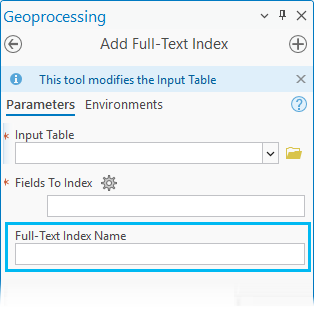
Note:
For SQL Server, SQLite, and mobile geodatabases, the Full-Text Index Name parameter will be ignored.
Full-Text Catalog Name—Select the name of the SQL Server full-text catalog you want to use for the Full-Text Catalog Name parameter. The Full-Text Catalog Name option is only applicable for SQL Server.
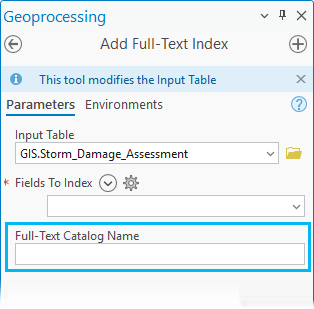
Note:
If the Full-Text Catalog Name is not provided, the tool will attempt to use the default full-text catalog defined for the database if it is accessible. Otherwise, select a full-text catalog from the drop-down list. The drop-down list includes all the full-text catalogs that the connected user is able to access.
Click Run to add a full-text index to a field.
Note:
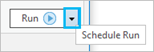
You can also select Schedule Run to run the tool at a later time with optional recurrence by using the drop-down menu next to the Run button.
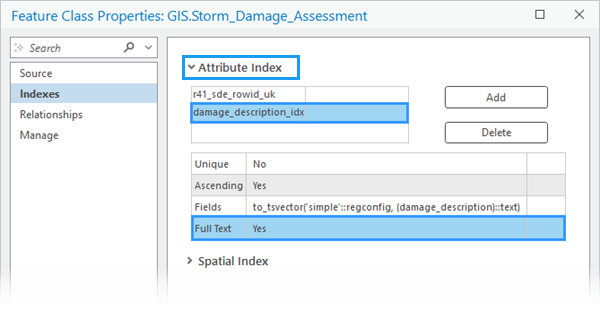
Once the Add Full-Text Index tool completes, open the properties dialog box of your table or feature class. Under the Indexes tab, the Attribute Index section displays the existing indexes for this dataset. Select the newly created index and the Full Text parameter below will display Yes to indicate this is a full-text index.
When to update a full-text index
Full-text indexes are maintained by the RDBMS and should be periodically updated to reflect changes in the data, ensuring that searches return accurate results. The frequency of updates to a full-text index will depend on the volume of edits made to the data along with your database configuration. Managing, updating, and rebuilding full-text indexes in an enterprise geodatabase would be completed manually at the DBMS level using DBMS tools.
For mobile geodatabases, SQLite FTS5 (Full-Text Search) extension allows for efficient full-text searches by creating a virtual table that is automatically updated when the underlying data changes, eliminating the need for manual index rebuilding.