Create an investigation in a project
You can create an investigation from an existing knowledge graph service or a file knowledge graph. You can also create a new file knowledge graph or knowledge graph service to support your investigation in ArcGIS Pro.
A file knowledge graph is a collection of files in a folder on disk. A knowledge graph service is a knowledge graph backed by an ArcGIS Data Store graph store, or a supported NoSQL data store, in ArcGIS Enterprise.
Note:
ArcGIS Enterprise 10.9.1 knowledge graph services are not supported in ArcGIS Pro.
If you have a project created with a previous version of ArcGIS Pro using a knowledge graph service from a previous version of ArcGIS Enterprise, do not update ArcGIS Pro or ArcGIS Enterprise until both can be updated at the same time and any existing knowledge graphs on an ArcGIS Knowledge Server site can be upgraded. Do not use existing projects until all updates are complete.
Learn about upgrading existing knowledge graphs
Create an investigation and a file knowledge graph
To create an investigation and a new file knowledge graph at the same time, complete the following steps:
License:
File knowledge graphs require an Advanced license, which is included with the Professional Plus user type.
Open the catalog view and click Project in the Contents pane.
Open the Create Investigation wizard.
On the Catalog tab on the ribbon, in the Create group, click the New drop-down arrow and click New Investigation
 .
.On the Insert tab on the ribbon, in the Knowledge Graph group, click New Investigation
.
The Create Investigation wizard appears.
On the Define Investigation page of the wizard, type a name for the new investigation in the Title text box.
Type information describing the investigation in the Summary and Tags text boxes.
Under the Knowledge Graph heading, click Create a new file knowledge graph.
Click Next.
Information you provided to describe the investigation is copied to the second page of the wizard. You can modify this description or use the same information to describe the knowledge graph.
On the Define Knowledge Graph page of the wizard, type a name for the new knowledge graph in the Title text box.
Type information describing the knowledge graph in the Summary text box.
Under the Location heading, in the Folder text box, enter the folder path to which your file knowledge graph will be saved.
Alternatively, click Browse
 . In the Add Knowledge Graph dialog box that appears, browse to the folder to which your file knowledge graph will be saved, and click OK.
Click Finish.
The file knowledge graph  is created in the specified folder. A new investigation
  is created in the project referencing the new knowledge graph and appears in the Catalog pane and the catalog view in the Investigations
  category. Initially the knowledge graph is empty. You can load data into the knowledge graph or design the data model for the knowledge graph.
Create an investigation from an existing knowledge graph
You can create an investigation from an existing knowledge graph service or an existing file knowledge graph. When the active portal in ArcGIS Pro is an ArcGIS Enterprise 11.1 or later portal, you can browse, search, filter, and sort portal content to find the knowledge graph you want to work with and add it to a project. A new investigation will be created in the project, allowing you to analyze the knowledge graph's content.
Open the catalog view and click Project in the Contents pane.
Open the Create Investigation wizard pane.
On the Catalog tab on the ribbon, in the Create group, click the New drop-down arrow and click New Investigation
.On the Insert tab on the ribbon, in the Knowledge Graph group, click New Investigation
.
The Create Investigation pane appears. If the message Server incompatible appears, the active Enterprise portal is not compatible with your version of ArcGIS Pro.
On the Define Investigation page of the wizard, type a name for the new investigation in the Title text box.
Only alphanumeric characters can be used in the investigation name at this time.
Type descriptive information in the Summary and Tags text boxes.
Under the Knowledge Graph heading, click Use an existing knowledge graph.
Click the Browse button
.The Add Knowledge Graph dialog box appears.
Browse to or search for the knowledge graph you want to investigate, select the knowledge graph, and click OK.
Click Finish.
If you decide not to create an investigation, click Cancel or click the close button at the top of the pane to close the Create Investigation wizard.
A new investigation is created, and appears in the Catalog pane and the catalog view in the Investigations category. The investigation is opened and allows you to explore the entities and relationships in the knowledge graph.
Once the investigation has been created, you can rename it in ArcGIS Pro in the same way you rename other items in your project.
Tip:
When you browse the contents of the active portal in the catalog view or the Catalog pane, you can create an investigation from an existing knowledge graph  by right-clicking it and clicking Add To New Investigation
  .
.
Create an investigation and a knowledge graph service using the default configuration
You can create an investigation and a knowledge graph service at the same time. To create a knowledge graph service with the default configuration, you must have the following:
The active portal in ArcGIS Pro must be an ArcGIS Enterprise 11.1 or later portal that has been configured to support ArcGIS Knowledge.
You must be signed in to the active portal using an account that has been assigned sufficient privileges to create a knowledge graph.
You can also choose how to store the knowledge graph data when creating the knowledge graph service. Additionally, you can choose how the knowledge graph data will be managed.
Create an investigation using a hosted data store
When you create an investigation with a knowledge graph service using a hosted data store, ArcGIS Knowledge will create, manage, and delete the entities and relationships stored in the knowledge graph. Also, the data model stored in the graph store is updated automatically when entity types and relationship types and their properties change.
This workflow explains how to create a knowledge graph service using a hosted data store with the default settings. To change the default configuration, see configure a knowledge graph.
Follow steps 1 through 4 in Create an investigation from an existing knowledge graph.
Open the Create Investigation wizard. Enter a title for the new investigation and, optionally, add a summary and tags to describe it.
Under the Knowledge Graph heading, click Create a new knowledge graph service.
Click Next.
Information you provided to describe the investigation is copied to the second page of the wizard. You can modify this description or use the same information to describe the knowledge graph.
On the Define Knowledge Graph page of the wizard, type a name for the new knowledge graph in the Title text box.
Note:
Unicode characters can be used in the name with some restrictions.
Optionally, type information describing the knowledge graph in the Summary text box.
Under Location, use the Portal Folder menu to choose a folder in your portal content to store the knowledge graph service. Optionally, create a folder.
By default, the knowledge graph is stored at the root level of your portal content.
Tip:
Click the Browse button
to browse to a folder in your portal content. You can also type a folder name in the text box.Under Data Stores, accept the default value in the drop-down list, Hosted graph store.
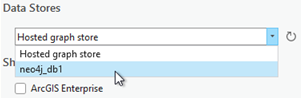
The drop-down list allows you to choose where the knowledge graph's entities and relationships are stored.
Hosted graph store—The default data store. The knowledge graph's entities and relationships are created and stored in the ArcGIS Data Store graph store associated with the ArcGIS Enterprise portal.
NoSQL data store—If a NoSQL data store is registered with the ArcGIS Knowledge Server site, it appears in the list in addition to the hosted graph store.
In the example below, the ArcGIS Enterprise portal has a hosted graph store and a NoSQL data store named neo4j_db1.
Under Share with, specify how the knowledge graph will be shared.
ArcGIS Enterprise—This option allows your content to be shared with all authenticated users in the organization.
Groups—This option allows you to share your content with groups to which you belong and their members.
Leave all options unchecked to set the sharing level to the owner of the item.
Click Next.
On the Spatial Reference page of the wizard, verify the WGS 1984 coordinate system displays that will be used for any geospatial features defined as part of the knowledge graph.
Note:
Geospatial features can only be defined in the WGS 1984 coordinate system at this time. Additional spatial references will be supported in a future release.
Click Finish.
If at any point you want to discard your changes and not create a knowledge graph, click Cancel or the close button at the top of the pane to close the Create Investigation wizard.
The knowledge graph is created in the active portal. A new investigation is created in the project referencing the new knowledge graph and appears in the Catalog pane and the catalog view in the Investigations category. The investigation is opened and lists the entities and relationships in the knowledge graph. You can explore the knowledge graph further in the investigation view.
Tip:
When your project already includes an investigation, you can add another investigation to the project by right-clicking Investigations in the Catalog pane or the catalog view and clicking New Investigation .
Create an investigation using a NoSQL data store
You can create an investigation with a knowledge graph service using a NoSQL data store. A NoSQL data store provides access to a supported database that can store content for one knowledge graph. First, you must register a new NoSQL data store with the ArcGIS Knowledge Server site, which creates a NoSQL data store item in the ArcGIS Enterprise deployment. Then, you can create a knowledge graph service that references the NoSQL data store item.
This workflow explains how to create a knowledge graph service using a NoSQL data store with the default settings. To change the default configuration, see Configure a knowledge graph.
Follow steps 1 through 4 in Create an investigation from an existing knowledge graph.
Open the Create Investigation wizard. Enter a title for the new investigation and, optionally, add a summary and tags to describe it.
Under the Knowledge Graph heading, click Create a new knowledge graph service.
Click Next.
Information you provided to describe the investigation is copied to the second page of the wizard. You can modify this description or use the same information to describe the knowledge graph.
On the Define Knowledge Graph page of the wizard, type a name for the new knowledge graph in the Title text box.
Note:
Unicode characters can be used in the name with some restrictions.
Optionally, type information describing the knowledge graph in the Summary text box.
Under Data Stores, click the Data Stores drop-down list and click a NoSQL data store that was registered with the ArcGIS Knowledge Server site.
The knowledge graph's entities and relationships are stored in the supported NoSQL database associated with the selected NoSQL data store. Each NoSQL data store can be associated with one knowledge graph. If all listed NoSQL data stores are in use by other knowledge graphs, you must add a new NoSQL data store for the new investigation and click Refresh
 to show the new data store in the list.
In the example below, the ArcGIS Enterprise portal has a hosted graph store and a NoSQL data store named neo4j_db1.
Under the Data Management heading, choose how the data in the knowledge graph's NoSQL data store will be managed.
ArcGIS managed
ArcGIS Knowledge will create, manage, and delete the entities and relationships and define the data model of the graph items stored in the NoSQL database. The database must not be edited directly in Neo4j or ArangoDB. This option is enabled by default. A knowledge graph will only be created successfully with this setting if your NoSQL database is empty.
User managed
You must create, manage, and delete the entities and relationships and define the data model of the graph items using Neo4j. The knowledge graph is read-only when the Neo4j database is accessed by ArcGIS Knowledge. The Neo4j database is not required to be empty, but the database name and the names of data model types and properties must satisfy all naming restrictions.
If you selected the User managed option, complete the following steps:
Enter a property in the Unique identifier field.
All entities and relationships in the knowledge graph must have a unique string value that can be used to identify the graph item. Specify the property in the NoSQL data store that stores this value.
Optionally, turn off the Enable search toggle button.
If you turn off this option and try to search for an item, an openCypher query is used to find graph items whose properties contain the specified value. However, you will not be able to use Lucene syntax in the search string, including operators such as OR and LIKE. Also, you cannot add an asterisk with a partial keyword, such as plan*, to leverage stemming or other full-text-based search capabilities to match all related words.
Follow steps 8 through 10 in Create an investigation using a hosted data store.
Optionally, identify a portal folder in which to store the new knowledge graph service, and choose how you want to share it with others in your organization.
Click Finish.
If at any point you want to discard your changes and not create a knowledge graph, click Cancel or the close button at the top of the pane to close the Create Investigation wizard.
The knowledge graph service is created in the active portal. A new investigation is created in the project referencing the new knowledge graph service and appears in the Catalog pane and the catalog view in the Investigations category. The investigation is opened and lists the entities and relationships in the knowledge graph. You can explore the knowledge graph further in the investigation view.
Repair a broken data source for an investigation
When you open an investigation, ArcGIS Pro accesses the knowledge graph that it references and lists its content. If the knowledge graph has been moved, renamed, or deleted, or is otherwise inaccessible, an error appears at the bottom of the investigation's contents list. No entity or relationship types are listed in the investigation's Contents pane, and no entities and relationships appear in the contents list.
If the knowledge graph is available in a new location or with a new name, you can repair the data source link. This can happen if the file knowledge graph is moved or renamed, or the original data is loaded into a new knowledge graph service on a new ArcGIS Enterprise deployment.
To repair the data source for a knowledge graph service on a new ArcGIS Enterprise deployment, first ensure the current knowledge graph is available on the active portal and you are signed in with sufficient privileges to access it.
To configure the investigation to access the knowledge graph in its new location, complete the following steps:
In the Contents pane, right-click the investigation and click Properties.
On the Source tab, click Set Data Source.
On the dialog box that appears, browse to the new knowledge graph, select it, and click OK.
Click OK in the Investigation Properties dialog box.
If you are not able to repair the investigation immediately, you can leave the data source broken and do other work in the project, or you can remove the investigation if it is no longer needed.
Delete an investigation
You can delete an investigation from your project. This will not delete the file knowledge graph from the local or network machine or the knowledge graph associated with the investigation from the ArcGIS Enterprise portal. A knowledge graph can support several investigations.
Open the catalog view and click Investigations
in the Contents pane.Click an investigation
in the contents list to select it.Delete the investigation from the project using one of the following methods:
Click Delete
 on the Catalog tab on the ribbon, in the Organize group.
Right-click the investigation and click Delete
.
In the message box that appears, click Yes to indicate you want to permanently delete the investigation from your project.
The selected investigation is deleted from the project and the contents list is updated. Item categories only appear in a project if the project includes those items. For example, after successfully deleting the last investigation in the project, the Investigations category will no longer appear in the Catalog pane and the catalog view. The category will reappear if you add another investigation to the project.
The knowledge graph service or file knowledge graph that was associated with the investigation is not deleted. You can keep the knowledge graph and use it again in a new investigation.
Delete a knowledge graph
You can delete a file knowledge graph in the same manner as you delete other items in ArcGIS Pro. This deletes the collection of files associated with the file knowledge graph from the local or network machine.
You can delete a knowledge graph service by accessing the Enterprise portal using a web browser and deleting knowledge graph items that you own. Once a knowledge graph has been deleted in the ArcGIS Enterprise portal, any associated investigations and knowledge graph layers in a map and a link chart can be updated to reference a different knowledge graph, for example, if the data is now available from a new ArcGIS Knowledge site.
If the knowledge graph uses the hosted graph store, you only need to delete the knowledge graph in the portal. If the knowledge graph's data was stored in a NoSQL data store, the NoSQL data store will remain in the portal even after the knowledge graph is deleted. You can delete the NoSQL data store from the Enterprise portal as well. Deleting the NoSQL data store will not delete the associated NoSQL database.
Learn about deleting a Neo4j database or an ArangoDB database.
Note:
ArcGIS Enterprise portal administrators can delete knowledge graphs and data store items owned by other users.