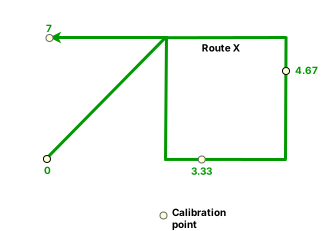
Complex scenarios for route calibration
 Available with the Linear Referencing license.
The following sections describe route calibration scenarios for complex routes, including loop, branch, lollipop, and alpha routes. These scenarios apply when using the calibration point editing tools on the Linear Referencing tab in ArcGIS Pro.
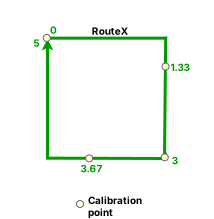
Calibration on a loop route
In this example, a calibration point is added in the middle of a loop route (Route X) with a new measure (2.5) instead of the existing measure (2). Because the Recalibrate route downstream option is unchecked, downstream measures do not change.
The following diagram shows the route before recalibration:
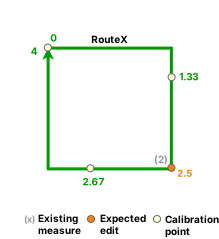
A calibration point is added using the new measure (2.5).
The following diagram shows the route after recalibration:
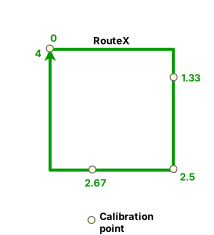
In this example, a calibration point is added in the middle of a loop route (Route X) with a new measure (3) instead of the existing measure (2). Because the Recalibrate route downstream option is checked, downstream measures are updated.
The following diagram shows the route before recalibration:
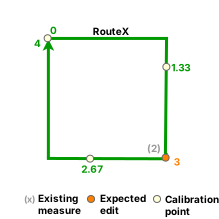
A calibration point is added using the new measure (3). All downstream measures on Route X are updated.
The following diagram shows the route after recalibration:
Calibration on a branch route
In this example, a calibration point is added on a branch route (Route X) with a new measure (2) instead of the existing measure (4.5). Because the Recalibrate route downstream option is unchecked, downstream measures do not change.
The following diagram shows the route before recalibration:
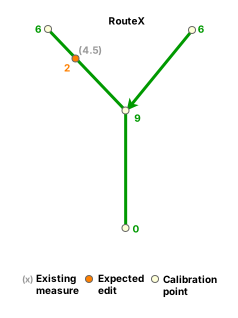
A calibration point is added using the updated measure (2). All downstream measures remain the same.
The following diagram shows the route after recalibration:
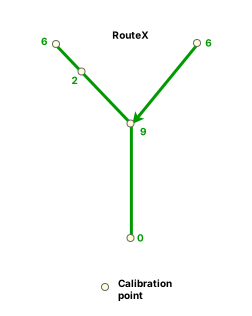
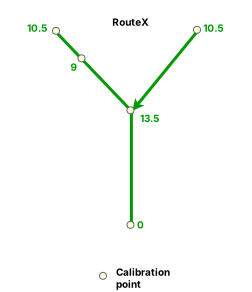
In this example, a calibration point is added on a branch route (Route X) with a new measure (9) instead of the existing measure (4.5). Because the Recalibrate route downstream option is checked, downstream measures are updated.
The following diagram shows the route before recalibration:
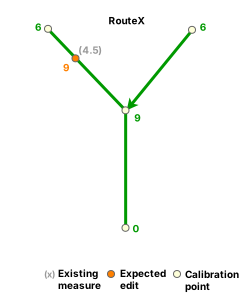
A calibration point is added using the new measure (9). All downstream measures are updated.
The following diagram shows the route after recalibration:
Calibration on a lollipop route
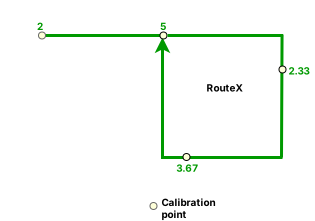
In this example, an existing calibration point (0) at the beginning of a lollipop route (Route X) is updated to a new measure (2). Because the Recalibrate route downstream option is unchecked, downstream measures do not change.
The following diagram shows the route before recalibration:
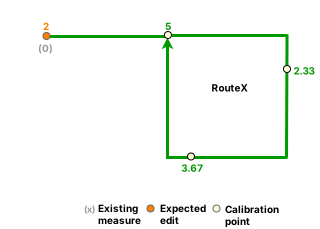
The calibration point is updated to the new measure (2). All downstream measures remain the same.
The following diagram shows the route after recalibration:
In this example, an existing calibration point (0) at the beginning of a lollipop route (Route X) is updated to a new measure (5). Because the Recalibrate route downstream option is checked, downstream measures are updated.
The following diagram shows the route before recalibration:
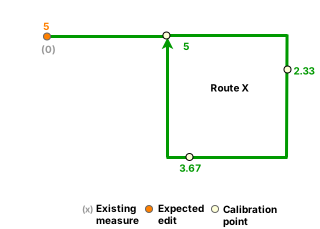
The calibration point is updated to the new measure (5). All downstream measures are updated.
The following diagram shows the route after recalibration:
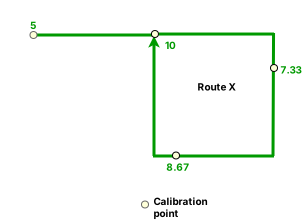
Calibration on an alpha route
In this example, an existing calibration point (2.33) on an alpha route (Route X) is updated to a new measure (3). Because the Recalibrate route downstream option is unchecked, downstream measures do not change.
The following diagram shows the route before recalibration:
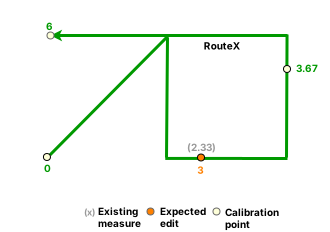
The calibration point is updated to the new measure (3). All downstream measures remain the same.
The following diagram shows the route after recalibration:
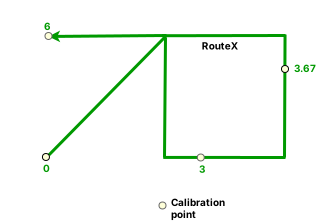
In this example, an existing calibration point (2.33) on an alpha route (Route X) is updated to a new measure (3.33). Because the Recalibrate route downstream option is checked, downstream measures are updated.
The following diagram shows the route before recalibration:
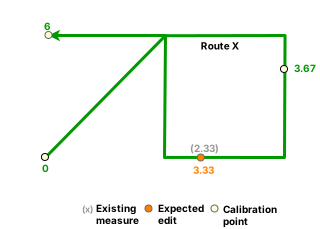
The calibration point is updated to the new measure (3.33). All downstream measures are updated.
The following diagram shows the route after recalibration: