Manage Parquet data caches
The data from an Apache Parquet file that you access from a local folder or cloud storage connection is cached locally when you do any of the following:
Add the data to a map or scene from a Parquet file.
Open the Fields view from the Parquet file in the Catalog pane.
Open the Properties dialog box from the Parquet file in the Catalog pane.
Add the Parquet file to a geoprocessing tool, or access it from an ArcPy script.
These local caches are created per user per machine. The caches improve performance when you query the data or pan or zoom around the map or scene when the data is present. It also provides for the unique identifier field that ArcGIS requires, and it allows ArcGIS Pro to aggregate features into bins for improved display of numerous features.
Tip:
More information about caches is available in FAQs about using a Parquet file in ArcGIS Pro.
You can configure your ArcGIS Pro installation to control how caches are created and how long they are maintained on the local machine.
Cache types
The type of cache that ArcGIS Pro creates depends on the number of records in the Parquet file, as described in the sections below.
In-memory cache
An in-memory cache is created on the client machine if the Parquet file contains fewer than 500,000 records. It takes less time to create an in-memory cache than a persistent cache.
While ArcGIS Pro is open, it references the data in the in-memory cache. When you close ArcGIS Pro, the cache is deleted.
Persistent cache
A persistent cache file is created on the client machine if the Parquet file contains 500,000 or more records.
The greater the amount of data that exists in the Parquet file, the longer it takes to generate a persistent cache. To avoid having to wait for ArcGIS Pro to generate the cache when you perform one of the tasks listed above, you can create the cache first using the Create Parquet Cache geoprocessing tool or running the CreateParquetCache ArcPy function in a Python window.
When the last modified date of the source Parquet file changes, ArcGIS Pro re-creates the local cache.
ArcGIS Pro deletes smaller persistent caches (1 GB or smaller) automatically if they have not been accessed in the last 30 days. In this case, access is recorded for the actions listed above, as well as the following:
Open a map or scene in which the data is saved.
Open the Fields view of the map layer by clicking Data Design > Fields on the layer’s context menu in the Contents pane.
Open the Properties dialog box for the map layer by clicking Properties on the layer’s context menu in the Contents pane.
Add the Parquet file to a geoprocessing tool. or access it from an ArcPy script.
Caches that are larger than 1 GB are retained regardless of the last modified date due to the time it takes to build large persistent caches.
Configure settings for persistent caches
You control where persistent Parquet data cache files are created on the local machine and how long they are retained.
Open the ArcGIS Pro settings page in either of the following ways:
On the ArcGIS Pro start page, click the Settings tab
 .
.In an open project, click the Project tab on the ribbon.
Note:
Do not access the settings from the Project tab if the project is accessing any Parquet caches and you intend to delete all caches. Deleting Parquet caches requires that there are no active connections to them.
In the list of side tabs, click Options.
The Options dialog box appears.
Click Map and Scene in the Application settings list.
In the Set default options for new maps and scenes panel, scroll to and expand the Parquet Cache section.
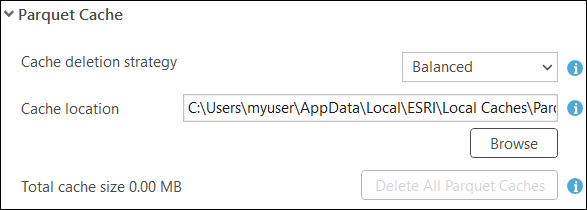
Location and retention rule settings for persistent Parquet caches. Use the Cache deletion strategy drop-down menu to choose how long Parquet caches are retained.
Balanced—This is the default setting. It balances the need to preserve caches to improve performance with the need to maintain available disk space by deleting Parquet cache files larger than 1024 MB that were not accessed in the last 30 days. Cache files smaller than 1024 MB are retained.
Preserve caches—Parquet caches will never be automatically deleted. Choose this option if disk space is not a concern and you want to retain the Parquet cache files to maintain performance.
Tip:
You still have the option to delete all cache files at any time, as described in step 7.
Preserve disk space—Any Parquet cache files that are not accessed in a seven day period will be deleted. Any caches in use in the last seven days will remain in the cache location. Choose this option if local disk space is a concern for the cache location.
Optionally, change where persistent Parquet cache files are stored.
The default location is
C:\Users\<username>\AppData\Local\ESRI\Local Caches\ParquetCacheV1.The location must be on disk local to the machine where ArcGIS Pro is installed.
If you change the location, the new folder must be empty. Do not use this folder to store anything but the Parquet cache files.
To delete all existing Parquet data cache files on the local machine, click Delete All Parquet Caches.