Change the length of a COGO line sketch
The Change Length command  changes the total length of a sketched line. It is available on the context menu when you right-click a sketched segment edge while creating, continuing, or editing the vertices of a line feature.
For steps to change the length of one or more finished COGO line features, see Change the length of a line feature
When you use this command, consider the following:
To specify the total length of a sketched line and preserve the current location of the first vertex, enter a positive value. To preserve the last vertex, enter a negative value that is greater than the current total length of the sketch.
To specify the length to be trimmed, enter a negative value that is less than the current total length. This method preserves the location of the first vertex.
Changing the length of a z-aware line sketch preserves the angular pitch of its segments and assigns an interpolated z-value to the moved vertex.
Note:
This tool is COGO-aware. Entered values for COGO lines are scaled using ground to grid correction settings for the active map. Alternatively, you can set this tool to proportionately scale COGO line geometry using the COGO Distance (lines) or Arclength (circular arcs) field values.
Enable a line sketch and change its length
To enable a line sketch and change its length using using the Continue Feature tool  or Edit Vertices tool
  , complete the following steps:
Open the map containing the COGO line features to be edited or Add the layer to the map.
Tip:
Before editing, confirm the layers you are editing are editable, snap settings add efficiency and accuracy to your workflow, and the coordinate system assigned to the active map is suitable for the type of edits you're performing.
For a basic checklist of settings, see Configure settings for editing.
If ground to grid correction is required, turn on Ground To Grid
 on the ribbon Edit tab, in the Correction group, and configure distance and direction offset settings.
On the ribbon Edit tab, click Modify Features
 in the Features group.
The Modify Features pane appears.
Click the Continue Feature tool
or Edit Vertices tool .To find these tools, expand Reshape, or type Cont or Vertices, respectively, in the Search text box.
Note:
If map topology is enabled, and you are using the Edit Vertices tool
, click the Features tab.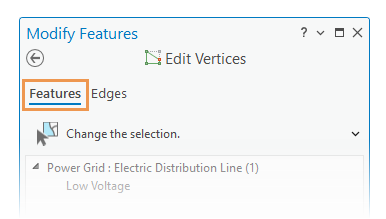
The Features and Edges tabs appear only when a topology is enabled so that you can switch between editing feature vertices or topological edges and nodes.
The tool opens and the Select a feature tool
 automatically runs.
Select the feature you are continuing or editing.
The selected feature appears highlighted in the map with vertex handles. By default, project settings symbolize the first vertex green and the last vertex red.
If you select more than one feature, reselect the feature. Alternatively, click the feature in the pane selection view to flash it in the map, right-click the feature, and click Only Select This
 .
.Hover over a segment until the pointer changes to the segment cursor
 .
.Right-click a segment and click Change Length
.The Change Length dialog box lists the current geometric length and the COGO length stored with the feature, if it exists.
If the COGO
DistanceorArcLengthattribute field contains a distance value, the Proportion new line length check box appears at the bottom of the dialog box.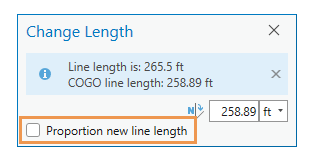
Check or uncheck the Proportion new line length check box.
Checked
Scale COGO line geometry proportionately to the current COGO
DistanceandArclengthCOGO attribute field values.Unchecked
Scale COGO line geometry using the ground to grid correction settings.
For detailed information about how this setting modifies COGO line geometry and attribute values, see COGO line geometry and attribute fields.
Click the Change Length box, type the line length, choose the units, and press Enter.
When you press Enter, the selected line feature is modified and the Finish command
 automatically runs.
Tip:
You can use the Attributes pane  to view or edit COGO attributes. To update COGO attributes to match the geometry of a finished COGO line feature, use the Update COGO tool
  .
.
COGO line geometry and attribute fields
How the Proportion new line length setting modifies COGO line geometry and attribute values is described in the following tables.
Checked
|
Typed line length value |
Straight lines |
Circular arcs |
|---|---|---|
|
Positive values |
|
A proportional scale factor is calculated by dividing the current geometry length by the current
Line geometry length is updated to be the specified value multiplied by the proportional scale factor. |
|
Negative values |
A proportional scale factor is calculated by dividing the current geometry length by the stored
Line geometry length is updated to be (the current geometry length) minus (the specified length multiplied by the proportional scale factor). |
Circular arc geometry length is updated to be (the current geometry length) minus (the specified length multiplied by the proportional scale factor). |
Unchecked
|
Typed line length value |
Straight lines |
Circular arcs |
|---|---|---|
|
Positive values |
|
Circular arc geometry length is updated to the specified value multiplied by the ground to grid scale factor. |
|
Negative values |
Line geometry length is updated to be (the original geometry length) minus (the specified length multiplied by the ground to grid scale factor). |
Circular arc geometry length is updated to be (the original geometry length) minus (the specified length multiplied by the ground to grid scale factor). |