Move, rotate, or resize annotation features
The Annotation tool  moves, rotates, or resizes annotation features by dragging the feature with the pointer. You can enable or disable the rotate and resize functions and customize the tool for specific workflows. This tool is available in the Modify Features pane.
When using this tool, consider the following:
Annotation leader anchor points remain fixed to their original location. To move annotation leader anchor points with their respective annotation features, use the Move tool
 .
.Annotation features created in ArcMap must be upgraded before editing them in ArcGIS Pro. In some cases, annotation features created in previous versions of ArcGIS Pro must also be upgraded. To learn more, see Manage annotation feature classes.
For steps to edit text or change text formatting, see Edit annotation text or change formatting.
To move, rotate, or resize annotation features, complete the following steps:
Open a map containing the feature layer you are editing or add the layer to the map.
Tip:
Before editing features, specify which layers can be edited, confirm that the coordinate system assigned to the active map is suitable for the type of edits you're performing, and enable the snap agents that allow you to work effectively.
For a basic checklist of settings, see Configure settings for editing.
Click the ribbon Edit tab and click Modify
 in the Features group.
The Modify Features pane appears.
Expand Alignment, or type Anno in the Search text box and click the Annotation tool
.The tool opens and the Select annotation tool
 is automatically active.
Select the annotation features to be edited.
To refine the selection, right-click a feature in the pane selection tree, and click Unselect
 or Only Select This
  .
.The selected annotation features appear in the selection view and a selection bounding box appears around the features in the map.
Click and enable or disable the Rotate and Resize toggle buttons.
These settings allow you to customize the tool for specific workflows and prevent unintended rotation or scaling when dragging annotation. The Move command is always enabled.
Enabled

Activate and show the enabled cursor command when hovering near a control point or selection boundary.
Disabled

Don’t show or activate the cursor command.
Note:
If these settings are locked, consult your system administrator.
Hover inside or near the selection bounding box or near a control point and drag the features when the pointer changes to one of the following cursor commands:
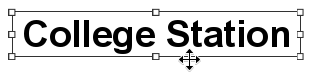
Move
Hover inside the selection bounding box and drag the features.
Tip:
To turn on and use the selection anchor to snap to other features, position the pointer and press S. To move the anchor, press Ctrl, hover over the anchor, and drag it when the pointer changes to the Directional cursor
 .
.Rotate
Hover near a control point outside the selection bounding box and drag the features.

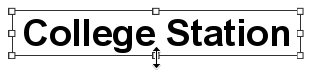
Resize
Hover near a control point inside the selection bounding box and drag it.
The selected features move, rotate, or resize.
Click Finish
 or press F2 to finish the edits.