Detect Incidents (GeoAnalytics Server Tools)
Summary
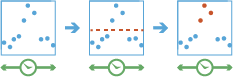
Creates a layer that detects features that meet a given condition.
Legacy:
The ArcGIS GeoAnalytics Server extension is being deprecated in ArcGIS Enterprise. The final release of GeoAnalytics Server was included with ArcGIS Enterprise 11.3. This geoprocessing tool is available through ArcGIS Enterprise 11.3 and earlier versions.
Illustration
Usage
This geoprocessing tool is available with ArcGIS Enterprise 10.6 or later.
The following table outlines terminology for the Detect Incidents tool:
Term
Description
Track
A sequence of features that are time enabled with time type instant. Features are determined to be in the sequence by a track identifier field and are ordered by time. For example, a city could have a fleet of snowplow trucks that record their location every 10 minutes. The vehicle ID could represent the distinct tracks.
Incident
Features that meet a condition of interest.
Instant
A single moment in time represented by a start time and no end time. Inputs to Detect Incidents must have a time type of instant.
Interval
A duration of time represented by a start and an end time.
Feature of interest
Describes the feature being analyzed. During analysis, all features are analyzed.
Incidents are features that meet a specified condition.
Detect Incidents will create a new output. It will not modify the input.
Detect Incidents can be completed on tables and on point, line, or polygon features. The input layer must be time enabled with features that represent an instant in time.
Only input features that have a time entry will be used. Any feature that does not have a time entry will be excluded.
Tracks are represented by the unique combination of track fields. For example, if the fields
flightIDandDestinationare used as track identifiers, the[ID007, Solden]and[ID007, Tokyo]features would be in two separate tracks, because they have different values for theDestinationfield.Conditions are created using Arcade expressions. A start condition is required, and an end condition is optional. If you only apply a start condition, the incident starts when the start condition is evaluated as true and ends when the start condition is evaluated as false. For example, if values in a track are
[0, 10, 15, 20, 40, 10, 12, -2, -12]and the start condition is$feature["values"] > 15, the features that are incidents are those with[True]and would be[0: False, 10: False, 15: False, 20: True, 40: True, 10: False, 12: False, -2: False, -12: False], where only values above 15 are incidents. If you apply an end condition of$feature["values"] < 0, the results would be[0: False, 10: False, 15: False, 20: True, 40: True, 10: True, 12: True, -2: False, -12: False]. In this example, the incident starts when the start condition is met, and each sequential feature is an incident until the end condition is true. These examples are outlined in the following table:Position
1
2
3
4
5
6
7
8
9
Value
0
10
15
20
40
10
12
-2
-12
Start:
$feature["values"] > 15and no EndFalseFalseFalseTrueTrueFalseFalseFalseFalseStart:
$feature["values"] > 15and End:$feature["values"] < 0FalseFalseFalseTrueTrueTrueTrueFalseFalseApplying a time interval segments tracks at a defined interval. For example, if you set the time interval boundary to be 1 day, starting at 9:00 a.m. on January 1, 1990, each track will be truncated at 9:00 a.m every day. This split accelerates computing time, as it creates smaller tracks for analysis. If splitting by a recurring time interval boundary makes sense for your analysis, it is recommended for big data processing.
Conditions are created using Arcade expressions and can be track aware.
Learn more about GeoAnalytics Server Arcade expressions with Detect Incidents
A track can have multiple incidents.
Output features will return the fields in the input as well as the following additional fields:
IncidentID—A unique ID given to every feature that is an incident.IncidentStatus—A string field representing the status of an incident. The value will benullif the feature is not an incident,Startedif the feature is the first incident to meet the start condition,OnGoingif the feature is still an incident, andEndedwhen a feature is no longer an incident. A single track can have multiple segments of incidents. For example, a track with values[0, 10, 15, 20, 40, 10, 12, -2, -12]and a start condition of$feature["values"] > 15will result inIncidentStatusvalues of[0: null, 10: null, 15: null, 20: Started, 40: OnGoing, 10: Ended, 12: null, -2: null, -12: null].IncidentDuration—The time, in milliseconds, an incident occurs. This is calculated as the difference between the feature of interest and the feature that started the incident.Instant_Datetime—The time the feature occurs.
Features are sequentially ordered in time by track. Starting from the first feature, the start condition is evaluated until it is true. Once a feature meets the start condition, the next features are evaluated until the start condition is false (if no end condition is specified) or until the end condition is true (if an end condition is specified). Once that condition is met, the incident ends, and the process starts again. There may be multiple incident segments in an individual track. For example, for a track with values
[10, 20, 30, 40, 50, 10, 20, 30, 40, 50, 10, 20]and a start condition of$feature["values"] > 20, there would be two segments of incidents[10: null, 20: null, 30: Started, 40: OnGoing, 50: OnGoing, 10: Ended, 20: null, 30: Started, 40: OnGoing, 50: OnGoing, 10: Ended, 20: null].The duration of an incident is calculated in milliseconds as the time of the feature minus the start of an incident. The duration is only calculated if the feature has a status of
Started,OnGoing, orEnded. The duration for a feature with the status ofStartedis always 0.You can improve performance of the Detect Incidents tool by doing one or more of the following:
Set the extent environment so that you only analyze data of interest.
Only output the incident features.
Split your tracks using the Time Boundary Split parameter.
Use data that is local to where the analysis is being run.
This geoprocessing tool is powered by ArcGIS GeoAnalytics Server. Analysis is completed on GeoAnalytics Server, and results are stored in your content in ArcGIS Enterprise.
When running GeoAnalytics Server tools, the analysis is completed on GeoAnalytics Server. For optimal performance, make data available to GeoAnalytics Server through feature layers hosted on your ArcGIS Enterprise portal or through big data file shares. Data that is not local to GeoAnalytics Server will be moved to GeoAnalytics Server before analysis begins. This means that it will take longer to run a tool and, in some cases, moving the data from ArcGIS Pro to GeoAnalytics Server may fail. The threshold for failure depends on your network speeds, as well as the size and complexity of the data. It is recommended that you always share your data or create a big data file share.
Learn more about sharing data to your portal
Learn more about creating a big data file share through Server Manager
Parameters
| Label | Explanation | Data type |
|---|---|---|
|
Input Layer |
The input features that contain potential incidents. |
Record Set |
|
Output Name |
The name of the output feature service. |
String |
|
Track Fields |
A field or fields that will be used to identify unique tracks. |
Field |
|
Start Condition |
The condition that will be used to identify incidents. Expressions are written in Arcade and can include [+ - * / ] operators and multiple fields. If the layer is added to the map, the Fields and Helpers filters can be used to build an expression. |
Calculator Expression |
|
End Condition (Optional) |
The condition that will be used to end incidents. If no end condition is specified, incidents will end when the start condition is no longer true. Expressions are written in Arcade and can include operators and multiple fields. If the layer is added to the map, the Fields and Helpers filters can be used to build an expression. |
Calculator Expression |
|
Output Mode (Optional) |
Specifies the features that will be returned.
|
String |
|
Data Store (Optional) |
Specifies the ArcGIS Data Store where the output will be stored. All results stored in a spatiotemporal big data store will be stored in WGS84. Results stored in a relational data store will maintain their coordinate system.
|
String |
|
Time Boundary Split (Optional) |
A time span to split the input data into for analysis. A time boundary allows you to analyze values within a defined time span. For example, if you use a time boundary of 1 day, starting on January 1, 1980, tracks will be split at the beginning of every day. This parameter is only available with ArcGIS Enterprise 10.7 and later. |
Time Unit |
|
Time Boundary Reference (Optional) |
The reference time used to split the input data into for analysis. Time boundaries will be created for the entire span of the data, and the reference time does not need to occur at the start. If no reference time is specified, January 1, 1970, is used. This parameter is only available with ArcGIS Enterprise 10.7 and later. |
Date |
Derived output
| Label | Explanation | Data type |
|---|---|---|
|
Output Feature Class |
The output features that meet a given condition. |
Record Set |
Environments
Output Coordinate System, Extent, Current Workspace
Special cases
- Output Coordinate System
-
The coordinate system that will be used for analysis. Analysis will be completed in the input coordinate system unless specified by this parameter. For GeoAnalytics Tools, final results will be stored in the spatiotemporal data store in WGS84.
Licensing information
- Basic: Requires ArcGIS GeoAnalytics Server
Available with ArcGIS Enterprise 10.6 - Standard: Requires ArcGIS GeoAnalytics Server
Available with ArcGIS Enterprise 10.6 - Advanced: Requires ArcGIS GeoAnalytics Server
Available with ArcGIS Enterprise 10.6