Clip Raster (Data Management Tools)
Summary
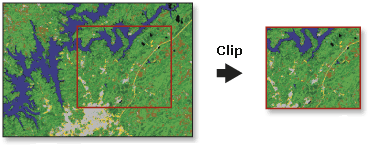
Cuts out a portion of a raster dataset, mosaic dataset, or image service layer.
Illustration
Usage
This tool allows you to extract a portion of a raster dataset based on a template extent. The clip output includes any pixels that intersect the template extent. To extract a portion of a feature dataset, use the Clip tool in the Analysis toolbox.
The clipped area is specified either by a rectangular envelope using minimum and maximum x- and y-coordinates or by using an output extent file. If the clip extent specified is not aligned with the input raster dataset, this tool verifies that the proper alignment is used. This may cause the output to have a slightly different extent than specified in the tool.
An existing raster or vector layer can be used as the clip extent. If you are using a feature class as the output extent, you can clip the raster by the minimum bounding rectangle of the feature class or by the polygon geometry of the features. If clipping geometry is used, the pixel depth of the output may be promoted. Ensure that the output format can support the proper pixel depth.
You can also use the selected features within the display as the clipping extent. If a feature in the feature class is selected and the Use Input Features for Clipping Geometry parameter is checked, the output clips out the selected areas. If a feature in the feature class is selected but the Use Input Features for Clipping Geometry parameter is not checked, the output clips out the minimum bounding rectangle for that feature.
You can interactively draw a polygon on the raster in the map to be used as the clipping extent. Click the Create new features in the current map to use as input drop-down list and click Polygon. Then move the pointer to the map to digitize a polygon. Double-click to complete the clipping polygon.
Note:
The only option available for clipping a raster layer is Polygon.
You can save the output to BIL, BIP, BMP, BSQ, DAT, Esri Grid, GIF, IMG, JPEG, JPEG 2000, PNG, TIFF, MRF, or CRF format, or any geodatabase raster dataset.
This tool supports multidimensional raster data. To run the tool on each slice in the multidimensional raster and generate a multidimensional raster output, be sure to save the output to CRF.
Supported input multidimensional dataset types include multidimensional raster layer, mosaic dataset, image service, and CRF.
Parameters
| Label | Explanation | Data type |
|---|---|---|
|
Input Raster |
The raster dataset, mosaic dataset, or image service to be clipped. |
Mosaic Dataset; Mosaic Layer; Raster Dataset; Raster Layer |
|
Rectangle |
The four coordinates that define the extent of the bounding box that will be used to clip the raster. If the Output Extent parameter is set, it will automatically populate the x-min, y-min, x-max, and y-max values. Use the Reset button If the value specified is not aligned with the input raster dataset, the tool verifies that the proper alignment is used. This may cause the output to have a slightly different extent than specified. |
Extent; Envelope; Feature Class; Feature Layer |
|
Output Raster Dataset |
The name, location, and format of the dataset being created. Ensure that it can support the necessary bit depth. When storing the raster dataset in a file format, specify the file extension as follows:
When storing a raster dataset in a geodatabase, do not add a file extension to the name of the raster dataset. When storing a raster dataset to a JPEG format file, a JPEG 2000 format file, a TIFF format file, or a geodatabase, you can specify Compression Type and Compression Quality values in the geoprocessing environments. |
Raster Dataset |
|
Output Extent (Optional) |
A raster dataset or feature class that will be used as the extent. The clip output includes pixels that intersect the minimum bounding rectangle. If a feature class is used as the output extent and you want to clip the raster based on the polygon features, check the Use Input Features for Clipping Geometry parameter. When this parameter is checked, the pixel depth of the output may be promoted. Ensure that the output format can support the proper pixel depth. |
Raster Layer; Feature Layer |
|
NoData Value (Optional) |
The value for pixels to be considered as NoData. |
String |
|
Use Input Features for Clipping Geometry (Optional) |
Specifies whether the minimum bounding rectangle or the geometry of the specified feature class will be used to clip the data.
|
Boolean |
|
Maintain Clipping Extent (Optional) |
Specifies the extent that will be used in the clipping output.
|
Boolean |
 to reset the rectangle extent to the extent of the input raster dataset.
Environments
Compression, Current Workspace, Extent, Geographic Transformations, NoData, Output CONFIG Keyword, Output Coordinate System, Parallel Processing Factor, Pyramid, Raster Statistics, Resampling Method, Scratch Workspace, Snap Raster, Tile Size
Licensing information
- Basic: Yes
- Standard: Yes
- Advanced: Yes