ArcGIS Arcade expressions in the GeoAnalytics Desktop toolbox
Some GeoAnalytics Desktop tools use ArcGIS Arcade expressions in analysis. The tools and function of the expressions are outlined below.
Using Arcade, field names are formatted as $feature["field name"] or $feature.fieldname. The first option, $feature["field name"], is required when a field name includes a space. All examples below use this option. All GeoAnalytics Desktop tools use the $feature["field name"] format except Join Features. For Join Features, use $target["field name"] and $join["field name"] to specify the dataset to use.
See the GeoAnalytics Arcade profile to learn more about the usage, profile variables, return types, and other details.
Arcade expressions are used by the following tools in the GeoAnalytics Desktop toolbox:
Reconstruct Tracks and Create Buffers—Use buffer expressions to perform a mathematical calculation to set the buffer size. You can perform simple and advanced calculations that can be applied to all records. This calculation is applied to each feature.
Reconstruct Tracks—Use split expressions to specify a condition to split tracks. When points meet the criteria, tracks are split and summarized into different tracks. You can apply simple conditions as well as track-based conditions. For example, you can split tracks when the speed of the current point is less than two meters per second (
TrackCurrentSpeed() < 2).Join Features—Use join expressions to specify a condition to select features that should be included in the join. You can perform simple join conditions (such as
field a > field c) as well as advanced conditions. The conditions are tested on each feature to determine what is analyzed.Calculate Field—Perform simple and advanced calculations that are applied to all records. This calculation is applied to each feature.
Detect Incidents—Determine start and end conditions for incidents. Use start and end expressions to detect incidents. A Detect Incidents condition must always result in
trueorfalse. Use a condition to determine whether a feature should be included in an incident. The conditions are tested on each feature to determine which features are incidents.
Learn more about Arcade expressions
Mathematical operation and function examples
Expressions can mathematically process numbers. The table below shows a sample of available operations.
Learn more about mathematical operations and functions available in Arcade
|
Operator |
Explanation |
Example |
|---|---|---|
|
|
Returns the sum of a plus b. |
4.0 |
|
|
Returns the difference of a minus b. |
1.1 |
|
|
Returns the product of a times b. |
4.4 |
|
|
Returns the quotient of a divided by b. |
3.2 |
|
|
Returns the absolute (positive) value of a. |
1.5 |
|
|
Returns the natural logarithm (base E) of a. |
0 |
|
|
Returns the trigonometric sine of a. The input is assumed to be an angle in radians. |
1 |
|
|
Returns the trigonometric cosine of a. The input is assumed to be an angle in radians. |
1 |
|
|
Returns the tangent of a. The input is assumed to be an angle in radians. |
0 |
|
|
Returns the square root of a. |
3 |
|
|
Returns the lowest valued number between a and b. |
-3 |
|
|
Returns the highest valued number between a and b. |
1.5 |
|
|
Returns the input value if it's within the constraining bounds. If the value is less than the low value, it returns the low value. If the value is greater than the high value, it returns the high value. |
Example 1: Returns 0 if Example 2: Returns 6 if |
Text function examples
Arcade expressions can process text. The table below shows a sample of available operations.
Learn more about text functions available in Arcade
|
Operator |
Explanation |
Example |
Result |
|---|---|---|---|
|
|
Concatenates values together and returns a string.
|
|
GeoAnalytics is great! |
|
|
Finds a string within a string. Wildcards are not supported.
|
|
2 |
|
|
Makes a string lowercase.
|
|
geoanalytics |
Text example using find and lower.
find(("north"), lower("146NorthStreet"))
Date function examples
Arcade expressions can process dates. The table below shows a sample of available operations. In Arcade, month values range from 0 (January) to 11 (December), days from the 1st to the 31st, hours from 0 (12:00 a.m.) to 23 (11:00 p.m.), minutes and seconds from 0 to 59, and milliseconds from 0 to 999.
Learn more about date functions available in Arcade
|
Operator |
Explanation |
Example |
Result |
|---|---|---|---|
|
|
Parses a value or set of values into a date string.
|
Example 1: Example 2: Example 3: |
Example 1: 20 Oct 2016 11:23:03 am Example 2: 14 Jan 2017 12:00:00 am Example 3: Returns the current time |
|
|
Subtracts two dates and returns the difference in the specified units.
|
Example 1: Example 2: |
Result will vary depending on when you run this command. Example 1: -20532129137 Example 2: -0.6546783768647119 |
|
|
Returns the year of the given date.
|
Example 1:
Example 2: |
Example 1: 2017 Example 2: 2012 |
Logical function examples
In addition to simple mathematical expressions, you can use the advanced functions shown in the table below to apply buffer expressions.
|
Function |
Explanation |
Example |
Result |
|---|---|---|---|
|
|
Returns one value if a condition evaluates to
|
|
Returns Returns the result of the second |
|
|
Evaluates a series of expressions in order until one evaluates to
|
|
If |
|
|
Evaluates an expression and compares its value with subsequent parameters. If the expression matches, it returns the next parameter value. If none match, there is the option for the last parameter to be a default return value.
|
|
Compares equality between the conditional val |
Conditional operators
Conditional statements can use the operators shown in the following table:
|
Operator |
Explanation |
Example |
Results |
|---|---|---|---|
|
|
a is greater than b a is less than b |
|
False |
|
|
a is greater than or equal to b a is less than or equal to b |
|
True |
|
|
a is not equal to b |
|
True |
|
|
a is equal to b |
|
True |
|
|
Condition 1 or condition 2 is met. |
|
True |
|
|
Condition 1 and condition 2 are met. |
|
False |
Track-aware examples
The Detect Incidents, Calculate Field, and Reconstruct Tracks tools can use track-aware equations in Arcade. In Calculate Field, track equations can be used when the input layer is time enabled, The expression is track aware is checked, and one or more fields are specified to identify tracks. Track-aware functions are listed in the following table:
|
Function |
Explanation |
Example |
Result |
||||||||||||
|---|---|---|---|---|---|---|---|---|---|---|---|---|---|---|---|
|
TrackStartTime() |
Calculate the start time of a track in milliseconds from epoch. |
Using a track that starts on January 2, 2017
|
|
||||||||||||
|
TrackDuration() |
Calculate the duration of a track in milliseconds from the start until the current time step. |
Using a track that starts on January 2, 2017, and the current time is January 4, 2017.
|
|
||||||||||||
|
TrackCurrentTime() |
Calculate the current time in a track. |
Using a feature that occurs on January 3, 2017, at 9:00 a.m.
|
|
||||||||||||
|
TrackIndex |
Return the time index of the feature being calculated. |
Calculating this value on the first feature in a track.
|
|
||||||||||||
|
TrackFieldWindow(<fieldName>, <startIndex>, <endIndex>) |
Return an array of values in the given field for the specified time index. The window function allows you to go forward and backward in time. The expression is evaluated at each feature in the track.
|
Example 1: Example 2: Example 3: |
Example 1: When evaluated at each feature, the table shows the following results:
Example 2: When evaluated at index 2 (value is 30), it returns Example 3: When evaluated at index 2 (value is 30), it returns |
||||||||||||
|
TrackGeometryWindow(<startIndex>, <endIndex>) |
Return an array of values representing geometry for the specified time index. The window function allows you to go forward and backward in time. The expression is evaluated at each feature in the track.
|
Example 1: Example 2: Example 3: Example 4: Find the X value of the previous point |
Example 1: When evaluated at each feature, the table shows the following results:
Example 2: Polylines are returned in the following format: Example 3: Polygons are returned in the following format: Example 4: Evaluated at index 2 (value is 30): |
||||||||||||
|
TrackWindow(<value1>, <value2>) |
Return an array of values representing geometry and all attributes for the specified time index. The window function allows you to go forward and backward in time.
|
Example 1: Example 2: |
Example 1: When evaluated at each feature, the table shows the following results:
Example 2: Evaluated at index 2 (value is 30): |
Use the track expressions in the table below to calculate distance, speed, and acceleration on tracks. This is similar to calculations used in the Calculate Motion Statistics tool.
All distance calculations are calculated in meters, speed in meters per second, and acceleration in meters per second squared. Distances are measured using geodesic distances.
|
Function |
Explanation |
|---|---|
|
|
The sum of the distances travelled between observations from the first to current observation. |
|
|
The sum of the distances travelled between observations from the first to the current observation plus the given value. |
|
|
The distances between the first value (inclusive) to the last value (exclusive) in a window about the current observation (0). |
|
|
The speed between the previous observation and the current observation. |
|
|
The speed at the observation relative to the current observation. For example, at value 2, it's the speed at the observation two observations after the current. |
|
|
The speed values between the first value (inclusive) to the last value (exclusive) in a window around the current observation (0). |
|
|
The acceleration between the previous observation and the current observation. |
|
|
The acceleration at the observation relative to the current observation. |
|
|
The acceleration values between the first value (inclusive) to the last value (exclusive) in a window around the current observation (0). |
The example calculations for distance, speed, and acceleration use examples from the following image.
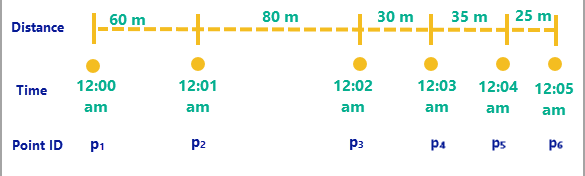
|
Function |
Example result |
||||||||||||||
|---|---|---|---|---|---|---|---|---|---|---|---|---|---|---|---|
|
|
|
||||||||||||||
|
|
|
||||||||||||||
|
|
|
||||||||||||||
|
|
|
||||||||||||||
|
|
|
||||||||||||||
|
|
|
||||||||||||||
|
|
|
||||||||||||||
|
|
|
||||||||||||||
|
|
|