Create Multifile Feature Connection (GeoAnalytics Desktop Tools)
Summary
Creates a multifile feature connection file (.mfc) and item. Datasets registered in a multifile feature connection (MFC) can be used as input to GeoAnalytics Desktop tools and other geoprocessing tools.
Usage
Use this tool to establish a connection to one or more datasets that you can use as input to geoprocessing tools.
Note:
You can optionally create a multifile feature connection using the New Multifile Feature Connection dialog.
Multifile feature connections support the following datasets:
Delimited files (such as
.csv,.tsv, and.txt)Shapefiles (
.shp)Parquet or GeoParquet files (
.parquet)Note:
Only unencrypted
.parquetfiles are supported.ORC files (
.orc)
To learn more about supported file types, see Multifile feature connections.
To use datasets as inputs in an MFC, the data must be correctly structured. To prepare data for an MFC, format the datasets as subfolders under a single source folder that you register. In this source folder, the names of the subfolders represent the dataset names.
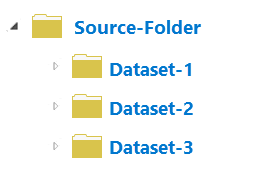
A source folder that contains three subfolders, each representing a dataset, is shown. The image above represents the correct structure of an MFC. The source folder is registered, and each subfolder in the source folder represents a dataset. In this example, you would register the source folder, and three datasets would be included in the MFC: Dataset-1, Dataset-2, and Dataset-3.
Specify the source location from which you want to create a MFC using the Data Source Folder parameter.
A MFC can be stored locally on your machine or on a network drive. If you are sharing a MFC, ensure that you use a source location that all users can access. It is recommended that you not store a MFC in the source folder.
To access a MFC in a project, add the location of the stored MFC as a folder connection.
Setting the geometry or time visibility does not remove geometry or time from the datasets. The time and geometry settings will always apply. For example, if you have a point dataset with geometry represented by two fields,
latitudeandlongitude, the following outlines how the visibility setting will work with your dataset:Visible—the
latitudeandlongitudefields will be available in geoprocessing tool parameters and results.Not Visible—The
latitudeandlongitudefields will not be available in geoprocessing tool parameters or in the output results.
In both cases, the dataset will have geometry defined by the
latitudeandlongitudefields.It is recommended that you set geometry fields to Not Visible when you are using long string values such as WKT to represent geometry.
Manually modifying a
.mfcfile is not recommended. A.mfcfile contains the following properties:Connection information—The source path
Dataset information—The dataset names and types, fields, geometry, and time
The tool messages will include the following information on the datasets discovered and their status:
Succeeded—New datasets that have been discovered and added to the MFC
Failed—Datasets that were not successfully added to the MFC
You may run into one of two issues when discovering datasets in an MFC:
Datasets that you expected are missing. In this case, verify that the path you specified as a source folder that contains subfolders is correct and that it's a supported data type.
One or more datasets fail to register. If datasets fail to register, you may note some of the following:
Issue
Solution
Example
The dataset is not in the expected format.
Open the file to see if it looks as expected. If the data is structured incorrectly, update and try again.
A
.csvfile has a few lines and a summary of the data and then only empty lines.The schemas of datasets in a folder do not match.
All files in a dataset folder must have the same schema. Open the files to compare the schemas. Resolve any mismatched schemas and try to register the dataset again.
You have one
.csvfile with 10 fields and another with 8.The file types of a dataset in a folder do not match.
All files in a dataset folder must have the same extension (file type). Check the file types of the data source location and remove or relocate any misplaced files.
A shapefile dataset is in the same folder as a parquet file.
You have an unrecognized field format.
This is unlikely but may occur if ORC and parquet use an unexpected format. Ensure that you use valid field formats.
You have a parquet file with an unknown field format.
Once you have created a MFC, you can modify the connection information and datasets using the following tools:
Copy Dataset From Multifile Feature Connection—Copies a dataset from a MFC to a feature class.
Duplicate Dataset From Multifile Feature Connection—Creates a view of an existing MFC dataset.
Refresh Multifile Feature Connection—Checks for any new datasets and add them to the MFC.
Remove Dataset From Multifile Feature Connection—Removes a dataset from the MFC.
Update Multifile Feature Connection Dataset Properties—Modifies the properties of an individual MFC dataset.
Preview Dataset From Multifile Feature Connection—Previews the first ten features in your dataset to verify they are correctly registered.
Describe Dataset — To verify that the dataset looks as expected.
This geoprocessing tool is powered by Spark. See Multifile feature connections to learn more about multifile feature connections and how to use them.
Parameters
| Label | Explanation | Data type |
|---|---|---|
|
Multifile Feature Connection Output Location (Optional) |
The folder where the |
Folder |
|
Output Multifile Feature Connection Name |
The name of the |
String |
|
Connection Type |
Specifies the type of connection to be created.
|
String |
|
Data Source Folder (Optional) |
The folder containing the datasets to be registered with the MFC. |
Folder |
|
Visible Geometry Fields (Optional) |
Specifies whether the fields used to specify the geometry will be visible as fields when the MFC file is used as input to other geoprocessing tools. When the geometry fields are not visible, geometry is still applied to the dataset. The geometry visibility setting can be modified in the MFC.
|
Boolean |
|
Visible Time Fields (Optional) |
Specifies whether the fields used to specify the time will be visible as fields when the MFC file is used as input to other geoprocessing tools. When the time fields are not visible, time is still applied to the dataset. The time visibility setting can be modified in the MFC.
|
Boolean |
Derived output
| Label | Explanation | Data type |
|---|---|---|
|
Output MFC |
The |
File |
Environments
This tool does not use any geoprocessing environments.
Licensing information
- Basic: No
- Standard: No
- Advanced: Yes