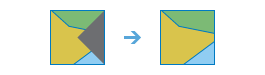
Replaces cells of a raster corresponding to a mask with the values of the nearest neighbors.
Illustration
Usage
This raster analysis portal tool is available when you are signed in to an ArcGIS Enterprise portal that has ArcGIS Image Server configured for Raster Analysis. When the tool is run, ArcGIS Pro serves as a client and the processing occurs in the servers federated with ArcGIS Enterprise. The portal tool accepts layers from your portal as input and creates output in your portal.
The input raster layer supports a layer from the portal, a URI or URL to an image service, or the output from the Make Image Server Layer tool. This tool does not support local raster data or layers.
Nibble allows selected areas of a raster to be assigned the value of their nearest neighbor. It can be used to replace a replace a few individual cells with the values immediately nearby. With larger mask areas, larger swaths of cells can be replaced.
Cells that are NoData in the input mask raster define which cells will be nibbled. Any locations in the input raster that are not within the mask area will not be nibbled, and so the output value for them will be the same as the input value.
NoData cells in the input raster that are not within the mask are not nibbled. They will remain NoData regardless of the settings of the two NoData parameters.
The raster can be either integer or floating point type.
Raster Layer; Image Service; String
Input Mask Raster
The raster used as the mask.
The cells that are NoData define the cells that will be nibbled, or replaced, by the value of the closest nearest neighbour.
Raster Layer; Image Service; String
Output Name
The name of the output nibble raster service.
The default name is based on the tool name and the input layer name. If the layer name already exists, you will be prompted to provide another name.
String
Use NoData values if they are the nearest neighbor
(Optional)
Keywords defining if NoData values in the input raster are allowed to nibble into the area defined by the mask raster.
Checked—Specifies that the nearest neighbor value will be used whether it is NoData or another data value in the input raster. NoData values in the input raster are free to nibble into areas defined in the mask if they are the nearest neighbor. This is the default.
Unchecked—Specifies that only data values are free to nibble into areas defined in the mask raster. NoData values in the input raster are not allowed to nibble into areas defined in the mask raster even if they are the nearest neighbor.
Boolean
Nibble NoData cells
(Optional)
Keywords defining if NoData cells in the input raster that are within the mask will remain NoData in the output raster.
Checked—Specifies that NoData cells in the input raster and within the mask can be nibbled into valid output cell values.
Unchecked—Specifies that NoData cells in the input raster and within the mask will remain NoData in the output. This is the default.
Boolean
Input Zone Raster
(Optional)
The input zone raster. For each zone, input cells that are within the mask will be replaced only by the nearest cell values within that same zone.
A zone is all the cells in a raster that have the same value, whether or not they are contiguous. The input zone layer defines the shape, values, and locations of the zones. The zone raster can be either integer or floating point type.
The raster can be either integer or floating point type.
Raster Layer; Image Service; String
inputMaskRaster
The raster used as the mask.
The cells that are NoData define the cells that will be nibbled, or replaced, by the value of the closest nearest neighbour.
Raster Layer; Image Service; String
outputName
The name of the output nibble raster service.
The default name is based on the tool name and the input layer name. If the layer name already exists, you will be prompted to provide another name.
String
nibbleValues
(Optional)
Keywords defining if NoData values in the input raster are allowed to nibble into the area defined by the mask raster.
ALL_VALUES—Specifies that the nearest neighbor value will be used whether it is NoData or another data value in the input raster. NoData values in the input raster are free to nibble into areas defined in the mask if they are the nearest neighbor. This is the default.
DATA_ONLY—Specifies that only data values are free to nibble into areas defined in the mask raster. NoData values in the input raster are not allowed to nibble into areas defined in the mask raster even if they are the nearest neighbor.
Boolean
nibbleNodata
(Optional)
Keywords defining if NoData cells in the input raster that are within the mask will remain NoData in the output raster.
PROCESS_NODATA—Specifies that NoData cells in the input raster and within the mask can be nibbled into valid output cell values.
PRESERVE_NODATA—Specifies that NoData cells in the input raster and within the mask will remain NoData in the output. This is the default.
Boolean
inputZoneRaster
(Optional)
The input zone raster. For each zone, input cells that are within the mask will be replaced only by the nearest cell values within that same zone.
A zone is all the cells in a raster that have the same value, whether or not they are contiguous. The input zone layer defines the shape, values, and locations of the zones. The zone raster can be either integer or floating point type.
Raster Layer; Image Service; String
Derived output
Name
Explanation
Data type
outputRaster
The output raster.
Raster Layer
Code sample
Nibble example 1 (Python window)
This example replaces cells identified by the mask input with values determined by the nearest neighbors of the input raster.