Nibble (Spatial Analyst Tools)
Summary
Replaces cells of a raster corresponding to a mask with the value of the nearest neighbor.
Illustration
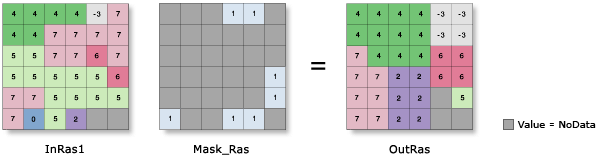
OutRas = Nibble(InRas1, Mask_Ras)Usage
You can use the Nibble tool to select areas of a raster and assign them the value of their nearest neighbor. The tool can be used to replace a few individual cells with the values immediately nearby. With larger mask areas, larger swaths of cells can be replaced.
A common application is for editing areas of a raster where the data is known to be erroneous.
Cells that are NoData in the input mask raster define which cells will be replaced. Any locations in the input raster that are not within the mask area will not be replaced, and the output value for them will be the same as the input value.
NoData cells in the input raster that are not within the mask are not replaced. The cells will remain NoData regardless of the settings of the two NoData parameters.
This tool supports parallel processing. If your computer has multiple processors or processors with multiple cores, better performance may be achieved, particularly on larger datasets. The Parallel processing with Spatial Analyst help topic has more details on this capability and how to configure it.
When using parallel processing, temporary data will be written to manage the data chunks being processed. The default temp folder location will be on your local C drive. You can control the location of this folder by setting up a system environment variable named
TempFoldersand specifying the path to a folder to use (for example,E:\RasterCache). If you have admin privileges on your machine, you can also use a registry key (for example, [HKEY_CURRENT_USER\SOFTWARE\ESRI\ArcGISPro\Raster]).By default, this tool will use 50 percent of the available cores. If the input data is smaller than 5,000 by 5,000 cells in size, fewer cores may be used. You can control the number of cores the tool uses with the Parallel processing factor environment.
See Analysis environments and Spatial Analyst for additional details on the geoprocessing environments that apply to this tool.
Parameters
| Label | Explanation | Data type |
|---|---|---|
|
Input raster |
The input raster with the masked locations that will be replaced by the value of their nearest neighbor. The input raster can be either integer or floating point type. |
Raster Layer |
|
Input raster mask |
The raster that identifies the locations in the input raster that will be replaced. Cells with a value of NoData are considered to be within the masked area. In the output raster, these locations will be replaced by the value of their nearest neighbor in the Input raster value. The mask raster can be either integer or floating point type. |
Raster Layer |
|
Use NoData values if they are the nearest neighbor (Optional) |
Specifies whether NoData cells in the input raster can replace cells in the masked areas if they are the nearest neighbor.
|
Boolean |
|
Nibble NoData cells (Optional) |
Specifies whether NoData cells in the input raster that are within the masked area will be preserved or replaced.
|
Boolean |
|
Input zone raster (Optional) |
The input zone raster. For each zone, input cells that are within the mask will be replaced only by the nearest cell values within that same zone. A zone is all the cells in a raster that have the same value, whether or not they are contiguous. The input zone layer defines the shape, values, and locations of the zones. The zone raster can be either integer or floating point type. |
Raster Layer |
Return value
| Label | Explanation | Data type |
|---|---|---|
|
Output raster |
The output raster with the replaced cells. The identified input cells will be replaced with the values of their nearest neighbor. If the input raster is integer, the output raster will be integer. If it is floating point, the output will be floating point. |
Raster |
Environments
Auto Commit, Cell Size, Cell Size Projection Method, Compression, Current Workspace, Extent, Geographic Transformations, Mask, Output CONFIG Keyword, Output Coordinate System, Parallel Processing Factor, Scratch Workspace, Snap Raster, Tile Size
Licensing information
- Basic: Requires Spatial Analyst
- Standard: Requires Spatial Analyst
- Advanced: Requires Spatial Analyst