Equal To (Spatial Analyst Tools)
Summary
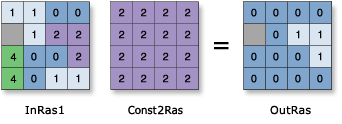
Performs a Relational equal-to operation on two inputs on a cell-by-cell basis.
Returns 1 for cells where the first raster equals the second raster and 0 for cells where it does not.
Illustration
Usage
Two inputs are necessary for this relational evaluation to take place.
The order of inputs is irrelevant for this tool.
If both inputs are single-band rasters or one of the inputs is a constant, the output will be a single-band raster.
If both inputs are multiband rasters, the tool will perform the operation on each band from one input, and the output will be a multiband raster. The number of bands in each multiband input must be the same.
If one of the inputs is a multiband raster and the other input is a constant, the tool will perform the operation using the constant value for each band in the multiband input, and the output will be a multiband raster.
If both inputs are multidimensional raster data with the same number of variables, the tool will perform the operation for all slices with the same dimension value. The output will be a multidimensional raster in CRF format. The variables in the inputs must have at least one common dimension and one common dimensional value for this tool to process; otherwise, an error will occur.
If both inputs have one variable but different names, uncheck the Match Multidimensional Variable geoprocessing environment (set
arcpy.env.matchMultidimensionalVariable = Falsein Python) before running the tool.If one of the inputs is a multidimensional raster and the other input is a constant, the tool will perform the operation for all slices for all variables using the constant value, and the output will be a multidimensional raster.
In map algebra, the equivalent operator symbol for this tool is "==" (link).
See Analysis environments and Spatial Analyst for additional details on the geoprocessing environments that apply to this tool.
Parameters
| Label | Explanation | Data type |
|---|---|---|
|
Input raster or constant value 1 |
The input that will be compared to for equality by the second input. A number can be used as an input for this parameter, provided a raster is specified for the other parameter. To specify a number for both inputs, the cell size and extent must first be set in the environment. |
Raster Layer; Constant |
|
Input raster or constant value 2 |
The input that will be compared from for equality by the first input. A number can be used as an input for this parameter, provided a raster is specified for the other parameter. To specify a number for both inputs, the cell size and extent must first be set in the environment. |
Raster Layer; Constant |
Return value
| Label | Explanation | Data type |
|---|---|---|
|
Output raster |
The output raster. The output cell values will be either integer 0 or 1, or NoData if any input cell value is NoData. |
Raster |
Environments
Auto Commit, Cell Size, Cell Size Projection Method, Compression, Current Workspace, Extent, Geographic Transformations, Mask, Output CONFIG Keyword, Output Coordinate System, Scratch Workspace, Snap Raster, Tile Size
Licensing information
- Basic: Requires Spatial Analyst or Image Analyst
- Standard: Requires Spatial Analyst or Image Analyst
- Advanced: Requires Spatial Analyst or Image Analyst