Download documentation sets
Downloading documentation sets is a core feature of ArcGIS Documentation Center. Use this workflow to find and download documentation sets for ArcGIS products.
Important:
You need to have write permissions to the root folder to download documentation sets.
Steps
If this is your first time using ArcGIS Documentation Center, it is recommended you download the documentation set for ArcGIS Documentation Center itself. This will allow you to access help for the app even when you are not connected to the Internet.
Open ArcGIS Documentation Center.
Click the Library tab.
If you are not connected to the Internet, you will see a message indicating that you are offline and that no documentation sets are available for download.
If you are connected to the Internet, you should see a list of documentation sets that are available for download.
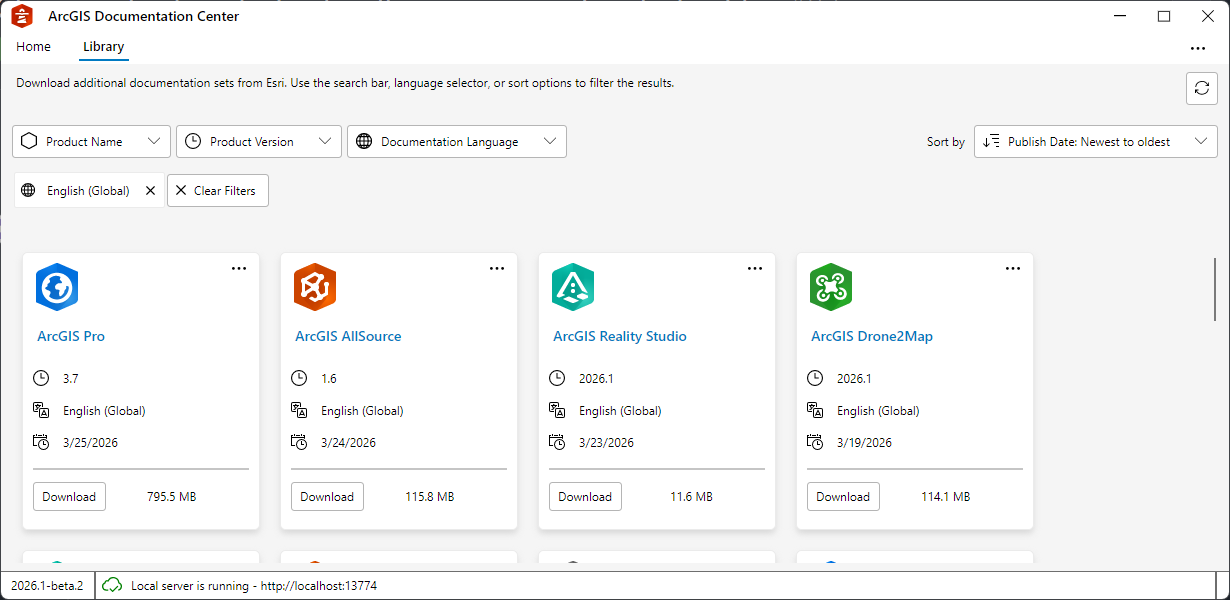
Find the documentation set you want to download.
You can use the filters to narrow down the list of documentation sets that are displayed. For example, you can filter by product name, product version, and language.
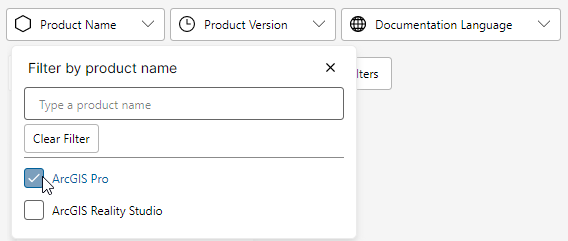
Note:
The language chosen for the ArcGIS Documentation Center user interface is also used as the default filter for the documentation sets that are displayed. You can optionally remove the language filter to view all documentation sets that are downloaded.

If you are new to ArcGIS Documentation Center and planning to work offline, it is recommended you download its documentation set in the language of your choice.
Click the Download button on the card for the documentation set.
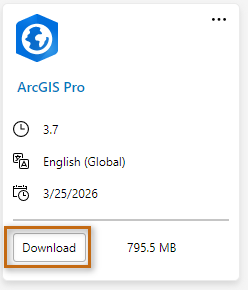
The documentation set is downloaded to the root folder.
Now that you have downloaded a documentation set, you can open it from the Home tab to view its contents.