Common administration questions
Questions or issues that you may encounter when working with ArcGIS Enterprise as well as possible solutions are listed below. If you don't find your particular question, you can also search for articles on the Esri Support center website. The following additional topics contain common questions for planning and deployment.
Administration
What is the purpose of the initial administrator account? Can I demote or delete it?
It takes a very long time for Map Viewer to load in my web browser.
Thumbnails for newly created web maps are not generated or do not display correctly.
Authentication
Backups
The portal content directory has grown to several gigabytes in size.
Why do I receive an error about a missing item when creating a backup of my portal?
General
Services
I started creating a map cache, and it's taking a long time. When will it finish?
I have an asynchronous job running on my geoprocessing service that I want to cancel.
I added a service to a web app, but the service seems to be unavailable.
What is the purpose of the initial administrator account? Can I demote or delete it?
After you've installed Portal for ArcGIS and configured it for use, you can access the organization. At this time, you need to provide the name, password, email, and identity question and answer for a new account that you will initially use to sign in and administer the organization. This account is called the initial administrator account.
The initial administrator account user name and password are stored by Portal for ArcGIS. The initial administrator is not an operating system account, and it has no relation to the Portal for ArcGIS account. Later, you can specify other accounts as administrators, demote the initial administrator to a role with fewer privileges, or delete the initial administrator account.
When attempting to federate an ArcGIS Server site with my organization, a message displays in the Add ArcGIS Server dialog box stating There was an error communicating with the server. Please check your URL and your credentials and try again.
You may encounter this error for any of the following reasons:
The Server URL or the Administrator URL value you entered for the ArcGIS Server site is incorrect or unreachable. Verify the following:
If the ArcGIS Server site includes ArcGIS Web Adaptor, the Server URL value is the Web Adaptor address, for example,
http://webadaptorhost.example.com/webadaptorname. If no Web Adaptor is present, the Server URL value is the same as the Administrator URL value, for example,http://gisserver.example.com:6080/arcgis.If your organization requires HTTPS for all communication, use https in the URL.
The URL includes the fully qualified domain name (FQDN) of the machine. The FQDN is required.
The communication protocol of the ArcGIS Server site has been updated to use HTTP and HTTPS or HTTPS only.
The communication protocol matches that of the portal. For example, if the portal requires HTTPS for all communication, ArcGIS Server should also be configured as HTTPS only. Conversely, if the portal does not require HTTPS, the server communication protocol should be HTTP and HTTPS.
If the ArcGIS Server site includes ArcGIS Web Adaptor, ArcGIS Web Adaptor must be reconfigured with ArcGIS Server after updating the site's communication protocol.
Your firewall allows communication between ArcGIS Server and your portal. For information about the specific ports to open, see Ports used by ArcGIS Server and Ports used by Portal for ArcGIS.
Web-tier authentication is disabled and anonymous access is enabled on the ArcGIS Server site. Although it may sound counterintuitive, this is necessary so your site is free to federate with the portal and read the portal's users and roles.
Web-tier authentication, such as Integrated Windows Authentication (IWA), is disabled and anonymous access is enabled on the ArcGIS Server site. Although it may sound counterintuitive, this is necessary so your site is free to federate with the portal and read the portal's users and roles.
You entered an incorrect Username or Password:
For Username, specify the user name of the primary site administrator account that was used to initially log in to ArcGIS Server Manager and administer the server. If this account is disabled, you must reenable it. No other account can be used.
For Password, provide the password of the primary site administrator account.
For more information, see Federate a site.
If my portal uses Windows Active Directory or LDAP accounts and groups, what happens when a user is deleted from my Active Directory or LDAP server?
If the deleted organization-specific user exists in the portal, the member is removed from any portal Active Directory or LDAP groups the next time the identity store refreshes (by default, that's each day at midnight). However, the member is not removed from the portal identity store. Since the corresponding Active Directory or LDAP account no longer exists, the member cannot sign in to the portal, but the portal administrator must manually reassign any items or groups owned by the member and delete the account to free the portal license.
If my portal uses LDAP groups, what happens to the corresponding portal when an LDAP group is renamed or deleted from my LDAP server?
If the LDAP group is linked to a portal group, members are removed from the group the next time the portal identity store refreshes (either when each member logs in or at the scheduled identity store update time). Once members are removed, only the group owner or portal administrator can access the group. The portal administrator or group owner can delete the group, or the portal administrator can reassign the portal group to a different LDAP group.
I configured my organization's sign-in to use only OpenID Connect logins and turned off the option for members to log in using their built-in ArcGIS accounts. How do I re-enable this option?
If you need to provide access to the portal through built-in accounts again, you can do so by following the steps below.
Navigate to the following location on Portal for ArcGIS:
/portal/tools/security/.Run the enableArcgisLogins shell script to re-enable the option for members to log in with their built-in ArcGIS accounts.
Members who access the sign in page will then see the button to log in to the portal using an identity provider account as well as the Using Your ArcGIS Account button.
If my organization uses Windows Active Directory or Lightweight Directory Access Protocol (LDAP) groups, does the portal identity store update as soon as a new login is added to a group on my Active Directory or LDAP server?
If the organization-specific account is not a member of the organization, adding the login to an Active Directory or LDAP group that is linked to a portal group does not automatically add the account to the organization. As the administrator, you don't want every login ever added to your Active Directory or LDAP server to automatically be added to your organization.
If you use Windows Active Directory groups, logins in nested groups that are already portal members are also added to the linked portal group. If you use LDAP groups, only logins in the group you specify are added to the portal group. For example, if you specify a top-level LDAP group, only the logins that are existing portal members are added to the portal group; no logins from a nested group are included. You can, instead, specify a nested group. In that case, only logins in the nested group that are existing portal members are added to the portal group.
If my portal uses Windows Active Directory or LDAP groups, what happens to the corresponding portal when an Active Directory or LDAP group is renamed or deleted from my Active Directory or LDAP server?
If the Active Directory or LDAP group is linked to a portal group, members are removed from the group the next time the portal identity store refreshes (either when each member logs in or at the scheduled identity store update time). Once members are removed, only the group owner or portal administrator can access the group. The portal administrator or group owner can delete the group, or the portal administrator can reassign the portal group to a different Active Directory or LDAP group.
I configured my organization's sign-in to use only OpenID Connect logins and turned off the option for members to log in using their built-in ArcGIS accounts. How do I re-enable this option?
If you need to provide access to the portal through built-in accounts again, you can do so by following the steps below.
Navigate to the following location on Portal for ArcGIS:
\ArcGIS\Portal\tools\security\.Run the enableArcgisLogins batch file to re-enable the option for members to log in with their built-in ArcGIS accounts.
Members who access the sign in page will then see the button to log in to the portal using an identity provider account as well as the Using Your ArcGIS Account button.
I configured my organization's sign-in to use only SAML logins and turned off the option for members to log in using their built-in ArcGIS accounts. How do I re-enable this option?
If you need to provide access to the portal through built-in accounts again, you can do so by following the steps below.
Navigate to the following location on Portal for ArcGIS:
/portal/tools/security/.Run the enableArcgisLogins shell script to re-enable the option for members to log in with their built-in ArcGIS accounts.
Navigate to the following location on Portal for ArcGIS:
\ArcGIS\Portal\tools\security\.Run the enableArcgisLogins batch file to re-enable the option for members to log in with their built-in ArcGIS accounts.
Members who access the sign in page will then see the button to log in to the portal using an identity provider account as well as the Using Your ArcGIS Account button.
I enabled Windows as my group identity store and also enabled SAML-based group membership. Why can't I create SAML-based groups?
You should configure only a single identity provider and avoid integrating Active Directory or LDAP with SAML.
After switching my portal's security configuration from Active Directory or LDAP to SAML, all SAML users are removed from their SAML-based groups every night. What's happening?
When you switch the portal's security configuration to SAML, you must restart Portal for ArcGIS to completely clear the previous settings for Active Directory or LDAP. When Portal for ArcGIS is configured to use users and groups from Active Directory or LDAP, group membership for each user is automatically cleared and updated every night. This group membership refresh is not required when SAML-based group memberships is used. If group membership refresh is run when SAML is configured, SAML users will lose their group membership each time the group refresh call is made.
It takes a very long time for Map Viewer to load in my web browser.
If you're using a reverse proxy server or load balancer with the portal to handle requests from the internet, verify that the reverse proxy server or load balancer supports gzip encoding and is configured to allow the Accept-Encoding header. This header allows HTTP 1.1 responses to be compressed using gzip encoding. For example, if the header is allowed, a request to load Map Viewer will return a compressed response of approximately 1.4 MB to the browser. If the header is not allowed or ignored, the request will return an uncompressed response of approximately 6.8 MB to the browser. If your network speed is slow, it may take a long time for Map Viewer to load if responses are not compressed. It's recommended that you allow this header as part of the reverse proxy server configuration.
Thumbnails for newly created web maps are not generated or do not display correctly.
You may encounter this problem if the web maps contain ArcGIS Server services that use HTTPS. If this is the case, check whether the portal is configured with a print utility service from an ArcGIS Server site. The print service may be running on a machine that does not trust Certificate Authority (CA) signed certificates from the ArcGIS Server site providing the HTTPS services. Each machine running the print service must be configured to trust these CA certificates at the operating system level. See Enable HTTPS using a new CA-signed certificate for details on how to do this.
Publishers receive the following message when publishing hosted feature layers to ArcGIS Enterprise: Failed to create the service: Underlying DBMS error [ERROR: cannot execute CREATE TABLE in a read-only transaction...]. Additionally, I see the following message in the ArcGIS Data Store log file: Available disk space for the relational store is less than 1024 MB. The relational store will be placed in READONLY mode. Once you increase the amount of disk space on the drive, you can place the relational store back in READWRITE mode.
To prevent the loss of data, the primary relational store is placed in read-only mode when the disk space of the machine on which it is running drops below a specific size. By default, that size is 1024 MB, but you may have changed this to a different size using the changedbproperties utility.
Once the primary relational store machine is in read-only mode, you cannot publish hosted feature layers. To take the relational store out of read-only mode, add disk space to the primary data store machine, run the changedatastoremode utility to set the relational store back to read-write mode, and run the updatebackupschedule utility to reestablish automatic backups for the relational store.
After configuring a new custom SSL certificate, my portal is inaccessible. How can I recover?
If you incorrectly configured the SSL certificate and cannot sign in to the portal, follow the steps below to recover.
Back up the
\ArcGIS\Portal\framework\runtime\tomcat\conf\server.xmlfile.Open
ArcGIS\Portal\framework\runtime\tomcat\conf\server.xmlin a text editor.Locate the SSL connector by searching for the
<Connector SSLEnabled="true"string.Change the value of the
keyAliasparameter back to the default value, which iskeyAlias="portal", and save your changes.Log in to the Portal Administrator Directory as a member with administrative privileges.
Choose Security > SSLCertificates and click Update. On the next page, confirm Update without modifying any parameters.
The portal automatically restarts.
When I open Organization > Settings > Living Atlas in the portal website, I see an error message that indicates credentials are invalid or ArcGIS Online cannot be accessed. What is wrong and how do I correct these issues?
When the portal is configured to use Integrated Windows Authentication, user logins either fail intermittently or are very slow. The portal logs contain the entry: User '<username>' not found in the identity store provider.
Follow the instructions in Configure the domain controller used by Portal for ArcGIS.
When I open Organization > Settings > Living Atlas in the organization, I see an error message that indicates credentials are invalid or ArcGIS Online cannot be accessed. What is wrong and how do I correct these issues?
The portal requires valid ArcGIS Online credentials to access subscriber and premium ArcGIS Living Atlas. If the portal cannot access ArcGIS Online using the credentials you used when you enabled ArcGIS Living Atlas subscriber and premium content, one of the following messages is returned in the portal website and in the logs for the hosting server:
The credentials used to access subscriber and/or premium Living Atlas content are invalid. Update credentials with valid ArcGIS Online organizational account credentials.—ArcGIS Enterprise connected to the ArcGIS Online organization and determined that your existing credentials are invalid. Ensure the password has not changed for your ArcGIS Online account and, for premium content, that the account still has credits available.
If the password changed or if you need to provide a new account to access subscriber and premium ArcGIS Living Atlas content from ArcGIS Online, update credentials.
ArcGIS Online cannot be accessed from this portal. Check your firewall settings or portal proxy settings.—ArcGIS Enterprise cannot connect to the ArcGIS Online account associated with your credentials. In most cases, this is due to issues on your network that are preventing communication with ArcGIS Online.
Cannot validate credentials used to access subscriber and/or premium Living Atlas content, therefore you cannot upgrade the content. Contact Esri technical support or your international distributor.—An uncommon internal error has occurred that cannot be identified. If you see this message, contact Esri technical support (if you're in the United States) or your international distributor (if you're outside the United States.) to identify and correct the problem.
The portal content directory has grown to several gigabytes in size.
The portal stores incremental transaction logs in a subdirectory of the portal content directory, which allows you to create incremental backups of the portal. The default location is /home/<user>/arcgis/portal/usr/arcgisportal/backup/walarchive.
The portal stores incremental transaction logs in a subdirectory of the portal content directory, which allows you to create incremental backups of the portal. The default location is C:\arcgisportal\backups\walarchive.
Once you create a full backup using the webgisdr tool, the initial size limit is no longer enforced; however, each time the tool is run, existing transaction logs are removed. In the event where this subdirectory size exceeds 5 GB, the following message is logged:
The transaction logs of the portal are consuming more than 5 GB of disk space. Run a full backup using the webgisdr tool to clear out these logs.
By default, there is a 50 MB limit on transaction logs for backups. If your environment doesn't support geographic redundancy where you restore to a secondary data center, set BACKUP_RESTORE_MODE to backup instead of full.
To learn more about the webgisdr tool, see Create an ArcGIS Enterprise backup.
Why do I receive an error about a missing item when creating a backup of my portal?
This error occurs when an item is still present in the portal's internal database but is not present in the content directory. This is the result of an incomplete item deletion. Normally, when you delete an item, it is deleted from the internal database as well as the content directory. However, sometimes an item is not successfully deleted from the internal database.
If this is the case, when you create a backup, a WARNING error is logged, indicating that the item must be deleted manually. Note the itemID value or values provided by the error message. Unless this item is owned by Esri, you can follow the steps below to delete the item.
Tip:
You can also contact Esri Technical Support for help with these steps.
Sign in to the ArcGIS Portal Directory (Sharing API) as an administrator (
https://portal.example.com/webadaptor/sharing/rest).Search for the item in the API using the
/searchendpoint. For the Search Text parameter, enter id: using theitemIDfrom the log message.In the search results, click the link identifying the owner of the item. The owner's information page appears.
Under Related Resources, click User Content.
Click the
itemIDfrom the logs. A message appears indicating an Internal Server Error.Append
/deleteto the item endpoint's URL. Confirm the delete operation.Repeat steps 2–6 for each item that appeared in the log message.
Restoring a large portal backup fails with a token error.
When you try to restore a backup using the Import Site operation in the Portal Administrator Directory, it generates a token that expires after one hour. If the restore operation doesn't complete within an hour, the import process will fail.
If it takes longer than an hour to restore, generate a token using the sharing API and specify the expiration time to be longer than the default. Use this token to access the Portal Administrator Directory:
If you are using the directory in a web browser, append the new token to the Administrator Directory URL for the Import Site operation.
If you are calling the operation from a script, include the new token in this API call.
When I run the webgisdr utility to either create or restore a backup, it never completes.
Sometimes QuickEdit mode prevents the webgisdr utility from running.
QuickEdit mode allows you to select text in the command prompt console when you click the console . When QuickEdit is enabled, any process running in the command prompt is paused until you press Enter.
In Windows Server 2016 or later, QuickEdit is enabled by default. The word Select is prepended to the console window title when QuickEdit is enabled, as indicated by the red box in the image below:
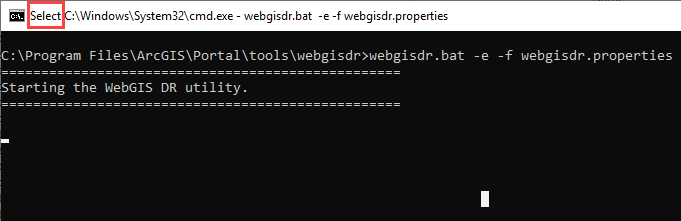
If you click the command prompt console while the webgisdr utility is running in a command prompt with QuickEdit mode enabled, the webgisdir utility pauses or freezes. When you press Enter, the wegisdr utility continues. You can disable QuickEdit mode to eliminate interference with the webgisdr utility. Consult your IT staff or review the Windows documentation for more information.
If the command prompt is not in QuickEdit mode, contact Esri Technical Support.
The directory that contains my backups is consuming a lot of storage space.
The size of each data store backup varies depending on the amount and size of your data, how frequently ArcGIS Data Store creates backups, and how long you retain backup files.
For relational stores, you can schedule how frequently automatic backups are created and how long they are retained. If the backup directory used to store automatic backups is using a large amount of storage, either increase the disk space on the machine or alter the ArcGIS Data Store backup frequency and retention schedules.
If you configure a location for the backup files created by ArcGIS Data Store for the other data store types, you can also schedule how frequently automatic backups are created. However, you are responsible for cleaning up these backup files when they are no longer needed. Therefore, check the ages of the backup files to determine whether you can delete some of the files to free up disk space. Alternatively, you can move older files to another location, such as to backup media, to free up disk space.
In addition to the location you define to store the automatic backups that ArcGIS Data Store creates, you can define another location to store the backup files you create using the backupdatastore utility. You are responsible for cleaning up the files stored in these additional backup locations when the files are no longer needed. If the additional backup locations are running out of disk space, check the ages of the files to determine whether some can be deleted. Alternatively, move older files to another location or backup media to free up disk space.
When running the deletebackup utility, I receive the error message: Attempt to delete backup 'backup_oneFS' is not allowed. You can only delete a manual backup that is not required for a future restore.
This message is returned when you attempt to delete a backup file that is required to properly restore the data store. If the backup file was created during the backup retention period you have set for the data store, you cannot delete that backup.
I receive the following message when I run an ArcGIS Data Store utility: Error: AGSDATASTORE variable is not set.
The ArcGIS Data Store setup executable and Data Store configuration app set the AGSDATASTORE variable to the directory where it installs ArcGIS Data Store. If you run the configuredatastore utility from the same command prompt in which you ran the setup executable, that command prompt session predates the existence of the variable and, therefore, does not recognize that the variable is set. Similarly, if you opened a command prompt before running the Data Store configuration app and tried to run any utility in the command prompt, you receive this message because the command prompt session predates the existence of the variable. To solve this problem, open a new command prompt and run the utility.
I receive the error message Could not connect to server on machine '<fully qualified machine name>'. ArcGIS Data Store or GIS Server on that machine may not be running or the machine is not reachable at this time.
You could receive this message under a variety of circumstances, but in all cases, an attempt to connect to either the ArcGIS Data Store or its registered GIS Server site failed. Ensure that both are available for connections. Also ensure the client from which you are trying to connect has network connectivity.
When validating a spatiotemporal big data store in the ArcGIS Server Administrator Directory, I receive the message Server Machine returned an error. None of the configured nodes are available.
You will see this message if you configured the spatiotemporal big data store with an ArcGIS Server site, used the remove function in the ArcGIS Server Administrator Directory to remove the machine from the site, and subsequently tried to register the same spatiotemporal big data store with the same or a different ArcGIS Server site.
The remove function is used for removing the standby machine from the relational store and should not be used to unregister any other type of ArcGIS Data Store. Use the unregisterdatastore utility to unregister the spatiotemporal big data store from the ArcGIS Server site with which it was originally registered. This cleanly unregisters the spatiotemporal big data store from the site, and you can proceed with registering with the GIS Server used as the ArcGIS Enterprise hosting server.
When running ArcGIS Data Store utilities, how can I provide a password that includes a quotation mark or other special character?
You can type the text inside double quotation marks ("). On Linux operating systems, you can also use single quotation marks ('). If the password or other text includes a quotation mark, you must provide an escape character to indicate the quotation mark inside the text is not a closing quotation mark.
For example, if the password you need to provide is n0tsew"r@ndom, include the backslash (\) escape character to indicate the quotation mark in the password is not the closing quotation mark. So you would type "n0tsew"r@ndom" for the password.
The ArcGIS Data Store log files reference a queue store. What is that?
The queue store is a system data store that is automatically created on the same machine as the relational store. It is required to support webhooks. There is no direct configuration or interaction with the queue store. Messages about them in the log files are intended for use by Esri Technical Support when necessary.
I started creating a map cache, and it's taking a long time. When will it finish?
The amount of time needed to create your map cache depends on the scale levels you have chosen, the amount of server resources you have dedicated to generating the cache, and the settings you have chosen (tile format, storage format, and so on).
I recently updated my map caches. Are client applications automatically aware that the updated tiles are available?
If you update an area of a map cache, users of ArcGIS Pro who have already visited that area and extent must clear their local image caches before they can see the updates. As a server administrator, you must alert your users when updated data is available so that they know to clear their caches. Consult the help system for your client application for instructions on how to clear the local cache.
I get an error message that says publishing of geoprocessing services is restricted. How can I resolve this?
The error message is for error code 001862: Publishing of geoprocessing services is restricted to administrators only. Only administrators can publish geoprocessing services and deploy service extensions (SOEs or SOIs). This restriction can be changed by an administrator. See Change geoprocessing service and service extension publishing privileges for details.
I have an asynchronous job running on my geoprocessing service that I want to cancel.
A suite of resources and operations allow server administrators to locate, monitor, and intervene in asynchronous jobs being run by a geoprocessing service. Each of these are available by accessing the service's page in the ArcGIS Server Administrator Directory (URL format https://server:port/arcgis/admin/services/[<folder>]/<serviceName.serviceType>).
From the Jobs page, you can query for jobs that meet specific conditions, purge the queue of all jobs with a current status of NEW, SUBMITTED, or WAITING, and view statistics about the current jobs for the service.
From the page of a specific job, you can cancel the job if it currently carries a status of SUBMITTED or EXECUTING (keeping the job information in the system), or delete the job regardless of current status, which will remove all trace of it from the service and cancel the job if applicable.
I updated my map document then stopped and started my service, but I don't see the updates in my map service.
When any changes are made to the GIS resource referenced by a service, you'll need to overwrite the service so clients see changes to your GIS resource and its source data.
For instructions on how to overwrite your service, see Overwrite a web layer.
I added a service to a web app, but the service seems to be unavailable.
If your web app references a service from a remote server (a different server from the one where your web app is hosted), the server hosting your web app needs to have permission from the remote server to access the service. Often, the server hosting your web app is the one installed with ArcGIS Web Adaptor, and the server hosting your services is a GIS server. If these two servers reside on different domains, the web browser plug-in running the web app is not allowed to access the service for security reasons. To access services across web domains, a client access policy file must be present in the root directory of the web server hosting the service.
If your server administrator has enabled security on your ArcGIS Server site, this file may need to be modified to include the domain of the server hosting your web app. For more information, see Restrict cross-domain requests to ArcGIS Server.
I encounter an error in ArcGIS Pro when attempting to publish a GIS resource that references data in a file share.
If the data referenced by your GIS resource resides in a Windows file share, you may encounter the following error in ArcGIS Pro when publishing:
Packaging succeeded, but publishing failed. ERROR 001369: Failed to create the service.
This failure may result from opportunistic locking, or oplocks, which is a Windows file-locking feature. When oplocks are enabled for your designated file share, the Windows machine is allowed to cache files locally. Usually, this is the machine that is being used to publish the service. If a second machine needs access to the data, it must receive an oplocks break from the Windows machine before the file is synchronized back to the second machine. Usually, this is the machine to which the service is being published. If a break is received by the Windows machine during publishing, the subsequent data synchronization may cause publishing to fail.
Other common issues related to opportunistic locking:
A machine or machines in your multi-machine site enables locks on the config-store and directories, preventing other machines from accessing them.
Publishing failures due to the reasons described above
Issues accessing registered data in shared locations
Issues accessing cached tiles stored in locations with oplocks
To work around these issues, disable oplocks for each file share you have configured.
For more information about oplocks, see Opportunistic Locks in the Microsoft documentation.
If the data referenced by your GIS resource resides in a Samba directory, you may encounter the following error in ArcGIS Pro when publishing:
Packaging succeeded, but publishing failed. ERROR 001369: Failed to create the service.
This failure may result from opportunistic locking, or oplocks, which is a Windows file-locking feature. When oplocks are enabled in a Samba directory, the Windows machine is allowed to cache files locally. Usually, this is the machine that is being used to publish the service. If a second machine needs access to the data, it must receive an oplocks break from the Windows machine before the file is synchronized back to the second machine. Usually, this is the machine that the service is being published to. If a break is received by the Windows machine during publishing, the subsequent data synchronization may cause publishing to fail.
To work around this issue, disable oplocks for each Samba directory you have configured. To do so, follow these steps:
On the machine hosting Samba, open smb.conf.
For each directory configured to be accessible through Samba, add the following properties:
[folder]
     ...
     oplocks = false
     level2 oplocks = false
     ...
Save smb.conf.
Run the command testparm to verify that the properties appear in the Samba configuration file.
Restart Samba (SMB) and NetBIOS (NMB) services.
For more information about oplocks, see File and Record Locking in the Samba configuration documentation.
I can't publish a service to an ArcGIS Server site that uses a certificate issued by a certifying authority (CA).
If HTTPS is enabled using a CA-issued certificate, the CRL Distribution Points (CDP) defined in the certificate must be valid and accessible from the machine or machines hosting ArcGIS Server. If the CDP defined in the certificate is invalid or inaccessible due to network and/or firewall settings, publishing will fail in ArcGIS Pro and the following severe error message will display in the ArcGIS Server log:
Error while using HTTPS security, URL = https://gisserver.example.com:6443/arcgis/services, HTTP Status Code = 0 and Status Text = (WinInet error code = 12057)
To work around this issue, you can disable the validation of the CDP by following the steps below:
On each machine hosting ArcGIS Server, log in as the ArcGIS Server account. This is the account running the ArcGIS Server service.
Click Start > Control Panel > Administrative Tools > Services and stop the ArcGIS Server service.
Click Start > Control Panel > Internet Options.
Click the Advanced tab and scroll down to the Security section.
Uncheck the option Check for server certificate revocation and click OK.
Click Start > Log off to log off the current user.
Log back in to the computer and start the ArcGIS Server service.
Repeat these steps on all other machines in your ArcGIS Server site.