Conflict prevention
 Available with the Linear Referencing license.
Conflict prevention improves support for multiuser editing in a linear referencing system (LRS) by enforcing a set of conditions and behaviors that require editors to acquire a lock before editing a route or event.
If an editor locks a route or an event for editing in a named version, the same editor cannot edit that route or event in another named version, and no one else can edit it in any named version. This is the main principle of conflict prevention in ArcGIS Linear Referencing.
Conflict prevention requirements
Conflict prevention is supported only on a branch versioned LRS dataset.
Once the dataset is registered as branch versioned, run the Modify LRS tool with the Conflict Prevention parameter set to Enable.
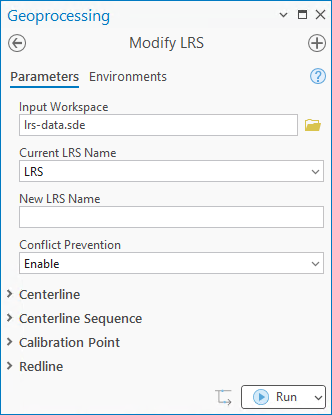
If conflict prevention is enabled, each editing tool automatically acquires locks, if locks are available, or alerts you when locks cannot be acquired.
Types of locks
Conflict prevention in ArcGIS Linear Referencing has the following lock types:
Route and line locks
Route locks
Event locks
Route and line locks
Route and line locks prevent other people from editing a route and events on that route while the route is being edited.
Route and line locks have the following properties:
When you edit a route in a nonline network, the lock is a route lock.
When you edit a route in a line network, the lock is a line lock, which locks the complete line and all its routes. A line lock means that if one person edits one of the several routes that comprise a line, no one else can edit any other route on that line.
A locked route means that only the person with the lock can edit the route and its events in the named version in which the lock was acquired, unless lock transfer conditions are met.
Route locks
Route locks prevent other people from editing a route and events on that route while the route is being edited.
Route locks have the following properties:
When you edit a route in a network, the lock is a route lock.
When a route is locked, only the person with the lock can edit the route and events on the route in the named version in which the lock was acquired.
The overall conflict prevention logic when editing a route is shown in the following chart:

Event locks
Event locks prevent other people from editing an event layer for a specific route. An event lock is acquired for the event layer for a route or line.
Event locks prevent other people from editing an event layer for a specific route. An event lock is acquired for the event layer for a route.
If user 1 has locked Event Layer 1 for Route 1 in Version1, the following apply:
No one else can edit Event Layer 1 for Route 1 in any named version.
User 1 cannot edit Event Layer 1 for Route 1 in any other named versions except in Version1.
Other people can acquire locks on other event layers (except Event Layer 1) for Route 1 or for any other route if a route lock doesn't exist for that route.
No one can acquire a route lock if more than one person has event locks for that route.
Other people can acquire locks on Event Layer 1 for any other routes for which locks can be acquired.
If you edit a point or line event that is registered to a line network, an event lock is acquired on a line.
If you edit a point or line event that is registered to a nonline network, an event lock is acquired on a route.
If editing an event requires an event lock on a route, an event lock is acquired.
Note:
If multiple time slices of a route or an event exist, the acquired lock is valid for all the time slices.
Locks are acquired by geoprocessing tools as needed.
The conflict prevention logic when events exist for a route is shown in the following chart:

Conflict prevention messages
The conflict prevention logic allows editing of a route or line and an event only by a single person in a single named version at a time.
The conflict prevention logic allows editing of a route and an event only by a single person in a single named version at a time.
The following sections provide examples of conflict prevention messages.
Route editing example
If user 22 tries to retire Route X while the same Route X is locked by user 11, the following message appears in the Retire Route pane:
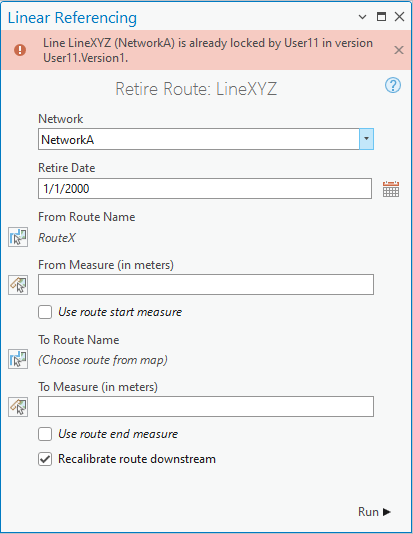
User 22 can't edit the route because user 11 has the locks.
The message provides the following information:
Line XYZ cannot be edited because the lock belongs to someone else.
Note:
In this example, Route X is part of Line XYZ.
The lock has already been acquired by the portal user, user 11.
The lock on Line XYZ for the named version, Version1, has already been acquired by user 11.
If user 22 tries to retire Route Y while the same Route Y is locked by user 11, the following message appears in the Retire Route pane:
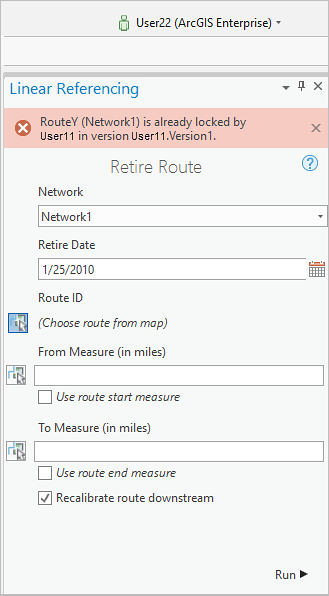
User 22 can't edit the route because user 11 has the locks.
The message provides the following information:
Route Y cannot be edited because the lock belongs to someone else.
The lock has already been acquired by the portal user, user 11.
The lock on Route Y for the named version, Version1, has already been acquired by user 11.
Identify Routes tool example
If user 22 uses the Identify Routes tool to click on Route X that is locked by user 11, the pop-up shows the following message:
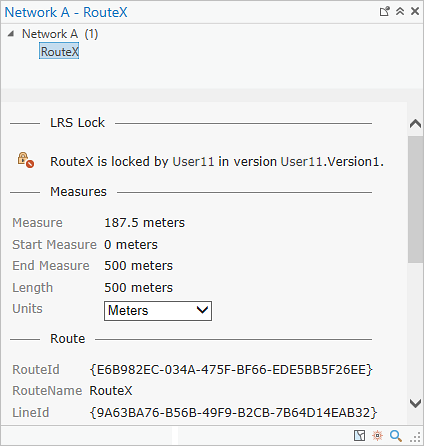
If user 22 uses the Identify Routes tool to click on Route Y that is locked by user 11, the pop-up shows the following message:
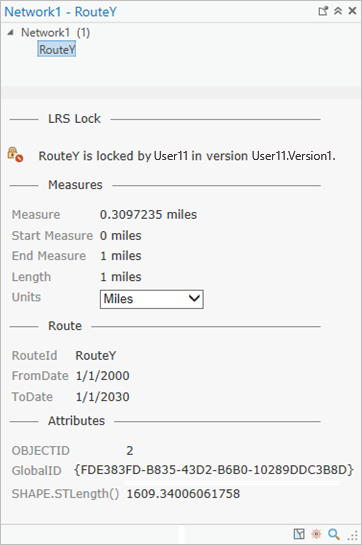
The route is not editable due to existing locks.
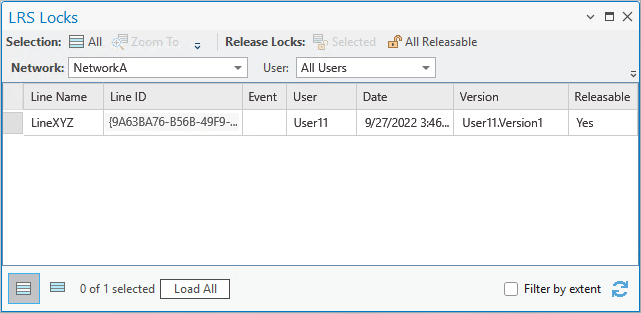
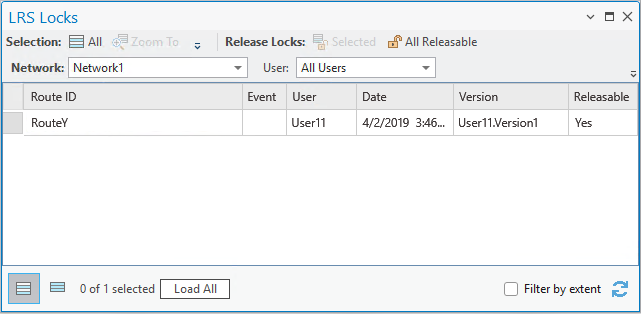
LRS Locks table example
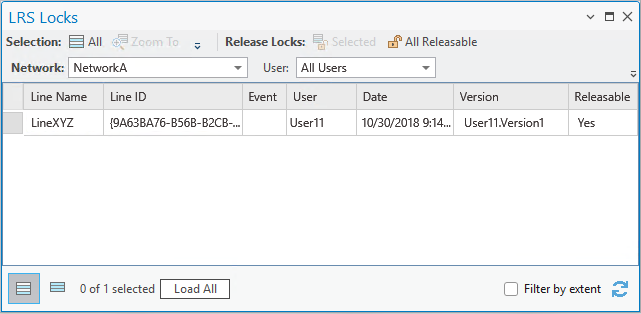
The following image shows an example of the LRS Locks table:
Version reconciliation requirements
Edit the most recent named version so that all recent changes to the data are present in the named version being edited. Before a lock is acquired, a reconciliation check confirms whether the named version needs to be reconciled with the default version, ensuring that you are editing the most recent named version. When a named version needs to be reconciled with the default version, the following message appears:
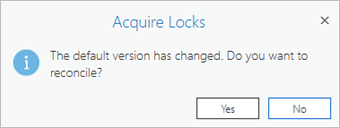
Clicking Yes on the Acquire Locks dialog box reconciles the named version with the default version.
Reconcile any conflicts with the default version before you edit the routes or events.
Tip:
You can check the Automatically reconcile prior to obtaining locks check box in the Linear Referencing options to reconcile automatically before acquiring locks. This option applies only to tools on the Linear Referencing tab, and you can acquire locks without reconciling unless conflicts are detected during reconciliation.
Conflict prevention during centerline editing
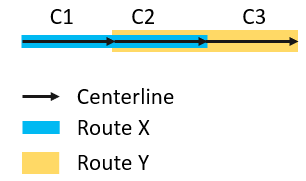
Where concurrent routes exist, routes are locked based on common centerlines. The following diagram demonstrates this concept:
When you edit a centerline layer that belongs to a conflict prevention-enabled LRS, the following conditions apply:
If you edit Route X, you acquire the lock on Route X, and no one else can acquire a lock on Route Y, as they share a common centerline, C2.
If you edit Route Y, you acquire the lock on Route Y, and no one else can acquire a lock on Route X, as they share a common centerline, C2.
If you edit centerline C1 (cartographic realignment or split centerline), only Route X is locked.
If you edit centerline C3, only Route Y is locked.
If you edit centerline C2, both Route X and Route Y are locked, as C2 is a shared centerline between those two routes.
Edit a route and acquire a lock for conflict prevention
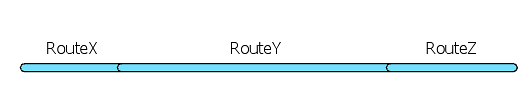
The following conflict prevention workflow example uses the Retire Route tool. Route X, Route Y, and Route Z are part of Line XYZ. Route X is retired.
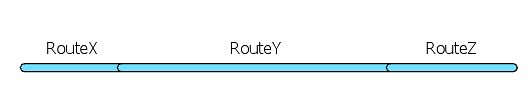
The following diagram shows the routes that are part of Line XYZ before route retirement:
To edit a route and acquire a lock for conflict prevention, complete the following steps:
On the Linear Referencing tab, in the Route Identification group, click Identify Routes
 and click Route X on the map.
The Identify Routes pop-up appears.
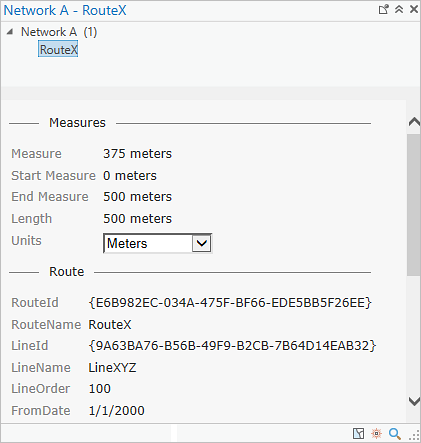
Verify that no locks exist on the selected route or line.
The previous example shows no locks exist for Route X.
On the Linear Referencing tab, in the Route Editing group, click Retire
 .
The Retire Route pane appears.
Click Choose route from map
 and click the route you want to retire.
After you select a route, an acquire lock message appears at the top of the pane.
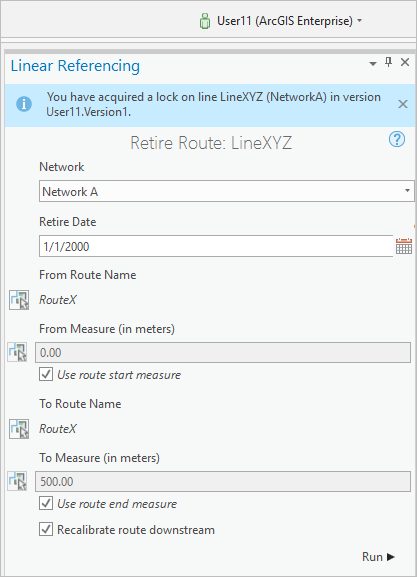
The locking message provides the following information:
The lock has been acquired on Line XYZ. Route X is part of Line XYZ. Since Route Y and Route Z are part of Line XYZ, they are also locked for editing.
The lock has been acquired by the portal user, user 11.
The lock on Line XYZ for the named version, Version1, has been acquired by user 11.
Note:
You automatically transfer an existing route or line lock from another person to yourself if all of the following conditions are met:
The named version that is owned by another person is public.
You are making the request in the same named version in which another person has the lock.
If the lock version is a named version, the lock owner does not currently have an edit session open in that version. If the lock version is the default version, the lock owner does not currently have a read session open in the default version.
To ensure that the lock exists, use the Identify Routes
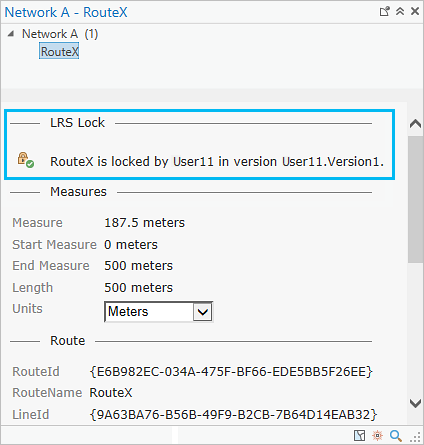
tool to click Route X on the map again.The Identify Routes tool's pop-up shows that the route is locked. The Locked by you icon
 confirms that you have the lock for the identified route and can edit that route.
Optionally, on the Linear Referencing tab, in the Conflict Prevention group, click LRS Locks
 to identify existing locks.
The LRS Locks table appears and shows the existence of the recently acquired lock.
The following conflict prevention workflow example uses the Retire Route tool. Route Y is retired.
The following diagram shows the routes before route retirement:
To edit a route and create a lock for conflict prevention, complete the following steps:
On the Linear Referencing tab, in the Route Identification group, click Identify Routes
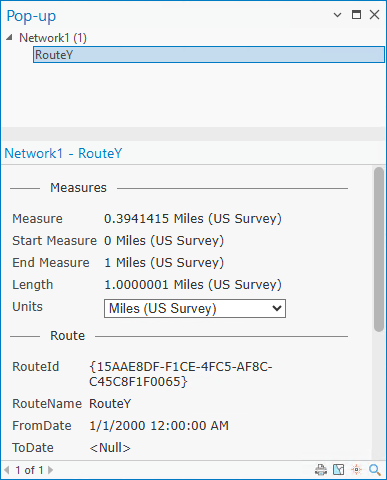
and click Route Y on the map.The Identify Routes pop-up appears.
Verify that no locks exist on the selected route.
The previous example shows no locks exist for Route Y.
On the Linear Referencing tab, in the Route Editing group, click Retire
.The Retire Route pane appears.
Click Choose route from map
and click the route you want to retire.After you select a route, an acquire lock message appears at the top of the pane.
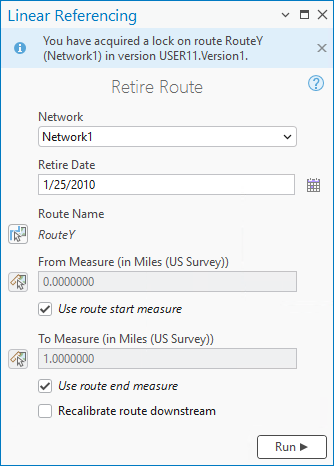
The locking message provides the following information:
The lock has been acquired on Route Y.
The lock has been acquired by the portal user, user 11.
The lock on Route Y for the named version, Version1, has been acquired by user 11.
Note:
You automatically transfer an existing route lock from another person to yourself if all of the following conditions are met:
The named version that is owned by another person is public.
You are making the request in the same named version in which another person has the lock.
If the lock version is a named version, the lock owner does not currently have an edit session open in that version. If the lock version is the default version, the lock owner does not currently have a read session open in the default version.
To ensure that the lock exists, click Identify Routes
and click Route Y on the map again.The Identify Routes tool's pop-up shows that the route is locked. The Locked by you icon
confirms that you have the lock for the identified route and can edit that route.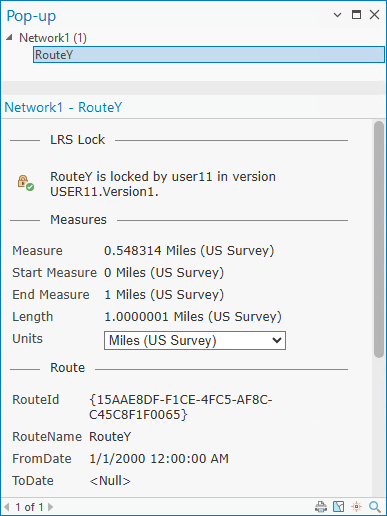
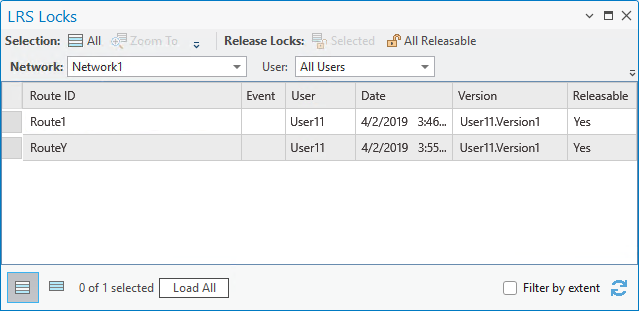
Optionally, on the Linear Referencing tab, in the Conflict Prevention group, click LRS Locks
to identify existing locks.The LRS Locks table appears and shows the existence of the recently acquired lock.
Lock release
The locks are released automatically when the following occur:
The named version containing the locks is posted to the default version.
The named version containing the locks is deleted.
Locks acquired in the default version as a result of using the route editing, centerline editing, or geoprocessing tools are released after the process is complete.
You can manually release locks based on their releasable status.
If the releasable status value is Yes, you can release the lock by doing either of the following:
Use the Release Locks tool
 on the Linear Referencing tab.
Use the Release Locks
tool in the LRS Locks table.
If the releasable status value is No, you can't release the lock.
If the releasable status value is On Post, you can release the lock only after posting to the default version.
You automatically transfer an existing route lock from another person to yourself if all of the following lock transfer conditions are met:
The named version that is owned by another person is public.
You are making the request in the same named version in which another person has the lock.
If the lock version is a named version, the lock owner does not currently have an edit session open in that named version. If the lock version is the default version, the lock owner does not currently have a read session open in the default version.
Summary of conflict prevention rules
When conflict prevention is enabled, you can edit a route after acquiring a lock on that route under the following conditions:
No one has a lock on that route in any named version.
The same person already has a route lock on that route present in the same named version.
When conflict prevention is enabled, and the lock transfer conditions aren't met, you can't edit a route under the following conditions:
You haven't reconciled with the default version.
Geodatabase conflicts exist in the current named version.
The route is already locked by another person.
The same person already has a route lock on that route in another named version.
Another person has event locks on that route (provided that the lock transfer conditions aren't met).
The same person has event locks on that route in another named version.
When conflict prevention is enabled, you can edit an event after acquiring a lock on that event layer under the following conditions:
No one has a lock on that event layer for the route on which the event is located in any named version (provided that the lock transfer conditions aren't met).
The same person already has an event lock in the same named version in which they are currently working (for the route on which the event is located).
The same person already has a route or line lock in the same named version (for the route or line on which the event is located).
The same person already has a route lock in the same named version (for the route on which the event is located).
When conflict prevention is enabled, you can't edit an event under the following conditions:
You haven't reconciled with the default version.
Geodatabase conflicts exist in the current named version.
The event layer is already locked by another person for the route on which the event is located (provided that the lock transfer conditions aren't met).
The event layer is already locked by the same person for the route on which the event is located but in a different named version.
The route on which the event is located is already locked by another person (provided that the lock transfer conditions aren't met).
The route on which the event is located is already locked by the same person but in a different named version.