Split a centerline by measure
 Available with the Linear Referencing license.
The Split Centerline By Measure tool is a centerline feature class editing tool available in ArcGIS Linear Referencing. This tool splits a centerline into two contiguous parts on either side of a known measure value on a route.
Tip:
ArcGIS Linear Referencing also supports splitting a centerline by point or splitting a multipart centerline into singlepart features.
To split a centerline by measure, complete the following steps:
Add the centerline and network feature class to a map in ArcGIS Pro.
You can also open a map in which the centerline and network feature classes are already present.
Note:
In the LRS data model, only one centerline can exist at any given location. Ensure that the centerlines used for your edit do not overlap other centerlines in the LRS.
Branch versioned networks, including any network configured with a user-generated route ID, must be edited through a feature service.
Zoom to the centerline that you want to split.
On the Linear Referencing tab, in the Centerline Editing group, click Split Centerline, and click Split Centerline By Measure
 .
A cross pointer
 replaces the cursor.
Tip:
Place the cross pointer
over the location to edit to display route and measure information on the map. The route and measure update as you move the pointer. If multiple routes and measures exist at a location, they all appear.If only one applicable route exists at the edit location, click to split the centerline at that point. If multiple routes are applicable, click the location and choose one of the applicable routes from the Select Route dialog box.
You can set map scale options for display of route and measure information in the Linear Referencing options.
To search for a route and locate measures on it, click Locate Route and Measures
 in the Route Identification group on the Linear Referencing tab.
Click any location on the route.
The tool highlights the route in cyan and displays a point at the clicked location.
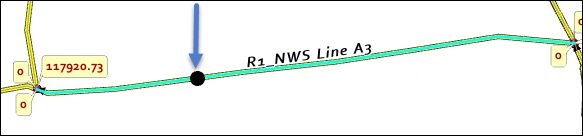
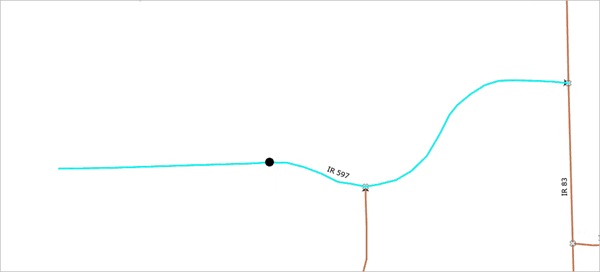
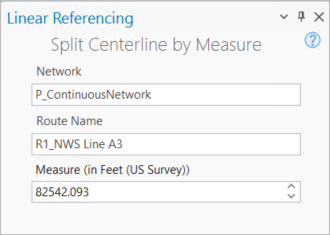
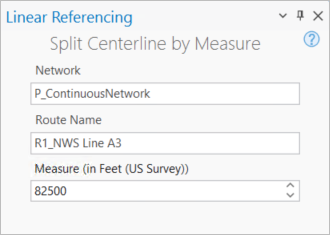
The Split Centerline by Measure pane appears. In the following example, the measure value at the location is 82542.093 feet:
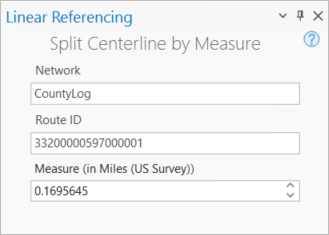
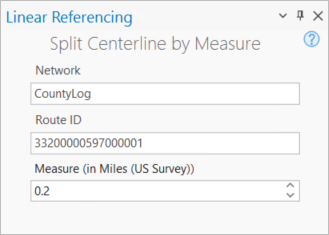
The Split Centerline by Measure pane appears. In the following example, the measure value at the location is 0.1695645 mile (US Survey):
Optionally, in the Split Centerline by Measure pane, change the measure value in the Measure text box to remove the decimal numbers.
For example, you can change 82542.093 to 82500 feet.
For example, you can change 0.1695645 mile (US Survey) to 0.2 mile (US Survey).
The tool moves the point to the location of the updated measure value.
Click Run.
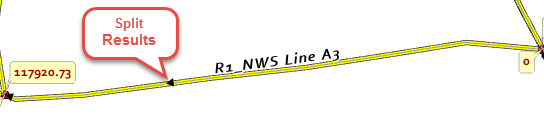
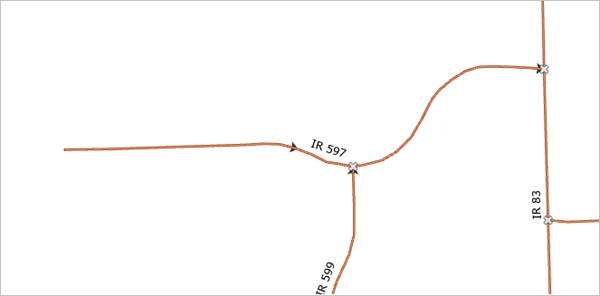
The centerline is split.
Note:
If the centerline has additional modeled fields, the centerlines resulting from the split inherit those attribute values.
In a combined LRS and utility network dataset, splitting centerlines with associated routes updates the route ID, start measure, and end measure fields of the centerlines.
If a message about acquiring locks appears, it means that conflict prevention is enabled.
After you select a route, the tool attempts to release the route lock if the active user acquires the route lock in a different named version and the releasable status value is Yes.