Use parcel fabric layers
The parcel fabric is added to a map with a geodatabase topology and associated parcel feature layers.
Note:
Only one parcel fabric can be added to a map.
The parcel fabric group layer contains the Records sublayer. The topology group layer contains the Dirty Areas, Point Errors, Line Errors, and Polygon Errors sublayers. Associated parcel feature layers are the Points layer, Connections layer, and the parcel type group layers.
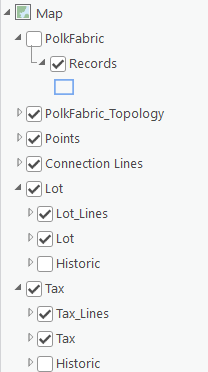
Parcel fabric group layer
When the parcel fabric is first added to the map, the parcel fabric group layer is turned off by default.
Records sublayer
The Records sublayer displays the parcel record polygons and references the Records feature class. Parcel record polygons are the record footprints and match the cumulative geometry of all the parcels associated with them.
Learn more about parcel records
Topology group layer
The topology group layer contains topology error feature layers. The topology has a predefined set of rules to define parcels and model their behavior. When the topology is validated, violations of topology rules are displayed as errors in the Error Inspector pane, and error features are displayed in the Point Errors, Lines Errors, and Polygon Errors sublayers.
Points layer
The Points layer displays the following point types in the parcel fabric:
Parcel points—These represent parcel corners and the endpoints of connection lines.
Retired parcel points—These are points that have become historic. Points become historic when all connected parcels and connection lines become historic.
Constrained and fixed points—Constrained points do not move in a least-squares adjustment. Fixed points have a fixed shape and do not move when editing operations such as parcel alignment occur.
Points are symbolized using an Arcade expression and the following criteria:
Points are symbolized as parcel points (Point) if the
IsFixed(alias is FixedShape) attribute is set to No, theAdjustment Constraintattribute is set to XY free, Z constrained, and theRetired By Recordattribute is empty (not historic).Points are symbolized as retired points (Retired Point) if the
IsFixedattribute is set to No, theAdjustment Constraintattribute is set to XY free, Z constrained, and theRetired By Recordattribute is populated with a GlobalID (historic).Points are symbolized as fixed or constrained points (Fixed) if the
IsFixed(alias is FixedShape) attribute is set to Yes or theAdjustment Constraintattribute is set to XYZ constrained.
To view the Arcade expression, right-click the Points layer and click Symbology. In the Symbology pane, click Set an expression  next to the Field 1 drop-down menu.
Learn more about parcel fabric points
Connection Lines layer
The Connection Lines layer is a COGO-enabled line layer that displays connection lines in the parcel fabric. Connection lines are used to represent measurements between points that are not parcel boundaries. Connection lines can be used to connect parcel corners across rights-of-way and to connect parcel corners to control points. Connection lines are independent features that are not associated with parcels but are part of the parcel fabric.
Learn more about connection lines
Parcel type group layers
Parcels are added to the parcel fabric as parcel types. Examples of parcel types are ownership parcels, administrative parcels, and subdivision parcels. A parcel type is defined by a separate polygon and line feature class. When the parcel fabric is added to a map, its associated parcel types are added as group layers. The parcel type group layer consists of the following layers:
A parcel line layer
A parcel polygon layer
A historic group layer, which contains historic line and polygon sublayers
Parcel lines
Parcel lines are COGO-enabled and are displayed with COGO-enabled labeling. If the line has COGO attribute values present in the COGO fields, the line is labeled with a direction and a distance.
Line distance labels are formatted based on values in the COGO Type field. The COGO Type field indicates how the line dimensions were created. The following distance label formatting is used for COGO Type values listed below:
Entered—Distance labels are not formatted with any prefix or postfix symbols.
From Geometry—Distance labels are within angle brackets, for example <50.00>.
Computed—Distance labels are prefixed with a plus-or-minus symbol (±), for example ±50.00.
The line label is defined by an Arcade expression that can be viewed by right-clicking the line layer and clicking Labeling Properties. The Arcade expression can be edited to display different dimensions and formats.
Parcel polygons and seed polygons
The parcel polygon layer is symbolized to show parcel polygons and seed polygons.
Parcel seeds are used when building parcels from lines. A parcel seed is the initial state, or seed state, of a parcel. A parcel seed indicates to the build process that a parcel should be built from the lines enclosing a seed. Parcel seeds are represented as small polygons and have the same schema as the parcel polygon feature class.
Historic layers
In the parcel fabric, parcel features are considered historic if the Retired By Record attribute for the parcel feature is not null. By default, historic parcels are displayed using a definition query that filters historic parcels based on the Retired By Record field.
Historic parcels are displayed in historic group layers under the parcel type layer. The historic group layer has a historic line sublayer and a historic polygon sublayer. The historic line and polygon sublayers both have a predefined Retired By Record is not null definition query.
Use subtypes
Historic and current parcels can also be displayed using a system-defined subtype. Using subtypes allows historic parcels to have different topology rules from current parcels.
Learn more about the parcel fabric topology
When using a system-defined subtype, the default layer organization for parcel types can be changed to display parcels using the subtype. The subtype can be configured by adding an IsRetired field on both the parcel polygons and parcel lines of the parcel type and then by adding the two subtype codes described in the steps below.
The graphic below shows parcel type group layer Lot1 displayed with the default layer organization and then displayed with the IsRetired field subtype.
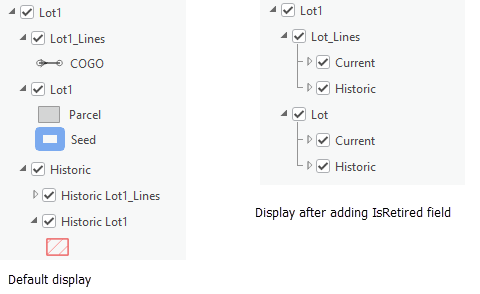
To display parcel layers using current and historic subtypes, complete the following steps:
Add a field named
IsRetired(type Long) to both the parcel type polygon and line feature class.Add the following subtypes to the
IsRetiredfield:Code:
0, Name:CurrentThe code
0is for current parcels, which have a nullRetiredByRecordfield. The subtype name can be changed.Code:
1, Name:HistoricThe code
1is for historic parcels, which have a populatedRetiredByRecordfield. The subtype name can changed.
Populate the
IsRetiredfield with the subtype codes.The default layer configuration for parcel types separates current parcels from historic parcels using sublayers.
After adding the
IsRetiredfield, use field calculation to populate the field with0for the current parcel polygon and line sublayers.Use field calculation to populate the field on the historic parcel polygon and line sublayers with
1.
Add the parcel fabric to a new map for the updated historic layer settings to display in the Contents pane and in the map.
Add topology rules for subtypes
To add topology rules for current and historic parcel subtypes, complete the following steps:
In the Catalog pane, right-click the parcel fabric geodatabase topology and click Properties.
On the Topology Properties dialog box, click Rules to display the parcel fabric feature classes and the rules they participate in.
Scroll to the bottom and click to add a new rule.
Choose the parcel type polygon or line feature class that has the subtype under Feature Class 1.
Under Subtype 1, choose the current or historic subtype.
Under Rule, choose which topology rule to apply to the subtype.
Click OK once you have finished adding topology rules.
Add the parcel fabric to a new map for the updated topology rules to be available on the map layers.
Data quality layers
Associated data quality layers can be added to a map with a parcel fabric. Different sets of data quality layers can be added depending on the type of data quality analysis being performed—for example, running a least-squares adjustment or evaluating attribute rules.
The following sets of parcel fabric data quality layers are available:
Adjustment layers—Automatically added after a least-squares adjustment is run
Attribute rule error layers—Added when evaluating attribute rules
Preconfigured data quality layers—Added as needed for data quality analysis of parcel fabric features
Adjustment layers
Parcel fabric adjustment layers are automatically added to the map after the Analyze By Parcel Least Squares Adjustment tool has been run. The layers are grouped under Analysis in the Table Of Contents pane.
Adjustment results are stored and displayed in the following feature layers:
Adjustment Lines—Displays adjusted and statistical data for parcel lines, geodetic latitudes, and geodetic longitudes
Adjustment Points—Displays adjusted and statistical data for parcel fabric points
Adjustment Vectors—Displays the shifts between parcel fabric points and their adjusted points
Learn more about running a least-squares adjustment on parcels
Attribute rule error layers
When a parcel fabric is created, attribute rules are created in parcel fabric feature classes. Additionally, you can import optional parcel fabric attribute rules and configure custom rules.
Learn more about parcel fabric attribute rules
The following attribute rule error layers must be added to the map for the evaluation of batch calculation and validation rules:
Point Errors
Line Errors
Polygon Errors
Object Errors
Error layers are added as a group layer to the map and reference the Validation Line Errors, Validation Point Errors, Validation Polygon Errors, and Validation Object Errors datasets located at the geodatabase root level.
Configured data quality layers
Configured data quality layers are layers that have been specifically configured to show data quality errors in parcel fabric features. Examples of data quality errors are lines that are too short and lines that have too many vertices. Configured data quality layers can be added or removed at any time and can be used to quickly identify erroneous features in parcel fabric feature layers.