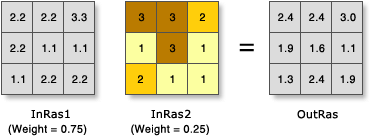
In the illustration, the cell values are multiplied by their weight factor, and the results are added together to create the output raster. For example, consider the upper left cell. The values for the two inputs become (2.2 * 0.75) = 1.65 and (3 * 0.25) = 0.75. The sum of 1.65 and 0.75 is 2.4.
Usage
A useful way to add several rasters together is to input multiple rasters and set all weights equal to 1.
Input rasters can be integer or floating point.
The weight values can be any positive or negative decimal value. It is not restricted to a relative percentage nor does it need to be equal to 1.0.
The weight will be applied to the specified field for the input raster. Fields can be of type short or long integer, double or float.
By default, this tool will use multicore processors if available. The maximum number of cores that can be used is four.
The weighted sum table allows you to apply different weights to individual input rasters before they are summed together.
Raster—The raster being weighted.
Field—The field of the raster to use for weighting.
Weight—The weight value by which to multiply the raster. It can be any positive or negative decimal value.
WSTable
Return value
Label
Explanation
Data type
Output raster
The output weighted raster.
It will be of floating-point type.
Raster
WeightedSum(in_rasters)
Name
Explanation
Data type
in_rasters
The Weighted Sum tool overlays several rasters, multiplying each by their given weight and summing them together.
An Overlay class is used to define the table. The WSTable object is used to specify a Python list of input rasters and weight them accordingly.
The form of the object is:
WSTable(weightedSumTable)
WSTable
Return value
Name
Explanation
Data type
out_raster
The output weighted raster.
It will be of floating-point type.
Raster
Code sample
WeightedSum example 1 (Python window)
This example creates a suitability raster for locating a ski resort by combining multiple rasters together and applying appropriate weight factors.
import arcpy
from arcpy import env
from arcpy.sa import *
env.workspace = "C:/sapyexamples/data"

# Run WeightedSum
outWeightedSum = WeightedSum(WSTable([["snow", "VALUE", 0.25], ["land", "VALUE",0.25],
                                      ["soil", "VALUE", 0.5]]))
outWeightedSum.save("C:/sapyexamples/output/outwsum")
WeightedSum example 2 (stand-alone script)
This example creates a suitability raster for locating a ski resort by combining multiple rasters together and applying appropriate weight factors.
# Name: WeightedSum_Ex_02.py
# Description: Overlays several rasters multiplying each by their given
#    weight and summing them together.
# Requirements: Spatial Analyst extension

# Import system modules
import arcpy
from arcpy import env
from arcpy.sa import *

# Set environment settings
env.workspace = "C:/sapyexamples/data"

# Set local variables
inRaster1 = "snow"
inRaster2 = "land"
inRaster3 = "soil"
WSumTableObj = WSTable([[inRaster1, "VALUE", 0.25], [inRaster2, "VALUE", 0.25],
                        [inRaster3, "VALUE", 0.5]])

# Run WeightedSum
outWeightedSum = WeightedSum(WSumTableObj)

# Save the output
outWeightedSum.save("C:/sapyexamples/output/weightsumout")