Prepare Data for Prediction (Spatial Statistics Tools)
Summary
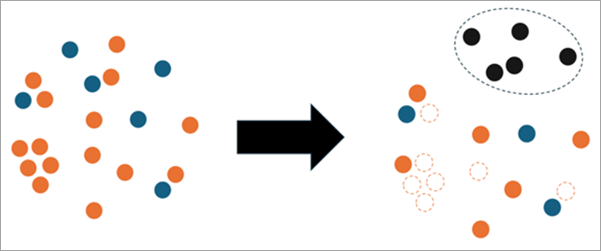
Enhances data for predictive workflows in the Forest-based and Boosted Classification and Regression, Generalized Linear Regression, and Presence-only Prediction tools, as well as other models. This involves splitting features into training and testing sets, extracting variables from rasters and distance features, balancing data for better classification accuracy, and conducting spatial thinning on biased spatial data.
Illustration
Usage
Training data that has had balancing applied should only be used to train predictive models. Models should not be validated on data that has been balanced to avoid accuracy bias and data leakage.
The ArcGIS Spatial Analyst extension is required to use rasters as explanatory variables.
If you use classification to predict rare events or unbalanced categories, use the Balancing Type parameter to balance the number of samples within each categorical level. Oversampling methods will increase the number of overall features and undersampling methods will decrease the number of overall features.
When the Splitting Type parameter is set to Random Split or Spatial Split, the output test features can be used to evaluate model accuracy using the Predict Using Spatial Statistics Model File tool. Ensure that the output is a spatial statistics model file when running the chosen analysis tool.
When the Splitting Type parameter is set to Random Split or Spatial Split, the tool will ensure that all categorical levels of both the variable to predict and any explanatory variables are present in the output training features. Every categorical level does not need to be present in the testing dataset.
Parameters
| Label | Explanation | Data type |
|---|---|---|
|
Input Features |
The features that will have splitting, extracting, and balancing performed. |
Feature Class |
|
Output Features |
The output features which will be used as the training features in a model tool. |
Feature Class |
|
Splitting Type (Optional) |
Specifies the method that will be used to split the input features into training and test subsets.
|
String |
|
Output Test Subset Features (Optional) |
A subset of the Input Features parameter value that can be used as test features. This parameter is available when the Splitting Type parameter is set to Random Split or Spatial Split. |
Feature Class |
|
Variable to Predict (Optional) |
The variable from the Input Features parameter value containing the values that will be used to train a model. This field contains known (training) values of the variable that will be used to predict at unknown locations |
Field |
|
Treat Variable as Categorical (Optional) |
Specifies whether the Variable to Predict parameter value will be treated as a categorical variable.
|
Boolean |
|
Explanatory Variables (Optional) |
A list of fields representing the explanatory variables that will help predict the value or category of the Variable to Predict parameter value. Check the Categorical check box for any variables that represent classes or categories, for example, land cover or presence or absence. Value table columns:
|
Value Table |
|
Explanatory Distance Features (Optional) |
The explanatory training distance features. Explanatory variables will be automatically created by calculating a distance from the provided features to the Input Features parameter values. Distances will be calculated from each of the features in the Input Features parameter value to the nearest feature in this parameter. If this parameter value is polygons or lines, the distance attributes will be calculated as the distance between the closest segments of the pair of features. |
Feature Layer |
|
Explanatory Rasters (Optional) |
The explanatory training variables extracted from rasters. Explanatory training variables will be automatically created by extracting raster cell values. For each feature in the Input Features parameter value, the value of the raster cell will be extracted at that exact location. Bilinear raster resampling will be used when extracting the raster value for continuous rasters. Nearest neighbor assignment will be used when extracting a raster value from categorical rasters. Check the Categorical check box for any rasters that represent classes or categories such as land cover or presence or absence. Value table columns:
|
Value Table |
|
Convert Polygons to Raster Resolution for Training (Optional) |
Specifies how polygons will be treated if the Input Features parameter values are polygons with a categorical Variable to Predict parameter value and only Explanatory Rasters parameter values have been provided.
|
Boolean |
|
Percent of Data as Test Subset (Optional) |
The percentage of the input features that will be reserved as the test or validation dataset. The default is 10. |
Double |
|
Balancing Type (Optional) |
Specifies the method that will be used to balance the imbalanced Variable to Predict parameter value or the spatial bias of the input features. The balancing method is only applied to the Output Features parameter value.
|
String |
|
Minimum Nearest Neighbor Distance (Optional) |
The minimum distance between any two points or any two points of the same Variable to Predict parameter value category when spatial thinning is applied. |
Linear Unit |
|
Number of Iterations for Thinning (Optional) |
The number of iterations that will be used to find the optimal spatial thinning solution while maintaining as many features as possible and ensuring that no two features are within the specified Minimum Nearest Neighbor Distance parameter value. The minimum number of iterations is 1 and the maximum is 50. The default is 10. |
Long |
|
Encode Categorical Explanatory Variables (Optional) |
Specifies whether the categorical explanatory variables will be encoded.
|
Boolean |
|
Append All Fields from the Input Features (Optional) |
Specifies whether all fields will be copied from the input features to the output features.
|
Boolean |
Environments
Cell Size, Output Coordinate System, Random number generator
Licensing information
- Basic: Limited
Spatial Analyst is required to use rasters. - Standard: Limited
Spatial Analyst is required to use rasters. - Advanced: Limited
Spatial Analyst is required to use rasters.
Related topics
- An overview of the Modeling Spatial Relationships toolset
- Evaluate Predictions with Cross-validation
- Forest-based and Boosted Classification and Regression
- Generalized Linear Regression
- Presence-only Prediction (MaxEnt)
- How Evaluate Predictions with Cross-validation works
- How Prepare Data for Prediction works
- Find a geoprocessing tool