Project
Note:
ArcGIS Reality Web App is a beta feature at ArcGIS Enterprise 12.2. While in beta, this capability may not be feature complete and, as such, may have known performance or quality issues and will not be supported by Esri Technical Support.
Feedback on this feature can be provided through the Esri Early Adopter Community.
Reality Mapping tasks are organized by projects in Reality Web App. Each project represents a site, and contains all missions, ground control points (GCPs), members and settings specific to the project. Projects are primarily defined by a location, because data products are generated in a coordinate system specified at the project level.
All the projects created for an organization are shown in the projects page.
Projects page Components
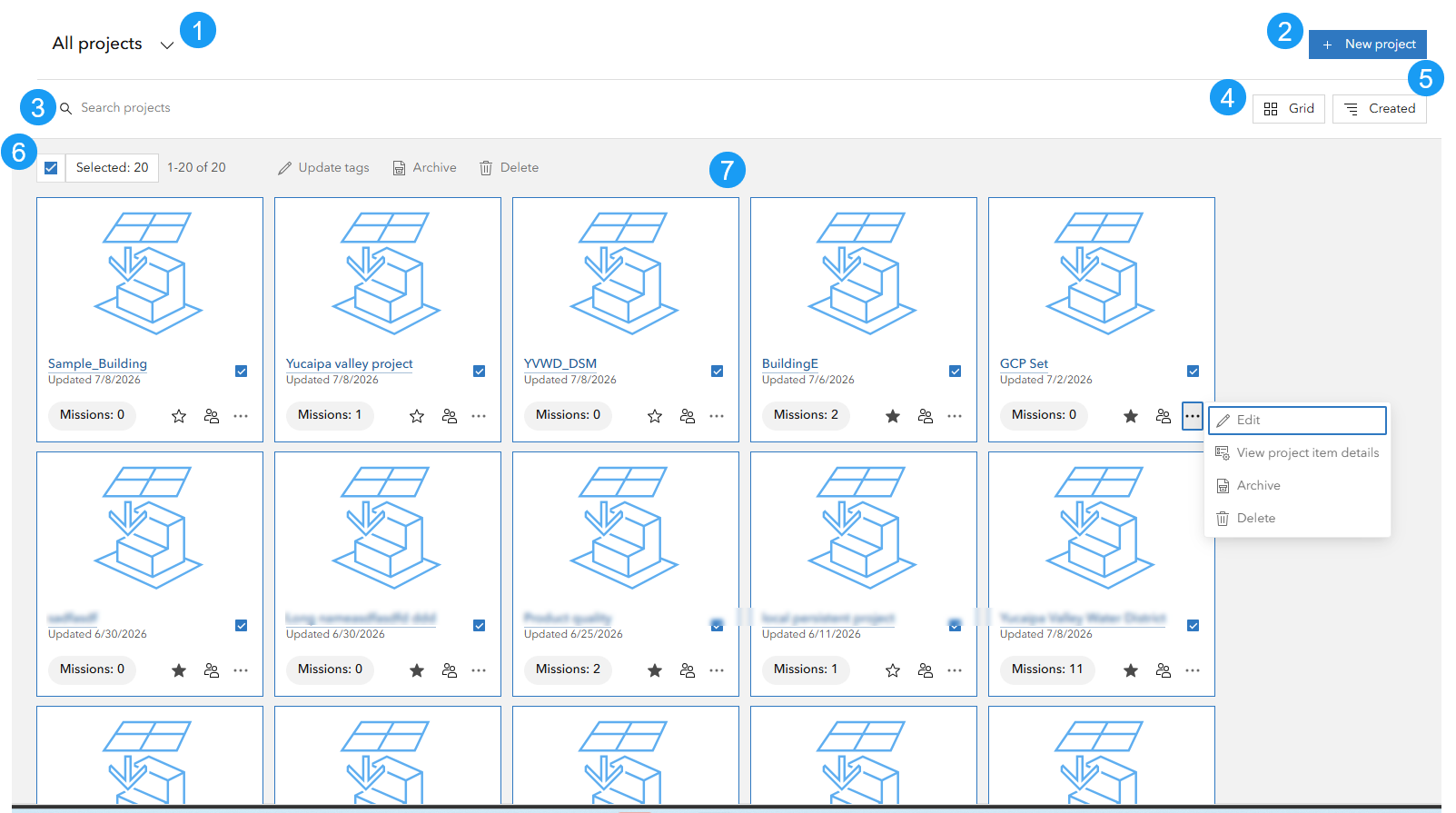
The projects page contains the following elements:
Projects filter Dropdown: To filter the projects to show. Available options include all projects, my projects, favorite projects, projects shared to me, and archived projects. By default, all projects are displayed.
New Project Button: To create a new project.
Search box: To search projects by project names or tags.
View Selector: To control how projects are displayed. Available options are grid, table or map. Projects are listed in grid view by default.
Sort button: To control the sorting category and order of the projects. Available options include updated date, created date, title, flown date and number of missions. Projects are sorted by the created date by default.
Project Selection Control: To select or deselect multiple projects and perform bulk actions on selected projects. The selected project count and available actions are also displayed here. The bulk actions that can be performed on multiple projects include updating tags, archiving, and deleting projects.
Project List: Display all the organization's projects in the selected view format. Each card in a grid view or row in a table represents a project with various elements including selection check box, project title, updated date, mission counter, favorite ☆, share 👥and action menu
...for additional projects operations. Clicking the project title opens the project.
Project view
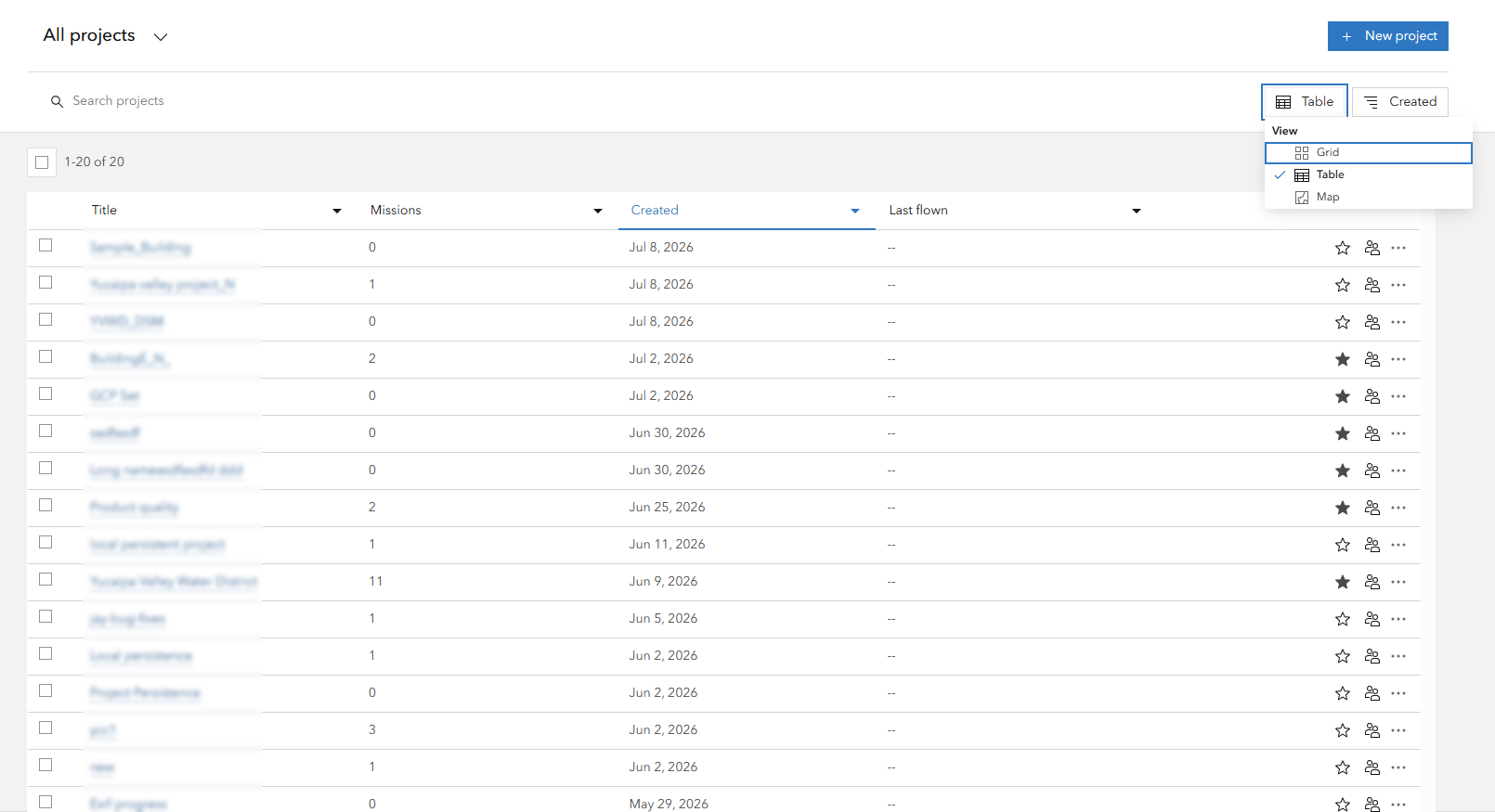
By default, projects are listed in grid format and sorted chronologically by the dates the project was created. Besides the Grid View, projects can be listed in a Table or Map View. Table View list projects in a tabular format. Project properties are organized into columns, making it easier to compare projects and manage large project collections.
Map view show projects on a map in clusters. The numbers in each circle indicate the number of projects in that cluster. When you zoom in or click a cluster, it splits into individual circles.
Additional project operations
The action menu ... provides access to addition project operations such as:
Edit Project: Modify the project title, tags and summary.
View Project items details: Opens the project item in Portal.
Archive: Move the projects to archive group.
Delete: Permanently delete a project and all its missions including processing results.