Tutorial: Create satellite imagery products with ArcGIS Pro Ortho mapping using Server
 Available with Advanced license.
In ArcGIS Pro, you can photogrammetrically correct satellite imagery to remove geometric distortions induced by the platform and terrain displacement. After removing these distortions, you can generate ortho mapping products. This processing can be performed remotely on your self-hosted enterprise infrastructure, enabling you to leverage multi-machine configuration for distributed processing.
In this tutorial, you will set up an ortho mapping workspace to manage your satellite imagery collection. Next, you will perform a block adjustment, followed by a refined adjustment using ground control points. Finally, you'll generate an orthorectified mosaic, or orthomosaic.
ArcGIS Pro can process satellite images from many sensor platforms, as long as the image orientation is described by a rational polynomial coefficients (RPC) model or a rigorous sensor model. This model is typically imbedded in the image file or included as a separate metadata file.
Note:
ArcGIS Image Server configured for raster analysis or ArcGIS Reality Server is needed to complete this tutorial. To set up an ArcGIS Image Server raster analysis site, please see raster analytics deployment. For Reality Server configuration, please refer to the Reality Server installation.
Connect to Server
To utilize Server for processing your data in ArcGIS Pro, you need to first connect to the Server.
Open ArcGIS Pro, Click the Project tab on the ribbon and click the Portals page.
You can also access the portals page from the Manage Portals link in the Sign In menu
 .
.Click Add Portal.
Enter the URL (
https://webadaptorhost.domain.com/webadaptorname) for the portal on the Add Portal dialog box and click OK.Sign in to the portal by clicking the Options button
 or right-click the portal and click Sign in. Enter your username and password.
To make the new connection your active portal, right-click the URL and click Set As Active Portal.
Once you successfully connect to your portal, your username will show up in the top right corner of ArcGIS Pro.

Create an Ortho mapping workspace
An Ortho mapping workspace is an ArcGIS Pro subproject that is dedicated to Ortho mapping workflows. It is a container in an ArcGIS Pro project folder that stores the resources and derived files that belong to a single image collection in an Ortho mapping task.
The imagery packaged for this tutorial was collected and provided by Maxar Technologies. It includes a pair of multispectral and panchromatic images, a table of ground control points, and a DEM.
To create an ortho mapping workspace, complete the following steps:
Download the tutorial dataset, unzip it and save the content to
C:\SampleData\orthomapping_satellite_tutorial.In ArcGIS Pro, create a project using the Map template.
On the Imagery tab, in the Reality Mapping group, click the New Workspace drop-down menu and choose New Workspace.
In the Workspace Configuration window, type a name for the workspace.
Click the Workspace Type drop-down list, and choose Ortho Mapping.
In the Sensor Data Type, choose Satellite.
Click the Basemap drop-down menu, and choose Topographic.
Set the Parallel Processing Factor. This controls the maximum computational resource for distributed processing. It is recommended to use percentage expression. For example, if you have 2 Server nodes, set Parallel Processing Factor to 50% to utilize one machine for block adjustment and ortho mapping product generation.
Check Process this image collection on server.
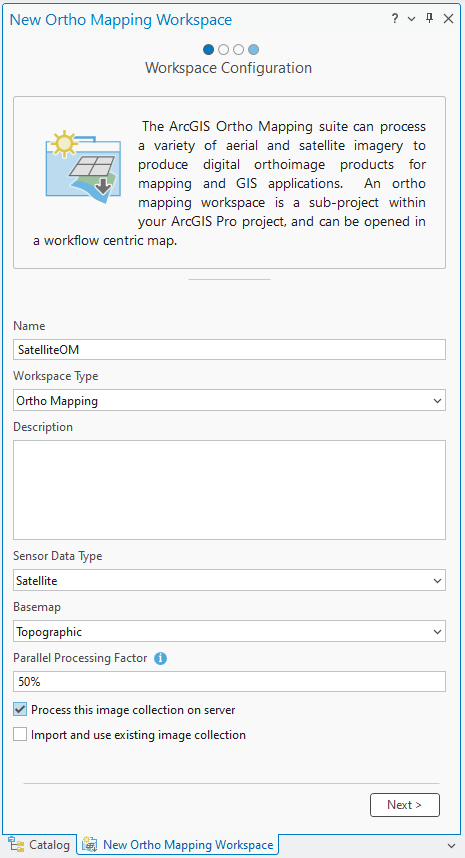
Accept all other default values and click Next.
The Image Collection window appears.
In the Image Collection window, for Sensor Type, choose GeoEye-1.
Under Folder Containing Images, click the Browse button and navigate to the tutorial data folder on your machine and select the imagery folder
(GeoEye_NAD83_UTM10N), then click OK.The appropriate Workspace Spatial Reference information is automatically populated.
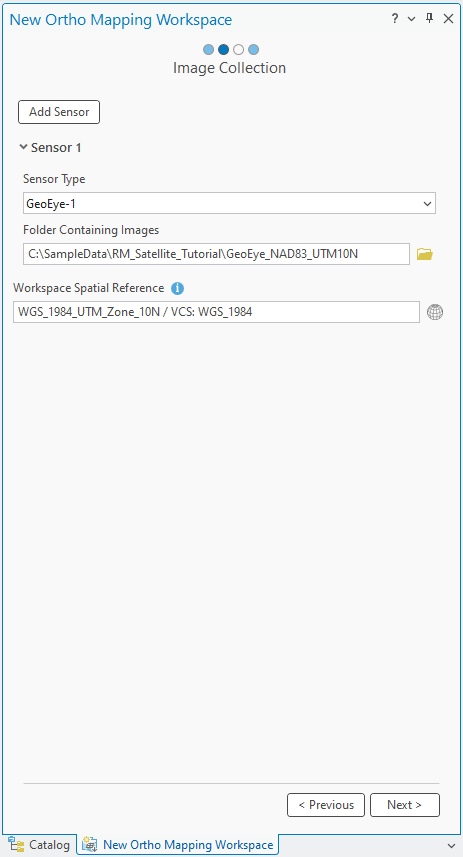
Click Next.
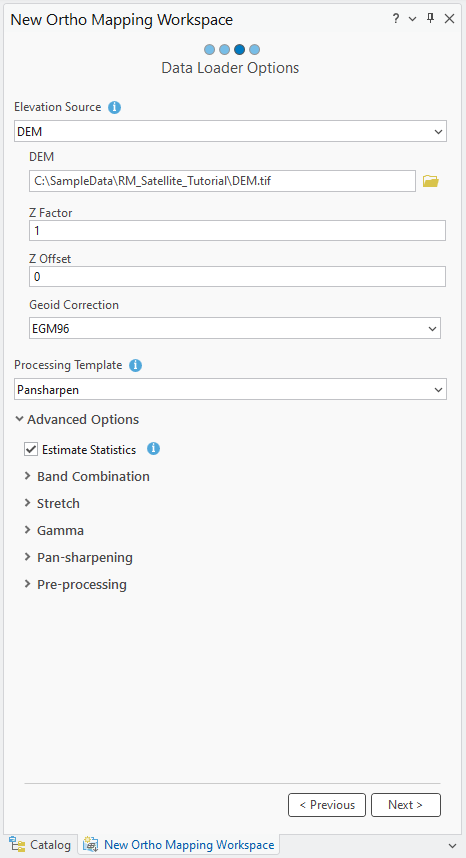
In the Data Loader window, under Elevation Source, choose DEM. Under DEM, browse to the DEM provided with the tutorial dataset.
Note:
This DEM will be used to support the block adjustment process.
Most elevation data uses orthometric heights, so you will need to apply a geoid correction. Under Geoid correction, ensure EGM96 is selected.
Under Processing Template, choose Pansharpen.
Expand Advanced Options.
Ensure Estimate Statistics option is checked.
Accept all other defaults and click Next.
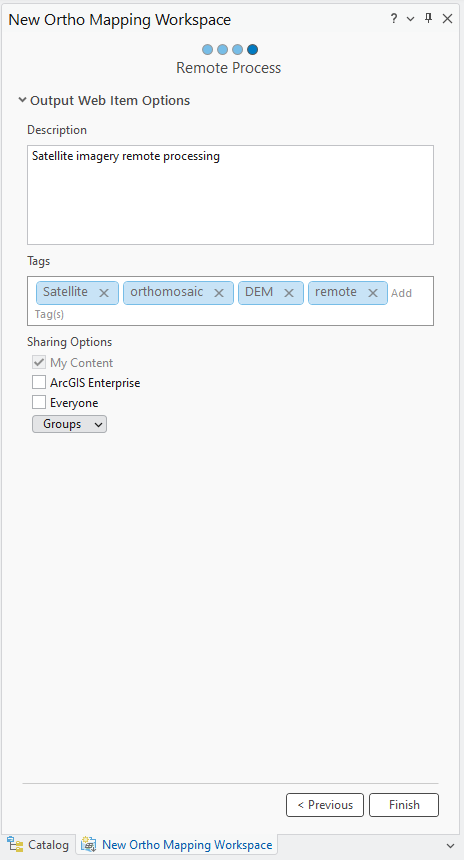
In the Remote Process window, provide description and tags for the image service and click Finish.
Once the workspace has been created, the images are displayed. An Ortho Mapping category is added to the Contents pane, where the image collection image service and derived Ortho mapping products service will be stored.
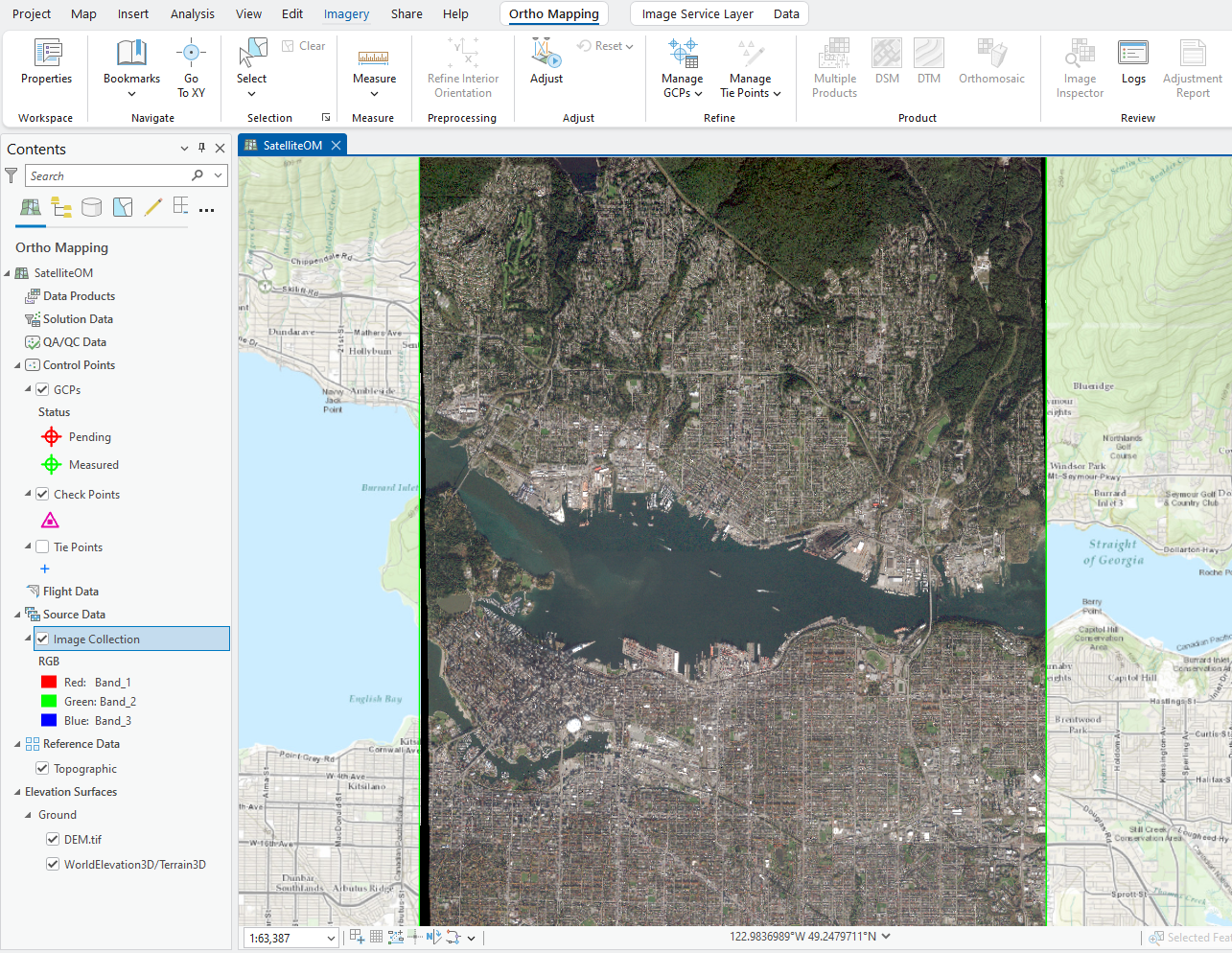
To see the image footprints, you can right click on the Image Collection in the Contents pane > Properties > Display > Check on Display Footprints.
The initial display of imagery in the workspace confirms that all images and necessary metadata were provided to initiate the workspace. You may need to zoom in close enough to see the image.
A new Ortho Mapping tab will be added to the ArcGIS Pro main menu. Clicking this tab will expose a series of tools and workflows dedicated to Ortho mapping. In the Product category, all the buttons are unavailable because the images are not yet adjusted.
Perform a block adjustment
After creating ortho mapping workspace, the next step is to perform block adjustment using the tools in the Adjust and Refine groups. The block adjustment will first calculate tie points, which are common points in areas of image overlap. The tie points will then be used to calculate the orientation of each image, known as "exterior orientation" in photogrammetry.
On the Ortho Mapping tab, in the Adjust group, click Adjust
 .
.In the Adjust window, under Transformation Type, choose RPC. The Rational Polynomial Coefficients (RPC) transformation will be applied in the adjustment, which is used for satellite imagery that contains RPC information within the metadata.
Check the box next to Reproject Tie Points.
This will ensure that the tie point map coordinates are calculated.
Under Tie Point Matching in the Adjust pane,accept all default values.
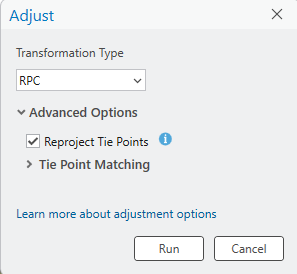
Click Run to perform block adjustment.
Tie point residuals or accuracy reporting can be viewed in the logs file. On the Ortho Mapping tab, in the Review group, click Logs
 to access Logs file. Tie point residuals are displayed in the row labeled RMSE_Tie_Image(x,y). The units for tie point RSME is pixels.
Your residual may differ slightly from the example below.
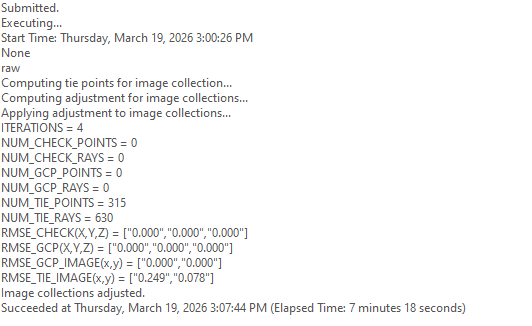
Following the initial adjustment, notice that all buttons in the Product category are now active. These buttons highlight the imagery products that can be generated. Before generating products, ground control points will be used to improve the absolute accuracy of the images.
Add Ground Control Points (GCP)
Ground control points (GCPs) are points with known x,y,z ground coordinates. They are often obtained from ground survey or existing data and used to ensure that the images will be accurately georeferenced in the ground coordinate system. Block adjustment can be applied without GCPs and still ensure relative accuracy, but adding GCPs increases the absolute accuracy of the adjusted imagery. If you do not have GCPs from a ground survey, but you have a georeferenced raster layer (raster dataset, mosaic dataset, or image service), you can add it as a reference to compute GCPs.
GCPs selected from a reference layer and saved in a text file can also be imported and used to enhance adjustment accuracy. For this tutorial, you'll use this import method to add GCPs to the project.
To import GCPs, complete the following steps:
On the Ortho Mapping tab, in the Refine group, click Manage GCPs to open the GCP Manager.
In the GCP Manager window, click the Import GCPs button
 .
.In the Import GCPs window, browse to and select the GCP file (
Vancouver_NAD83-UTM10N.csv). Click OK.Under Set GCP Spatial Reference, click the Browse button
 . For Horizontal systems, expand Projected Coordinate System, North America, Zone Series, and UTM (NAD 1983), and choose NAD 1983 UTM Zone 10N. Click OK to accept the changes and close the Spatial Reference window.
The vertical coordinate system (VCS) was not set because the digital elevation model used to extract height values for the GCPs did not have a VCS defined. If the DEM you used had a defined VCS, the vertical systems would have been set with matching coordinates.
For Geographic Transformations, click the Horizontal tab and choose WGS 1984 (ITRF00) To NAD 1983 from the drop-down list.
Ensure the field mappings are correct.
Click the browse button below GCP Photo Location and browse to and select the folder containing the images of the GCP locations. Click OK.
For Photo File Extension, choose PNG from the drop-down list.
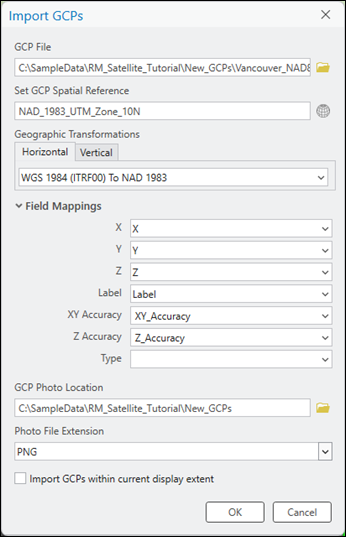
- Click OK to import the GCPs.
Once the GCPs have been imported, the table in the GCP Manager will be populated.
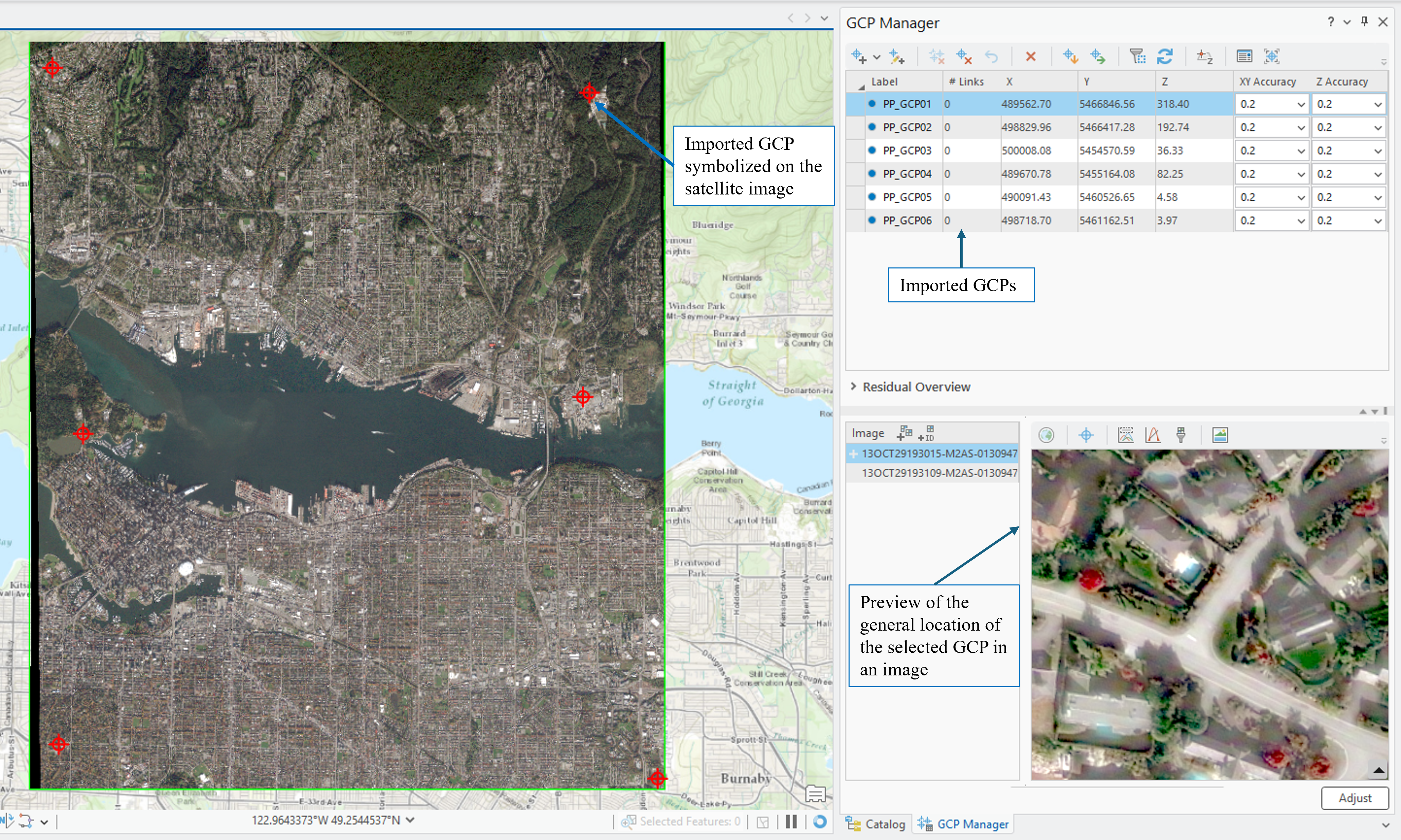
To add tie points for the selected GCP, in the Preview section, click the View GCP Photo button
 to display the GCP image chip. Use the mouse wheel to zoom in on the image chip to see the GCP location indicated by a red arrow.
Click the drop down next to the Add GCP or Tie Point button
 in the GCP Manager window and select Semi-Auto to add a tie point in the image viewer for each image.
The tie points for other images will be automatically calculated by the image matching algorithm where possible, although each tie point should be checked for accuracy. If the tie point is not automatically identified, add the tie point manually by selecting the appropriate location in the image.
Repeat steps 10 and 11 to select and add tie points for the remaining GCPs.
After each GCP has been measured with tie points, select point PP_GCP02 and right-click to change it to a Check Point. This point will be excluded in the adjustment process and will instead be used to independently assess the accuracy of the adjustment results.
After adding GCPs and checkpoints, the adjustment must be run again to incorporate these points. Click Adjust.
Review Adjustment Results
Adjustment quality results can be viewed in GCP Manager by analyzing the residuals for each GCP. Residuals represent the difference between the measured and computed position of a point. They are measured in the units of the project spatial referencing system. After completing adjustment with GCPs, three new fields, dX, dY, and dZ, are added to the GCP Manager table and display the residuals for each GCP. The quality of the fit between the adjusted block and the map coordinate system can be evaluated using these values. The Root Mean Square Error (RMSE) of the residuals can be viewed by expanding the Residual Overview section of GCP Manager.
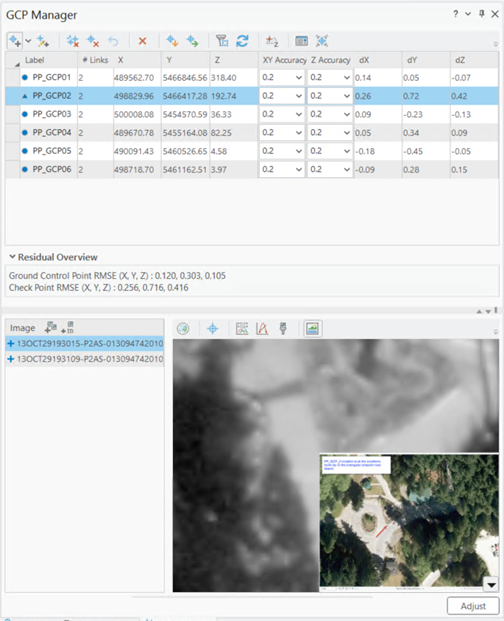
Additional adjustment statistics are provided in the adjustment report. To generate the report, under the Ortho Mapping tab, in the Review group, click Adjustment Report.
Generate a Digital Surface Model (DSM)
The stereo image pairs of an image collection are used to generate a point cloud (3D points) for which elevation data can be derived. The derived elevation data is classified as either a digital terrain model (DTM), which includes only the ground surface, or a digital surface model (DSM), which includes the elevations of trees, buildings, and other above ground features.
Note:
If an area is heavily wooded, or has other dense vegetation cover, it will not be possible to derive a DTM ground surface because the ground is not visible. This issue might also arise in a dense urban areas, where buildings obscure the ground. In this case, the most appropriate elevation surface is a DSM, which specifically creates a surface depicting the top of the urban environment.
Follow the steps below to generate a DSM using the wizard.
On the Ortho Mapping tab, click the DSM button
 in the Product group.
The Ortho Mapping Products Wizard window appears.
Click Next to advance the wizard to the Point Cloud Settings window.
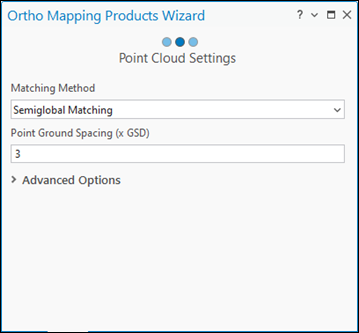
In the Point Cloud Settings window, for Matching Method, choose Semiglobal Matching from the drop-down menu.
This method is typically used for images of urban areas and captures more detailed terrain information.
Accept the default Point Ground Spacing value.
This defines the spacing, in meters, at which the 3D points are generated. The default is three times the resolution of the source imagery.
Accept all remaining default settings and click Next.
For information on Advanced Settings, see Create elevation data using the ortho mapping DEMs wizard.
In the DSM Settings window, for Cell Size, use the default value of 3 x GSD.
This will determine the resolution of the DSM, which is three times the imagery resolution, in this case.
Accept the remaining default settings and click Finish.
The DSM will be generated.
Generate a orthomosaic
Next, you will generate an orthomosaic. An orthomosaic is an orthorectified image product mosaicked from an image collection. Geometric distortion has been corrected and the imagery has been color balanced to produce a mosaic.
On the Ortho Mapping tab, in the Product group, click Orthomosaic to start the Orthomosaic Wizard.
Ensure Color Balance and Generate Seamlines options are checked.
Click Next.
In the Color Balance Settings pane, for Balance Method, select Dodging from the drop-down list and accept all other default options.
Click Next.
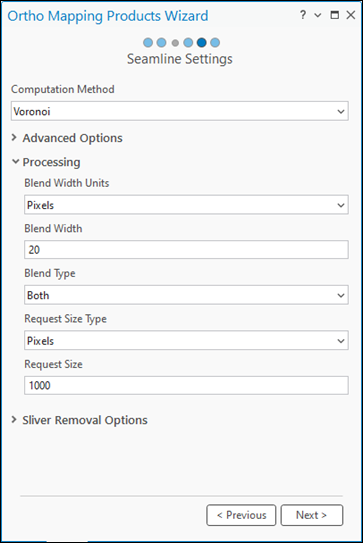
In the Seamline Settings window, for Computation Method, select Voronoi in the drop-down list.
Expand the Processing section, and input 20 for Blend Width.
Click Next.
The wizard guided workflow advances to the next pane, Orthomosaic Settings.
Accept all the default settings in the Orthomosaic Settings pane, and click Finish.
The orthomosaic will be generated, listed in the Contents pane, and loaded into the map display.
Summary
In this tutorial, you connected to Server and created a Ortho mapping workspace for satellite imagery and used Adjust tools to perform a photogrammetric adjustment with ground control points. You then used tools in the Products group to generate DSM and orthomosaic.
The satellite imagery used in this tutorial was acquired and provided by Maxar Technologies.