Import images from 360-degree video
 Available for an ArcGIS organization licensed with the Indoors extension.
You can import 360-degree images from an equirectangular .mp4 video file to an oriented imagery dataset using the 360 Video To Oriented Imagery tool. You can include floor-aware oriented imagery layers in your floor-aware maps to support visualization and navigation of indoor spaces in Indoors Viewer and ArcGIS Indoors Mobile apps.
The oriented imagery dataset can be used for spatially oriented 360-degree imagery. Oriented imagery uses camera location and orientation information to display directionally accurate 360-degree photos. This ensures that a north-facing view in the map is associated with a north-facing view in the image. Map Viewer and other viewers with the oriented imagery capability can display 360-degree images stored in an oriented imagery dataset.
Prerequisites for capturing 360 video data
Successful capture of stable equirectangular video may involve a combination of device position, camera settings, and settings for the processing software used to export the video.
Before capturing 360 video for import, consider the following prerequisites:
Select a suitable device—Use a 360 degree camera equipped with two or more lenses.
Adjust camera settings—Enable camera stabilization to reduce motion blur, and adjust exposure settings based on the lighting conditions of the environment.
Position the camera—Hold the camera directly above the operator. For dual-fisheye cameras, consult the vendor's specifications for the best camera position.
Plan a recording path—Record along a path that loops back on itself at least once, and move at a comfortable walking speed in open areas when recording 360 video. Slow down when navigating through doorways or tight spaces.
Account for multifloor facilities—Capture a separate video recording for each floor to keep video file sizes smaller.
Stabilize the recording—Captured video must provide a stable viewing experience, such that the horizon remains level, and the center of the video stays consistently oriented in the same compass direction. Consult the vendor's documentation for available stabilization settings for the device and processing software.
Export the video to MP4—After recording, use the vendor's software to export the captured video as an
.mp4file. The exported video should display equirectangular distortion when played back in a standard video player.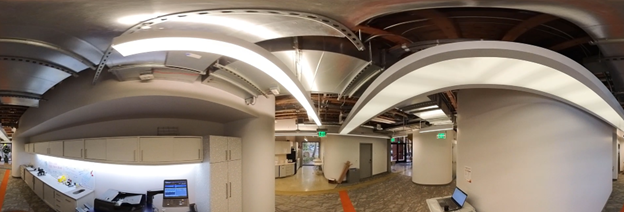
Extract images from 360-video to an oriented imagery dataset
To extract images from a 360 video file for use in ArcGIS Indoors, complete the following steps:
Start ArcGIS Pro.
Sign in to your ArcGIS organization if necessary.
Optionally, add the Levels feature class from an Indoors workspace to the map.
If necessary, create an oriented imagery dataset using the Create Oriented Imagery Dataset tool.
Note:
The oriented imagery dataset must be z-enabled and should be in the same coordinate system as the Levels layer, if it is present in the map.
On the Analysis tab, click Tools
 .
.The Geoprocessing pane appears.
In the Geoprocessing pane, click the Toolboxes tab.
Expand Indoors Tools and click 360 Video To Oriented Imagery.
The 360 Video To Oriented Imagery tool opens in the Geoprocessing pane.
For the Input 360 Video parameter, choose the input
.mp4file that contains the 360-degree video to be imported.Optionally, if the selected 360 video is time compressed, set the Video Capture Type parameter to the appropriate time compression method: Speed (Multiple) or Interval (Seconds). By default, this parameter is set to Real-time which represents a video recorded without any time compression.
Real-time—The video plays at normal speed (no time-compression). The parameter is set to Real-time by default.
Speed (Multiple)—The video was recorded faster than real time, expressed as a multiple. For example, a “2x speed” video makes movement look twice as fast as normal.
Interval (Seconds)—The camera captured a single frame every set number of seconds, instead of continuous video. For example, a “0.5-second interval” means the camera captured one frame every half second.
Note:
If you are unsure if the 360 video is time compressed, first check any metadata provided with the file, such as a ReadMe, export report, or other supplemental documentation. The video file name may also include indicators of the capture rate. If no metadata is available, contact the camera operator or data provider to confirm the capture rate. When that is not possible, you may compare your video’s playback behavior with sample reference videos recorded at known compression levels (that is, 2×, 5×, or 15×) to make an informed estimate. Even a rough estimate can produce usable results.
- If Video Capture Type is set to Speed (Multiple) or Interval (Seconds) , set the Video Capture Rate parameter to specify the value of the speed or interval. Examples:
For a video captured at 5x speed, set the Video Capture Type parameter to Speed (Multiple) and the Video Capture Rate parameter to 5.
For a video captured at half-second intervals, set the Video Capture Type parameter to Interval (Seconds) and the Video Capture Rate parameter to 0.5.
For the Target Oriented Imagery parameter, choose the target oriented imagery dataset that will be populated with the extracted photo features.
The target oriented imagery dataset must be z-enabled. If the target oriented imagery layer is shared as a web layer, it must also have attachments enabled.
For the Target Image Folder parameter, choose the destination folder to which images will be extracted from the
.mp4file.Folders on local and network drives are supported.
Optionally, specify a value for the Control Point 1 parameter:
Playback the video in a video player and pause when the camera reaches an identifiable location on the map, such as a corridor intersection or landmark.
Tip:
To improve georeferencing accuracy, select video times that are at least 5 real-time seconds from the start or end of the video segment. You can also identify camera locations on opposite sides of a level to improve accuracy.
Type the video timestamp of the identified location in the Video Time text box, in HH:MM:SS.SSS format.
Tip:
For more accurate results, use a video player that shows the elapsed (playback) time down to the millisecond.
Click edit
 to add a point to the map in a new layer representing the identified location.
Tip:
If you previously created a control point using the tool, you can select it in the drop-down menu next to the Camera Location parameter. The selected layer must contain only one control point feature, or a single point feature must be selected from the layer.
If you specified a value for the Control Point 1 parameter, repeat the steps for the Control Point 2 parameter.
Optionally, for the Input Level Features parameter, choose the levels layer from the Indoors workspace.
This tool populates the
LEVEL_IDvalue for the extracted images in the oriented imagery layer. Confirm or provide new values for Level and Floor Field parameters:For the Level parameter, choose the building level where the extracted images are located.
For the Floor Field parameter, specify the field in the oriented imagery layer that the
LEVEL_IDvalues will be written to.If the specified floor field does not exist it will be created.
Providing these values allows you to enable floor-awareness for the oriented imagery layer.
For the Extraction Interval parameter, provide a value to specify a time interval at which you want images to be extracted along the video path. For example, an adult camera operator walking about 3 mph (5kph) would move about 9 feet (3 meters) in two seconds.
The default is 2 seconds.
Note:
The tool measures the time between output images in real time. Use the same value for a time-compressed video as you would for a real-time video.
For the Start Timestamp and End Timestamp parameters, provide values indicating the start and end times of the segment of video from which you want images to be extracted.
By default, the tool will process the entire video.
Optionally, use the Mask Lower Portion parameter to black out the bottom of the output images.
When you specify a value, that percentage of the bottom of each image will be blacked out. You can use this parameter to hide the camera operator if the camera was positioned overhead. A value of 20 is a good place to start; If needed, you can increase or decrease the value to mask the camera operator while keeping as much of the image visible as possible.


Examples showing the Mask Lower Potion parameter set to 0, 20, and 25 percent. The top row shows a horizon-oriented view, and the bottom row shows a downward view from above the camera operator for each of the configured mask values. Click Run.
The tool creates point features in the oriented imagery dataset that contain file path information for where the images are stored in the target image folder.
Note:
If you choose an oriented imagery layer shared as a hosted feature service, the 360 Video To Oriented Imagery tool will also import images as feature attachments.
The images are now added as features to the oriented imagery dataset. You can configure the oriented imagery layer as floor aware, inspect the output, and share as a service in floor-aware maps and apps.
Inspect the oriented imagery
The 360 Video to Oriented Imagery tool uses visual simultaneous location and mapping (VSLAM) to determine the relative position of the output features. You can use the oriented imagery viewer to inspect the output features and make any necessary adjustments.
To inspect the oriented imagery features, complete the following steps:
Start ArcGIS Pro.
Open a floor-aware indoor map in a new or existing project.
Use the floor filter to navigate to the floor where the imported images were captured.
If needed, add the oriented imagery layer to the map.
Zoom to the extent of the oriented imagery layer.
Verify the oriented imagery features are positioned correctly:
If features are missing for a segment of the footage, or if features seem to drift out of position, you can try re-running the tool with adjusted extraction settings to process the affected segment of video footage.
If features are not positioned correctly relative to the indoor map, you can georeference all the features together using the Transform Features tool, or select and move features using the Move, Rotate, and Scale tools as needed.
Select the oriented imagery layer in the Contents pane. On the Oriented Imagery Layer tab of the ribbon, click Explore Images.
The Oriented Imagery Viewer pane appears.
Click the map near one of the oriented imagery features.
The 360-degree image associated with the feature opens in the Oriented Imagery Viewer pane. A red frustum appears on the map near the feature, indicating the portion of the image visible in the Oriented Imagery Viewer pane.
Note:
If the red frustum does not appear on the map, you can enable it by clicking Current Footprint on the Oriented Imagery Layer tab of the ribbon.
Pan to look in a known direction, such as along a corridor, and zoom the image all the way in.
Verify the image's
Camera Headingfield value is correct:If the frustum is pointing in a different direction than the image perspective, use the Measure Angle tool on the Map tab to determine the difference in viewing angle, and then use the Calculate Field tool to edit the
Camera Headingfield value.For example, if the frustum is pointing 23 degrees to the right of the actual view from the image, you would decrease the
Camera Headingfield value by 23 using the expression!CameraHeading! - 23in the Calculate Field tool.
Share floor-aware oriented imagery as a service
You can use the Generate Service From Oriented Imagery Dataset tool to publish a hosted feature service from an oriented imagery dataset and add the extracted images as feature attachments. You can then add the oriented imagery feature layer to a floor-aware map and visualize your 360-degree images in apps including Indoors Viewer and Map Viewer.
To create a hosted oriented imagery layer and share it in a floor-aware web map, complete the following steps:
Start ArcGIS Pro.
Sign in to your ArcGIS organization if necessary.
Add the oriented imagery dataset to a new or existing map.
On the Analysis tab, click Tools
.The Geoprocessing pane appears.
In the Geoprocessing pane, click the Toolboxes tab.
Expand Oriented Imagery Tools > Manage and click Generate Service From Oriented Imagery Dataset.
The Generate Service From Oriented Imagery Dataset tool opens in the Geoprocessing pane.
Check the Add images as attachments check box to attach the extracted 360-degree images to their corresponding point features in the hosted feature layer.
Configure the remaining tool parameters as necessary.
Note:
A footprint layer is not required.
Click Run.
The oriented imagery data is published as a hosted feature layer with image attachments as a feature service to the active ArcGIS organization.
Add the published oriented imagery layer to an existing floor-aware web map from the Portal tab of the Catalog pane, or to a new floor-aware map.
Configure the oriented imagery layer as floor-aware.
Save the map if using an existing web map, or share the new map to your ArcGIS organization.
You can open the web map in Map Viewer and view 360-degree images using the oriented imagery viewer. You can also use the web map to create apps that support oriented imagery.