Event creation using the attribute table
 Available with the Linear Referencing license.
You can add an event to an event layer in a feature service by adding a row to the layer's attribute table. ArcGIS Pro creates an event record when you provide at least a route ID and measures.
Before editing a feature service, you must share branch versioned linear referencing system (LRS) data as a web layer. If the feature service is not yet published, see Share as web layers.
Tip:
Right-click the event layer to which you want to add an event, and choose Attribute Table to open its attribute table. To add an event record, click in the first empty row, and provide at least a route ID and measures for the event.
If a message regarding acquiring locks or reconciling appears, it means that conflict prevention is enabled.
Depending on the event type—point event, line event, or spanning line event—provide the following values to generate the event shape on the map:
To add a point event to a point event layer using its attribute table, you must include a route ID and a measure.
To add a line event to a line event layer using its attribute table, you must include a route ID, starting measure, and ending measure.
To add a spanning event, you must include the starting route ID, ending route ID, starting measure, and ending measure.
After you edit the attribute table row, ArcGIS Pro updates the system-provided location error value to indicate the status.
Events that have stationing and referents configured are supported in ArcGIS Pro. When editing a referent or stationing event in the attribute table, you can provide the values for the stationing or referent columns; however, the event is drawn based only on the values provided in the measure fields.
You can provide an event ID; if you don't, the system automatically generates a GUID that serves as the event ID.
Location errors
Location errors allow you to identify data quality issues with LRS events. When you accurately define an event using the attribute table or another method, the Location Error field contains a No Error value.
Additionally, if the feature is added outside the tolerance value and the route ID or measures are not detected, a location error occurs.
Note:
You can also review a complete list of location errors.
Any of the following statuses indicate a problem that should be resolved:
| Location error | Description |
|---|---|
| Different From Route And To Route Line IDs | The starting route and the ending route have different line IDs. This is applicable to events associated with line networks. |
| Invalid Dates | The event's end date is before the event's start date. |
| Invalid Route Line ID | The route's line ID is invalid. This is applicable to events associated with line networks. |
| Invalid Route Line Order | The route's line order is invalid. This is applicable to events associated with line networks. |
| Invalid Location Route ID | The route location's route ID is invalid (NULL, empty, or invalid value). |
| Invalid Location Measure | At least one of the route location's measure values is invalid. |
| Invalid Route ID | The route location's route ID is invalid (NULL, empty, or invalid value). |
| Measure Extent Out Of Route Measure Range | The route location's shape doesn't exist on the route. The route has no m-values, or the route location's measures don't exist on the route. |
| Multiple Route Locations Found | More than one point location was found. Measures may not be unique along the routes. |
| Null Extent | The start measure is equal to the end measure. |
| Parent Event Not Found | The route location's shape was not found because the start measure and the end measure are outside the route measures. |
| Partial Match For The From Measure and To Measure | The start measure and the end measure are outside the route measure range. |
| Partial Match For The From Measure | The start measure is outside the route measure range. |
| Partial Match For The To Measure | The end measure is outside the route measure range. |
| Reversed Line Order | The starting route does not have a lower line order than the ending route. This is applicable to events associated with line networks. |
| Route Measures Null | The route does not have m-values, or the m-values are null. |
| Route Not Found | The route does not exist in the time slice in which the event is active. |
| Route Shape Empty | The route does not have a shape, or the shape is empty. |
| Route Not M Aware | The route is not an m-aware line. |
| Location error | Description |
|---|---|
| Different From Route And To Route Line IDs | The starting route and the ending route have different line IDs. This is applicable to events associated with line networks. |
| Invalid Route Line ID | The route's line ID is invalid. This is applicable to events associated with line networks. |
| Invalid Location Route ID | The route location's route ID is invalid (NULL, empty, or invalid value). |
| Invalid Location Measure | At least one of the route location's measure values is invalid. |
| Invalid Route ID | The route location's route ID is invalid (NULL, empty, or invalid value). |
| Measure Extent Out Of Route Measure Range | The route location's shape doesn't exist on the route. The route has no m-values, or the route location's measures don't exist on the route. |
| Multiple Route Locations Found | More than one point location was found. Measures may not be unique along the routes. |
| Null Extent | The start measure is equal to the end measure. |
| Parent Event Not Found | The route location's shape was not found because the start measure and the end measure are outside the route measures. |
| Partial Match For The From Measure and To Measure | The start measure and the end measure are outside the route measure range. |
| Partial Match For The From Measure | The start measure is outside the route measure range. |
| Partial Match For The To Measure | The end measure is outside the route measure range. |
| Reversed Line Order | The starting route does not have a lower line order than the ending route. This is applicable to line networks. |
| Route Location Not Found | The route location's shape doesn't exist on the route. The route has no m-values, or the route location's measures don't exist on the route. |
| Route Not Found | The route does not exist. This may be due to the route not existing in the network or the route and event having different time ranges that do not overlap. |
| Route Shape Empty | The route does not have a shape, or the shape is empty. |
Scenarios for adding a line event using the attribute table
The scenarios below detail the results of adding a line event to an event layer by opening its attribute table and adding a new row to associate an Event 1 to Route 1.
Note:
When adding an event using the attribute table, if a route has multiple time slices and the new event has its start date and end date both set as <Null>, the event is added to the latest time slice of the route.
Line event creation
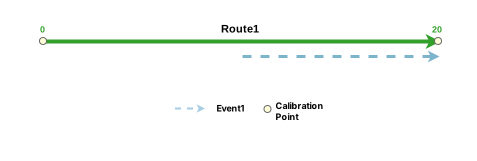
In the following example, Route 1 has measures from 0 to 20 before a line event is associated with it.

The following table details the route attributes. Valid measures for an event on Route 1 must be between 0 and 20, and valid dates must fall on 1/1/2000 or later.
| Route ID | From Date | To Date |
|---|---|---|
| Route1 | 1/1/2000 | <Null> |
The following table details the event when it is resolved to the No Error value in the Location Error field:
| Event | Route ID | From Date | To Date | From Measure | To Measure | Location Error | MAOP Design |
|---|---|---|---|---|---|---|---|
| Event1 | Route1 | 1/1/2000 | <Null> | 10 | 20 | No Error | 800 |
| Event | Route ID | From Date | To Date | From Measure | To Measure | Location Error | Speed Limit |
|---|---|---|---|---|---|---|---|
| Event1 | Route1 | 1/1/2000 | <Null> | 10 | 20 | No Error | 55 |
The following diagram shows the route and its associated event after its shape is generated:
Line event creation resulting in a location error
In the following example, Route 1 has measures from 0 to 20 before a line event is associated with it.
The following table details the route attributes. Valid measures for an event on Route 1 must be between 0 and 20, and valid dates must fall on or after 1/1/2000.
| Route ID | From Date | To Date |
|---|---|---|
| Route1 | 1/1/2000 | <Null> |
The following table details the event when it is resolved to the Partial Match For To Measure value in the Location Error field. In this case, the match is partial because the route ends at 20, not 30. The event shape is generated but ends at the route's actual end measure of 20.
| Route ID | From Date | To Date | From Measure | To Measure | Location Error | MAOP Design |
|---|---|---|---|---|---|---|
| Route1 | 1/1/2000 | <Null> | 10 | 30 | Partial Match for To Measure | 800 |
| Route ID | From Date | To Date | From Measure | To Measure | Location Error | Speed Limit |
|---|---|---|---|---|---|---|
| Route1 | 1/1/2000 | <Null> | 10 | 30 | Partial Match for To Measure | 55 |
In such a case, provide a valid end measure for the route to resolve the location error.
The following diagram shows the event on Route 1:
Scenarios for adding a spanning event using the attribute table
The scenarios below detail the results of adding spanning event values in the layer's attribute table.
Spanning event creation
The following diagram shows the routes and their associated event before the edit:
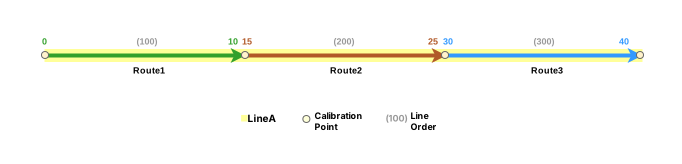
The following table details the route attributes. Valid measures for an event on Line A must be between 0 on Route 1 and 40 on Route 3, and valid dates must fall on or after 1/1/2000.
| Route ID | From Date | To Date |
|---|---|---|
| Route1 | 1/1/2000 | <Null> |
| Route2 | 1/1/2000 | <Null> |
| Route3 | 1/1/2000 | <Null> |
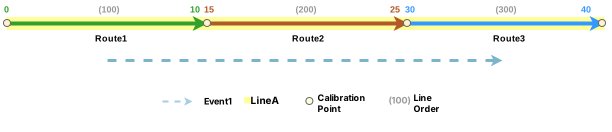
When the From Route ID, From Measure, To Route ID, To Measure, date, and other attributes are provided in the attribute table, the location error is calculated and a shape is generated for the event. In this case, Event 1 is a spanning event that has measures from 5 on Route 1 to 35 on Route 3.
| Event | From Route ID | To Route ID | From Date | To Date | From Measure | To Measure | Location Error | MAOP Design |
|---|---|---|---|---|---|---|---|---|
| Event1 | Route1 | Route3 | 1/1/2000 | <Null> | 5 | 35 | No Error | 800 |
| Event | From Route ID | To Route ID | From Date | To Date | From Measure | To Measure | Location Error | Speed Limit |
|---|---|---|---|---|---|---|---|---|
| Event1 | Route1 | Route3 | 1/1/2000 | <Null> | 5 | 35 | No Error | 55 |
The following diagram shows the routes after the spanning line event is added:
Spanning event creation resulting in a location error
The following diagram shows the routes and their associated event before the edit:
The following table details the route attributes. Valid measures for an event on Line A must be between 0 on Route 1 and 40 on Route 3, and valid dates must fall on or after 1/1/2000.
| Route ID | From Date | To Date |
|---|---|---|
| Route1 | 1/1/2000 | <Null> |
| Route2 | 1/1/2000 | <Null> |
| Route3 | 1/1/2000 | <Null> |
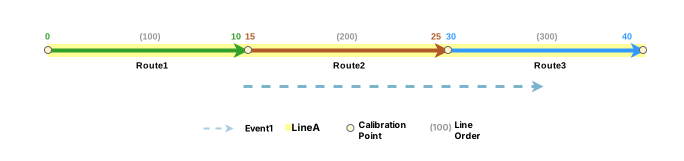
The following table details the event when it is resolved to the Partial Match For The From Measure value in the Location Error field. Since a valid event on Route 2 can exist only between the measures 15 and 25, the event shape is generated using 15.
| Event | From Route ID | To Route ID | From Date | To Date | From Measure | To Measure | Location Error | MAOP Design |
|---|---|---|---|---|---|---|---|---|
| Event1 | Route2 | Route3 | 1/1/2000 | <Null> | 10 | 35 | Partial Match For From-Measure | 800 |
| Event | From Route ID | To Route ID | From Date | To Date | From Measure | To Measure | Location Error | Speed Limit |
|---|---|---|---|---|---|---|---|---|
| Event1 | Route2 | Route3 | 1/1/2000 | <Null> | 10 | 35 | Partial Match For From-Measure | 55 |
In such a case, provide a valid measure for Route 2 in the From Measure cell to resolve the location error.
The following diagram shows the routes after the spanning line event is added:
Referent offset and event creation using the attribute table
The LRS events data model supports the configuration of event referent fields and their enablement using the Enable Referent Fields tool. Once referent fields are configured and enabled in a layer, referent locations are populated and persisted in that layer when events are added or edited.
When an event is created using the attribute table, it inherits the route and measure behavior for a referent-enabled layer.
If either measure of a line event is updated, the corresponding offset value updates to reflect the new measure.
The examples below demonstrate the impact of creating event records in a referent-enabled layer by adding a row to the attribute table.
Before adding a line event with referents
The following diagram shows the route before event creation using the attribute table:
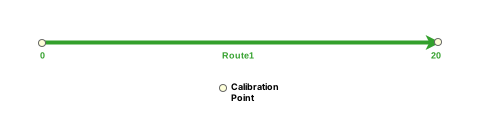
The following table provides details about the route:
| Route ID | From Date | To Date |
|---|---|---|
| Route1 | 1/1/2000 | <Null> |
After adding a line event with referents
The following diagram shows a line event that has been added to an event layer that has referents enabled:
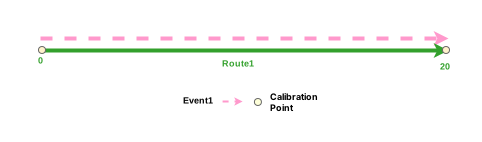
The following table provides details about the event referent fields after event creation:
| FromRefMethod | FromRefLocation | FromRefOffset | ToRefMethod | ToRefLocation | ToRefOffset |
|---|---|---|---|---|---|
| PipeSeriesNetwork | Route1 | 0 | PipeSeriesNetwork | Route1 | 20 |
| FromRefMethod | FromRefLocation | FromRefOffset | ToRefMethod | ToRefLocation | ToRefOffset |
|---|---|---|---|---|---|
| AllRoutes | Route1 | 0 | AllRoutes | Route1 | 20 |
The following table provides details about the default event fields after event creation:
| Event ID | From Date | To Date | From Measure | To Measure |
|---|---|---|---|---|
| Event1 | 1/1/2000 | <Null> | 0 | 20 |
You can edit the event using the attribute table so that it uses referents other than the default values. If subsequent route edits are made, the RefMethod and RefLocation values revert to the parent LRS Network and the route, respectively.