Append (Data Management Tools)
Summary
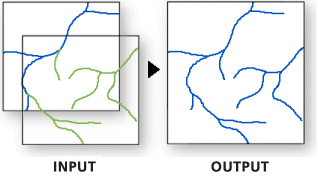
Appends to, and optionally updates, an existing target dataset with multiple input datasets. Input datasets can be feature classes, tables, shapefiles, rasters, or annotation or dimension feature classes. The inputs can also be hosted feature services.
To combine input datasets into a new output dataset, use the Merge tool.
Illustration
Usage
Use this tool to add new features or other data from multiple datasets to an existing dataset. This tool can append point, line, or polygon feature classes, tables, rasters, annotation feature classes, or dimension feature classes to an existing dataset of the same type. For example, several tables can be appended to an existing table, or several rasters can be appended to an existing raster dataset, but a line feature class cannot be appended to a point feature class.
Use the Field Map parameter to control how the attribute information from the input dataset fields is transferred to the target dataset. The Field Map parameter can only be used if Use the field map to reconcile field differences is specified for the Field Matching Type parameter.
Use the Field Map parameter to map or match the fields from the input datasets to fields in the target dataset.
Use an action to determine how the values from one or multiple fields from the input dataset will be mapped to a single field from the target dataset.
The available actions are First, Last, Concatenate, Sum, Mean, Median, Mode, Minimum, Maximum, Standard Deviation, and Count.
When using the Concatenate action, you can specify a delimiter such as a comma or other characters. Click the start of the Delimiter text box to add the delimiter characters.
Standard Deviation is not a valid option for single input values.
Use the Export option
 to save a field map as a
 .fieldmapfile.Use the Load option
 to load a
 .fieldmapfile. The feature layer or dataset specified in the file must match the dataset used in the tool. Otherwise, the Field Map parameter will be reset.Use the Slice Text button
 on text source fields to choose which characters from an input value will be extracted to the target field. To access the Slice Text button, hover over a text field in the input fields list; then specify the start and end character positions.
Fields can also be mapped in a Python script.
In Python, when using the
FieldMappingsobject for thefield_mappingparameter, add the fields from the target dataset first as shown in the code below. Input fields are mapped to the schema of the target fields. When the input fields are added first, the field map may reset or behave unexpectedly.fieldmappings = arcpy.FieldMappings() fieldmappings.addTable(target) fieldmappings.addTable(input)This tool will not planarize features when they are added to the target dataset. All features from both the input feature class and the target feature class will remain intact after the append, even if the features overlap. To combine, or planarize, feature geometries, use the Union tool.
If the Field Matching Type parameter is set to Input fields must match target fields, the schema of the input datasets must match that of the target dataset to append features.
If the Field Matching Type parameter is set to Use the field map to reconcile field differences, the schema does not need to match. Fields from the input datasets that do not match the fields of the target dataset will not be mapped to the target dataset unless the mapping is set in the Field Map parameter. Fields in the target dataset that are not mapped to fields from the input datasets will contain null values.
If the Field Matching Type parameter is set to Skip and warn if schema does not match, the schema of the input datasets must match that of the target dataset for features to be appended. If an input dataset contains fields that do not match fields in the target dataset, that input dataset will be omitted.
The number of appended rows are displayed in the tool messages and returned by the Appended Row Count output.
Because the data of the input datasets is written to an existing target dataset that has a predefined schema, you can't use the Field Map parameter to add or remove fields from the target dataset.
You can use this tool to insert new records and update existing records in a target dataset in the same operation (equivalent to an
UPSERTdatabase operation). Use the Matching Fields for Update parameter to specify the fields from the input dataset to match to the fields in the target dataset. For records with matching field values, any fields in the target record will be updated with values from fields with the same name in the input record. The number of updated rows with matched fields will be displayed in the tool messages and returned by the Updated Row Count output. Geometry will be updated if the Update Geometry parameter is checked.The input and target datasets may have different spatial references. When this is the case, the tool projects the input features to the target's coordinate system. For best results, specify an appropriate geographic transformation using the Geographic Transformations environment. If the target dataset is a map layer, the tool may apply a default transformation. In Python, there is no default transformation.
This tool does not perform edge matching; no adjustment to the geometry of features will be made.
Map layers can be used as Input Datasets parameter values. If a layer has a selection, only the selected records (features or table rows) will be used.
You can't use multiple input layers with the same name in this tool. Instead, use the browse button in the Geoprocessing pane to browse to the full paths of each of the Input Datasets values.
If an input dataset and the target dataset have the same name, the tool will have reduced performance.
To use the Subtype parameter, the target dataset must have a defined subtype field and assigned subtype codes. In the Subtype parameter, provide a subtype description to assign that subtype to all new data that is appended to the target dataset.
Use the Enforce Domains parameter to enforce attribute domains for fields in the target dataset. When this parameter is checked, the tool will honor the domain values defined in the target dataset. Data from the input fields that do not conform to these domain values will be inserted as Null values.
The following relate to updating the target dataset fields:
Use this tool to insert new records and update existing records in a target dataset in the same operation (equivalent to an
UPSERTdatabase operation). Use the Matching Fields for Update parameter to specify the fields from the input dataset to match to the fields in the target dataset.By default, for records that contain matching field values, fields in the target record will be updated with values from the input if they have the same field name. The number of updated rows with matched fields will be displayed in the tool messages and returned by the derived Updated Row Count parameter.
The Candidate Fields parameter can be used to selectively update or insert fields in the target dataset. For example, for a target dataset that contains fields named
f1,f2,f3, andf4, you can specify that only thef3andf4fields will be updated for target rows. For insert operations, only thef3andf4fields will be inserted.Geometry will be updated if the Update Geometry parameter is checked.
To update only geometry and not attribute fields in the target dataset, ensure that that the Update Geometry parameter is checked and that the Shape field is the only field specified in the Candidate Fields parameter. If the target is a feature service, see further below in the Usage section.
The Skip Options parameter has the following options to control the behavior of updated and inserted rows:
- Do not skip updates or inserts—All rows with matching fields will be updated in the target, and all unmatched rows from the input will be inserted.
- Skip inserts for unmatched rows (update only)—All rows with matching fields will be updated in the target. Unmatched rows from the input dataset will not be inserted.
- Skip updates for matched rows (insert only)—No rows with matching fields will be updated in the target. Only unmatched rows from the input will be inserted.
The following relate to feature services:
For optimal performance, use this tool directly on the back-end data store, server, or database for web feature layers. For feature services that reference a geodatabase, use a database connection to perform large data loading operations directly to the underlying database. For hosted services on ArcGIS Enterprise, use the
appendoperation from the feature layer item page or ArcGIS REST API.For optimal performance with hosted services on ArcGIS Online and ArcGIS Enterprise, administrators and service owners can use this tool with the ArcGIS REST API when the
supportAppendproperty istrue. Feature service append capabilities must be enabled for users who are not administrators to use this tool with the ArcGIS REST API. For ArcGIS Enterprise hosted feature layers, theUploadscapability must be enabled.The Optimize performance for feature services parameter is only supported when the target dataset supports feature service append capabilities. When this parameter is checked, the tool will do the following:
The tool will use the ArcGIS REST API for optimal performance.
The Input Datasets parameter will be limited to one dataset.
The Expression and Enforce Domains parameters will not be supported.
The Matching Fields for Update parameter will be limited to one pair of matching fields.
All update and insert operations will be counted in the output Appended Row Count value.
When this tool is run in an existing edit session or the Enable Undo toggle button is turned on, the Optimize performance for feature services parameter will be ignored.
If the Optimize performance for feature services parameter is checked and the Matching Fields for Update parameter values have a matching
Global IDfield, Global ID values will be preserved. If theGlobal IDfields are not included, all input rows will be inserted and assigned new Global ID values.To update only the geometry of the target dataset, check the Update Geometry parameter, and ensure that the Candidate Fields parameter contains only the name of the match field. For example, if the Matching Fields for Update parameter value uses the
globalidfield, then the Candidate Fields parameter should contain only theglobalidfield.
Parameters
| Label | Explanation | Data type |
|---|---|---|
|
Input Datasets |
The input datasets containing the data that will be appended to the target dataset. Input datasets can be point, line, or polygon feature classes, tables, rasters, annotation feature classes, or dimensions feature classes. Tables and feature classes can be combined. If a feature class is appended to a table, attributes will be transferred; however, the features will be dropped. If a table is appended to a feature class, the rows from the input table will have null geometry. |
Table View; Raster Layer |
|
Target Dataset |
The existing dataset where the data of the input datasets will be appended. |
Table View; Raster Layer |
|
Field Matching Type (Optional) |
Specifies whether the fields of the input datasets must match the fields of the target dataset for data to be appended.
|
String |
|
Field Map (Optional) |
The field map parameter controls the transfer or mapping of fields from the input datasets to the target dataset. It can only be used when the Field Matching Type parameter is set to Use the field map to reconcile field differences. Because the input datasets are appended to an existing target dataset with predefined fields, you cannot add, remove, reorder, or change the properties of the fields in the field map. The field map can be used to combine values from one or more input fields into a single output field. |
Field Mappings |
|
Subtype (Optional) |
The subtype description that will be assigned to all new data that is appended to the target dataset. |
String |
|
Expression (Optional) |
The SQL expression that will be used to select a subset of the input datasets' records. If multiple input datasets are specified, they will all be evaluated using the expression. If no records match the expression for an input dataset, no records from that dataset will be appended to the target dataset. For more information about SQL syntax, see SQL reference for query expressions used in ArcGIS. |
SQL Expression |
|
Matching Fields for Update (Optional) |
The fields from the input datasets that will be used to match to the target dataset. If the values of these fields match, records from the input datasets will update the corresponding records of the target dataset. Value table columns:
|
Value Table |
|
Update Geometry (Optional) |
Specifies whether geometry in the target dataset will be updated with geometry from the input datasets if the
|
Boolean |
|
Enforce Domains (Optional) |
Specifies whether the field domains of the target will be enforced.
|
Boolean |
|
Optimize performance for feature services (Optional) |
Specifies whether performance will be optimized when the target dataset is an ArcGIS Online or ArcGIS Enterprise feature service. This parameter is only active when the target dataset supports optimization.
|
Boolean |
|
Candidate Fields (Optional) |
The fields that will be updated or inserted in the target dataset. Use this parameter if you want a subset of fields to be updated or inserted in the target dataset. When inserting new records, fields that are not included in this list will have Null values. |
Field |
|
Skip Options (Optional) |
Specifies whether updates or inserts will be skipped when the Matching Fields for Update parameter is specified.
|
String |
Derived output
| Label | Explanation | Data type |
|---|---|---|
|
Updated Target Dataset |
The updated target dataset. |
Table View; Raster Layer |
|
Appended Row Count |
The number of rows appended to the target dataset. When the Optimize performance for feature services parameter is checked and the Matching Fields for Update parameter value is specified, all update and insert operations will be counted. |
Long |
|
Updated Row Count |
The number of rows updated in the target dataset. An updated row count will not be provided for target feature service datasets when the Optimize performance for feature services parameter is checked. |
Long |
Environments
Extent, Current Workspace, Preserve Global IDs, Maintain Attachments, Geographic Transformations
Special cases
- Preserve Global IDs
-
For the Append tool, this environment will only preserve Global ID values from the input dataset if the target Global ID field has a unique index. If the target Global ID field does not have a unique index, the tool may fail. To add a unique index to a Global ID field, use the Add Attribute Index tool.
If the target dataset contains a Global ID field and the input data does not, running the Append tool with this environment set to
Truewill automatically generate new Global ID values for inserted rows.This environment is ignored for target feature services. To preserve Global IDs for feature services that support optimization, check the Optimize performance for feature services parameter and specify GlobalID as the match fields in the Matching Fields for Update parameter.
Licensing information
- Basic: Yes
- Standard: Yes
- Advanced: Yes