Merge (Data Management Tools)
Summary
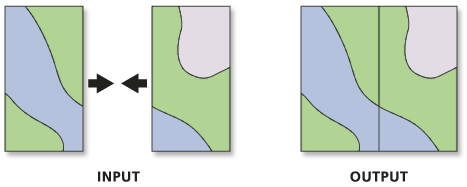
Combines multiple input datasets into a single, new output dataset. This tool can combine point, line, or polygon feature classes or tables.
Use the Append tool to combine input datasets with an existing dataset.
Illustration
Usage
Use this tool to combine datasets from multiple sources into a new, single output dataset. All input feature classes must be of the same geometry type. For example, several point feature classes can be merged, but a line feature class cannot be merged with a polygon feature class.
Tables and feature classes can be combined in a single output dataset. The output type is determined by the first input. If the first input is a feature class, the output will be a feature class. If the first input is a table, the output will be a table. If a table is merged into a feature class, the rows from the input table will have null geometry.
Use the Field Matching Mode parameter to specify how fields from the input datasets will be transferred to the output dataset. By default, the tool will map fields of the same name together, while fields that are unique to the inputs will be retained in the output. Use the Field Map parameter when the Use the field map to reconcile field differences option is specified. If all input datasets have the same schema, use the Use the schema of the first dataset only option for better performance.
Use the Field Map parameter to manage the fields and their content in the output dataset.
Add and remove fields from the fields list, reorder the fields list, and rename fields.
The default data type of an output field is the same as the data type of the first input field (of that name) it encounters. You can change the data type to another valid data type.
Use an action to determine how the values from one or multiple input fields will be merged into a single output field. The available actions are First, Last, Concatenate, Sum, Mean, Median, Mode, Minimum, Maximum, Standard Deviation, and Count.
When using the Concatenate action, you can specify a delimiter such as a comma or other characters. Click the start of the Delimiter text box to add the delimiter characters.
Standard Deviation is not a valid option for single input values.
Use the Export option
 to save a field map as a
 .fieldmapfile.Use the Load option
 to load a
 .fieldmapfile. The feature layer or dataset specified in the file must match the dataset used in the tool. Otherwise, the Field Map parameter will be reset.Use the Slice Text button
 on text source fields to choose which characters from an input value will be extracted to the output field. To access the Slice Text button, hover over a text field in the input fields list; then specify the start and end character positions.
Fields can also be mapped in Python script.
This tool will not split or alter the geometries from the input datasets. All features from the input datasets will remain intact in the output dataset, even if the features overlap. To combine, or planarize, feature geometries, use the Union tool.
If feature classes are being merged, the output dataset will be in the coordinate system of the first feature class specified for the Input Datasets parameter, unless the Output Coordinate System environment is set.
This tool does not support annotation feature classes. Use the Append Annotation Feature Classes tool to combine annotation feature classes.
This tool does not support raster datasets. Use the Mosaic To New Raster tool to combine multiple rasters into a new output raster.
Parameters
| Label | Explanation | Data type |
|---|---|---|
|
Input Datasets |
The input datasets that will be merged into a new output dataset. Input datasets can be point, line, or polygon feature classes or tables. Input feature classes must all be of the same geometry type. Tables and feature classes can be combined in a single output dataset. The output type is determined by the first input. If the first input is a feature class, the output will be a feature class. If the first input is a table, the output will be a table. If a table is merged into a feature class, the rows from the input table will have null geometry. |
Table View |
|
Output Dataset |
The output dataset that will contain all combined input datasets. |
Feature Class; Table |
|
Field Map (Optional) |
Use the field map to reconcile schema differences and match attribute fields between multiple datasets. The output includes all fields from the input datasets by default. Use the field map to add, delete, rename, and reorder fields, as well as change other field properties. The field map can also be used to combine values from two or more input fields into a single output field. |
Field Mappings |
|
Add source information to output (Optional) |
Specifies whether source information will be added to the output dataset in a new
|
Boolean |
|
Field Matching Mode (Optional) |
Specifies how fields from the input dataset will be transferred to the output dataset.
|
String |
Environments
Default Output Z Value, M Resolution, M Tolerance, Output XY Domain, Output Coordinate System, Extent, Current Workspace, Geographic Transformations, Scratch Workspace, Output has M values, Output has Z values, XY Resolution, XY Tolerance, Z Resolution, Z Tolerance, Output Z Domain, Output M Domain, Maintain Attachments, Transfer Geodatabase Field Properties, Preserve Global IDs
Licensing information
- Basic: Yes
- Standard: Yes
- Advanced: Yes